SDR-Control Mobile - Software user guide
1. About the App
SDR-Control for iPhone (also called SDR-Control Mobile) controls your Icom radio from your iPhone over the network: at home over WiFi, or from anywhere in the world over the internet. It works with the Icom radios that have a network interface: IC-705, IC-9700, IC-7610, IC-7760, IC-7300MK2 and IC-R8600.
The app is made for the small iPhone screen. The iPad has its own app, SDR-Control for iPad, with a large waterfall, floating tuning and PTT panels and the S.A.T. satellite tool.
1.1. What you can do
Listen and talk. Hear your radio on the iPhone’s speaker or on a headset such as AirPods, and talk through the iPhone’s microphone. No Mac or PC is needed.
Control the radio. Frequency, band, mode, filters, noise reduction, preamp, attenuator, squelch, split and much more, on the VFO screen. A small waterfall can be switched on when you need it.
Operate in many modes. The Modes tab has FT8, FT8-Improved, JS8, Speech, CW, HF-Fax, D-Star, SSTV, WSPR and APRS.
Use the tools. The Tools tab has a logbook, DX Cluster, POTA, PSK Reporter, memories, scanning, macros, controllers and more.
1.2. Local or remote
At home, the iPhone and the radio are in the same network. Away from home, the app reaches your radio over the internet with Remote Access: no server, no extra hardware and no extra software are needed, only some settings in your router. See Network considerations and Remote access.
1.3. Try it without a radio
The app comes with a Demo Radio (IC-705): an IC-705 in software, so you can try the app before you set up your radio, or without one at hand.
Tap Tap here to connect in the middle of the VFO screen.
In Available Radios, select Demo Radio (IC-705). It is the last entry of the list.
Tap Connect, or tap the entry twice.
The demo radio starts on 14.195 MHz in USB. On 20 m you hear SSB stations (around 14.160, 14.195 and 14.230 MHz) and CW stations in the lower part of the band. FT8 signals show on the waterfall on all bands, but they can’t be heard. The modes show example content while the demo radio is connected, so you can see how they look. Nothing is sent: the demo radio doesn’t transmit.
To hide the demo radio from the list, turn off Show Demo Device in the Settings tab, under Communication. More about it: The Demo Radio.
To set up your own radio, see Adding the radio to the app and the setup chapter of your radio, for example IC-705.
Note
The app shows and sets most values of the radio. The frequency and the waterfall come from the radio at once. Other values are asked from the radio at regular intervals, so a change made with the knobs of the radio can take a moment to show in the app, or doesn’t show at all. If you can, change the settings in the app.
1.4. Troubleshooting
If something doesn’t work, start with the Common Issues chapter at the end of this manual. If it doesn’t help, tap Get Help! in the Settings tab (under Information & Support), then Contact support.
2. The manual
This manual shows how to set up your Icom radio and the app, and how to use the app on the iPhone.
Where it makes sense, the app uses the same names and short forms as the Icom radio, for example P.Amp for the preamplifier or APF for the audio peak filter. This manual doesn’t explain them again: your radio’s Icom manual does.
Tap Show Manual at the top of the Settings tab to open this manual in the app. It is also on the web: https://go-to.me/sdrcontrol-mobile-manual.
To print the manual or save it as a PDF file, tap here.
The manual is updated from time to time, together with the app.
2.1. How this manual is organized
General: the app, the setup, the VFO screen, the settings, tuning and some advanced topics.
Tools: one chapter for each tool in the Tools tab.
Modes: one chapter for each mode in the Modes tab.
Attachment: how to set up each Icom radio, the network, remote access, the mapping editor and macros.
Common issues: the place to start when something doesn’t work.
3. Requirements
3.1. Radios
The app works with these Icom radios:
IC-705
IC-9700
IC-7610
IC-7760
IC-7300MK2
IC-R8600
The radio must be in your network: the IC-705 over Wi-Fi, the other radios with a network cable (LAN). The app connects over the network only, not over USB. Other radios are not supported.
Note
The older IC-7300 (without MK2) has no network connection, so it can’t work with this app. SDR-Control for Mac can use it over USB.
No special hardware is needed. A headset is handy for talking (SSB, AM, FM).
3.3. Your iPhone
iOS 18 or later. The newest iOS is always best: the app uses features of the newest version.
The modes FT8-Improved, JS8, Speech and WSPR need iOS 26 or later.
3.4. Buying the app
SDR-Control for iPad and SDR-Control for iPhone are two apps, each bought once in the App Store. With the same Apple ID you can use the app on all your devices of that kind, with as many Icom radios as you like. No further purchase is needed.
4. Setting Everything Up
Three steps bring you on the air:
Set up the radio, so the app can reach it over the network.
Add the radio to the app’s list of radios and connect.
Check a few settings once.
Without a radio you can still look around: the app has a demo radio. See The Demo Radio.
4.1. Setting up the radio
The radio needs only a few settings:
It is connected to your network: the IC-705 over Wi-Fi, the other radios with a network cable.
Network Control is on.
A Username and a Password are set (Network User1).
Each radio has its own chapter in the attachment of this manual, with the radio’s menus step by step: IC-705, IC-9700, IC-7610, IC-7760, IC-7300MK2 and IC-R8600. Please read it even if your radio is already set up. Note the radio’s IP address: the app needs it.
Read Your Network too: it explains how the radio keeps its IP address. To reach the radio from outside your home, see Remote Access, but first make the connection at home work.
4.2. Adding the radio to the app
Start the app. When iOS asks whether the app may find devices on your local network, tap Allow: without it the app can’t reach the radio. Allow the microphone too, if you want to talk through the device.
Tap Connect at the top right, or the middle of the screen. The list Available Radios opens. The first time, a hint explains the list: tap Ok.
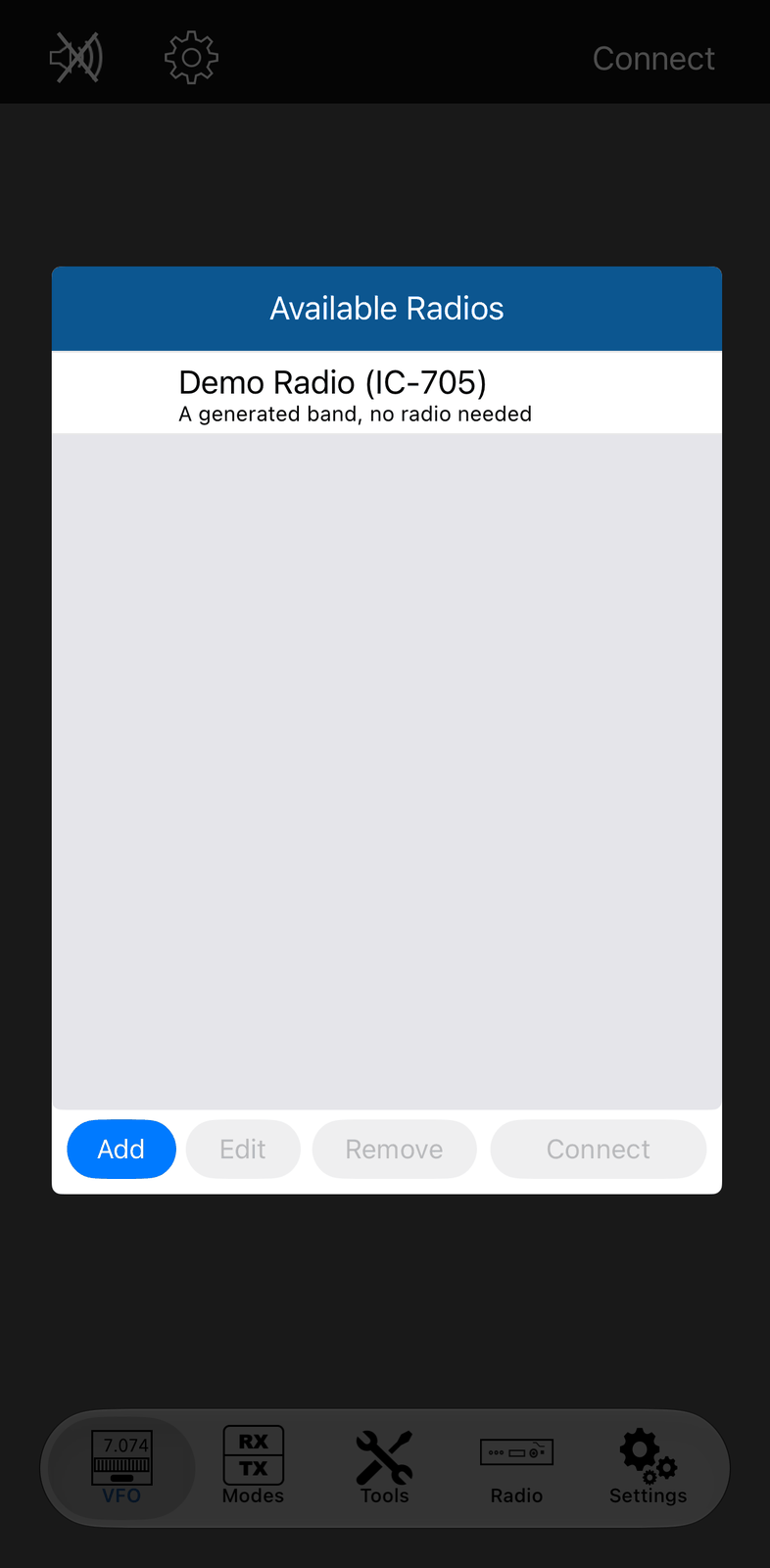
Tap Add and fill in the form:
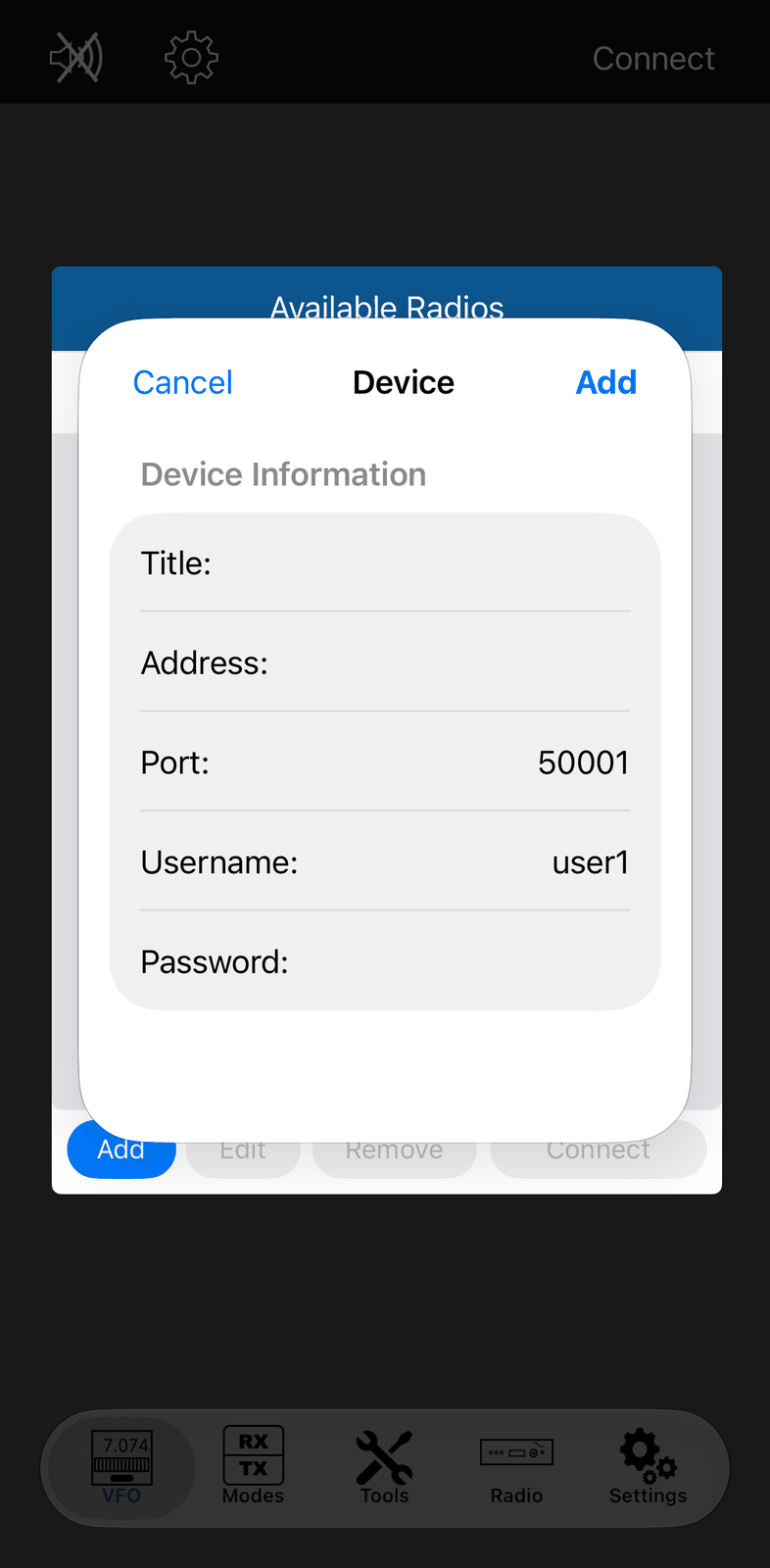
Title — a name for the radio in the list, for example
IC-705 home.Address — the radio’s IP address, or a host name.
Port — the radio’s Control Port, usually
50001.Username and Password — as set in the radio (Network User1).
Tap Add. The radio is now in the list.
Tap the radio in the list and tap Connect, or double-tap it.
The radio screen appears once the app is connected. Disconnect at the top right ends the connection.
4.2.1. The list of radios
Add adds a radio. Add the same radio twice when you reach it in two ways, for example
IC-705 homeandIC-705 remote.Edit changes the selected radio, Remove deletes it after you confirm.
Connect connects to the selected radio. While it connects, the row says
Trying to connect. For the radio that is connected, the button says Disconnect.Tap outside the list to close it.
To open the list again later: touch and hold Connect (or Disconnect) and choose Select Device, or tap ⚙︎ (the Settings tab) → Available Radios….
With iCloud on (app settings), your other devices get the same list of radios.
4.3. The Demo Radio
The last entry of the list, Demo Radio (IC-705) (A generated band, no radio needed), is not a real radio:
it is an IC-705 in software, inside the app. Use it to try the app without a radio, or to learn it before you go on the air.
Connect to it like to a real radio. You need no network and no settings.
It starts on 14.195 MHz USB. 20 m is busy: you see and hear SSB stations and CW, and FT8 shows on the scope. The other bands have their noise and FT8 on their FT8 frequency.
The buttons and panels work as with a real IC-705. Your settings are kept and read back.
The modes show demo traffic while it is connected, so you can see how they work. Nothing goes on the air: the demo radio never transmits, and nothing is sent to PSK Reporter or other services.
When you don’t need it any more, switch off Show Demo Device in the app’s settings (Communication). The demo radio can’t be edited or removed.
4.4. Final settings (important)
Once the app is connected to your radio, do these three things:
LAN Input Gain: set the audio level from the app to the radio before you use FT8 or another digital mode. It is in the radio’s settings: the tab with your radio’s model, for example IC-705 (its title is IC-705 Settings).
Settings after disconnect: choose how the app leaves the radio when it disconnects, for example the radio’s own microphone again. Also in the radio’s settings.
Network Stats (in the Tools tab): check the connection to your radio. Lost packets should be very rare, below 0.03 %. With more, look at your network first: see Common Issues.
5. The VFO screen
The VFO screen is where you work with the radio: you see the frequency and the meters, change band and mode, switch the radio’s functions, tune, and transmit.
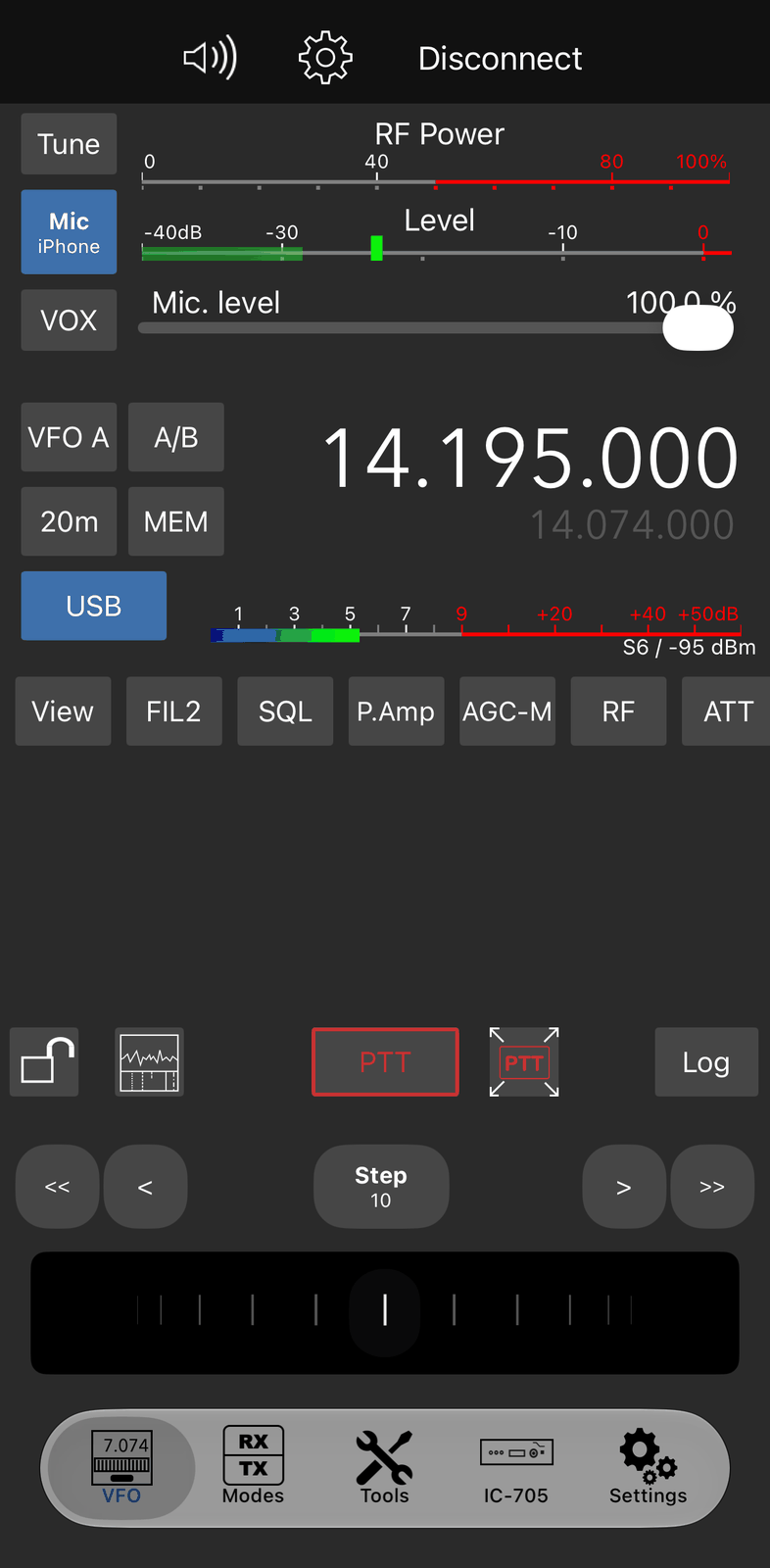
The tabs at the bottom of the app:
VFO — this screen.
Modes — the operating modes, such as FT8, JS8, CW and SSTV.
Tools — the tools, such as the logbook, DX Cluster and memories.
Radio — the settings of the connected radio. While connected, the tab shows the radio’s model, for example IC-705. See Settings.
Settings — the settings of the app.
5.1. Connecting
Without a connection, the screen shows You are not currently connected and Tap here to connect.
Tap Tap here to connect. Available Radios opens.
Select your radio and tap Connect, or tap the entry twice.
How to add your radio to the list: Adding the radio to the app. To try the app without a radio, connect to Demo Radio (IC-705), the last entry of the list (see Try it without a radio).
5.2. The top bar
The speaker mutes the radio’s audio and turns it on again. It shows a crossed speaker while muted.
⚙︎ opens the Audio Settings: the audio device, the volume, the speaker and the microphone. See Settings.
Disconnect ends the connection. The model of the connected radio (for example IC-705) shows on the radio’s tab at the bottom of the screen. When Ask before disconnect is on in the Settings tab, the app asks first. Touch and hold Disconnect for more:
Shut down — puts the radio in standby and disconnects.
Select Device — opens Available Radios, for example to switch to another radio.
Without a connection the button is called Connect. Touch and hold it for Select Device.
While the radio transmits, the top bar turns red and a red frame shows around the screen.
5.3. Tap, or touch and hold
Most buttons do something when you tap them, and show more when you touch and hold them. Tap SQL, for example, to switch the squelch on or off. Touch and hold SQL to set the squelch level:
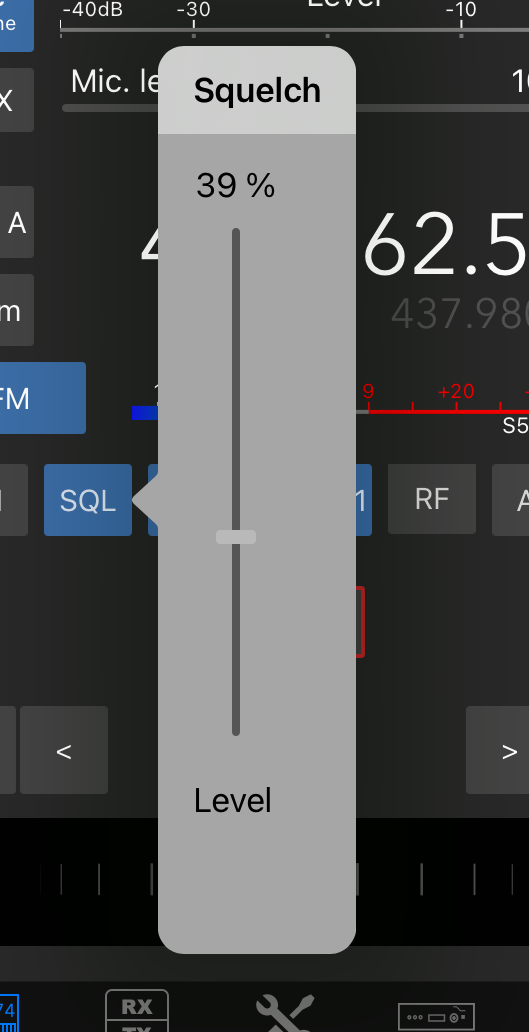
Buttons with a choice, for example Band, Mode or the filter, show their menu as soon as you tap them. A blue button is switched on.
Most buttons have the same names as on the radio. The radio’s Icom manual explains what they do.
5.4. The transmit part
The top part is about transmitting.
Tune starts the radio’s antenna tuner (only when your radio has one, or one is connected to it). A frame around Tune shows that the tuner is on. Touch and hold Tune for more:
ATU Enabled — switches the tuner on or off.
TX with 10% Signal — sends a steady signal for an external tuner, without using the radio’s tuner. The number is the Tuning Power (%) in the radio’s settings (Radio tab). Tap Tune again to stop. The app then sets the power and the mode back.
Mic shows the microphone source below its name, for example iPhone. While the source is the iPhone, tap Mic to switch the iPhone’s microphone on or off. Touch and hold Mic to choose the source:
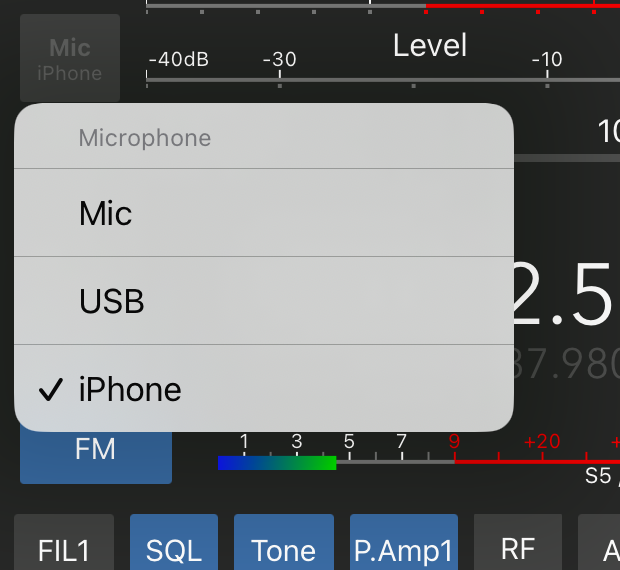
Choose iPhone to talk through the iPhone’s microphone or a headset connected to it. The other entries are the radio’s own inputs, for example Mic for the microphone at the radio.
VOX switches voice-controlled transmit on or off. While the source is the iPhone, it is the app’s VOX, otherwise the radio’s. Touch and hold VOX to set its level, delay and anti-VOX.
The top meter shows RF Power. Touch and hold it to choose another meter: Power Meter, ALC Meter, Id Meter (the current) or SWR Meter. When the SWR goes above 3, the app switches to the SWR meter by itself.
Level shows the level of the iPhone’s microphone (only while the source is the iPhone or USB).
Mic. level sets the microphone gain: of the iPhone’s microphone while the source is the iPhone, otherwise the radio’s mic gain.
5.5. The VFO part
The VFO button, for example VFO A or Main, shows which VFO you see. Tap it to switch to the other VFO (VFO B or Sub). Radios with only one VFO don’t show it.
A/B exchanges VFO A and VFO B. On radios with a main and a sub receiver it is called M/S and exchanges them.
Band chooses the band, for example 20m.
MEM opens the Memories panel (see Panels).
Mode chooses the mode, for example USB. DATA in the menu switches the data mode on or off; the button then shows -D, for example USB-D.
The large number is the frequency. Tap it to type a new frequency (see Frequency Tuning). The smaller number below it is the frequency of the other VFO.
The S-meter shows the signal, with the S value and the level in dBm next to it.
When the frequency is one of the radio’s memories, the memory’s name shows.
5.7. The bottom part
From left to right:
The lock locks the screen: the frequency, the buttons, the tuning wheel and the waterfall don’t react, so nothing changes when you touch the screen by mistake. Tap the lock again to unlock. PTT is locked too, unless Don’t lock PTT when UI is locked is on in the Settings tab.
The waterfall button switches the waterfall on and off. See The waterfall.
PTT transmits. With PTT toggle on in the Settings tab (the default), tap PTT to transmit and tap it again to stop. With PTT toggle off, the radio transmits while you hold PTT. PTT turns red while transmitting. A receiver such as the IC-R8600 has no PTT and no PTT focus button.
The PTT focus button (a small PTT sign) opens a very large PTT button on its own screen, easy to hit without looking. Swipe the screen down to close it. Show PTT Focus Button in the Settings tab shows or hides this button.
Log opens a new logbook entry, to log the QSO you are having. See the chapter Logbook.
Below them are the tuning buttons and the tuning wheel. See Frequency Tuning.
5.8. The waterfall
Tap the waterfall button to see the radio’s spectrum and waterfall. Tap it again to switch the waterfall off.
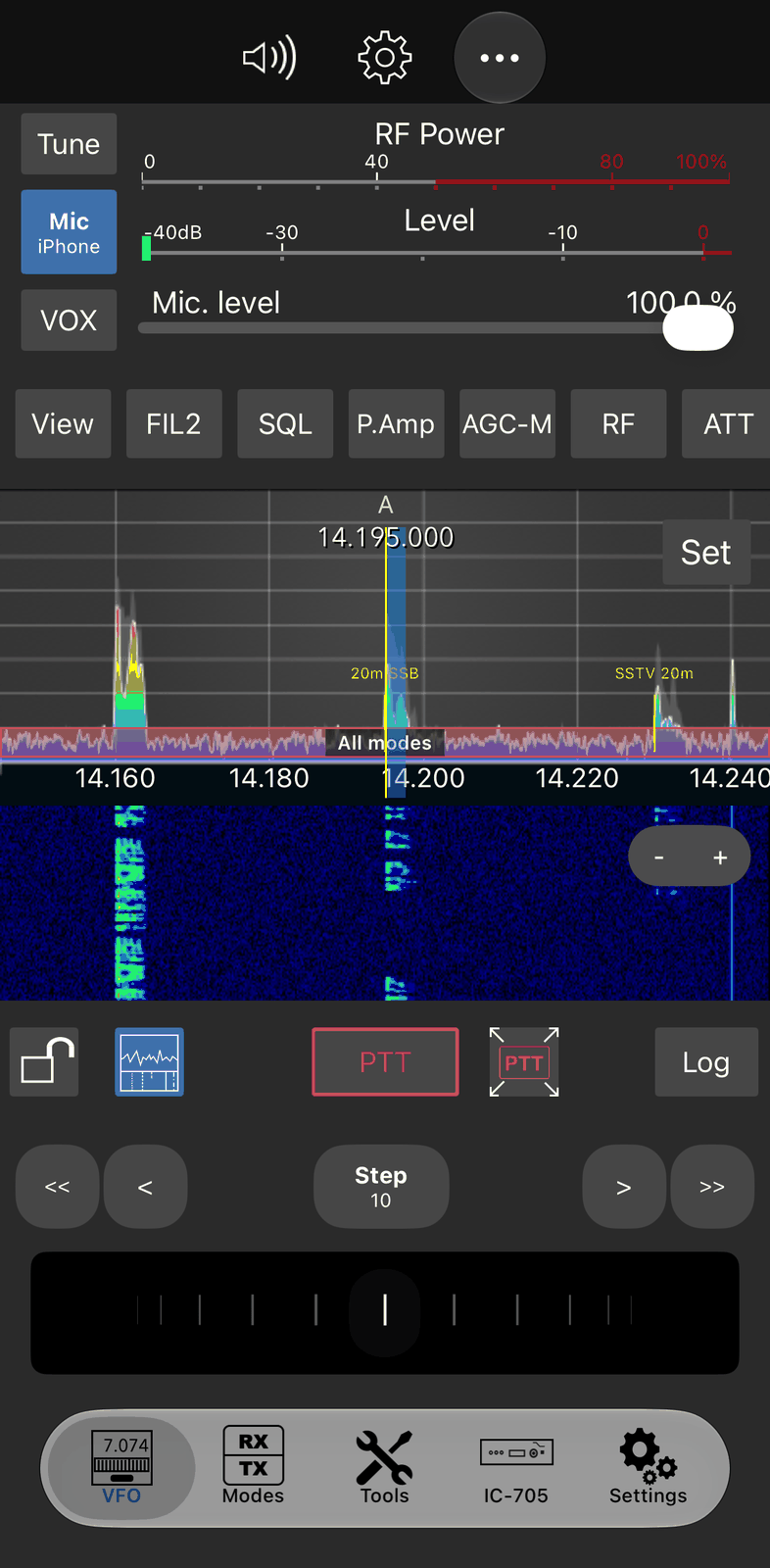
On the large iPhones (the Plus, Pro Max and Air models), the VFO part and one row of buttons stay above the waterfall.
On the other iPhones the VFO part stays too when there is enough room, for example with a receiver such as the IC-R8600. Otherwise the waterfall takes the place of the VFO part: one row of the button bar stays above the waterfall, and the frequency shows at the top of the waterfall.
The app starts with the waterfall off at each connection, except on the large iPhones, which keep it as you left it.
On the waterfall:
Drag sideways to tune. The frequency moves in steps of the Step setting. Drag with two fingers to tune in smaller steps.
Tap twice to tune to that frequency.
Tap a spot or a memory on the waterfall to tune to it.
Touch and hold the spectrum or the waterfall to put the FT8 audio frequency there: Set FT8 TX (transmit) or Set FT8 RX (receive). It sets both FT8 modes, FT8 and FT8-Improved.
Set at the top right opens the waterfall settings:
Span — how wide the spectrum is.
Speed — how fast the radio sends the spectrum.
Show TX — show the spectrum while transmitting.
Show peaks — show the peaks of the spectrum.
Ref: — the reference level: moves the spectrum up or down.
Scroll waterfall — when you tune, the waterfall moves sideways with the frequency, so the signals stay where they were heard.
Which spots show on the waterfall (band limits, band modes, memories, DX Cluster, POTA, FT8) is set in the Settings tab, under Spots: Show on Waterfall.
5.9. Panels
Panels are small windows that float over the VFO screen. Tap View in the button bar and choose a panel to open it; choose it again to close it. A check mark shows which panels are open.
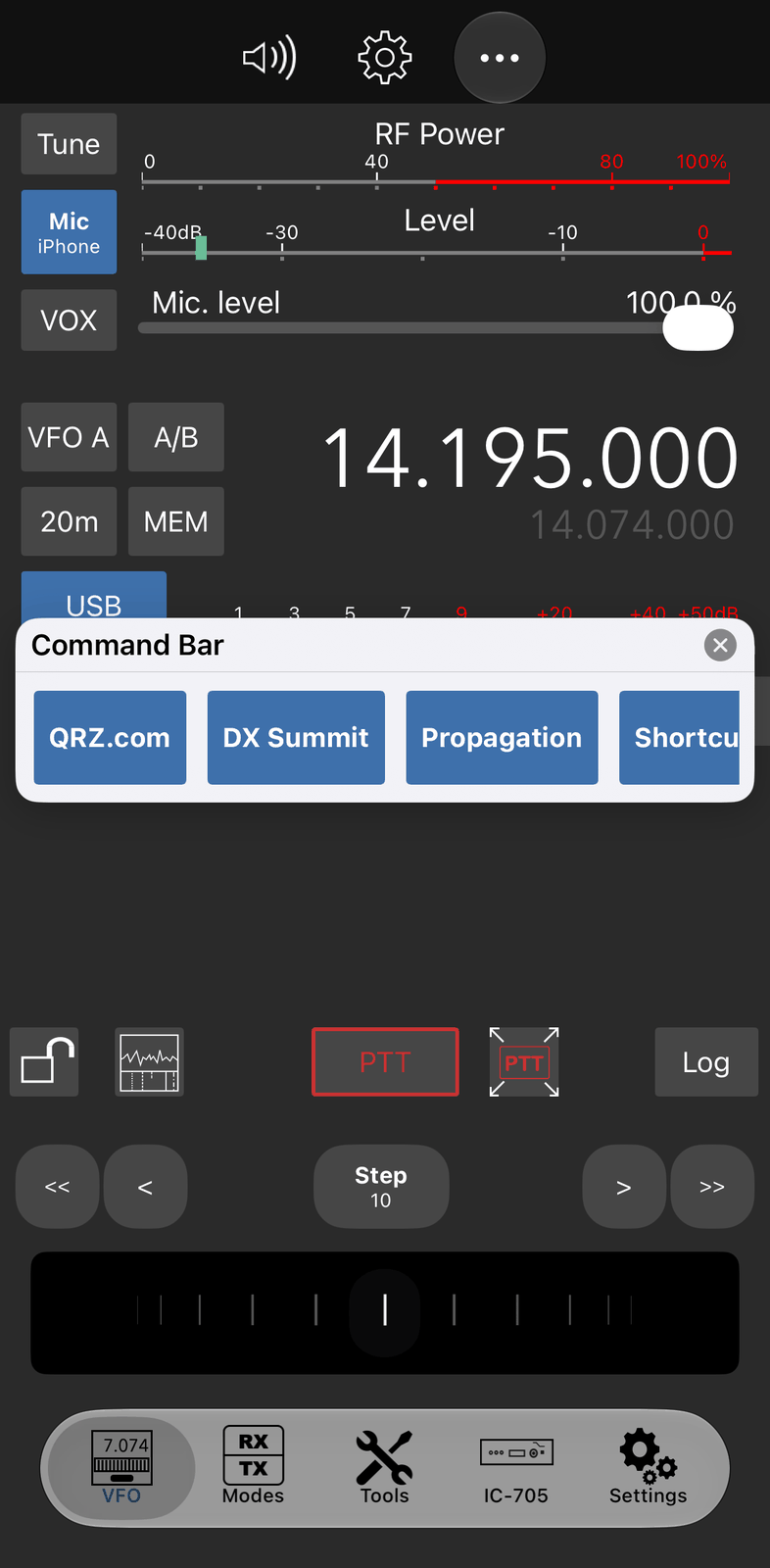
CW Panel — send CW: type your text and tap Send, or switch on Live to send while you type. Speed and settings are at the top.
Memory Panel — the radio’s memories: choose the group and the channel, step through the channels with the arrows, MW stores the current frequency with a name, MC clears the channel, Memory Mode switches the radio to memory mode, and Show shows the memories on the waterfall. MEM in the VFO part opens it too.
Tune Stack — the frequencies you have been on. Tap one to go back to it; the arrows go up and down the list, the star keeps an entry as a favorite. How long you have to stay on a frequency before it is kept is set in the Settings tab, under Tune Stack.
Macro Bar — a button for each macro. See Macros.
Command Bar — your own buttons for commands. See the chapter Command Bar.
DTMF — the DTMF keys and 1750. Hold a key to send its tone; the radio transmits while you hold it.
RIT / ∆TX Panel — RIT and ∆TX with their offset: turn the wheel (10 Hz per step) or type the offset in Hz. The cross clears the offset.
D-Star — the radio’s D-Star status and the last call and message (only on radios with D-Star). The D-Star mode in the Modes tab shows the whole list.
To move a panel, drag its title bar. The ⓧ in the title bar closes it. Open panels close when you disconnect and come back when you connect again.
5.10. On the iPhone Duo
On the iPhone Duo, the app follows the display you use:
Folded (outer display): the app looks and works as described in this chapter.
Opened (inner display): the VFO tab shows the large radio screen, as in SDR-Control for iPad. The transmit controls, the radio’s buttons and the frequency are at the top, the spectrum and the waterfall below. The tabs are on the right side.
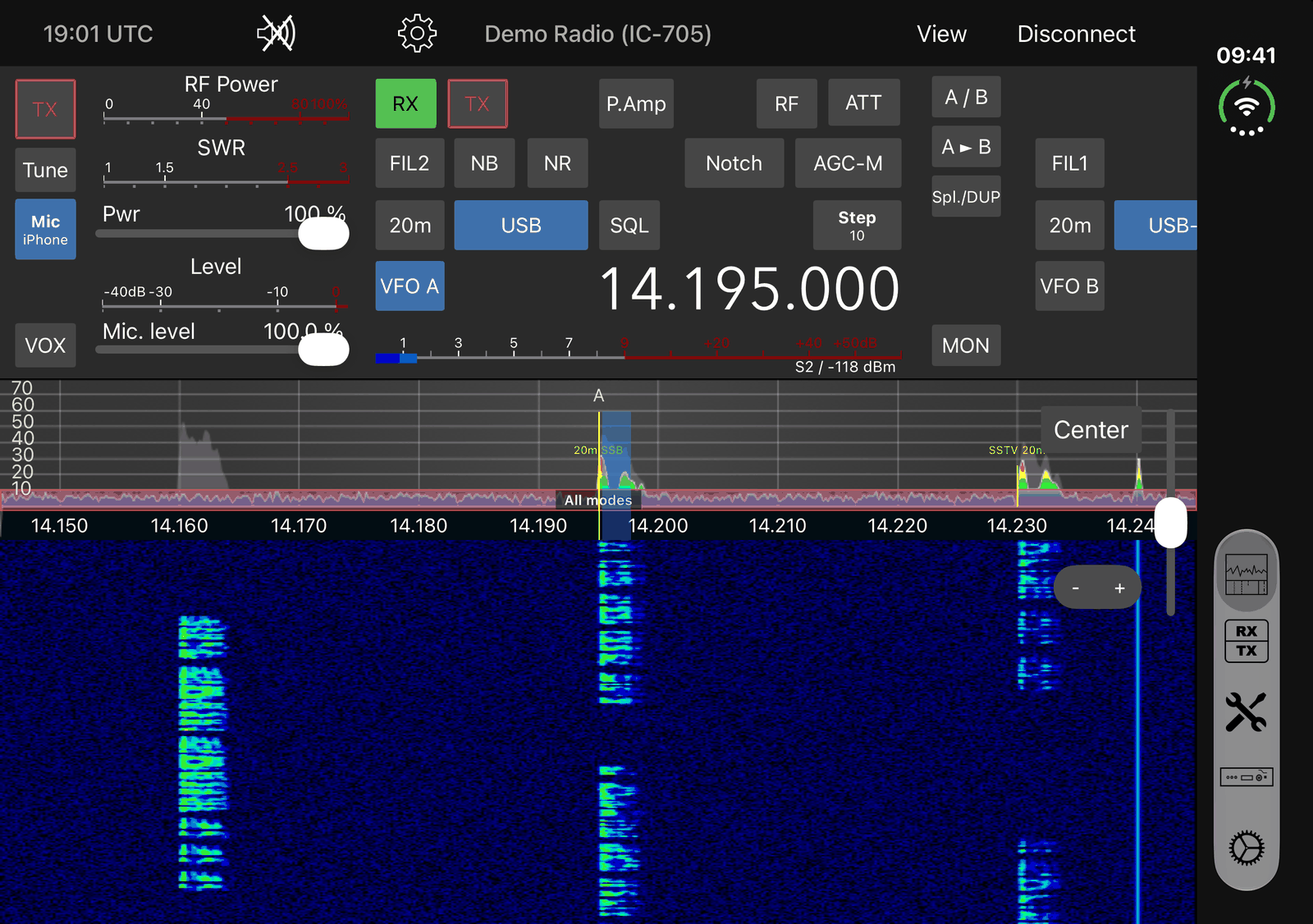
On the opened Duo the waterfall is always on. The waterfall button of the folded screen counts only for the folded display.
View is at the top right. Besides the panels above, it has two more: VFO A for tuning (the step, the arrows, the frequency and a tuning wheel) and PTT (the radio transmits while you hold it).
5.11. Good to know
The radio stays connected while you use another tab: a running mode or tool, and a transmission, go on.
Prevent device sleep in the Settings tab keeps the iPhone’s screen on while the app is open.
6. Settings
The app has three places for settings:
The Settings tab: the settings of the app, such as your call sign, the PTT and the waterfall spots. They are the same for every radio.
The Radio tab: the settings of the connected radio. The tab shows the radio’s model while connected, for example IC-705, and its settings are kept for each radio.
The Audio Settings: the audio device, the volume, the speaker and the microphone. Tap ⚙︎ at the top of the VFO screen.
6.1. App settings
The Settings tab, App Settings at the top. Go through it once and enter your station’s information: the logbook, the modes and the tools use it.
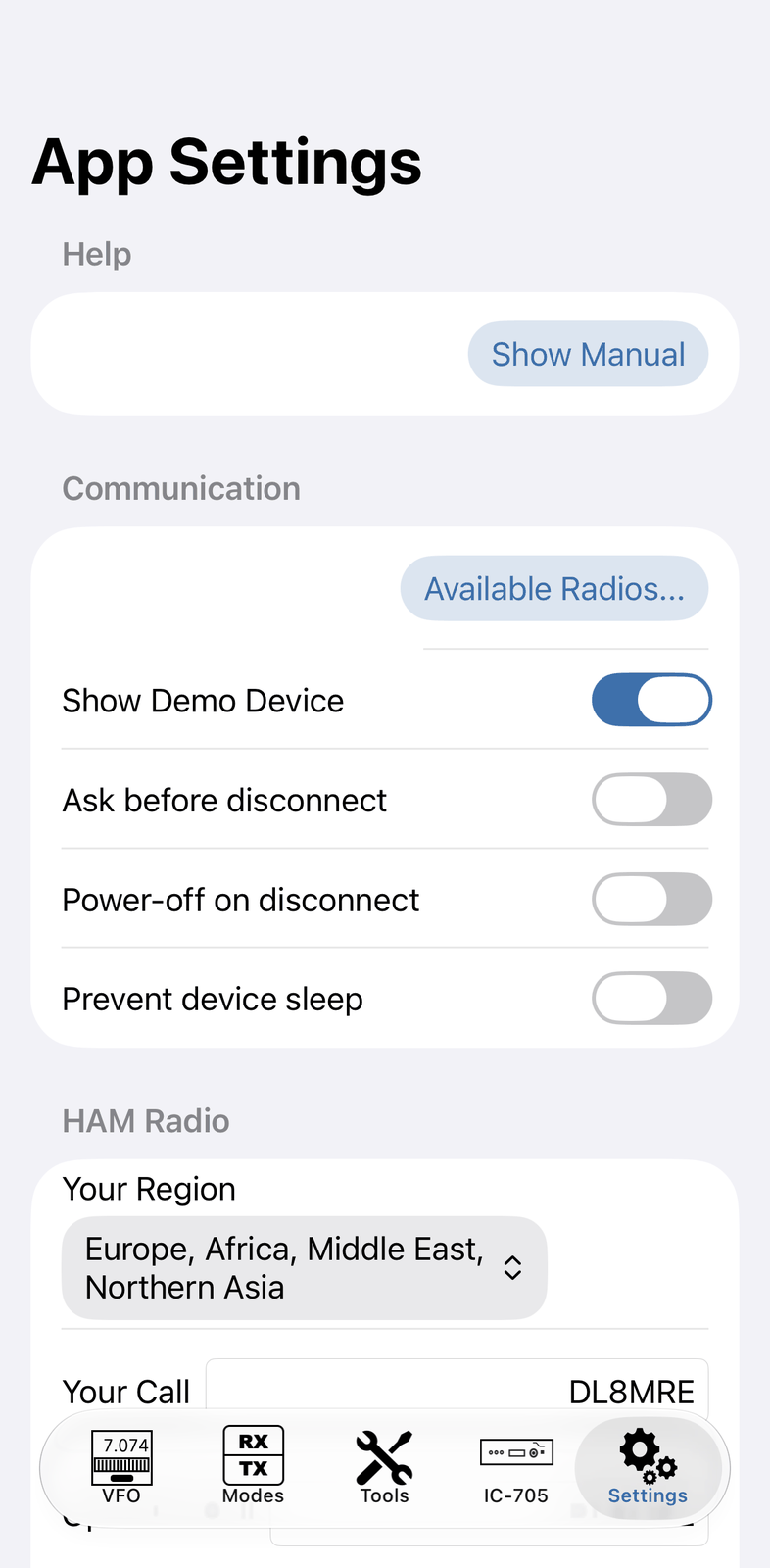
6.1.1. Help
Show Manual opens this manual.
6.1.2. Communication
Available Radios… opens the list of your radios, to add, edit, remove or connect a radio.
Show Demo Device shows the Demo Radio (IC-705) at the end of the radio list. Turn it off when you don’t need it any more.
Ask before disconnect — the app asks before it disconnects.
Power-off on disconnect — the radio goes into standby when you disconnect.
Prevent device sleep — the iPhone’s screen stays on while the app is open.
6.1.3. HAM Radio
Your Region — your region of the band plan. The band plan on the waterfall and the Band Plan tool use it.
Your Call — your call sign.
Operator Call — the operator’s call sign, if it is not your own (for example at a club station). It is filled with Your Call when empty.
Grid (QTH Locator) — your locator, for example
JO31.
6.1.4. Logging Information
Your own details for the logbook: Name, Country, City, State, County, CQ-Zone, ITU-Zone, My IOTA, My SIG, My SIG Info, My POTA Ref, My SOTA Ref, My WWFF Ref and TX Power. They go into every QSO you log. Tap the button next to Country to choose your country from the list.
6.1.5. Call databases
Your Username and Password for HamQTH and QRZ.com. The app uses them to look up call signs, for example in Call Lookup and the logbook. Test HamQTH and Test QRZ.com check that the login works.
6.1.6. UDP Broadcast
The app can send your QSOs and decodes over the network to programs on a computer:
N1MM / Log4OM message — each logged QSO, for N1MM Logger+ or Log4OM.
WSJT-X log message — each logged QSO, in the WSJT-X format (for programs that work with WSJT-X).
WSJT-X decode message — the FT8 decodes, for example for GridTracker.
For each: IP Address of the computer, Port (Default 2237), Enabled, and Test to send a test message.
6.1.7. PSK Reporter
Propagate Spots — the stations you decode are reported to PSK Reporter.
Antenna Info — a short description of your antenna that goes with the reports.
Update Interval — how often the app sends its reports to PSK Reporter.
6.1.8. General
Dark mode — the look of the app’s screens.
PTT toggle — on: tap PTT to transmit and tap it again to stop. Off: transmit while you hold PTT.
Don’t lock PTT when UI is locked — PTT keeps working while the screen is locked with the lock button.
Show PTT Focus Button — shows the button for the large PTT screen next to PTT.
PTT TX Off Delay — the radio keeps transmitting this long after you stop PTT (0 to 2 seconds), so the end of your last word isn’t cut off.
Min/Max Rit/Xit value (Hz) — the largest RIT / ∆TX offset the RIT / ∆TX Panel sets.
Enter frequencies in MHz (not kHz) — the unit when you type a frequency.
Logbook precision = Hz (not kHz) — the logbook keeps the frequency in Hz.
Reverse Tuning Wheel — turns the direction of the tuning wheel and the < > buttons around.
6.1.9. Tune Stack
The settings of the Tune Stack panel: Delay (s) (how long you have to stay on a frequency before it is kept), Minimum change (Hz) and Max number of Entries.
6.1.10. iCloud
Enable iCloud — the logbook and your list of radios are kept in iCloud, so they are the same on all your devices with the same Apple ID. iCloud Drive Status shows whether iCloud Drive works.
6.1.11. Spots: Show on Waterfall
What the waterfall shows: Band Limits, Band Modes, Memories, DX-Cluster spots, POTA spots and FT8 stations. Spot Location moves the spots up or down, Spot Font size sets their size.
6.1.12. CW
CW Keyboard — the keyboard used to type CW.
Swap Paddles — exchanges dot and dash of the paddles.
CW Autospace and Autospace delay — a space is added after a pause in typing.
6.1.13. Information & Support
Website opens the app’s website.
Get Help! offers Check for App Update, Open Manual and Contact support (an email to the support).
Write a Review rates the app in the App Store.
More Apps shows the other apps of the developers.
6.1.14. Reset Settings and Warnings
Restore default settings sets the app’s settings back to their defaults (after asking).
Reset all warnings shows all hints and warnings again that you had hidden.
6.1.15. App information
App Version and Data Version, Release History… (what is new in each version), Check for Data Update (new band plans and other data) and Check for App Update.
6.2. Radio settings
The Radio tab. Its settings belong to the connected radio, so you see them only while connected. Which settings show depends on the radio.
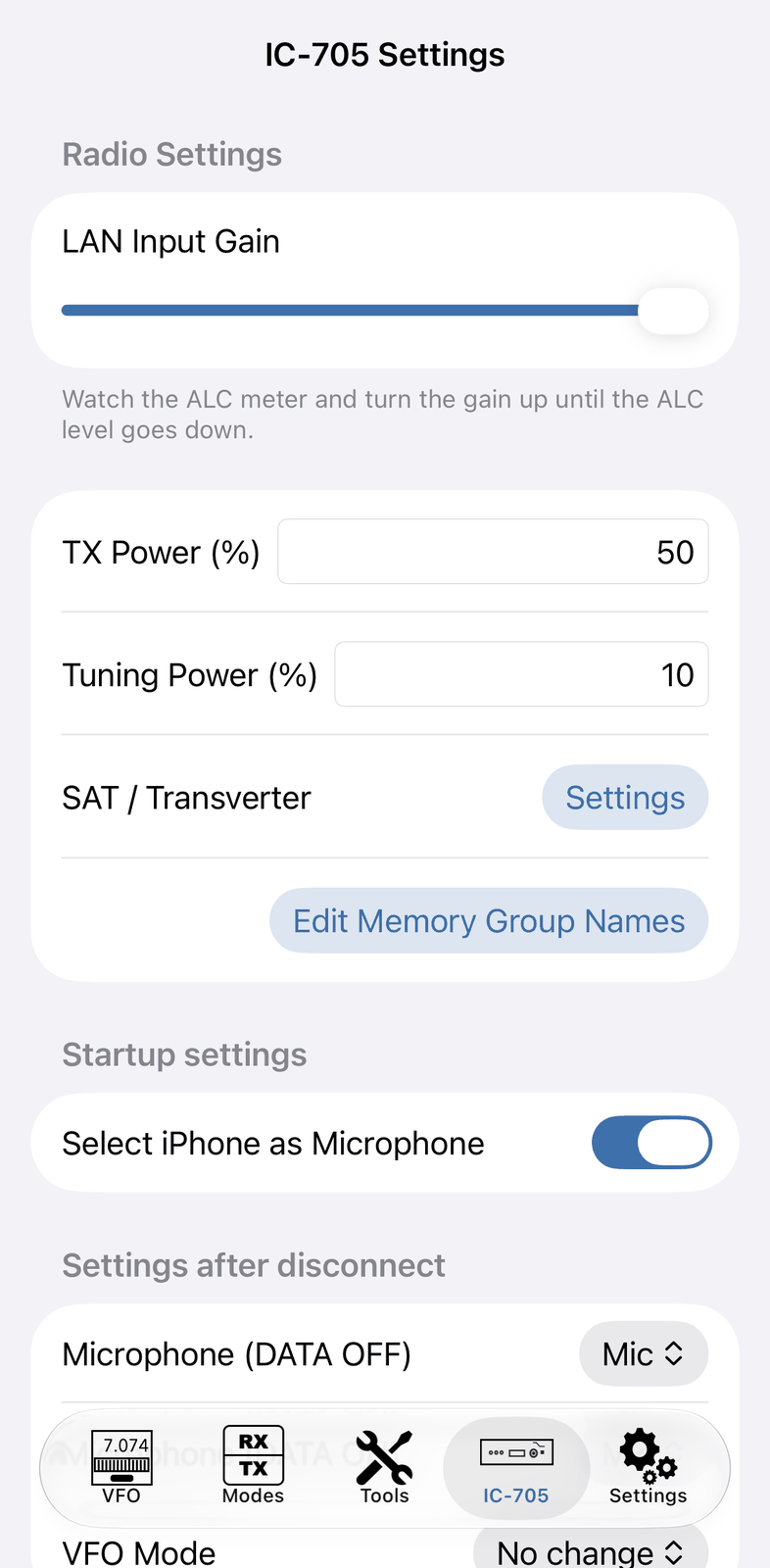
6.2.1. Radio Settings
LAN Input Gain — the level of the audio the app sends to the radio. Set it once before you use digital modes such as FT8:
Choose the ALC Meter on the VFO screen (touch and hold the top meter), or watch the ALC meter on the radio.
On a free frequency, transmit in FT8, for example with a CQ call.
Move LAN Input Gain up from the left until the ALC meter doesn’t rise any more.
IP+, TX Inhibit, DPD, IC-PW2 — the radio’s own functions of these names (only on radios that have them).
TX Power (%) — the transmit power.
Tuning Power (%) — the power of TX with 10% Signal in the Tune menu.
SAT / Transverter — Settings opens the frequency offsets for a transverter or satellites. See Advanced.
Edit Memory Group Names — the names of the memory groups (radios with memory groups).
Note
Icom radios don’t give the names of their memory groups to apps. If you have named the groups on the radio, enter the names here again.
6.2.2. Startup settings
Select iPhone as Microphone — the app sets the microphone source to the iPhone each time it connects.
6.2.3. Settings after disconnect
How the app leaves the radio when you disconnect, so that you can go on at the radio itself:
Microphone (DATA OFF) and Microphone (DATA ON) — the microphone source the radio gets back, for the normal modes and the data modes. Choose Mic to talk through the microphone at the radio again. No change leaves it as it is.
VFO Mode — VFO Mode, Memory Mode or No change.
6.2.4. RX Sound and TX Sound
Bass and Treble of the receive and transmit audio, for SSB, AM, FM and DV (DV only on radios with D-Star).
SSB TX Bandwidth — Wide, Medium or Narrow.
6.2.5. DATA Mode
IC-7610 and IC-7760 only: Data Mode to Use chooses DATA 1, DATA 2 or DATA 3 for the data modes.
6.2.6. Information
What the app knows about the connected radio: Radio Model, CI-V ID, Address, Username, and whether the radio has SAT Mode, Dual-Watch, Audio Peak Filter (APF), IP+ and Power Limit.
6.3. Audio settings
Tap ⚙︎ at the top of the VFO screen.
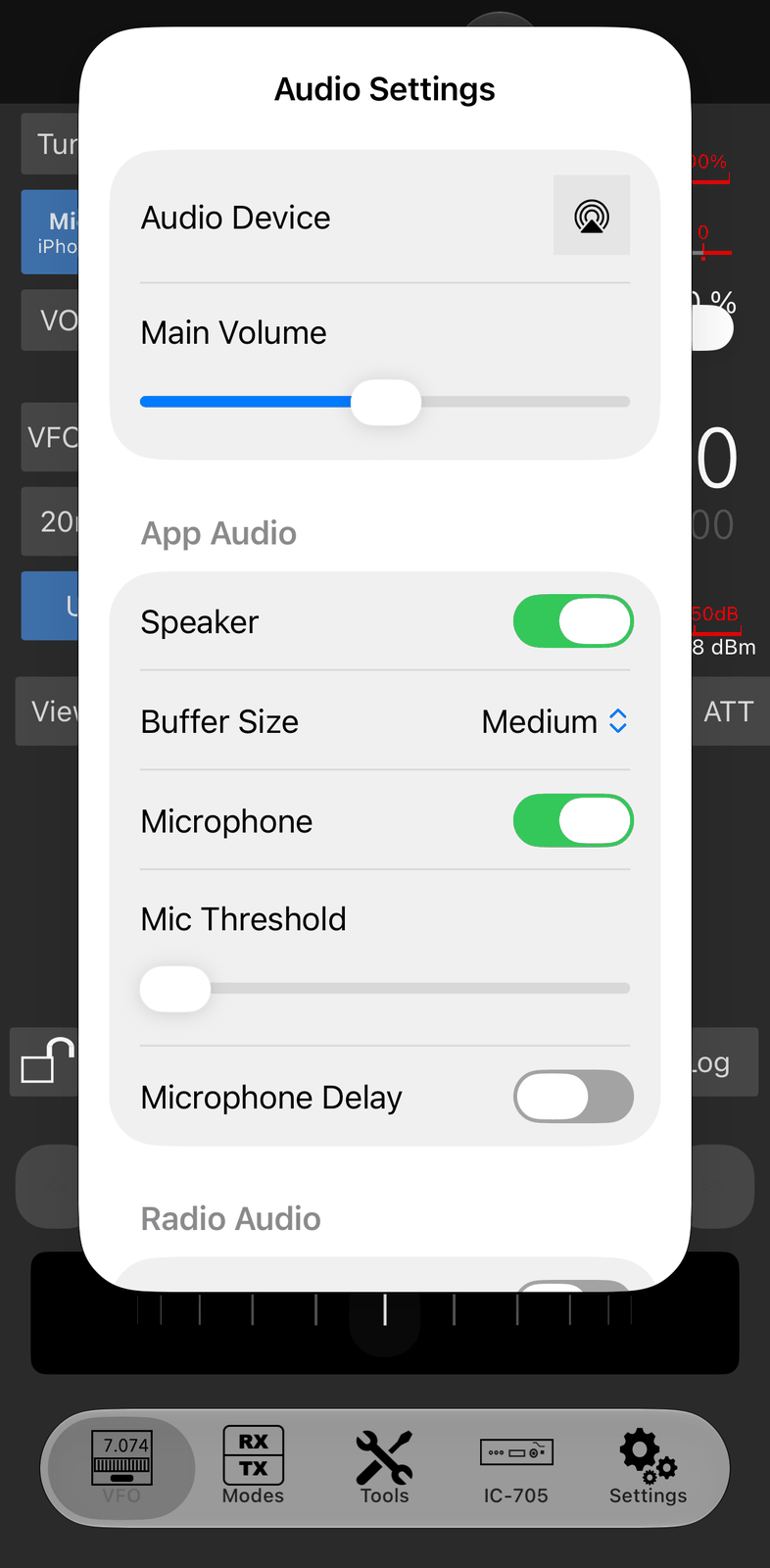
Audio Device — the button chooses where the sound goes: the iPhone’s speaker, a headset, AirPods or another device connected to the iPhone.
Main Volume — the volume of the radio’s audio on the iPhone (while Speaker is off: the volume of the radio’s own speaker).
6.3.1. App Audio
Speaker — the app plays the radio’s audio on the iPhone.
Buffer Size — Small, Medium or Large. Choose a larger buffer if the audio drops out. A smaller buffer has less delay.
Microphone — the iPhone’s microphone sends your voice to the radio. The same as a tap on Mic on the VFO screen.
Mic Threshold — sounds below this level are not sent. Raise it until the noise around you isn’t transmitted any more.
Microphone Delay — if you hear a short noise at the start of each transmission, switch this on. The noise is the receive audio that the microphone picks up while you start to transmit. With a headset it is usually not needed.
6.3.2. Radio Audio
Radio Output — the radio’s own speaker plays too.
Radio Volume — the volume of the radio’s own speaker.
Main/Sub Balance — the balance between the main and the sub receiver while dual watch is on (radios with two receivers).
7. Frequency Tuning
There are several ways to change the frequency on the VFO screen. They all tune the VFO you see (for example VFO A or Main).
7.1. The tuning wheel and buttons
The tuning buttons and the tuning wheel are at the bottom of the VFO screen.
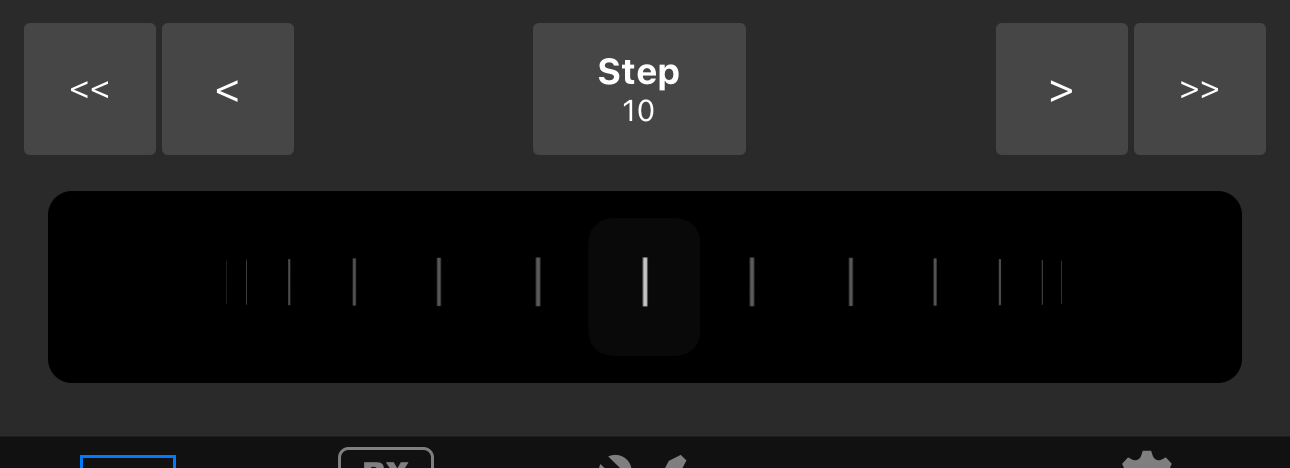
Swipe the wheel sideways to tune. Each mark of the wheel is one step.
< and > tune one step down or up. << and >> tune ten steps. Hold a button to keep tuning.
Step shows the step size in Hz, for example 10. Tap it to choose another step, from 1 Hz to 1 MHz. Each VFO keeps its own step.
Hint
Reverse Tuning Wheel in the Settings tab turns the direction of the wheel and the buttons around.
7.2. Typing a frequency
Tap the large frequency on the VFO screen. Type the new frequency in kHz and tap the return key of the keyboard.
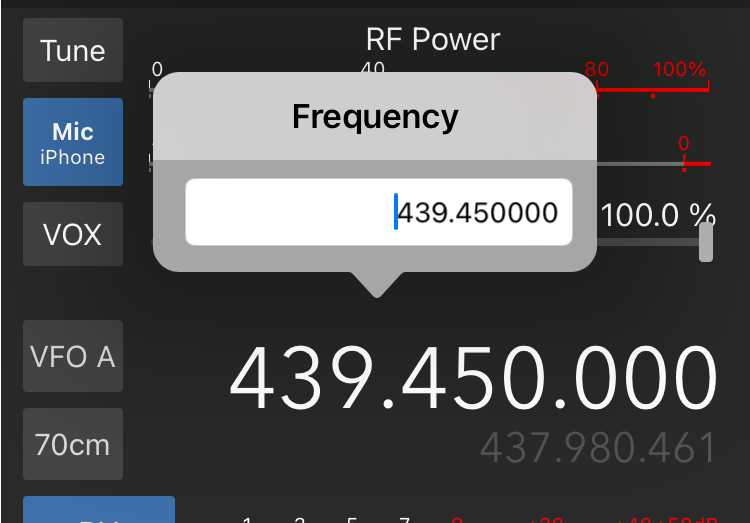
To type the frequency in MHz instead, turn on Enter frequencies in MHz (not kHz) in the Settings tab.
7.3. On the waterfall
While the waterfall is on (the waterfall button next to the lock):
Drag sideways to tune in steps. Drag with two fingers for smaller steps.
Tap twice to tune to that frequency.
Tap a spot or a memory on the waterfall to tune to it.
See “The waterfall” in The VFO screen.
7.4. More ways to tune
Band and Mode on the VFO screen choose the band and the mode.
The Memory Panel (MEM, or View → Memory Panel) tunes to the radio’s memories. The Memories tool in the Tools tab shows them all in a list.
The Tune Stack panel (View → Tune Stack) brings you back to frequencies you have been on.
Tap twice on a spot in the DX-Cluster or POTA tool to tune the radio to it.
A controller, for example a MIDI controller or a CTR2 dial, tunes with its knob. See the controller chapters.
RIT and ∆TX move the receive or transmit frequency a little: View → RIT / ∆TX Panel.
7.5. The lock
The lock at the bottom left of the VFO screen locks the frequency: the wheel, the buttons, the typed frequency and the waterfall don’t tune while it is closed. Tap it again to unlock.
8. Advanced
8.1. Transverter and satellite offsets
With a transverter, or for a satellite downlink through a converter, the radio’s frequency is not the frequency you really work on. The app can add an offset, so that it shows and uses the real frequency: on the VFO screen, when you type a frequency, and in the logbook.
Open the Radio tab (while connected).
Next to SAT / Transverter, tap Settings.
Type the offset in MHz in RX Offset: (receive) and TX Offset: (transmit), and switch each one on with the switch next to it.
Below each offset, the app shows the radio’s frequency and the frequency with the offset.
Tap Done.
The RX and TX offsets can be different. The TX offset applies to the VFO that transmits; which VFO that is can change with Split, DW (dual watch) or SAT.
8.2. SAT mode (IC-9700)
The IC-9700 has a satellite mode. Tap SAT in the button bar of the VFO screen to switch it on or off. In SAT mode the radio:
switches on tracking (TR): the transmit frequency follows when you change the receive frequency,
switches on dual watch (DW),
receives on one VFO and transmits on the other.
To change the distance between the receive and the transmit frequency: switch TR off, tune the receive frequency, then switch TR on again.
Note
The iPhone app doesn’t correct the Doppler shift. The S.A.T. tool, which controls the S.A.T. satellite tracker, is only in the iPad app.
8.3. Switching the radio on or off
An app can’t switch a radio completely off and on again. It can only put the radio into standby and wake it up:
When you connect, the app wakes the radio from standby.
To put the radio into standby, touch and hold Disconnect on the VFO screen and tap Shut down.
To do this every time you disconnect, turn on Power-off on disconnect in the Settings tab.
If you switch the radio off with its power button, the app can’t switch it on again. To make the power button ask whether to go into standby instead, set this on the radio:
IC-705: Menu → Set → Function → Power Off Setting (for Remote Control) → Standby/Shutdown
the other radios: Menu → Set → Network → Power Off Setting (for Remote Control) → Standby/Shutdown
Then the radio asks each time you press the power button whether to switch off or to go into standby.
1. Tools
The Tools tab holds the tools that add to the app: a logbook, spots from the DX Cluster, POTA and PSK Reporter, the band plan, controllers, macros and the control of external devices such as amplifiers, tuners and antennas.
Many tools also work without a radio, for example the Logbook, Call Lookup and the Band Plan. All tools work together with the app and your radio: a spot tunes the radio, a QSO goes into the log, a controller turns the VFO.
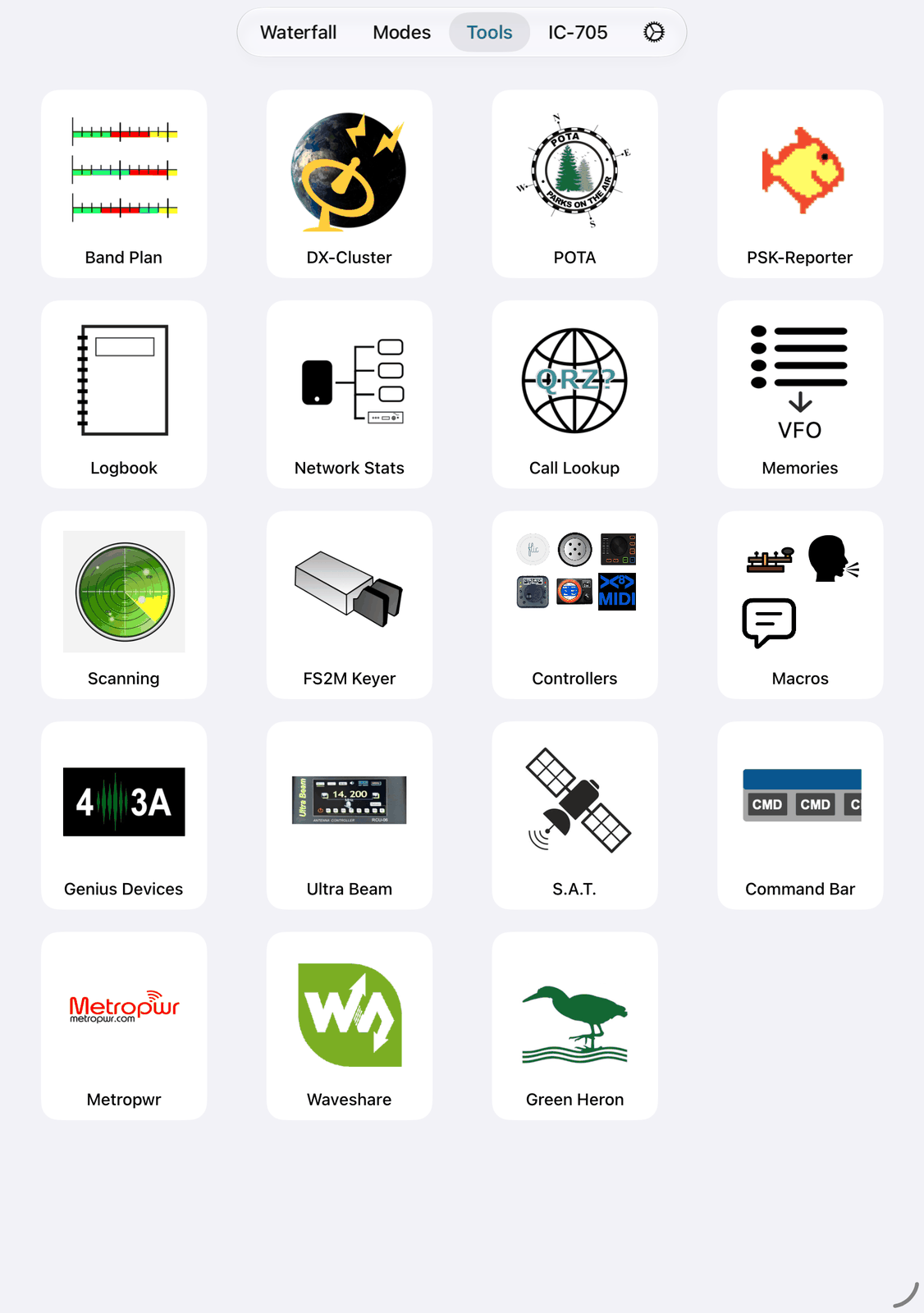
1.1. The tiles
Tap a tile to open its tool. The back button at the top left (or a swipe from the left edge) brings you back to the tiles.
Controllers and Macros are groups. Their tiles show small pictures of the tools inside. Tap a group to see its tools.
A green dot on a tile means the tool is running, for example the DX Cluster is connected or a controller is on. A group shows the dot when one of its tools runs.
To change the order, touch and hold a tile and move it to another place. The other tiles make room. The order is kept.
With a keyboard, ⌘T opens the Tools tab, and ⌘B opens the Logbook.
1.2. Tools keep running
A tool keeps working when you leave its screen or switch to another tab. The DX Cluster stays connected, Network Stats goes on measuring, and a controller stays active. So you can use the radio screen and a tool at the same time.
To stop a tool, open it again and switch it off there. The green dot on its tile shows which tools are running.
1.3. The top row of a tool
Most tools use the same buttons:
⚙︎ in the navigation bar opens the tool’s settings.
+ in the navigation bar adds something, for example a QSO or a device.
The funnel opens a filter. It is filled while the filter is on.
The trash can clears the list or the values.
The map shows the list on a map.
1.4. The tools
Band Plan — the band plan of your region.
DX-Cluster — DX spots from a DX Cluster server.
POTA — Parks on the Air activators that are on the air now.
PSK-Reporter — who hears you, and whom you hear.
Logbook — your QSOs, ADIF import and export, iCloud.
Network Stats — checks the network connection to your radio.
Call Lookup — details about a call sign.
Memories — the radio’s memory channels.
Scanning — scans frequencies and memory groups, and lists what it found.
FS2M Keyer — the FS2M CW keyer (no longer made).
Controllers — Flic, Pryme Buttons, MIDI Controller, CTR2 Controller, CTR2 Dial Controller and HaliKey MIDI.
Macros — CW Macros, Voice Macros and Speech Macros (Speech Macros need iOS 26, like the Speech mode).
Genius Devices — the 4O3A Genius devices: PGXL amplifier, TGXL tuner, AGXL antenna switch and RGXL rotator.
Ultra Beam — controls an Ultra Beam antenna.
S.A.T. — the S.A.T. satellite tracker and rotator (iPad only).
Command Bar — buttons that send commands to the radio, open an app or a website.
Metropwr — Metropwr power meters, antenna switches and rotator controllers.
Waveshare — Waveshare network devices: a serial CAT connection and relays.
Green Heron — the Green Heron RT-21 rotator controller.
The modes (FT8, JS8, CW, SSTV and more) are in the Modes tab.
1.5. On the iPhone
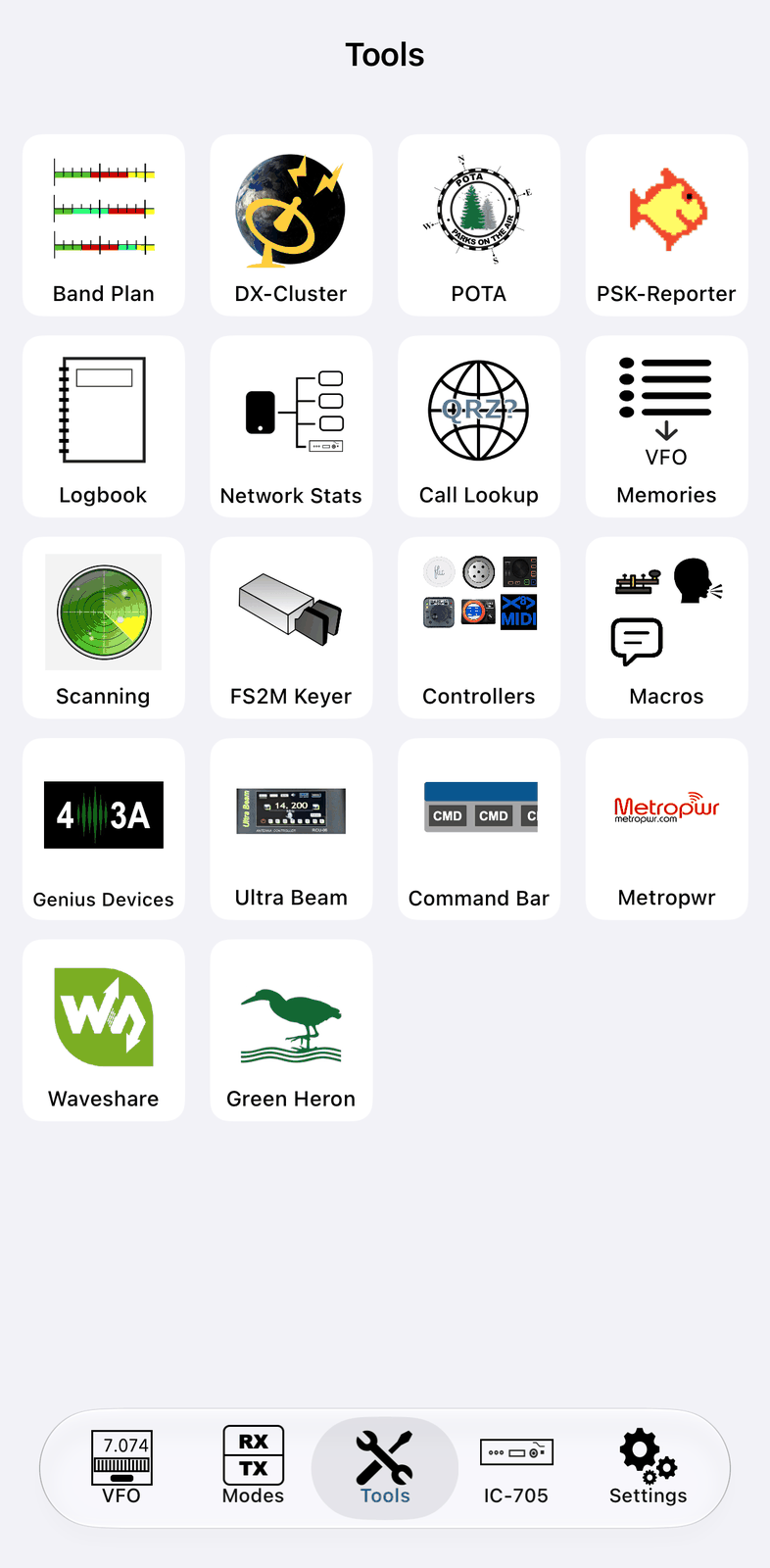
The iPhone shows the same tiles, with fewer in a row. S.A.T. is only on the iPad, because its screens need the room.
2. Band Plan
The band plan says which part of a band is meant for which modes: CW, digital modes, phone, beacons and so on, and how wide a signal may be there. The IARU sets it, and it differs from region to region.
The Band Plan tool shows the band plan of your region, band by band. It also has special band plans, for example for the QO-100 satellite or the shortwave broadcast bands. Tap a segment and the radio tunes to it. The app can also show the band limits and the segments on the waterfall.
2.1. Quick start
Tap ⚙︎ and check Your Region, for example Europe, Africa, Middle East, Northern Asia. The USA and Canada have their own entries.
Tap a band to unfold it. The band you are on is unfolded already.
Tap a segment. The radio tunes to it and the app shows the radio screen.
2.2. The screen
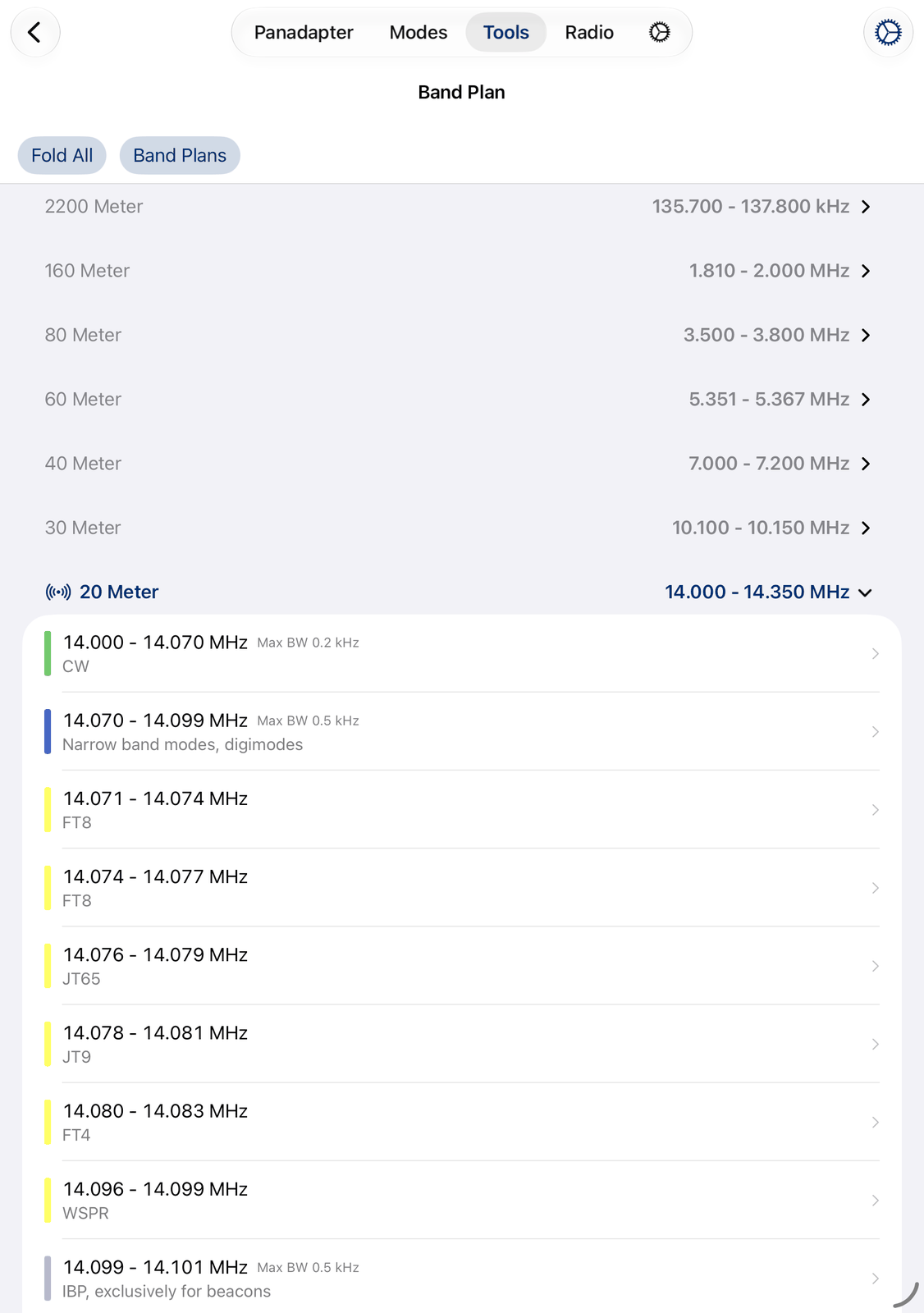
Unfold All opens all bands. When a band is open, the button reads Fold All and closes them all.
Band Plans chooses the band plans you see. See Band plans.
⚙︎ at the top right opens the settings. See Settings.
2.2.1. The list
Each band has its own section with its name and range, for example 20 Meter and 14.000 - 14.350 MHz.
A special band plan, for example Sat QO-100, is one section of its own. Tap a band to unfold or fold it.
Each row is one segment of the band:
The colored bar on the left: the kind of segment, in the same colors as on the waterfall, for example green for CW, blue for digital modes, yellow for FT8, FT4 and WSPR, red for all modes and grey for beacons.
The range, for example
14.070 - 14.099 MHz, and Max BW: the widest signal allowed there.Below: the modes for this segment.
The band and the segment the radio is on are shown in color, with a small radio wave symbol at the band. The app follows the radio: when you change the band, the new band unfolds by itself.
2.2.2. Tuning
Tap a segment to tune to it. The radio tunes into the segment and takes a fitting mode: CW in a CW segment, FM in an FM segment, USB or LSB where all modes are allowed. Then the app shows the radio screen. Touch and hold a segment for Tune.
Without a radio you can still read the band plan. The list then says
Connect to your radio to tune to a segment.
2.3. Band plans
Band Plans in the top row lists the band plans. Tap one to show or hide it. A checkmark means it is shown:
General — the amateur radio bands of your region.
Sat QO-100 — the narrow band transponder of the QO-100 satellite.
Broadcast — the shortwave broadcast bands, for listening.
The same choice decides what the waterfall shows. It is also in the settings, under Visible Band Plans.
2.4. Settings
Tap ⚙︎ to open the Band Plan settings.
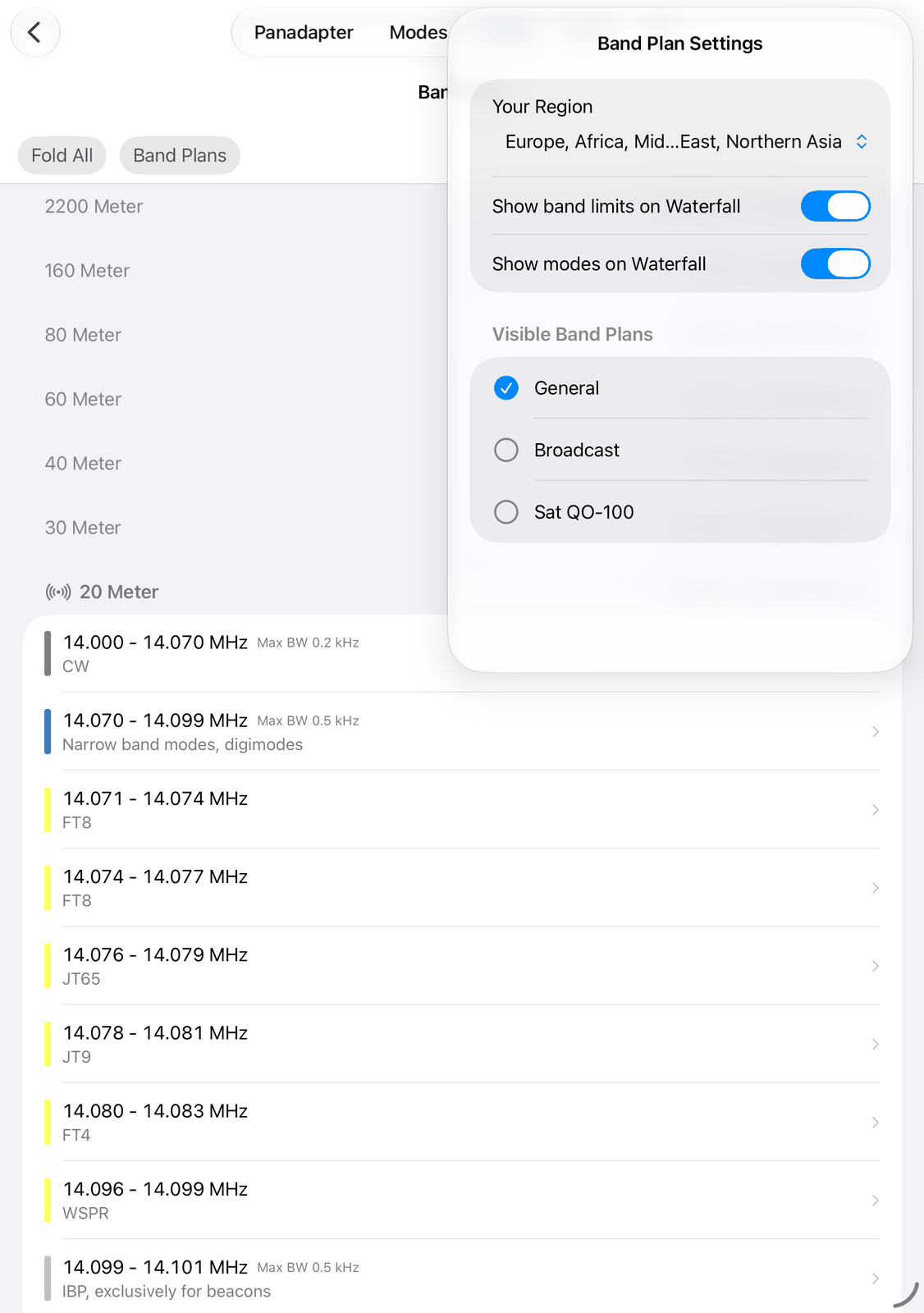
Your Region — your IARU region. The band plan of this region is loaded. This is the same setting as Your Region in the app’s settings.
Show band limits on Waterfall — shows where a band starts and ends on the waterfall.
Show modes on Waterfall — shows the segments as colored lines on the waterfall.
Visible Band Plans — the band plans shown in the list and on the waterfall, the same as Band Plans in the top row. Tap a row to switch it on or off.
The same switches for the waterfall are also in the app’s settings under Spots (Band Limits and Band Modes).
2.5. Good to know
The band plan is a recommendation. Your licence and your country’s rules say what you may really do.
The band plan comes with the app’s data and is updated with it.
With no band plan chosen, the list is empty: choose one with Band Plans.
2.6. On the iPhone
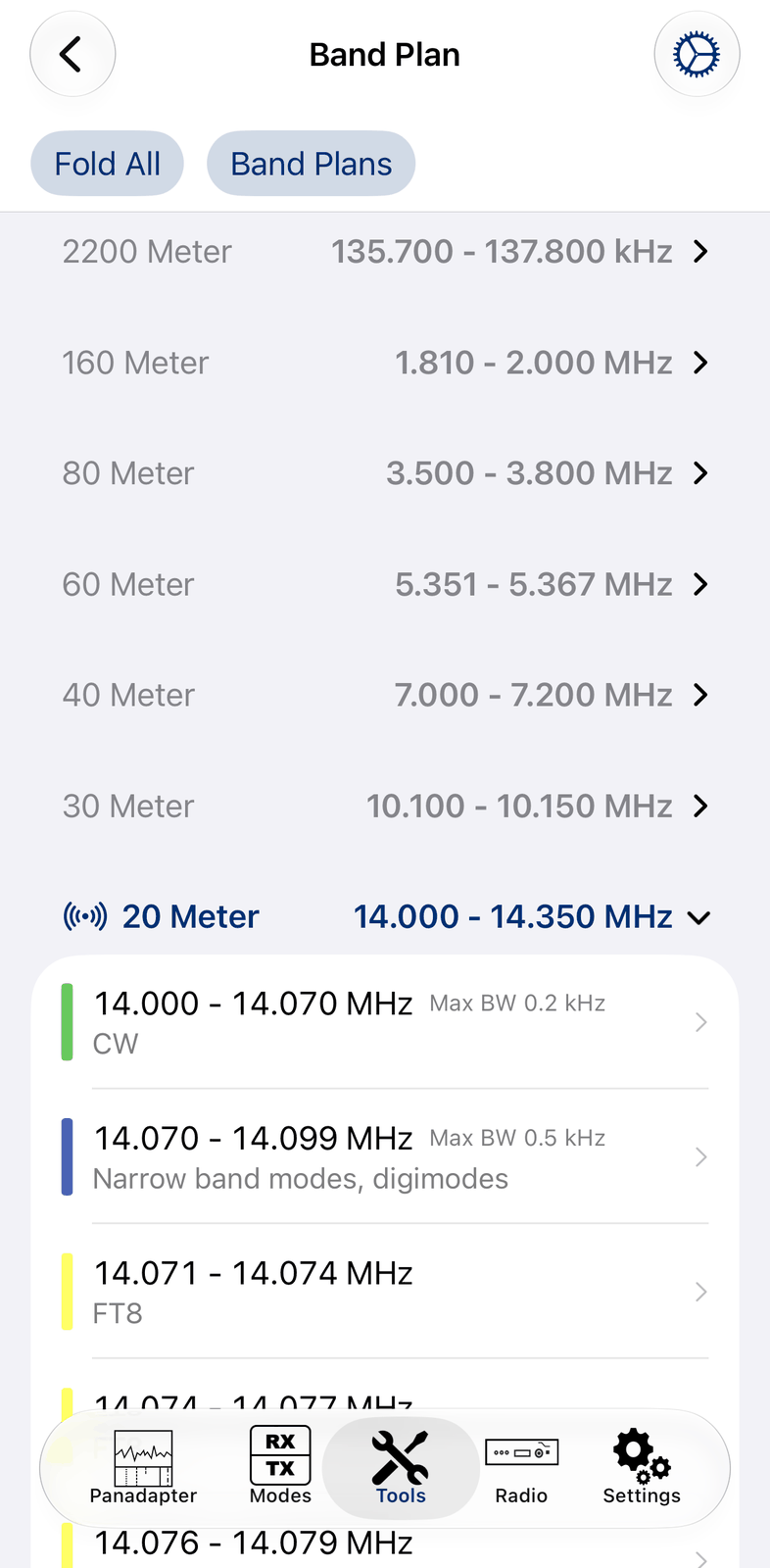
The iPhone shows the same list. The settings open as a full screen: tap Done to close them.
3. CW Macros
CW macros are texts you send often in CW, for example your CQ call, a report or the end of a QSO. You type them once, and then send each one with a single tap.
Placeholders like {CALL} or {MYCALL} are filled in when the macro is sent, so one macro works for every QSO.
You have 12 macros.
3.1. Quick start
In the Tools tab, open Macros, then CW Macros.
Tap the row 1. Enter
CQin Name andCQ CQ CQ DE {MYCALL} {MYCALL} Kin Text. Tap Save.Open the CW mode. Your macro is the button CQ below the red bar. Tap it to send it.
3.2. The screen
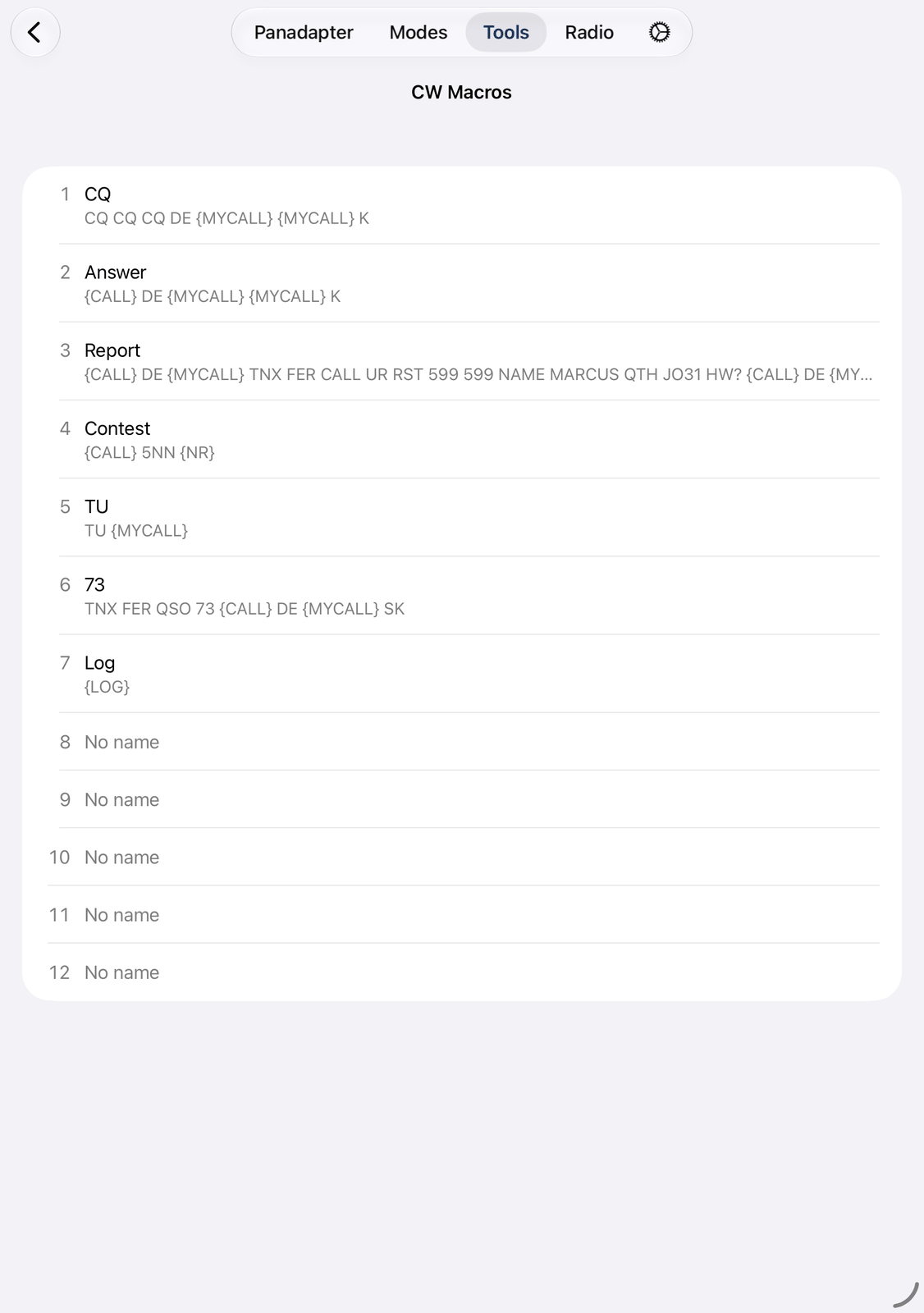
One row per macro: its number, its name and the start of its text. An empty macro shows No name.
Tap a row to change the macro. See Changing a macro.
Swipe a row to the left for Edit and Clear. Clear empties the macro, after you confirm it.
Touch and hold a row for the same two actions.
3.3. Changing a macro
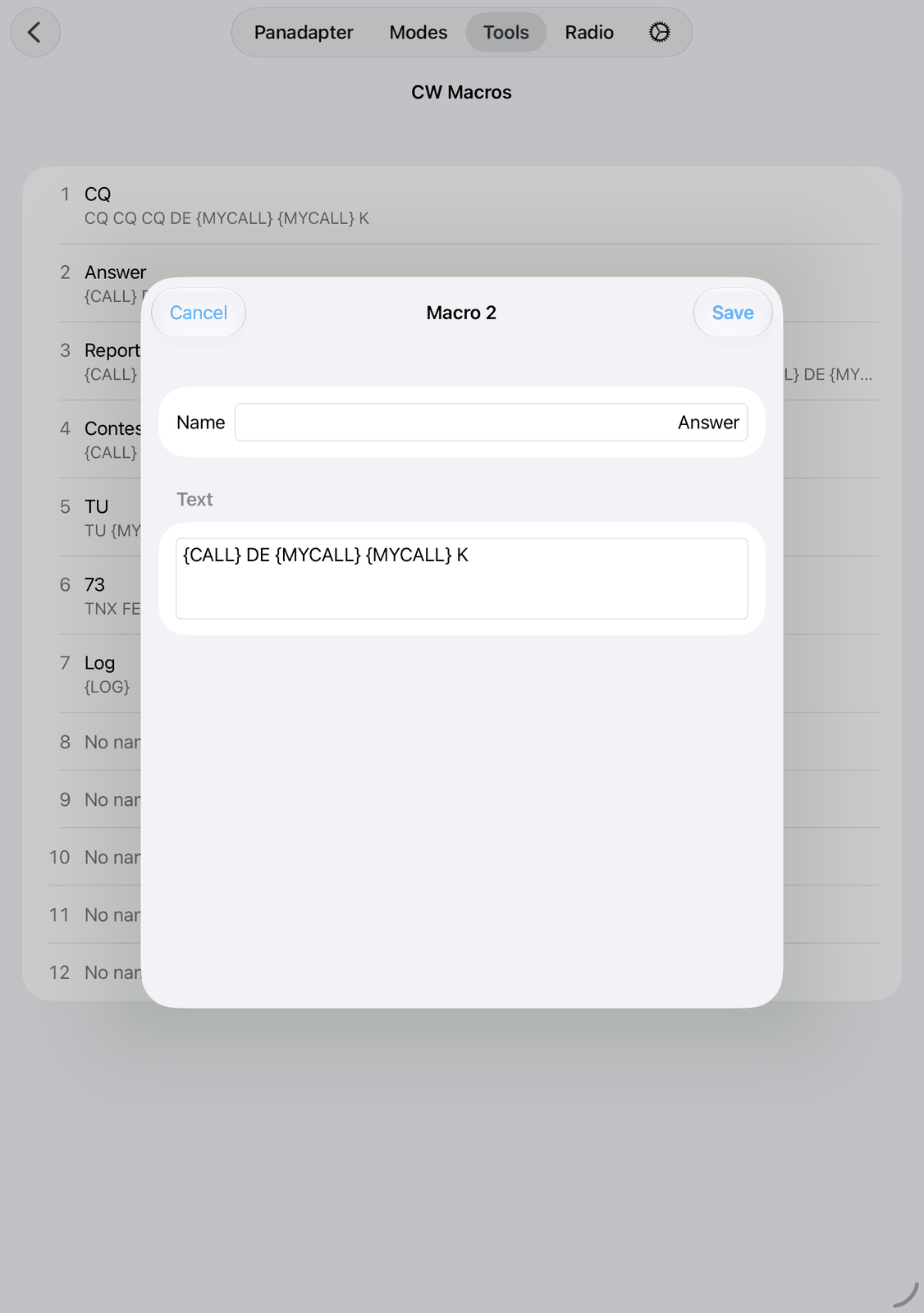
Name — the title of the macro’s button. Keep it short, for example
CQor73. A macro without a name gets no button.Text — what is sent. It can be several lines long.
Tap Save, or Cancel to leave the macro as it was.
3.3.1. Writing the text
Placeholders are filled in when the macro is sent. The most useful ones:
{MYCALL}— your own call.{CALL}— the call of the station you work: in the CW mode the call in DX, elsewhere the call in the log entry.{NR}— your report or contest number.{LOG}— logs the QSO.
All placeholders are listed in Macros.
Prosigns: put
^in front of the letters, for example^BKor^SK. The letters are sent as one sign, without a gap.The text is always sent in capital letters.
Example QSO:
Name |
Text |
|---|---|
CQ |
|
Answer |
|
Contest |
|
73 |
|
3.4. Sending a macro
The same macros are used everywhere in the app:
In the CW mode: the buttons below the red bar.
In the Macro Bar on the radio screen, while the radio is in CW.
With the keyboard of the iPad: Option-1 to Option-9 send the macros 1 to 9, Option-X stops.
With a controller, for example a MIDI controller or a Flic button: give a button the radio action Macro 1, Macro 2, and so on.
How to open the Macro Bar: Macros.
3.5. Good to know
Only macros with a name get a button.
{LOG}logs the QSO at the moment the macro is sent. Put it into the macro that ends the QSO.Outside the CW mode,
{CALL}and{NR}come from the log entry. Check that the call there is the station you work.
3.6. On the iPhone
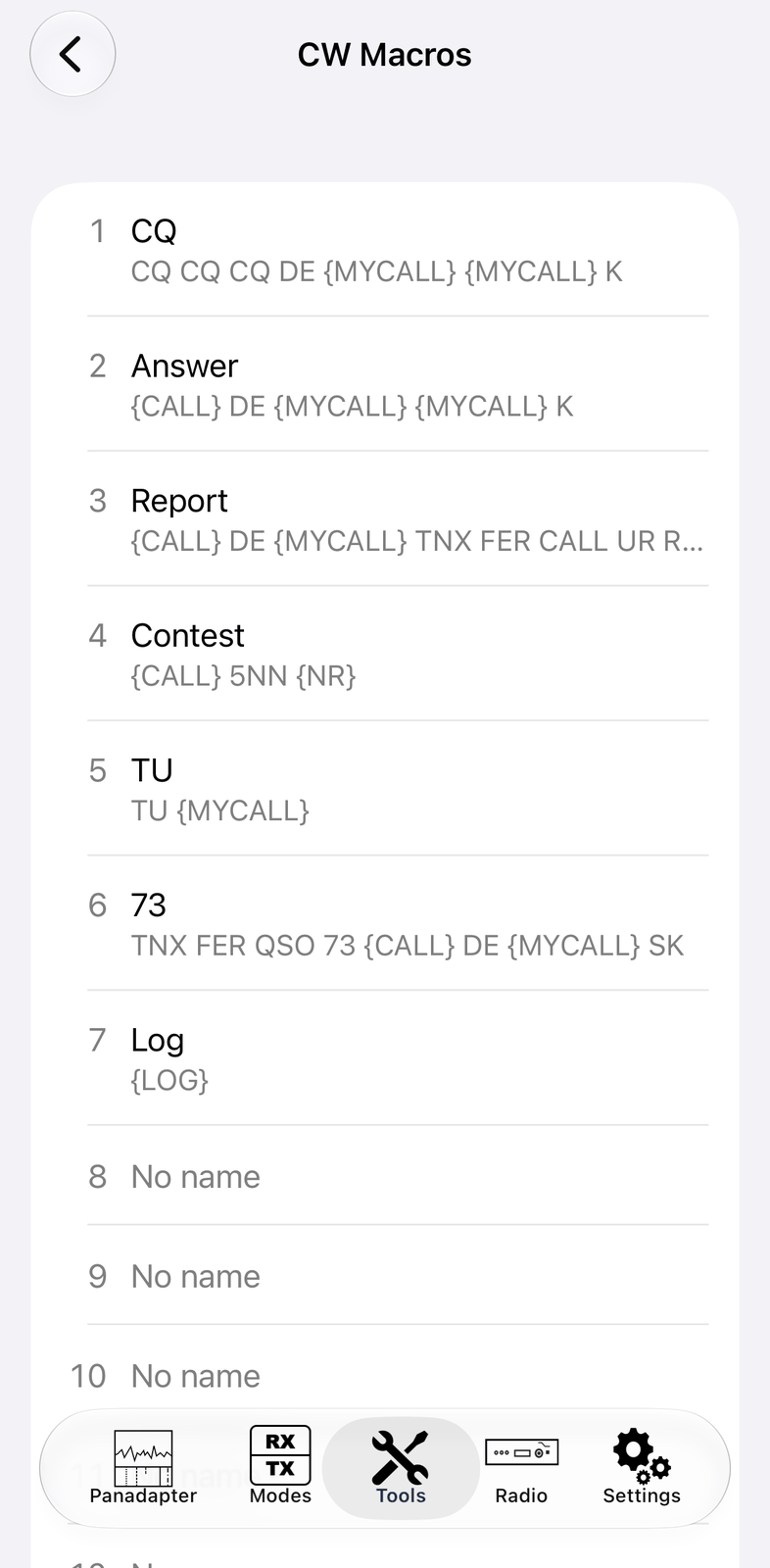
The iPhone shows the same list and the same screen to change a macro.
4. Voice Macros
Voice macros are short recordings of your own voice, for example your CQ call or your name and QTH. You record them once with the microphone of your iPad or iPhone, or with a headset. Then you send them in SSB, AM or FM with a single tap, as often as you like. You have 12 voice macros.
SDR-Control can also use the voice memories of your Icom radio instead. See The radio’s voice memories.
4.1. Quick start
First switch off Use Radio Voice Macros at the top of the screen, to record the macros in the app.
In the Tools tab, open Macros, then Voice Macros.
Tap the row 1. Enter
CQin Name.Tap Record, say your CQ call, then tap Stop.
Tap Play to listen to it. Tap Save.
Set the radio to SSB. Swipe the row to the right and tap Send.
4.2. The screen
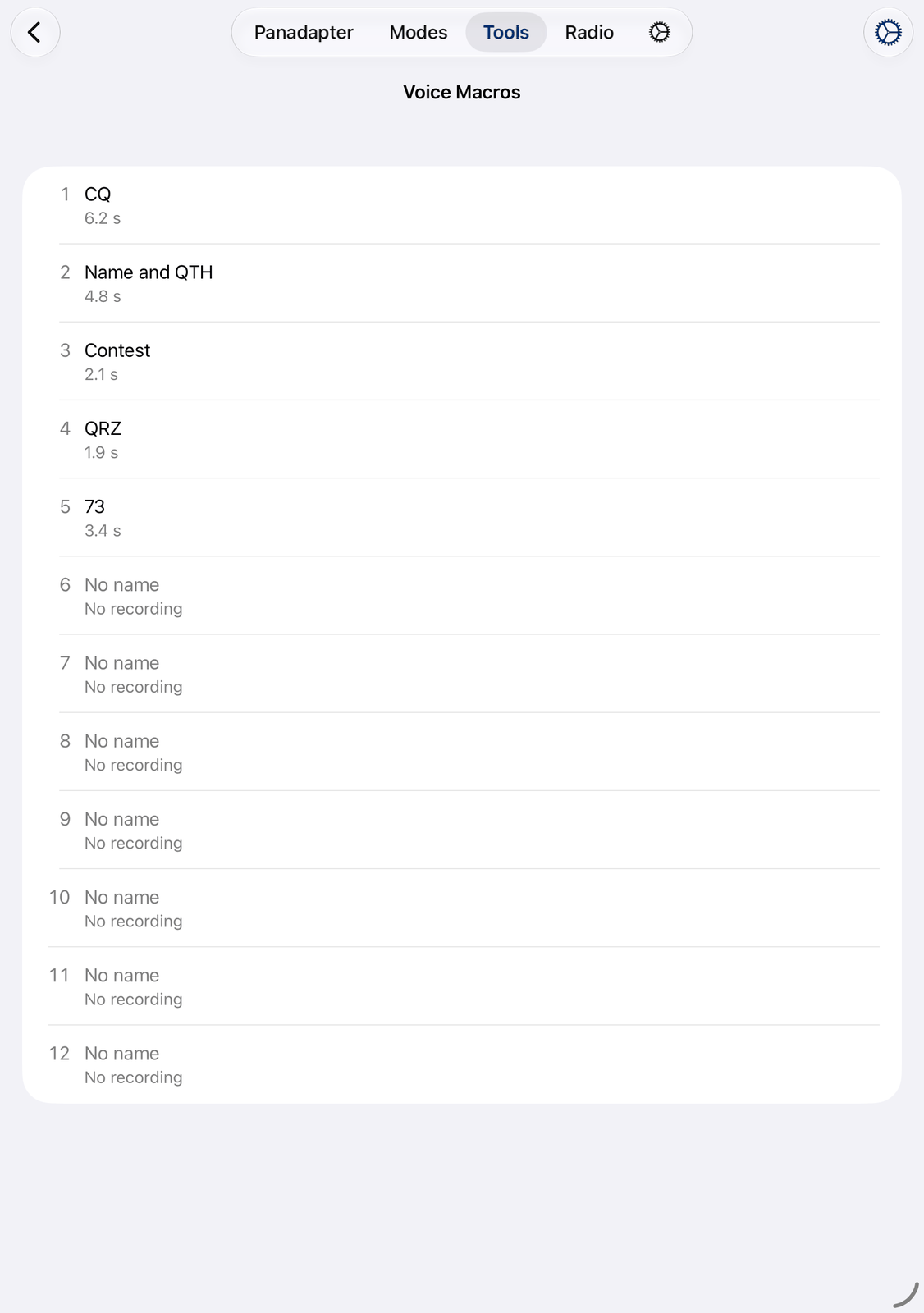
One row per macro: its number, its name, and the length of its recording, for example 6.2 s.
A macro without a recording shows No recording. A wave sign at the end of the row shows the macro that is
playing; it is red while the macro is sent.
Tap a row to record or change the macro. See Recording a macro.
Swipe a row to the right and tap Send to send the macro.
Swipe a row to the left for Edit and Clear. Clear deletes the name and the recording, after you confirm it.
Touch and hold a row for Send, Play on speaker, Edit and Clear.
While a macro is recorded, played or sent, a row at the top shows it, for example
Sending Macro 1 · 2 s. Stop ends it.⚙︎ in the navigation bar: the levels. See Settings.
4.3. Recording a macro
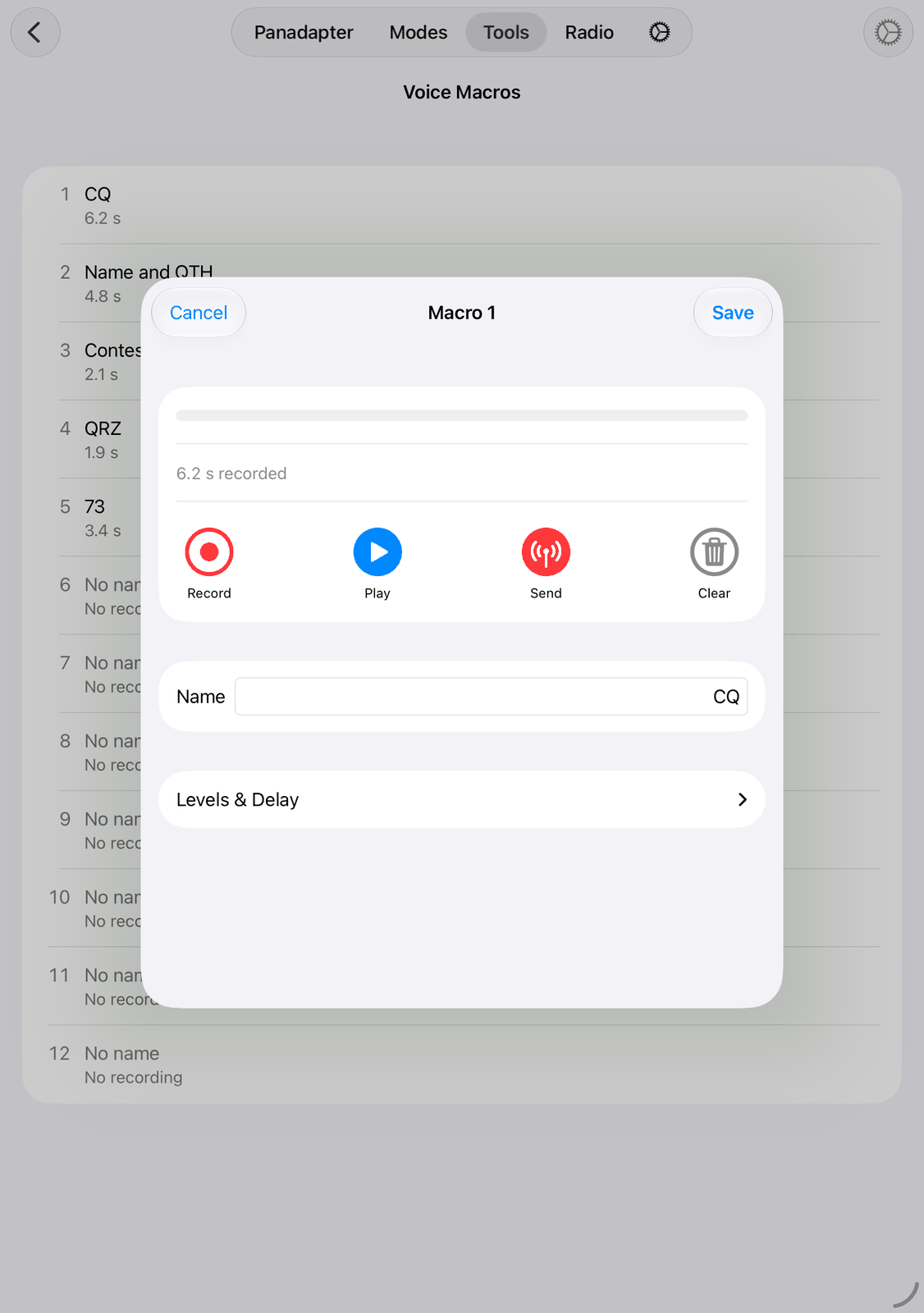
The screen works like a tape recorder. At the top is a level meter, and below it the state of the macro,
for example No recording, 4.8 s recorded or Recording · 2.3 s. ON AIR means the macro is being sent.
Record starts recording. The button changes to Stop: tap it when you have finished speaking. A new recording replaces the old one.
Play plays the macro on your device. Nothing is sent.
Send sends the macro over the air. Tap it again (Stop) to stop sending.
Clear deletes the recording.
Name — the title of the macro’s button. A macro you record without a name is called
Macro 1,Macro 2and so on.Levels & Delay — tap it to show the levels, the same as in Settings. You can set them here while you try the macro.
Tap Save to keep the name. Cancel gives the macro its old name back.
A recording is saved as soon as you tap Stop, and Clear deletes it at once: Cancel doesn’t undo them. Record, Play and Send need the connection to your radio.
4.4. Sending a macro
Set the radio to SSB, AM or FM. Then send a macro:
from the list: swipe it to the right and tap Send,
from the Macro Bar on the radio screen: it shows the voice macros while the radio is in a voice mode,
with the keyboard of the iPad: Option-1 to Option-9 send the macros 1 to 9, Option-X stops,
with a controller, for example a MIDI controller or a Flic button: give a button the radio action Macro 1, Macro 2, and so on.
How to open the Macro Bar: Macros.
The app switches the radio to transmit, sends the recording, and switches back to receive at its end.
The macro goes to the radio as the app’s transmit audio. While another mode uses it, the app tells you so,
with Audio device in use by: and the name of that mode, and sends nothing.
4.5. The radio’s voice memories
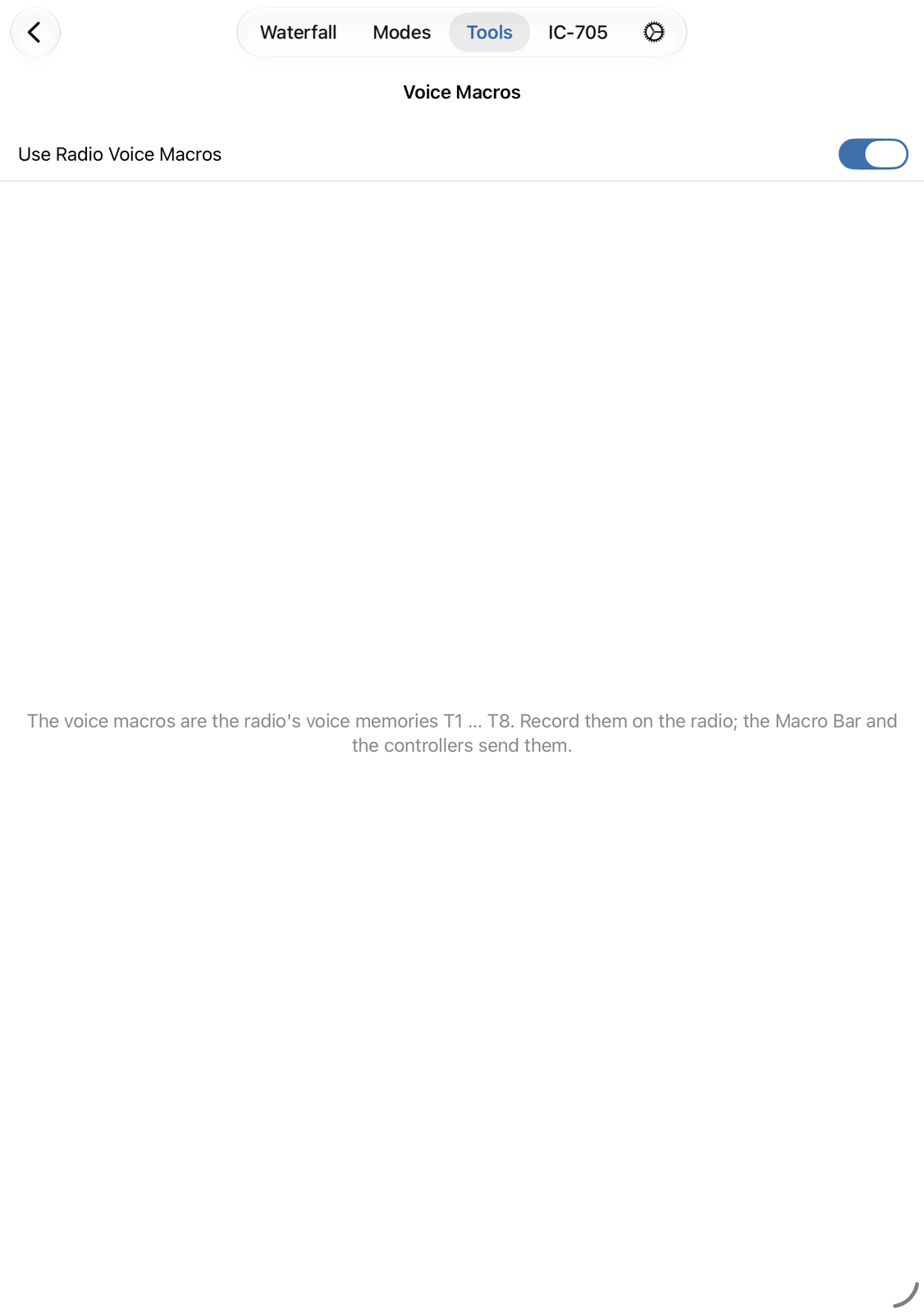
Many Icom radios have voice memories of their own, called T1 to T8. You record them on the radio (see the radio’s manual). The switch Use Radio Voice Macros at the top of the screen chooses which voice macros the app uses:
On (the default): the voice macros are the radio’s memories T1 to T8. The radio sends them itself. The Macro Bar, the keyboard and the controllers send them, and Stop stops them. The list is not shown, because nothing is recorded in the app.
Off: the voice macros are recorded in the app, as described above.
4.6. Settings
Tap ⚙︎ in the navigation bar for the Voice Macro Settings:
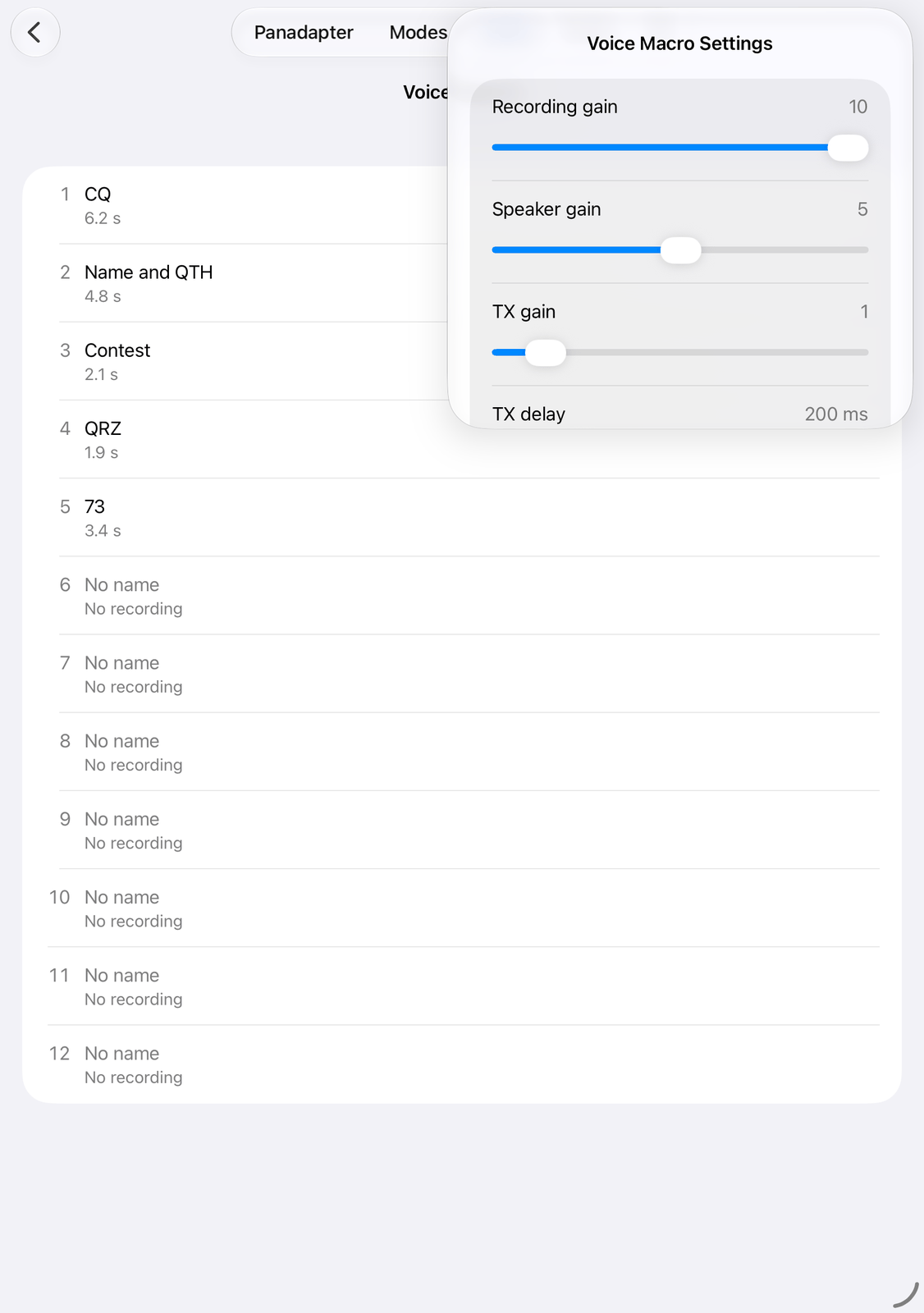
The changes work at once. 0 on a slider means Off.
Recording gain — the level of the microphone while you record. Watch the level meter: when you speak, the bar should reach the yellow part, but not the red one.
Speaker gain — how loud a macro plays on your device.
TX gain — the level sent to the radio. Set it once while you watch the radio’s ALC, as for your normal microphone.
TX delay — a short pause after the radio has switched to transmit, before the macro starts, in milliseconds, for example
200 ms. Raise it if the first word is cut off.
4.7. Good to know
For the best sound, record with a headset in a quiet place, and find the right balance between Recording gain and TX gain.
Only macros with a name get a button in the Macro Bar.
Closing the screen of a macro stops it, if it is still playing or being sent.
A voice macro made as Text to speech in an older version of the app is played on your device only. To send a typed text with a computer voice, use the Speech mode and its Speech Macros.
4.8. On the iPhone
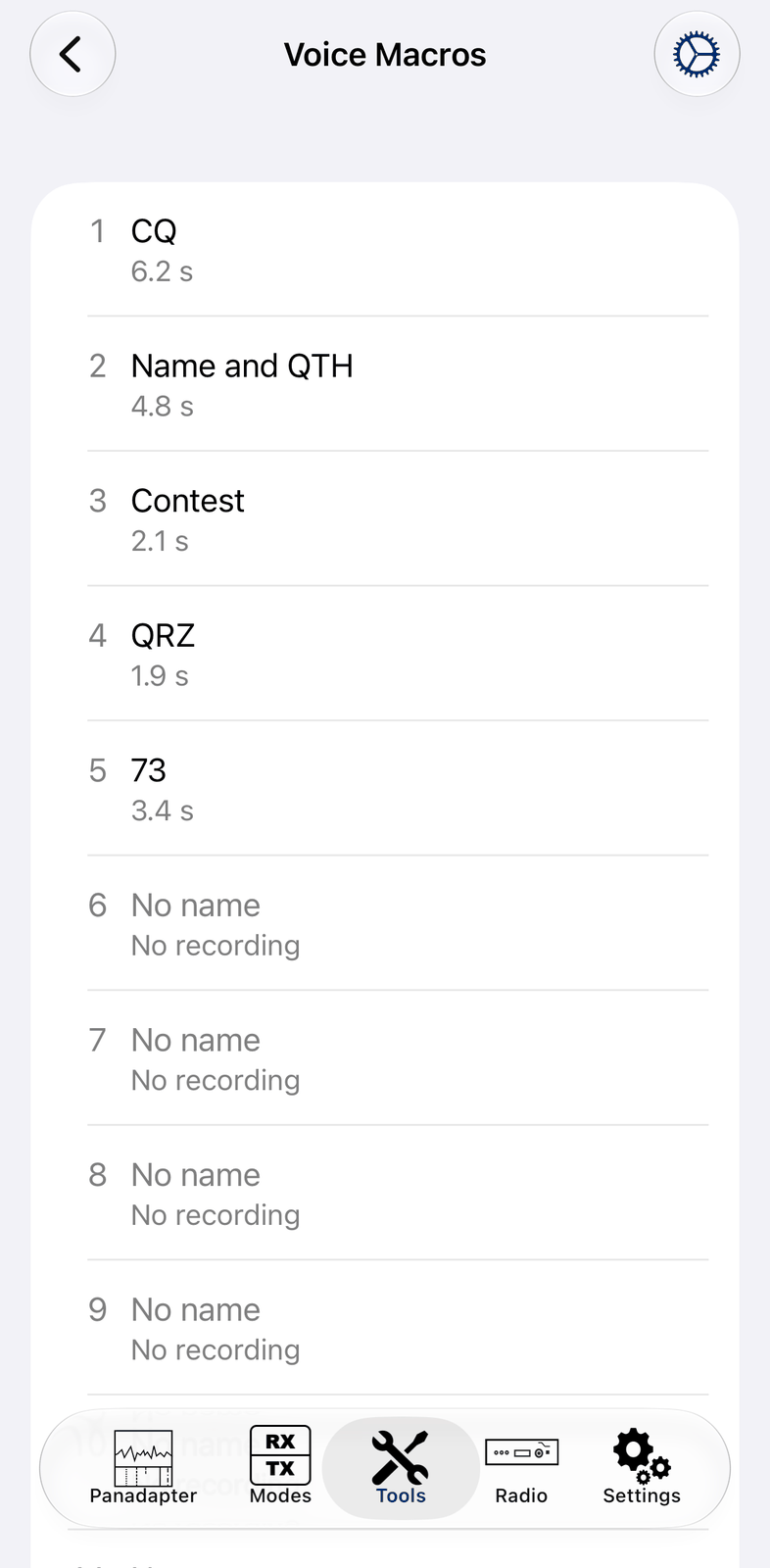
The iPhone shows the same list and the same screens. The settings open as a sheet: Done closes them. Option keys need a keyboard connected to the iPhone.
5. Speech Macros
Speech macros are texts that the Speech mode speaks and sends over the air with a computer voice, for example your CQ call or the end of a QSO. Nothing is recorded: you type the text, and the app’s voice speaks it. You have 12 Speech macros.
Placeholders like {MYCALL} are filled in when the macro is sent, so one macro works for every QSO.
The Speech mode needs iOS 26.
5.1. Quick start
In the Tools tab, open Macros, then Speech Macros.
Tap the row 1. Enter
CQin Name andCQ, CQ, CQ, this is {MYCALL} calling and listening.in Text. Tap Save.Open the Speech mode and tap TX. Your macro is the button CQ below the red bar. Tap it to send it.
5.2. The screen
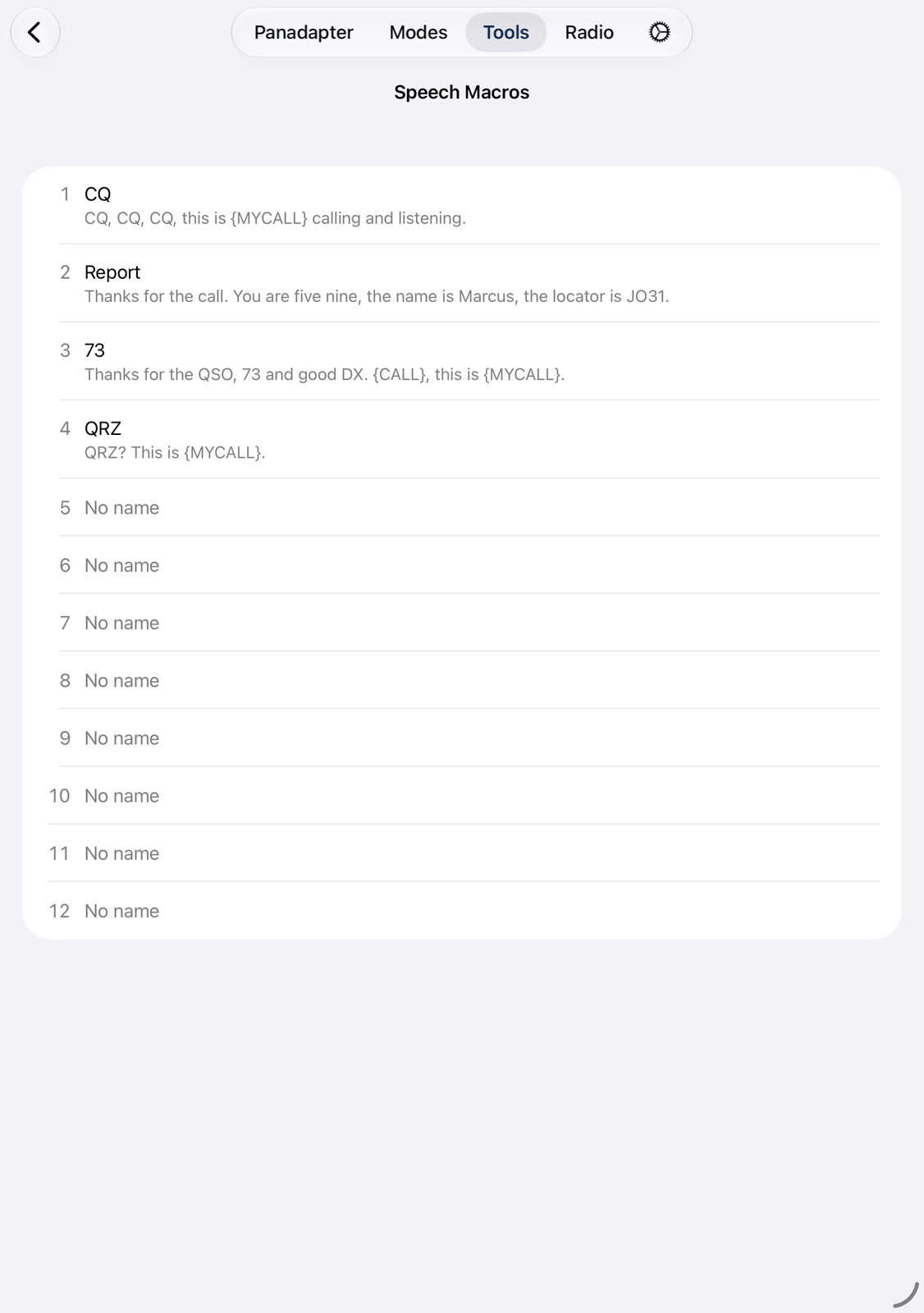
One row per macro: its number, its name and the start of its text. An empty macro shows No name.
Tap a row to change the macro.
Swipe a row to the left for Edit and Clear. Clear empties the macro, after you confirm it.
Touch and hold a row for the same two actions.
5.3. Changing a macro
Name — the title of the macro’s button. Keep it short, for example
CQor73. A macro without a name gets no button.Text — what the voice says. It can be several lines long.
Tap Save, or Cancel to leave the macro as it was.
The screen looks like the one of the CW macros.
5.4. Writing for the voice
The voice reads the text as it is written, so how you write changes what is heard:
Put commas between spelled letters and numbers:
Delta, Lima, 8. Without them they run together.End a sentence with a full stop. The voice then goes down at the end, as a speaker does.
{MYCALLSPELL}and{CALLSPELL}spell a call with the phonetic alphabet:Delta,Limaand so on.{MYCALL}and{CALL}give the call as it is written.Write the macro in the language spoken on the air. Speech macros are never translated, even when Translate is set in the Speech mode.
The voice, its speed and its pitch are set in the settings of the Speech mode.
All placeholders are listed in Macros.
Example QSO:
Name |
Text |
|---|---|
CQ |
|
Report |
|
73 |
|
5.5. Sending a macro
Speech macros are only sent while TX is on in the Speech mode:
In the Speech mode: the buttons below the red bar.
In the Macro Bar on the radio screen: while TX is on in the Speech mode, it shows the Speech macros instead of the voice macros. Its title is Speech Macros then.
With the keyboard of the iPad: Option-1 to Option-9 send the macros 1 to 9, Option-X stops.
With a controller, for example a MIDI controller or a Flic button: the radio actions Macro 1, Macro 2, and so on.
How to open the Macro Bar: Macros.
The macro is spoken with the voice and the transmit settings of the Speech mode, as text you send there yourself.
5.6. Good to know
Only macros with a name get a button.
{LOG}logs the QSO at the moment the macro is sent. Put it into the macro that ends the QSO.Speech macros are not the same as voice macros: a voice macro is a recording of your own voice.
5.7. On the iPhone
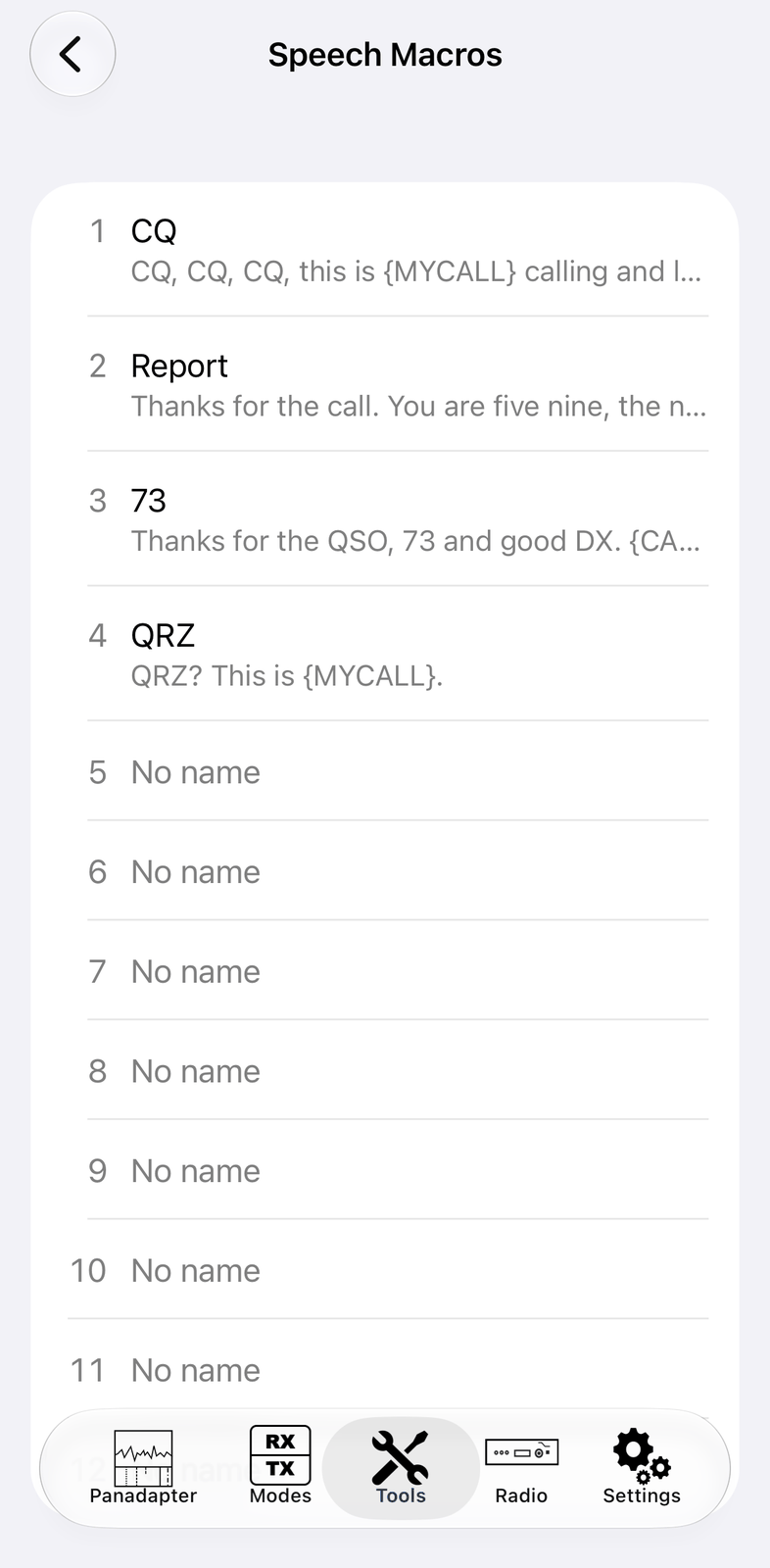
The iPhone shows the same list and the same screen to change a macro.
6. DX-Cluster
A DX cluster is a network where radio amateurs report the stations they hear: the call, the frequency and a short comment. Such a report is called a spot. The DX-Cluster tool shows these spots in a list. Tap twice on a spot and the radio tunes to it.
The app knows several DX clusters, for example DX Summit or the Reverse Beacon Network. You can also add your own cluster node, or a CW Skimmer on your own computer. The spots can also be shown on the waterfall.
6.1. Quick start
Check that your call is in the app’s settings under HAM Radio (Your Call). Most clusters ask for it.
Open DX-Cluster and tap Connect. The first spots appear after a few seconds.
Tap twice on a spot. The radio tunes to its frequency and shows the radio screen.
Touch and hold a spot for more: look up the call, show it on a map, or see all its details.
6.2. The screen
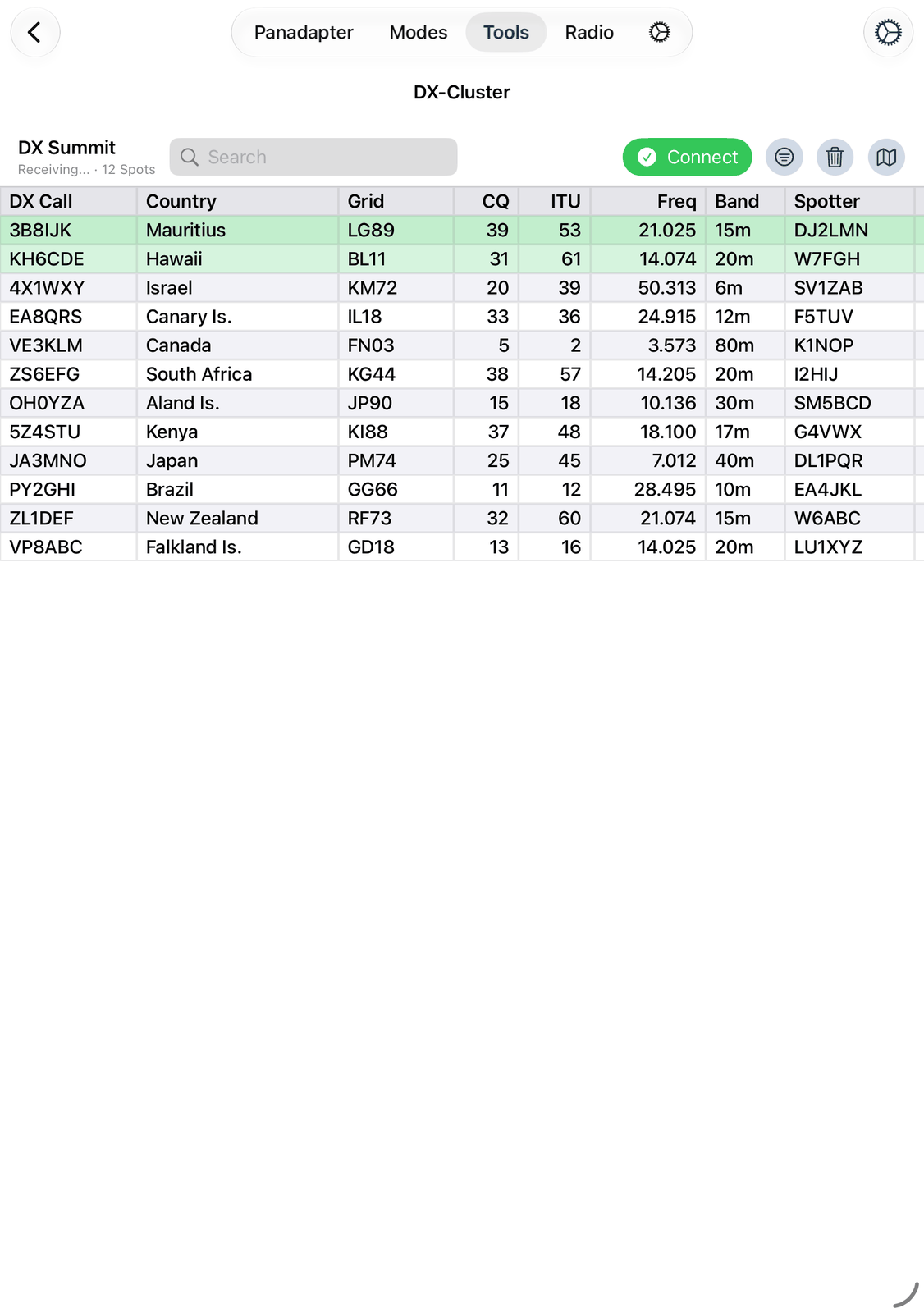
6.2.1. The top row
On the left you see the name of the cluster and, below it, what the tool is doing (
Connecting...,Receiving..., an error) and the number of spots.Search shows only the spots that contain your text. See Search.
Connect connects to the cluster and disconnects again. It is green while connected.
The funnel opens the filter. It is filled while the filter hides spots. See Filter.
The trash can clears the list. New spots keep coming in.
The map button shows all spots of the list on a map. See Map.
⚙︎ at the top right opens the settings. See Settings.
6.2.2. The list
The newest spots are at the top. Green rows came in with the last update.
DX Call, Country and Grid: the station that was heard.
CQ and ITU: its zones.
Freq and Band: where it was heard.
Spotter: who heard it. Comment: the spotter’s comment, for example the mode or the signal.
Time: when it was heard (UTC).
The list is wider than the screen: swipe left and right to see all columns. Tap a column title (DX Call, Country, CQ, ITU, Freq, Band or Time) to sort by it. Tap it again to reverse the order.
6.3. Using a spot
Tap twice on a spot to tune to it. The radio takes the frequency, and a fitting mode from the band plan (CW, FM, or USB / LSB where all modes are allowed). The call goes into the log entry, and the app shows the radio screen.
Touch and hold a spot for a menu:
Tune — the same as tapping twice.
Look up — looks up the call.
Look up Spotter — looks up the spotter.
Show on Map — shows the station and the spotter on a map.
Details — everything about the spot: the station (country, zones, DXCC, continent, position), the spot (frequency, band, mode, time, comment) and the spotter. The same actions are at the bottom.
6.4. Search
Type in Search to see only some spots. The text is looked for in the call, the spotter and the comment. Upper and lower case don’t matter. Examples:
JA— all spots with JA in the call, the spotter or the commentFT8— all spots with FT8 in the commentVK, ZL— spots that match one of the terms (separate them with commas)cq=14oritu=28— stations in this CQ or ITU zone.spottercq=14andspotteritu=28look at the spotter’s zone.
The ✕ in the field clears it. The search is cleared when the app starts again.
6.5. Filter
The funnel opens the filter. Unlike the search, the filter is kept.
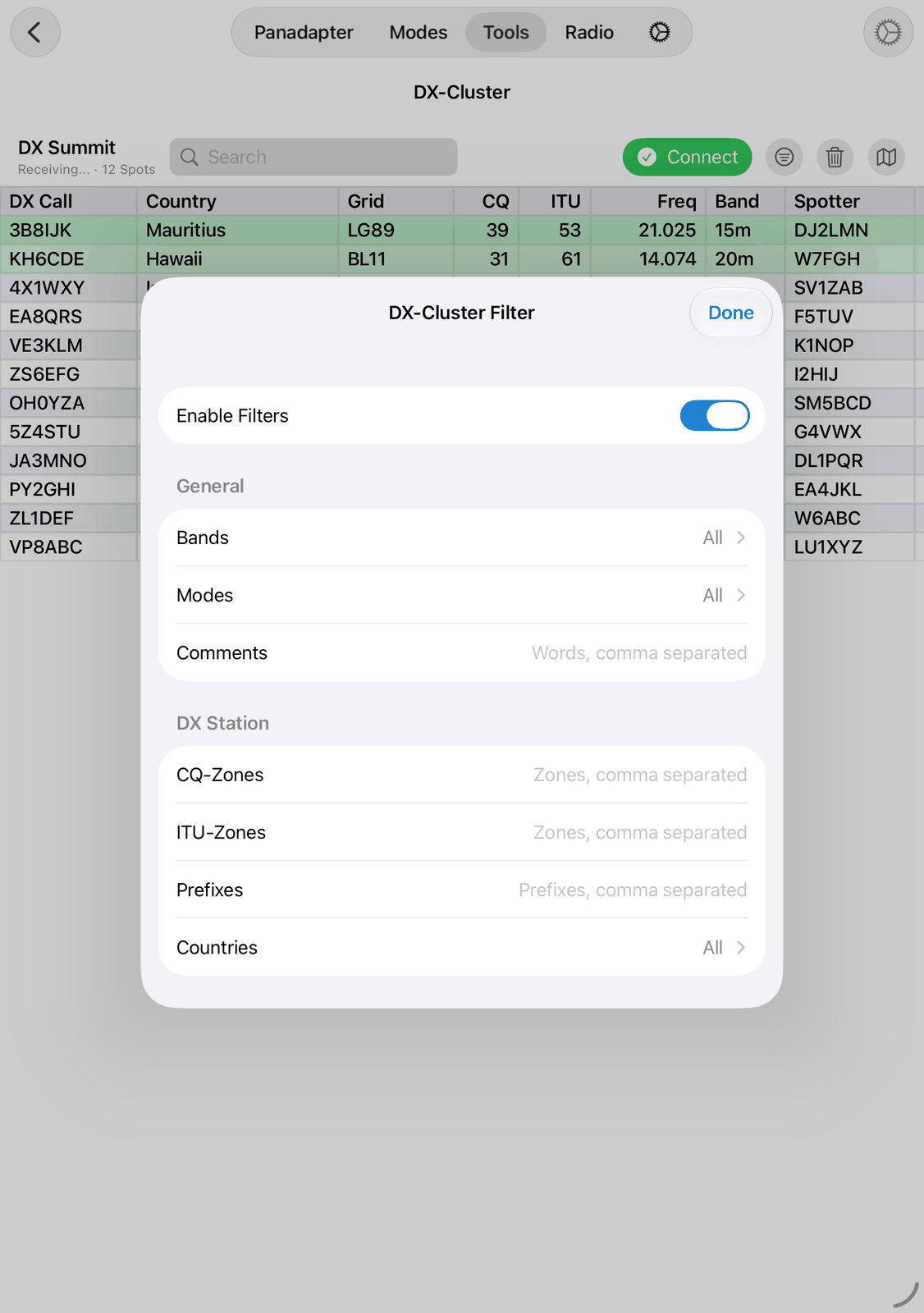
Enable Filters switches the whole filter on and off. Your entries are kept.
General: Bands and Modes open a list. Tick what you want to see. All at the top ticks everything, None removes all ticks, so you can tick just a few. Nothing ticked shows everything, as All does. Comments shows only spots with one of these words in the comment.
DX Station: the station that was heard. CQ-Zones, ITU-Zones and Prefixes take several entries, separated by commas, for example
14, 15, 16orDL, OE, HB9. Countries opens a list of all countries with a search field.Spotter: the same for the spotter. For example,
DL, ON, PAin Prefixes shows only spots from spotters whose call starts with DL, ON or PA.An entry starting with
-hides matching spots instead. For example,-K, -Win Prefixes hides calls that start with K or W.Reset All Filters clears all entries.
Changes work right away. Tap Done to close the filter.
6.6. Map
The map button shows all spots of the list on a map:
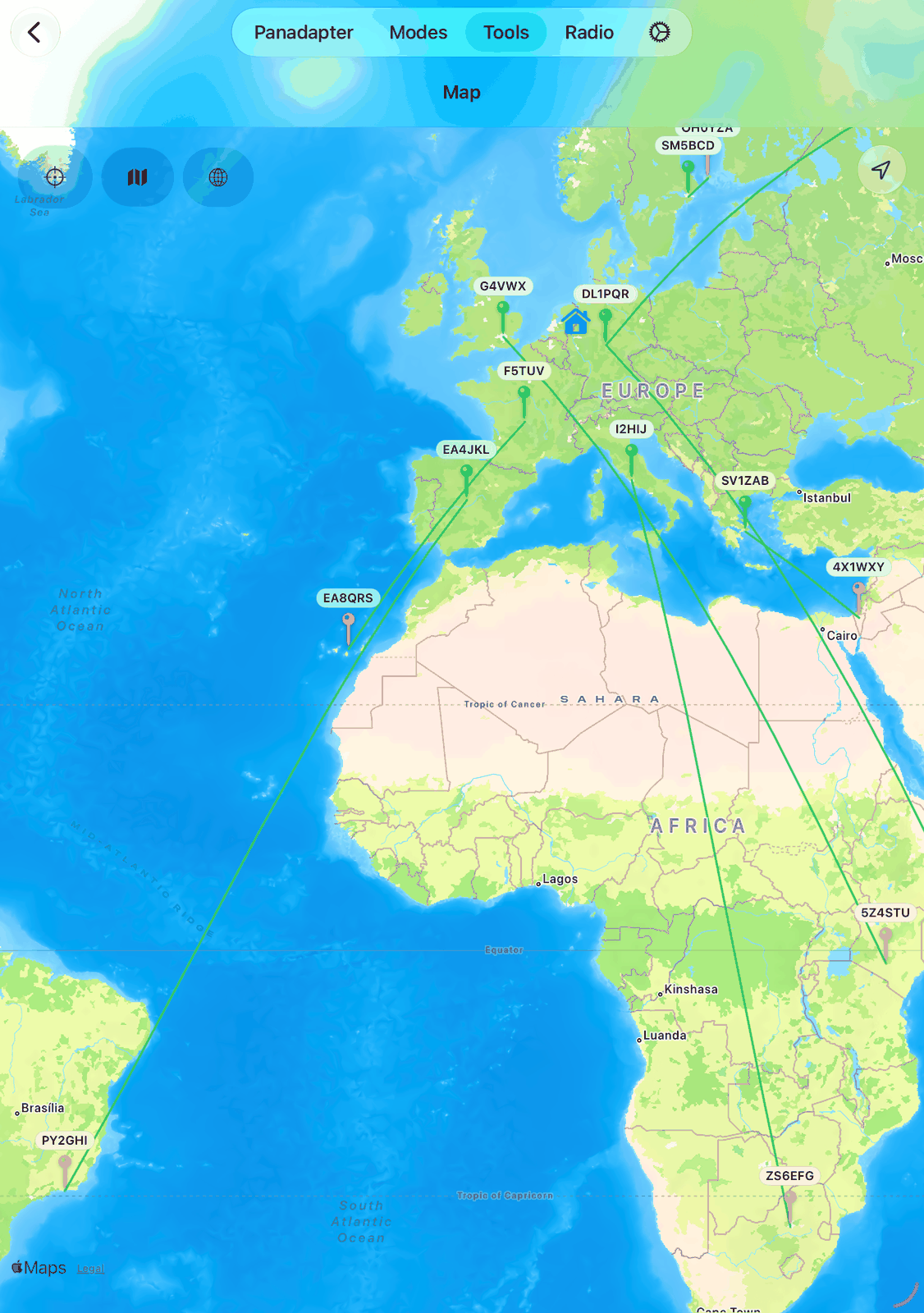
Red pins are the stations, green pins the spotters. A green line joins each spotter and the station it heard.
The house is your own station. It needs Grid (QTH Locator) in the app’s settings under HAM Radio.
Tap a pin to see its details, the distance and the direction from your station, and Look Up Call.
The buttons at the top left: show all pins again, globe view on and off, satellite pictures on and off.
On this map a station is often placed in the middle of its country, because only the call is known. Show on Map of a single spot looks up the exact places of the station and the spotter on QRZ.com or HamQTH. It needs your login for one of them in the app’s settings (Call Lookup).
6.7. Settings
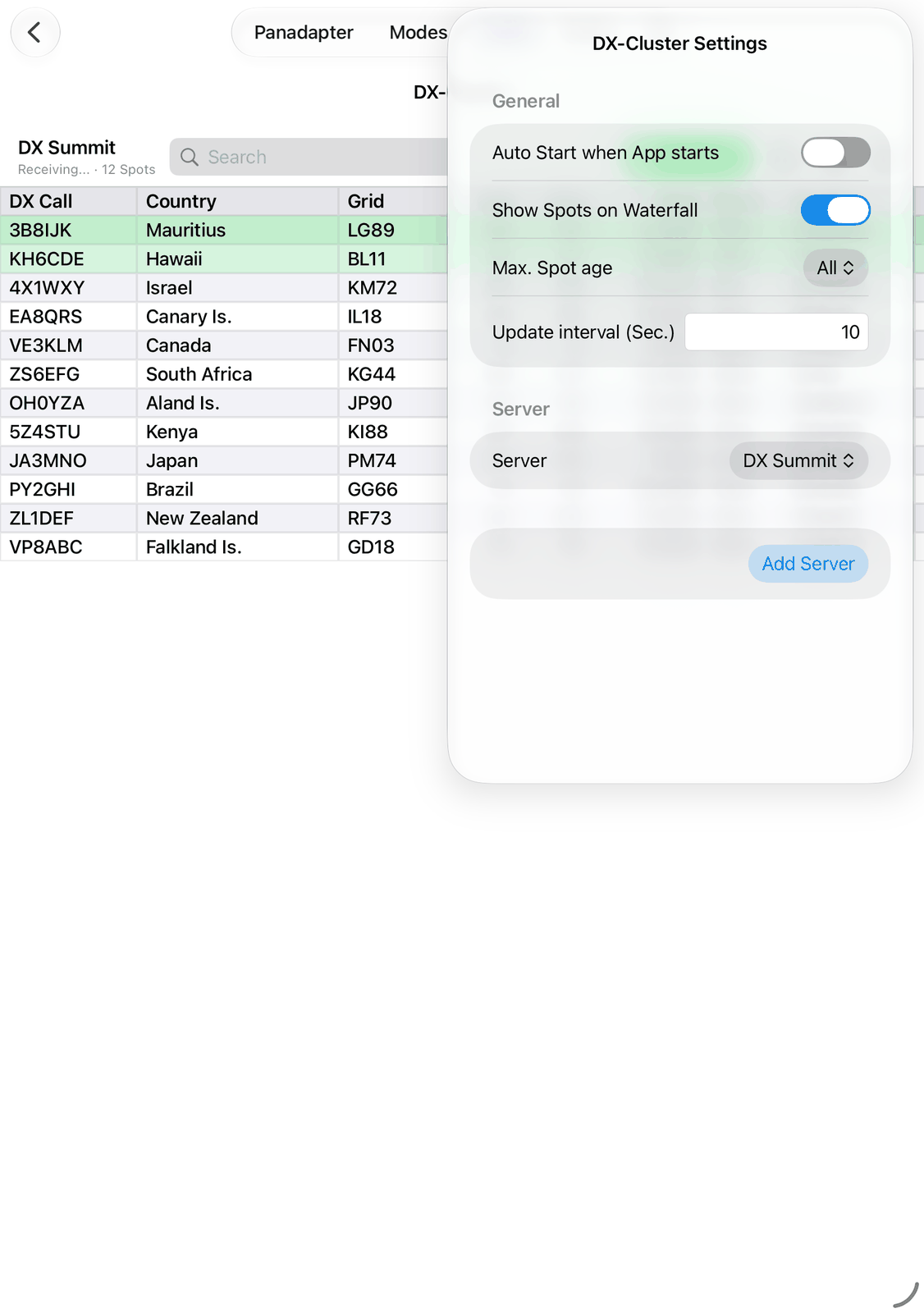
Tap ⚙︎ to open the DX-Cluster settings.
6.7.1. General
Auto Start when App starts — connects to the cluster by itself when the app starts.
Show Spots on Waterfall — shows the spots on the waterfall. This is the same switch as DX-Cluster in the app’s settings under Spots.
Max. Spot age — removes older spots from the list: 10 Min., 1 Hour, 1 Day or All.
Update interval (Sec.) — how often the list is updated, from 10 to 99 seconds.
6.7.2. Server
Server — the cluster to use. A new choice clears the list. Tap Connect to connect to it.
Add Server — adds your own server and selects it. Fill in its fields:
Title — the name shown in the list.
Address / IP — the address of the cluster node, or of the computer that runs CW Skimmer.
Port — the port of the server.
Type — Telnet for a DX cluster node, Skimmer for a CW Skimmer, Web or Web API for a web server.
Initial Command — text that is sent right after connecting.
{CALL}is replaced by your call,\nstarts a new line. Most nodes ask for your call first, so start with{CALL}. For example,{CALL}\nsh/dx 50logs in and then asks for the last 50 spots.
Delete Server — deletes your own server. It is only there when one of your own servers is selected.
All changes are saved right away.
6.8. Good to know
The connection stays when you leave the screen or switch to another tab. Only Connect ends it.
If a cluster asks for your call and the app has none, the top row shows an error. Enter Your Call in the app’s settings.
The Reverse Beacon Network (RBN) and CW Skimmers report what their receivers decode by themselves. They send many spots: use the filter.
The servers in the list come with the app’s data. You can’t change them, but you can add your own.
6.9. On the iPhone
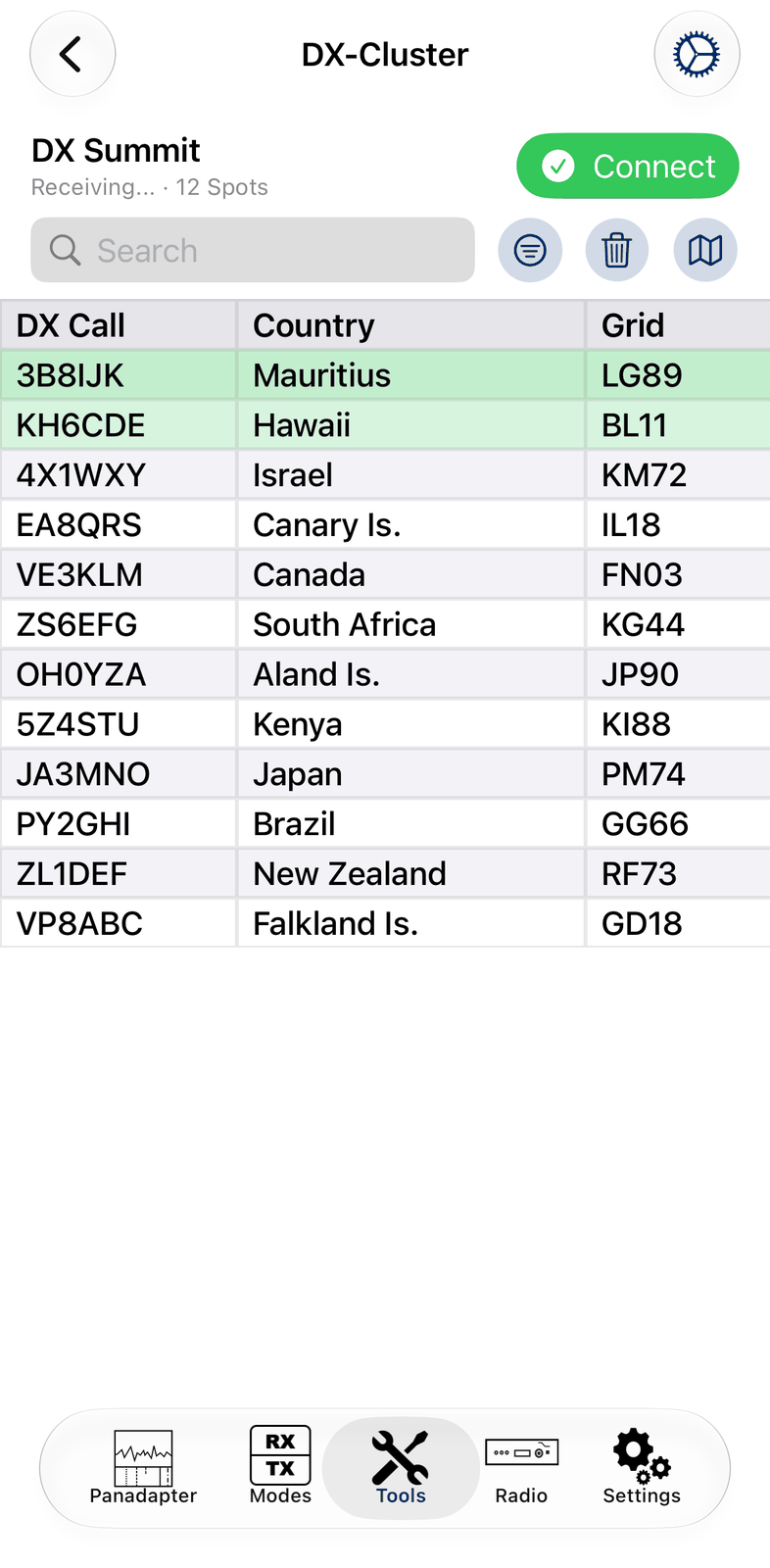
The iPhone shows the same screen. Search gets its own line, together with the funnel, the trash can and the map button. Swipe the list left and right to see all columns. The settings open as a full screen: tap Done to close them.
7. POTA
Parks on the Air (POTA) is an award program: radio amateurs go to parks and nature reserves and make contacts from there. They are called activators. The POTA tool shows who is on the air from a park right now, with the data from https://pota.app.
Tap twice on a spot and the radio tunes to the activator. The park goes into your log entry, so the contact is logged with the park reference.
7.1. Quick start
Open POTA and tap Start. The spots appear after a few seconds and are updated by themselves.
Tap twice on a spot. The radio tunes to the activator and shows the radio screen. Your log entry is filled in with the call and the park.
Make the contact and log it.
7.2. The screen
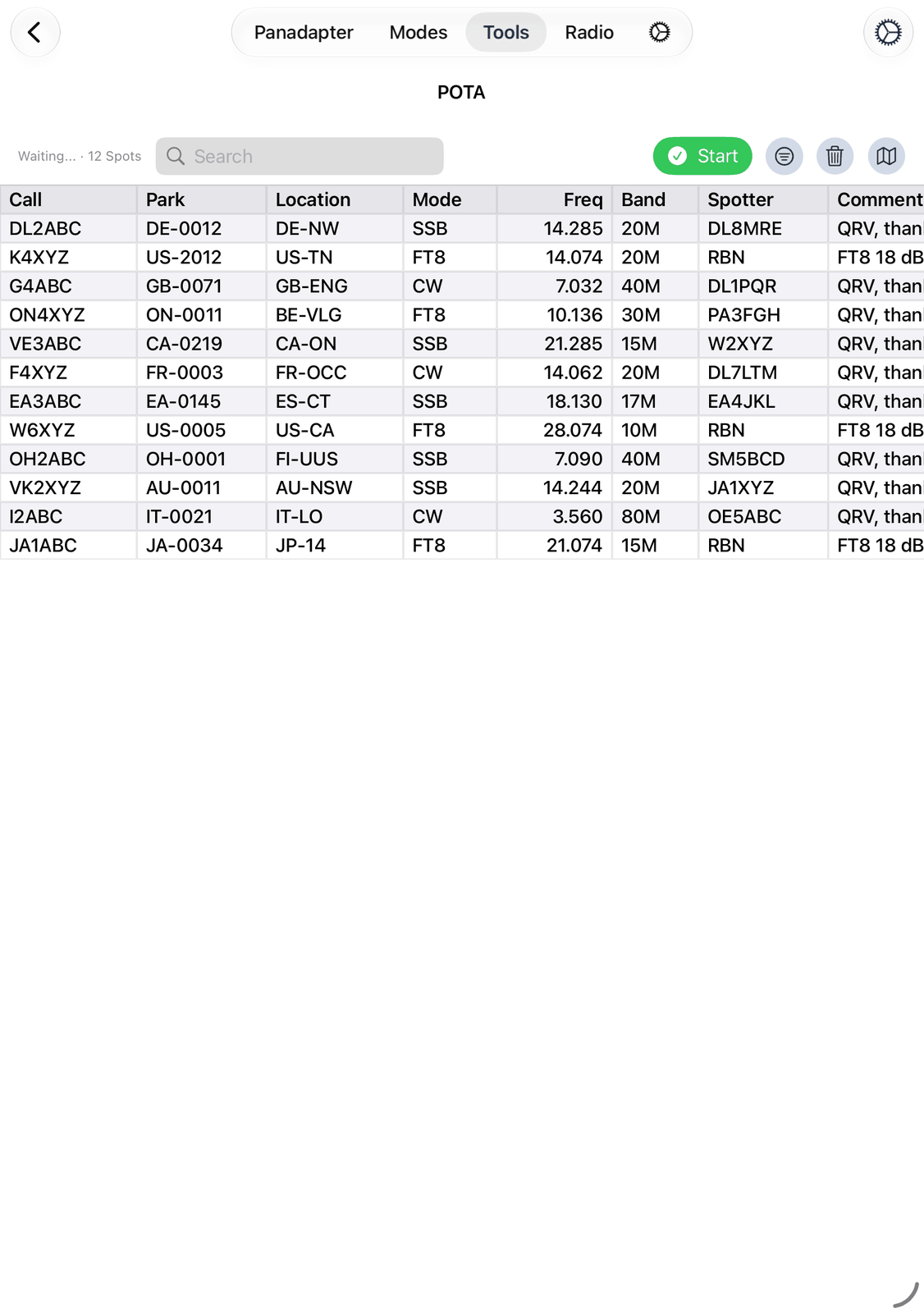
7.2.1. The top row
On the left you see what the tool is doing (
Loading...,Waiting..., an error) and the number of spots.Search shows only spots whose call, park, park name or location contain your text, for example
K4,US-2012orDE-. The ✕ in the field clears it.Start loads the spots and keeps them up to date. It is green while running. Tap it again to stop.
The funnel opens the filter. It is filled while the filter is on. See Filter.
The trash can clears the list until the next update.
The map button shows all spots of the list on a map. See Map.
⚙︎ at the top right opens the settings. See Settings.
7.2.2. The list
The newest spots are at the top.
Call: the activator.
Park: the park reference, for example
US-2012. Location: the state or region, for exampleUS-TN.Mode, Freq and Band: where the activator is.
Spotter: who reported it. Comment: the spotter’s comment.
Time: how long ago the spot came in.
The list is wider than the screen: swipe left and right to see all columns. Tap a column title (Call, Park, Location, Mode, Freq, Band or Time) to sort by it. Tap it again to reverse the order.
7.3. Using a spot
Tap twice on a spot to work the activator. The radio tunes to the spot. A CW spot switches the radio to CW; for a phone spot it takes USB, LSB or FM, as the band plan says. Your log entry gets the call, the mode, the park as comment (for example
POTA US-2012@US-TN) and the park in POTA Ref. Then the app shows the radio screen.FT8, FT4 and data spots are not tuned: tapping twice only fills in your log entry. See Good to know.
Touch and hold a spot for a menu:
Tune — the same as tapping twice. For FT8, FT4 and data spots it reads Fill in Log Entry.
Park on pota.app — opens the park’s page on pota.app.
Activator on pota.app — opens the activator’s page on pota.app.
Show on Map — shows the park on a map, with the distance and the direction from your station.
Details — everything about the spot: the activation (park name, location, grid, how many spots), the spot (frequency, mode, time, spotter, source, comment). The same actions are at the bottom.
7.4. Filter
The funnel opens the filter.
Enable Filters switches the filter on and off.
Show only: Band shows one band only, Mode one kind of mode only (CW, Phone, FT4, FT8 or Data). All shows everything.
Changes work right away. Tap Done to close the filter.
7.5. Map
The map button shows all spots of the list on a map:
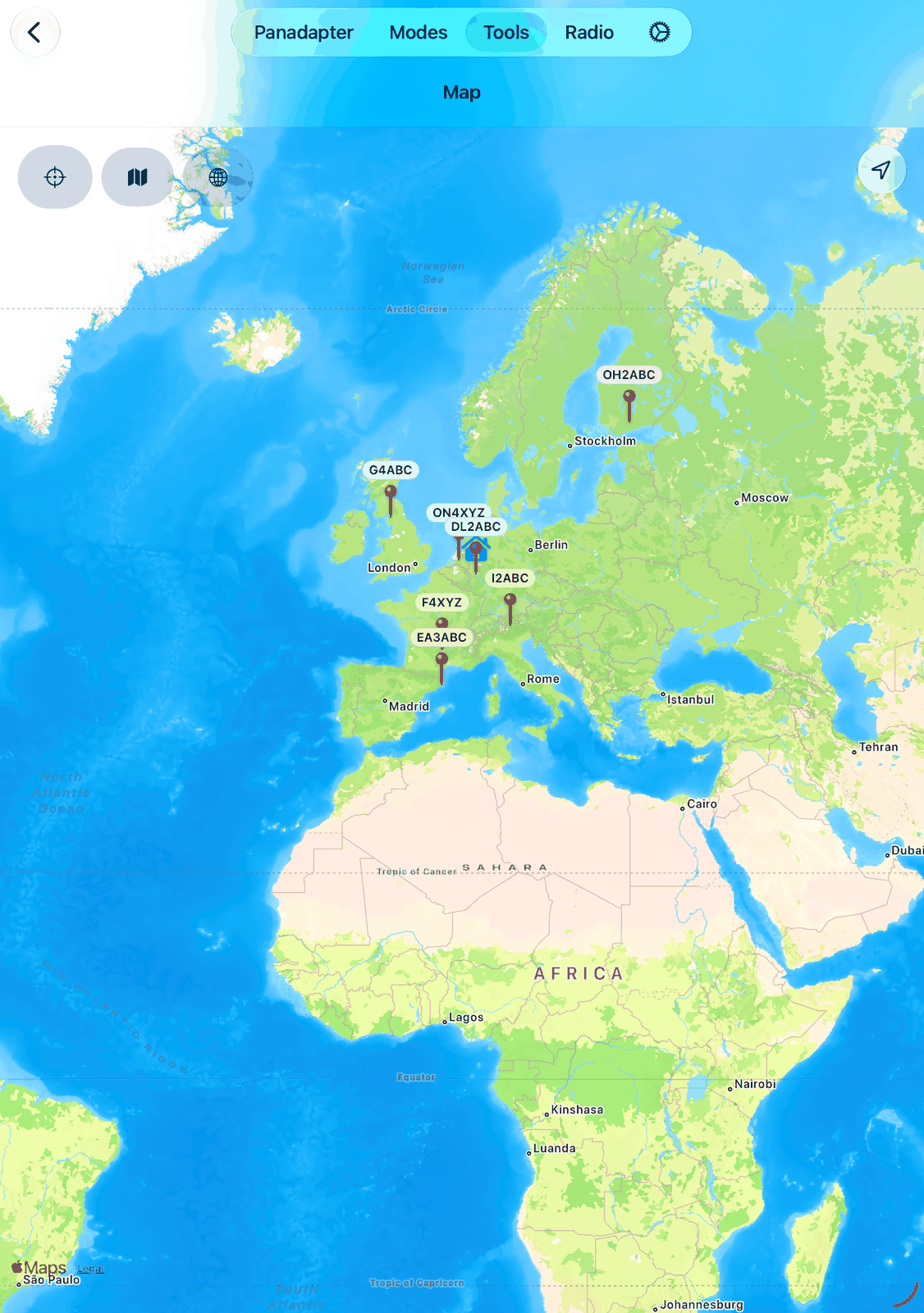
Each red pin is an activator in its park. The house is your own station. It needs Grid (QTH Locator) in the app’s settings under HAM Radio.
Tap a pin to see the park, the frequency, the mode and the time, the distance and the direction from your station, and Look Up Call.
The buttons at the top left: show all pins again, globe view on and off, satellite pictures on and off.
7.6. Settings
Tap ⚙︎ to open the POTA settings.
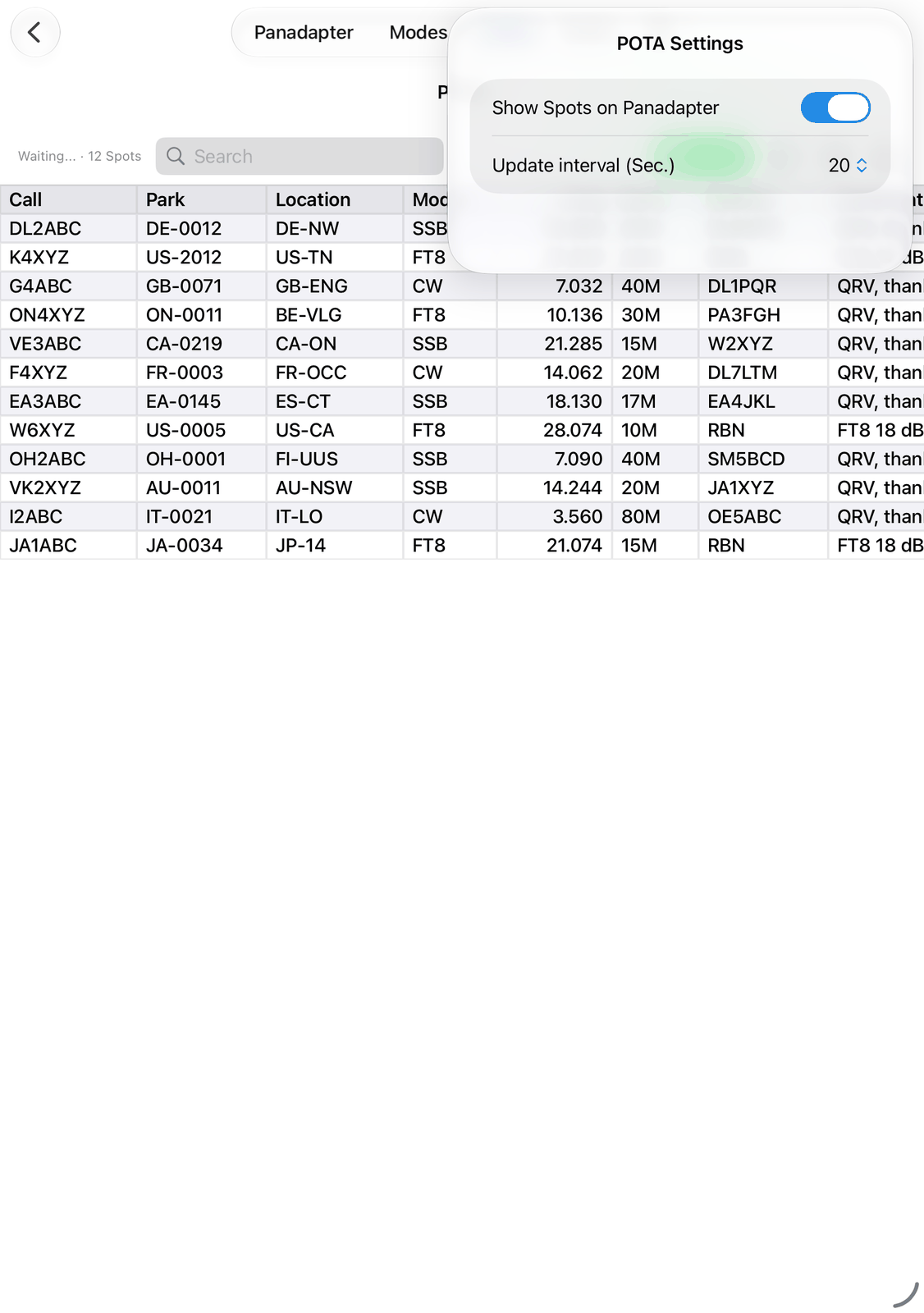
Show Spots on Panadapter — shows the activators on the waterfall. This is the same switch as POTA in the app’s settings under Spots.
Update interval (Sec.) — how often the spots are loaded again: every 20, 30, 60 or 120 seconds.
7.7. Good to know
The spots keep being updated when you leave the screen. Only Start stops it.
A new Start loads the list from scratch.
FT8, FT4 and data spots: the spotted frequency is not exactly where the activator is, so the radio is not tuned. Tapping twice fills in your log entry. Then open the FT8 mode on that band and look for the activator’s call there. FT8 spots are not shown on the waterfall.
Spots without a position (for example a park without coordinates) are left out on the map.
7.8. On the iPhone
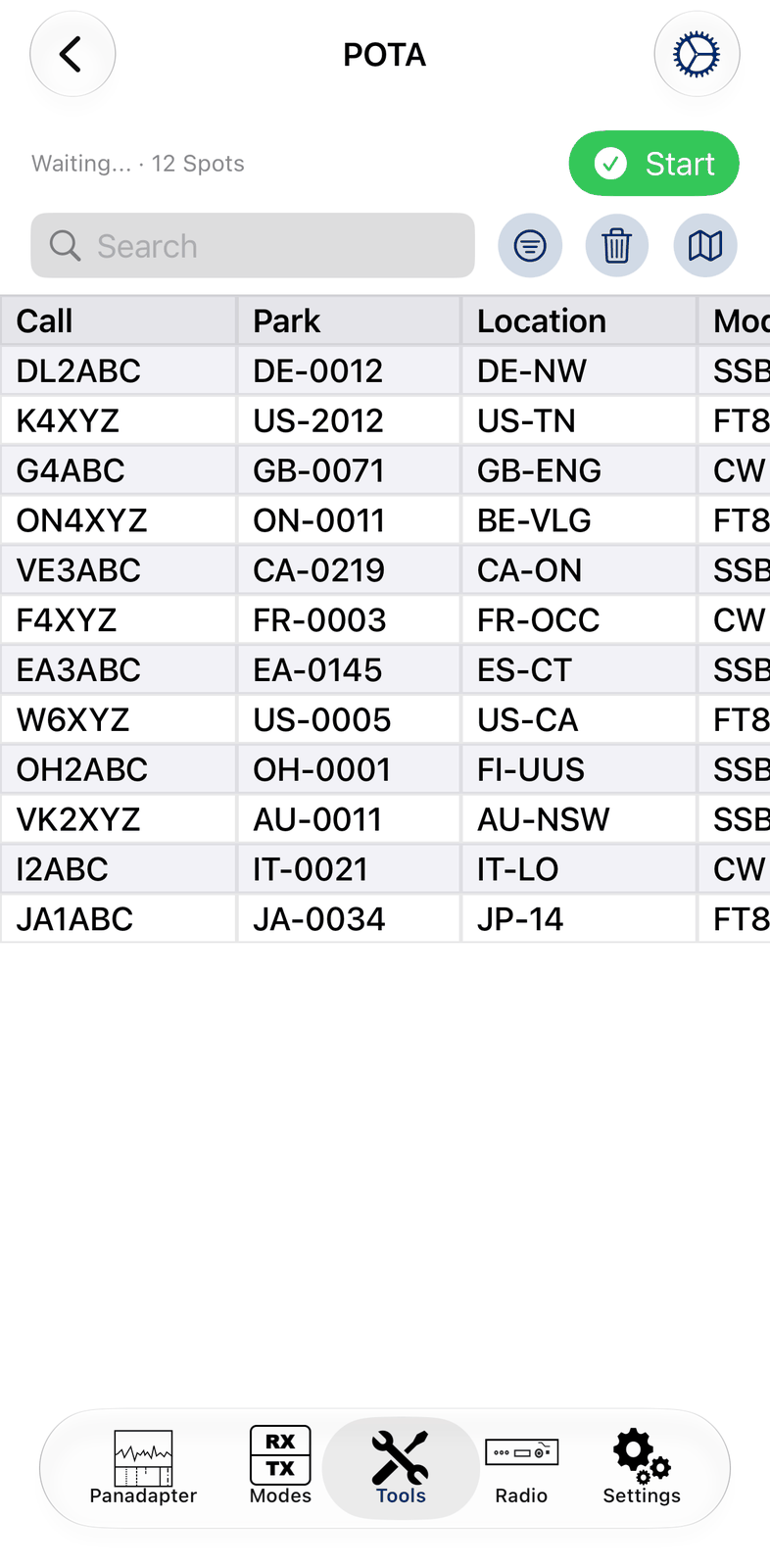
The iPhone shows the same screen. Search gets its own line, together with the funnel, the trash can and the map button. Swipe the list left and right to see all columns. The settings open as a full screen: tap Done to close them.
8. PSK Reporter
PSK Reporter (https://pskreporter.info) collects reception reports from stations all over the world. Receivers that decode digital modes like FT8, FT4 or JS8 report every call they hear.
The PSK Reporter tool asks PSK Reporter who heard your signal, and how well. Send a CQ or make a contact, then search for your call: you see right away where your signal arrives. It works for any other call too.
The app can also send your own reports to PSK Reporter. See Sending your own reports.
8.1. Quick start
Send something on a digital mode, for example a few CQ calls in FT8.
Open PSK Reporter. Choose Who heard and type your call.
Tap Search. The list shows every station that heard you, with the signal and the distance.
Tap the map button to see them on a map.
8.2. The screen
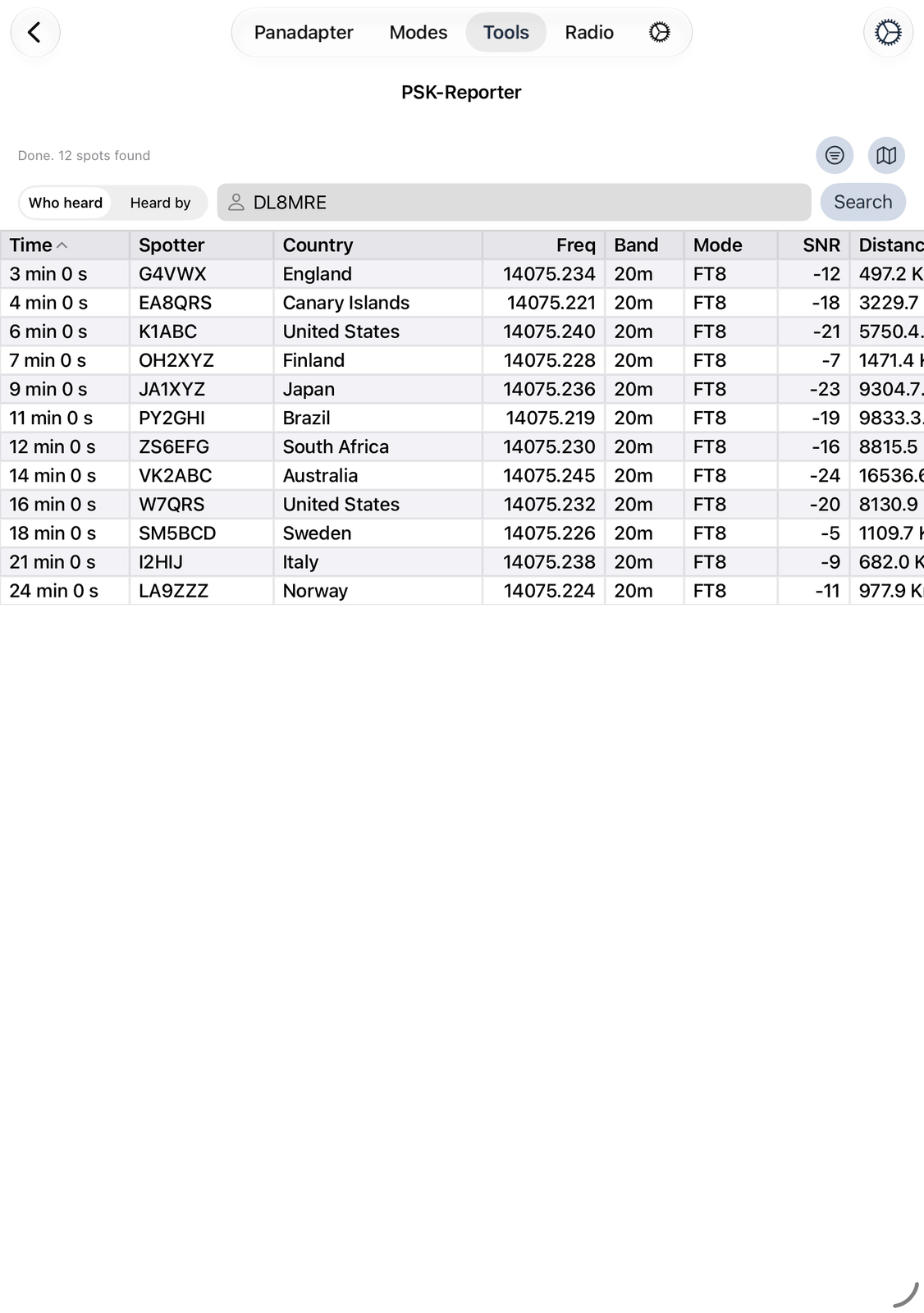
8.2.1. The top rows
On the left you see the number of reports, or a message from PSK Reporter.
The funnel opens the filter. It is filled while a filter is set. See Filter.
The map button shows the reports on a map. See Map.
⚙︎ at the top right opens the settings. See Settings.
Below that you choose what to search for:
Who heard — the stations that heard a call. Type your own call to see who heard you.
Heard by — the stations one receiver heard. Type the call of that receiver (the spotter).
The call field — the call to search for.
Search asks PSK Reporter. Pressing Return in the call field does the same.
PSK Reporter answers once. To see new reports, tap Search again (not more often than every 5 minutes).
8.2.2. The list
What the list shows depends on the search:
Who heard: Time, Spotter (who heard the call), Country, Freq, Band, Mode, SNR (the signal in dB) and Distance (from your station to the spotter).
Heard by: the same, with Call (the station that was heard) instead of Spotter.
Without a call: Call and Spotter, each with its Country, and no distance.
Time shows how long ago the report came in. The newest reports are at the top.
The list is wider than the screen: swipe left and right to see all columns. Tap a column title to sort by it. Tap it again to reverse the order.
Tap a report to see its details: the heard station and the spotter, each with country, region, locator, distance and direction, and the spotter’s antenna and software.
Touch and hold a report for a menu: Details, and Look up for the calls in the row.
8.3. Searching without a call
Leave the call field empty to see all reports. PSK Reporter has a great many of them, so you first have to set a Band or a Mode in the filter. Then Search can be tapped.
8.4. Filter
The funnel opens the filter.
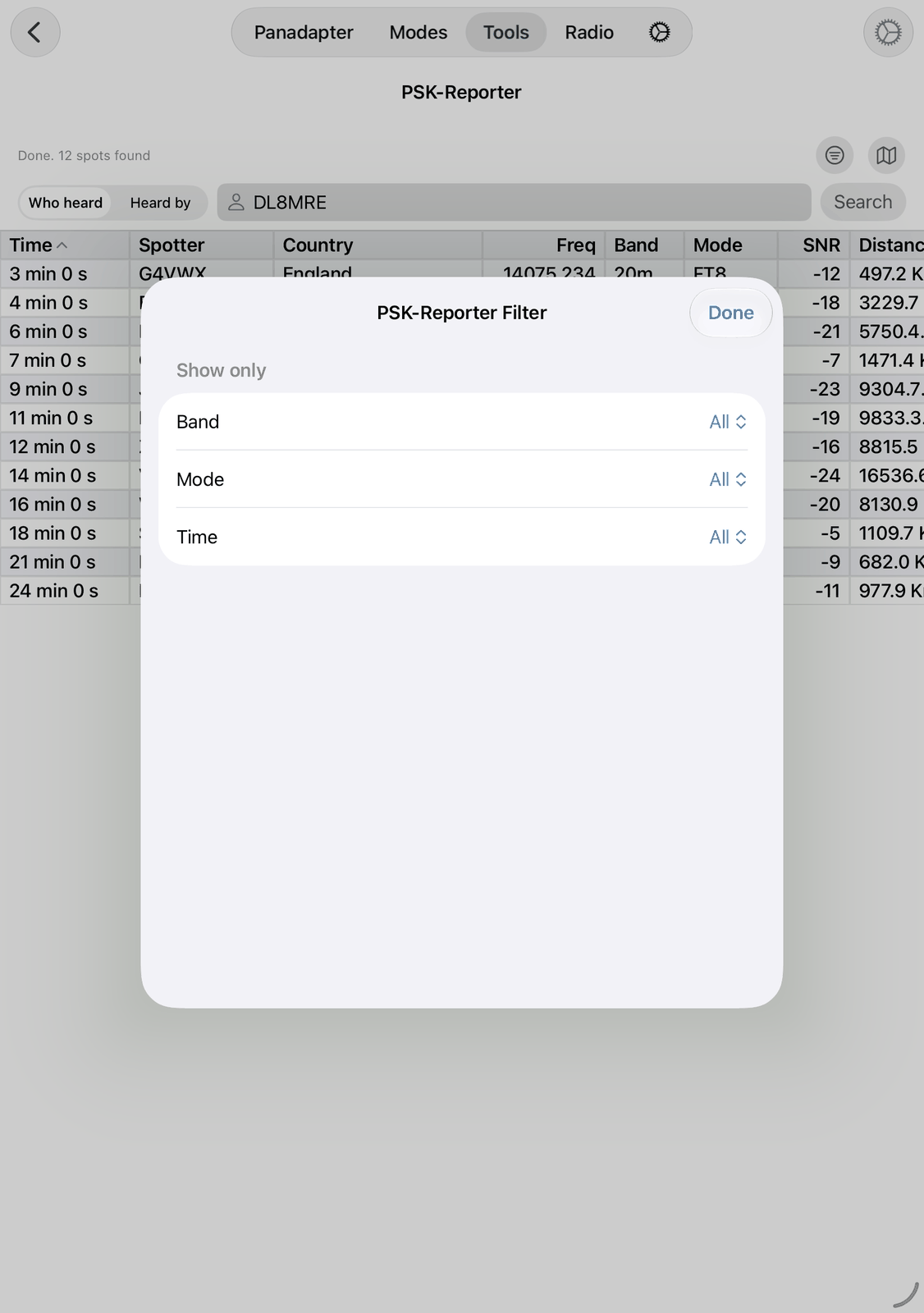
Band — only reports on one band.
Mode — only reports in one mode, for example FT8 or CW.
Time — only reports from the last 10 minutes up to the last 24 hours.
All shows everything. The filter is used at the next Search. Tap Done to close it.
8.5. Map
The map button shows the reports of the list on a map:
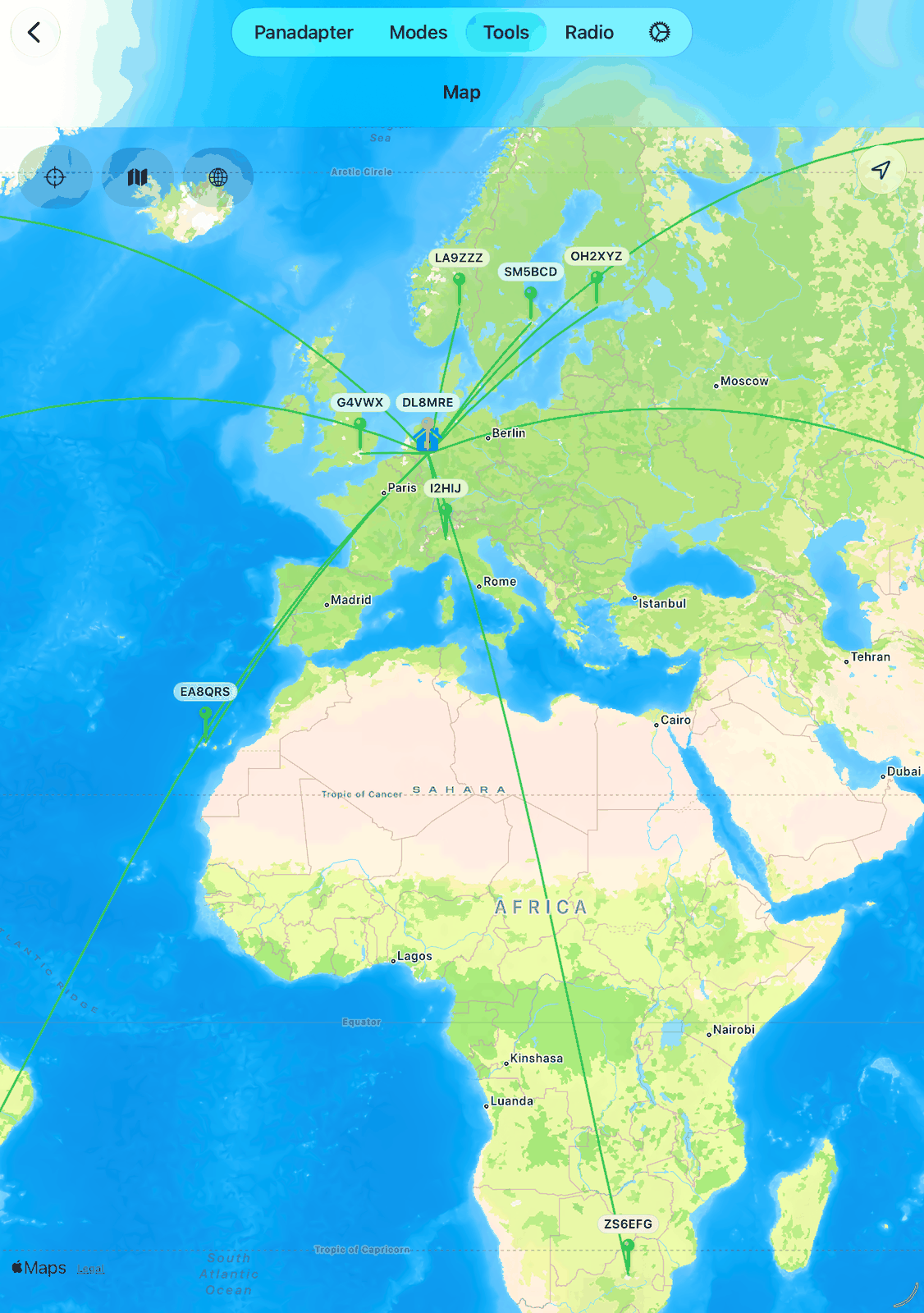
Red pins are the stations that were heard, green pins the stations that heard them (the spotters). A green line joins each spotter with the station it heard.
With Who heard, the call you searched for is in the middle, with lines to everybody who heard it. With Heard by, the spotter you searched for is in the middle, with lines to every station it heard.
The house is your own station. It needs Grid (QTH Locator) in the app’s settings under HAM Radio.
Tap a pin to see the country, the locator, the report (frequency, mode, signal and time), the distance and the direction from your station, and Look Up Call.
The buttons at the top left: show all pins again, globe view on and off, satellite pictures on and off.
Reports without a locator are left out on the map.
8.6. Settings
Tap ⚙︎ to open the PSK Reporter settings.
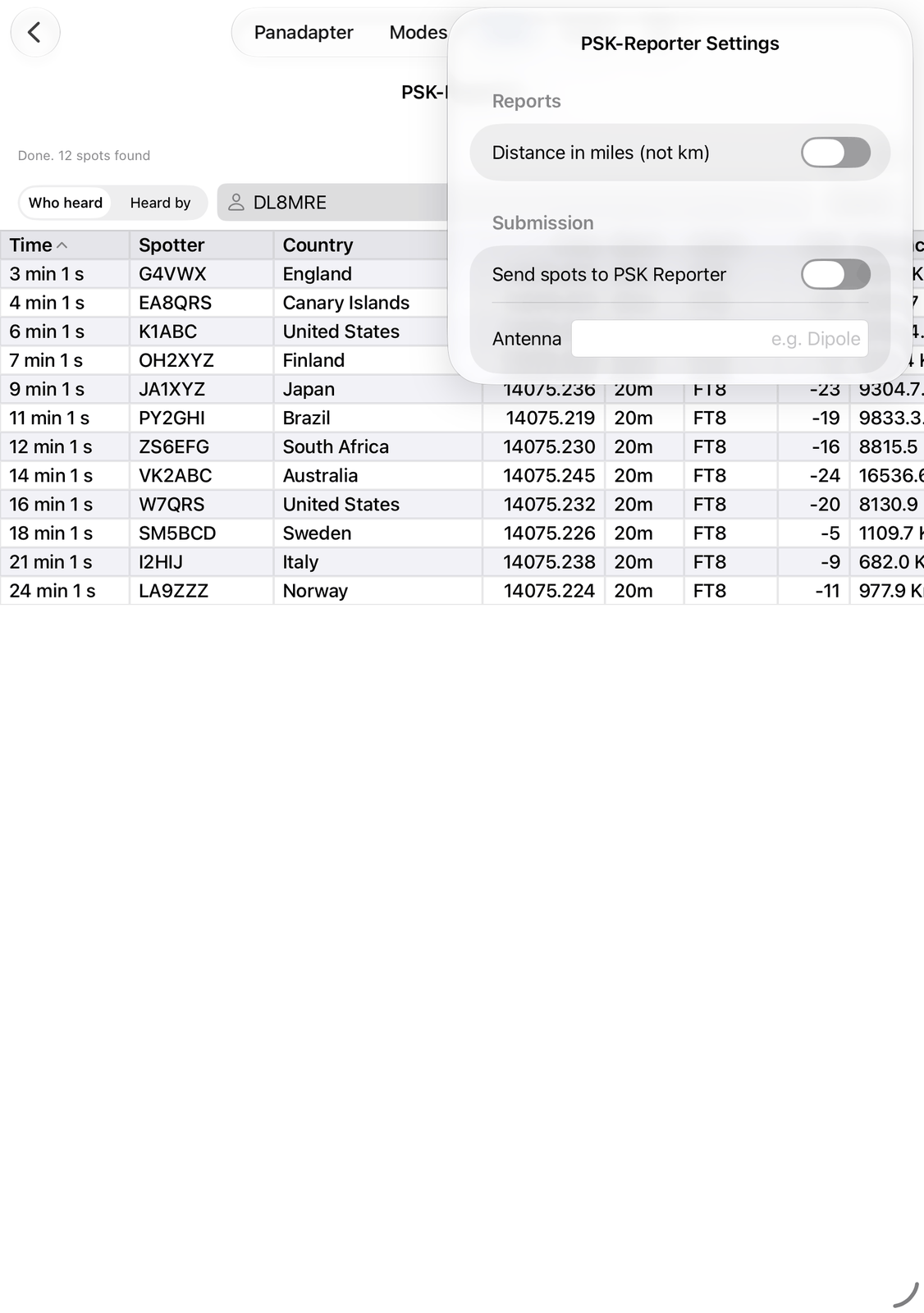
8.6.1. Reports
Distance in miles (not km) — shows the distances in miles.
8.6.2. Submission
Send spots to PSK Reporter — sends the stations you decode to PSK Reporter. See below.
Antenna — your antenna, for example
Dipole. It is sent with your reports and shown to others.
8.7. Sending your own reports
PSK Reporter lives from the many stations that send their reports. With Send spots to PSK Reporter on, the app sends the stations you decode in FT8, FT4 and JS8. Nothing else needs to be set up. Your call and your locator come from the app’s settings.
The same switch is in the app’s settings under PSK Reporter, as Propagate Spots. There you also find Update Interval: how often the app sends its reports (every 5, 10 or 15 minutes).
8.8. Good to know
It can take up to 15 minutes until a report shows up: receivers send their reports every few minutes, and PSK Reporter updates its data every 5 minutes.
PSK Reporter refuses the same search within 5 minutes. The top row then says
Too many identical requests within 5 minutes. Wait a little and search again.Nothing found.means nobody reported the call in that time. Check the call, or set Time to a longer time.For the distances, set Grid (QTH Locator) in the app’s settings.
8.9. On the iPhone
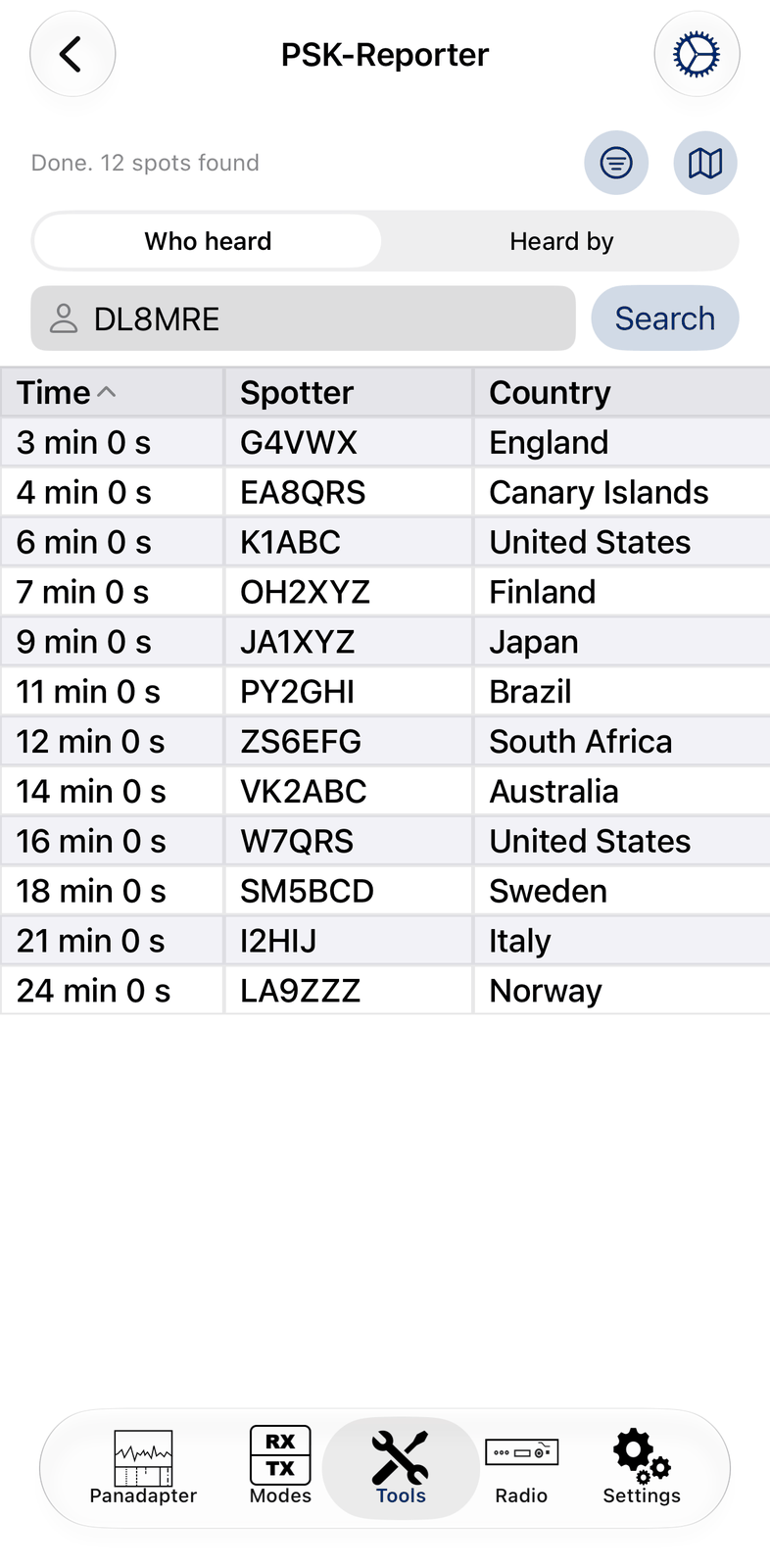
The iPhone shows the same screen. Who heard and Heard by get their own line above the call field. Swipe the list left and right to see all columns. The settings open as a full screen: tap Done to close them.
9. Logbook
The Logbook keeps your QSOs. It is made for quick, everyday logging: log a contact in a few taps, look it up later, and exchange your log with other logging programs as an ADIF file.
The Logbook works without a radio, too. With iCloud, the same log is on all your devices and in all apps of this family (SmartSDR, SDR-Control and HAM-Control, on the Mac and on iOS).
Other parts of the app use the Logbook: FT8, JS8, CW and SSTV open the log window for the station you worked, and calls you have worked before are marked in their lists.
9.1. Quick start
Tap + at the top. The log window opens, already filled in with the radio’s frequency and mode.
Type the call of the station in Call. The window shows its country, distance and bearing, and whether you have worked it before.
Check the reports (RST TX, RST RX) and add a Comment if you like.
Tap Save. The QSO is in your log.
Tap a QSO in the list to see or change all its details.
9.2. The screen
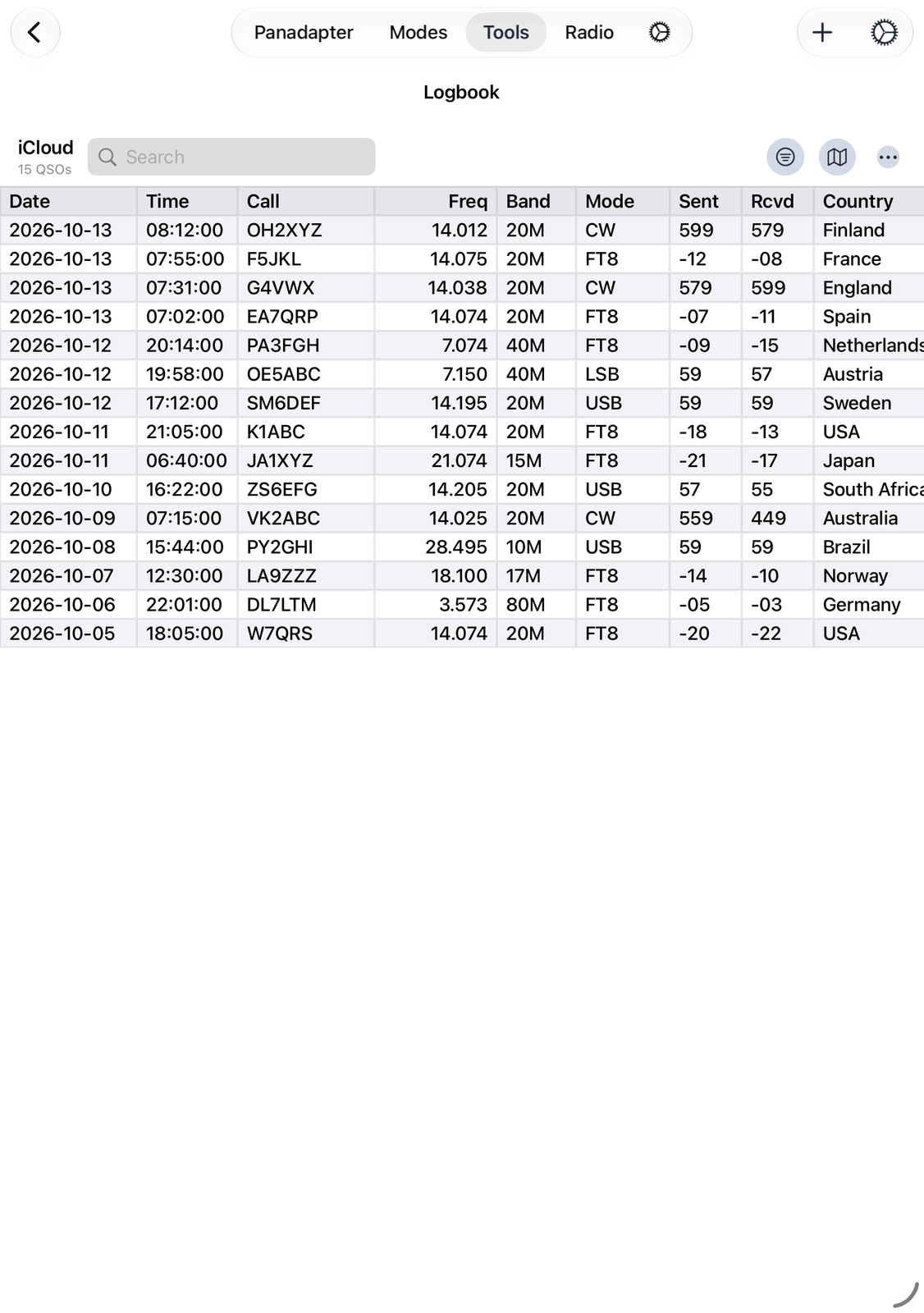
9.2.1. The top row
The name of the log in use, for example
iCloud, and below it the number of QSOs in the list.Filter onmeans a filter hides some QSOs.Search shows only the QSOs that contain the text in their call, name, country, locator, band, frequency or comment. The x clears the search.
The funnel opens the Filter. It is filled while the filter is on.
The map shows the QSOs of the list on a map. See Map.
… has more: export and share your log as an ADIF file, import an ADIF file, and Clear Log. See ADIF import and export.
In the navigation bar:
+ opens the log window for a new QSO. See Logging a QSO.
⚙︎ opens the Settings.
9.2.2. The list
One row per QSO: Date, Time, Call, Freq, Band, Mode, the reports Sent and Rcvd, Country, Name and Comment.
Tap the title Date, Call, Freq, Band, Mode or Country to sort by that column. Tap it again to reverse the order.
Tap a QSO to open its details. See Changing a QSO.
Touch and hold a QSO for a menu: Details, Look up (the call, see the Call Lookup chapter) and Delete.
9.3. Logging a QSO
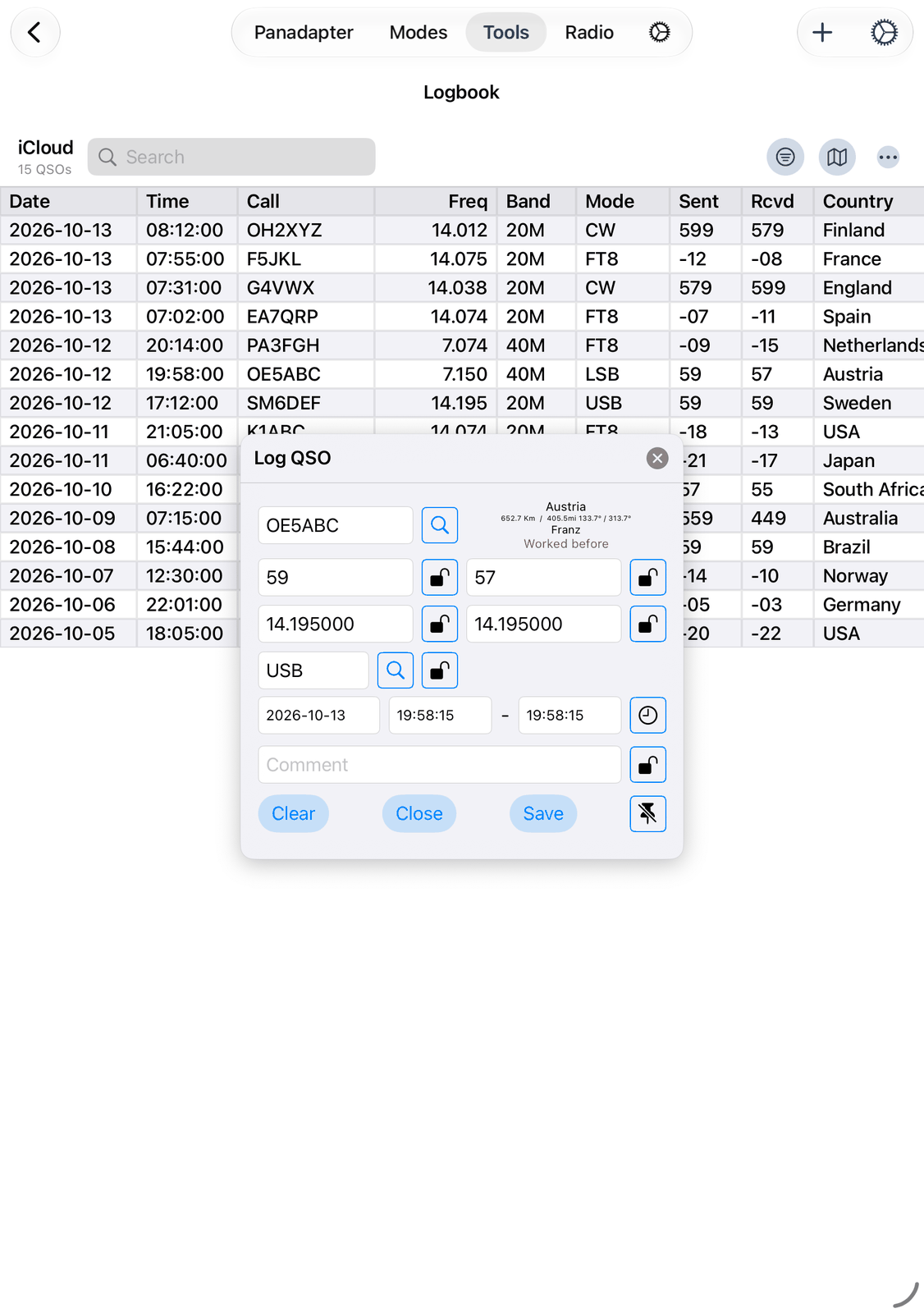
The log window opens from many places:
+ in the Logbook.
The Log button on the radio screen.
The log buttons in the modes, for example FT8, JS8, CW and SSTV. They fill in the call of the station you worked.
A controller button mapped to the log window.
With a keyboard, ⌘L opens the log window and ⌘B opens the Logbook.
When you tune to a spot in the DX Cluster or POTA tool, its call is put into the log window, ready for when you open it.
On the iPad the log window floats over the app. Drag its title bar to move it. It stays open while you switch tabs, so you can tune the radio or watch a mode while you log.
9.3.1. The fields
Call — the call of the station. Next to it you see its country, distance and bearing (short path / long path), the name when it is known, and
Worked before(red) orNot worked before(green).🔍 next to Call looks the call up and shows all details. See the Call Lookup chapter.
RST TX and RST RX — the report you sent and the report you received. For SSB, AM and FM the app fills in
59, for CW, RTTY and PSK599.QRG TX and QRG RX — your transmit and receive frequency.
Enter them in MHz, or in kHz when Enter frequencies in MHz (not kHz) is off in the app’s settings.
A few shortcuts:
20m(or another band) gives a typical frequency of that band,14200kmeans 14200 kHz,14.2Mmeans 14.2 MHz.Mode — for example
USBorCW. One letter is enough:UbecomesUSB,LLSB,CCW,FFM,AAM,SSSBandFTFT8. 🔍 next to it shows all modes to choose from. When a mode such as FT8 fills in the window, it showsMode: FT8instead of the field.QSO Date, Time on and Time off — date, start and end of the QSO, in UTC. You can type a date as
20261013or2026-10-13and a time as1412or14:12:30.Comment — any text.
9.3.3. Locking fields
The lock next to a field keeps its value: Clear and Save don’t empty it, and the radio and the modes don’t
change it. This is useful for values that stay the same for many QSOs, for example the same frequency in a pile-up,
a fixed report or a comment such as SOTA.
9.3.4. Custom fields
With Custom Fields in the Settings, up to three more fields appear in the log window. Choose on the left what each field holds: Locator, CQ-Zone, ITU-Zone, State, IOTA, SOTA Ref, SIG, SIG Info, WWFF Ref, POTA Ref, Prop Mode, SAT Name, SAT Mode, Class or ARRL Sect.
Custom fields are made for activities such as POTA, SOTA or satellite QSOs. Lock them, and your park or summit reference goes into every QSO.
9.4. Changing a QSO
Tap a QSO in the list to see all its fields:
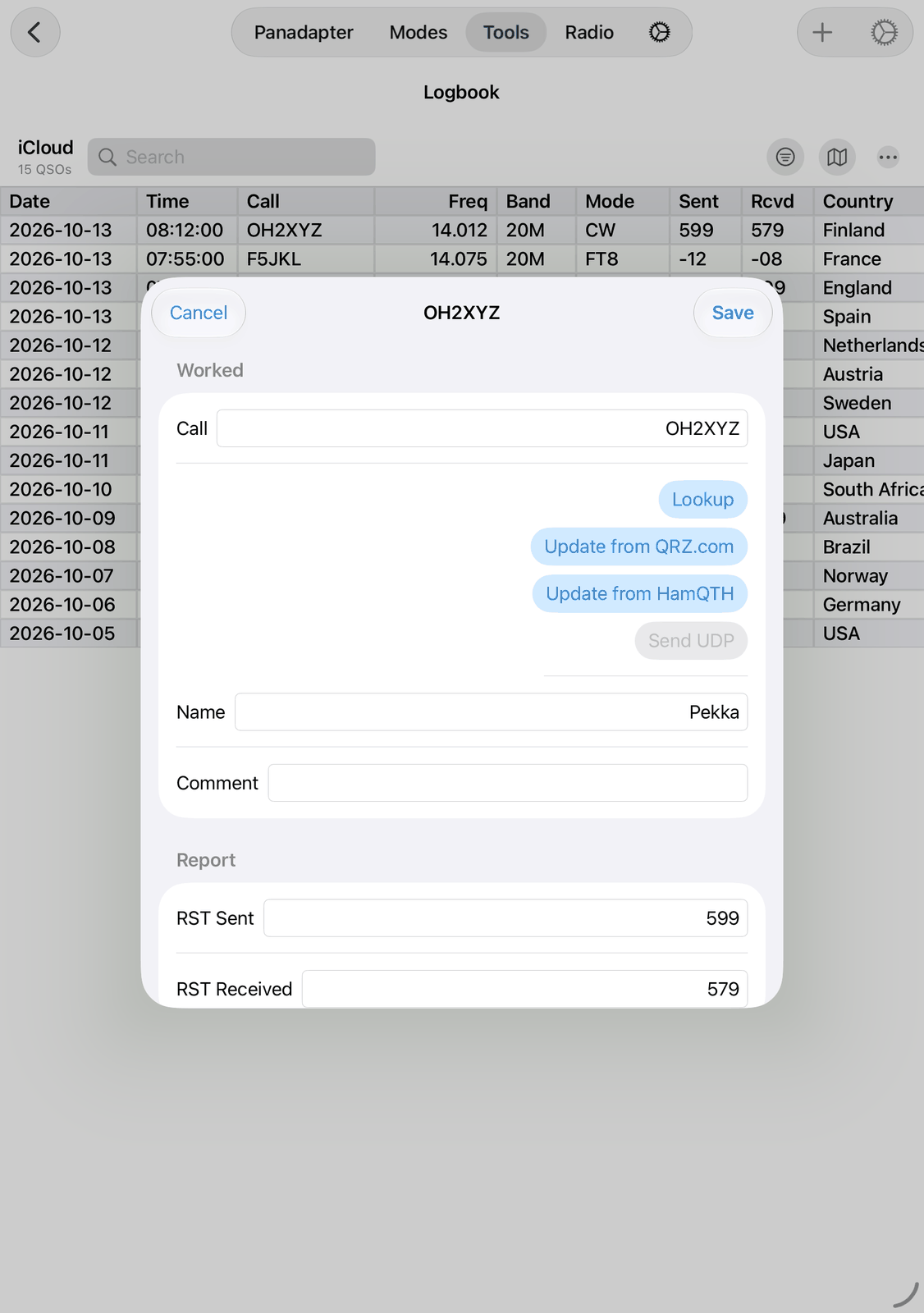
The fields are grouped in Worked, Report, When (UTC), RX/TX, Location, Contest and Own Information. Change what you like and tap Save. Cancel leaves the QSO as it was; when you have changed something, it asks first.
The buttons under Call:
Lookup shows the call’s details. See the Call Lookup chapter.
Update from QRZ.com and Update from HamQTH fill in name, QTH, country, locator, zones and more from that service. You need an account there (see Call databases). Nothing is saved before you tap Save.
Send UDP sends the QSO to your other logging program. See Sending QSOs to other programs.
9.5. Filter
Tap the funnel to choose which QSOs the list shows:
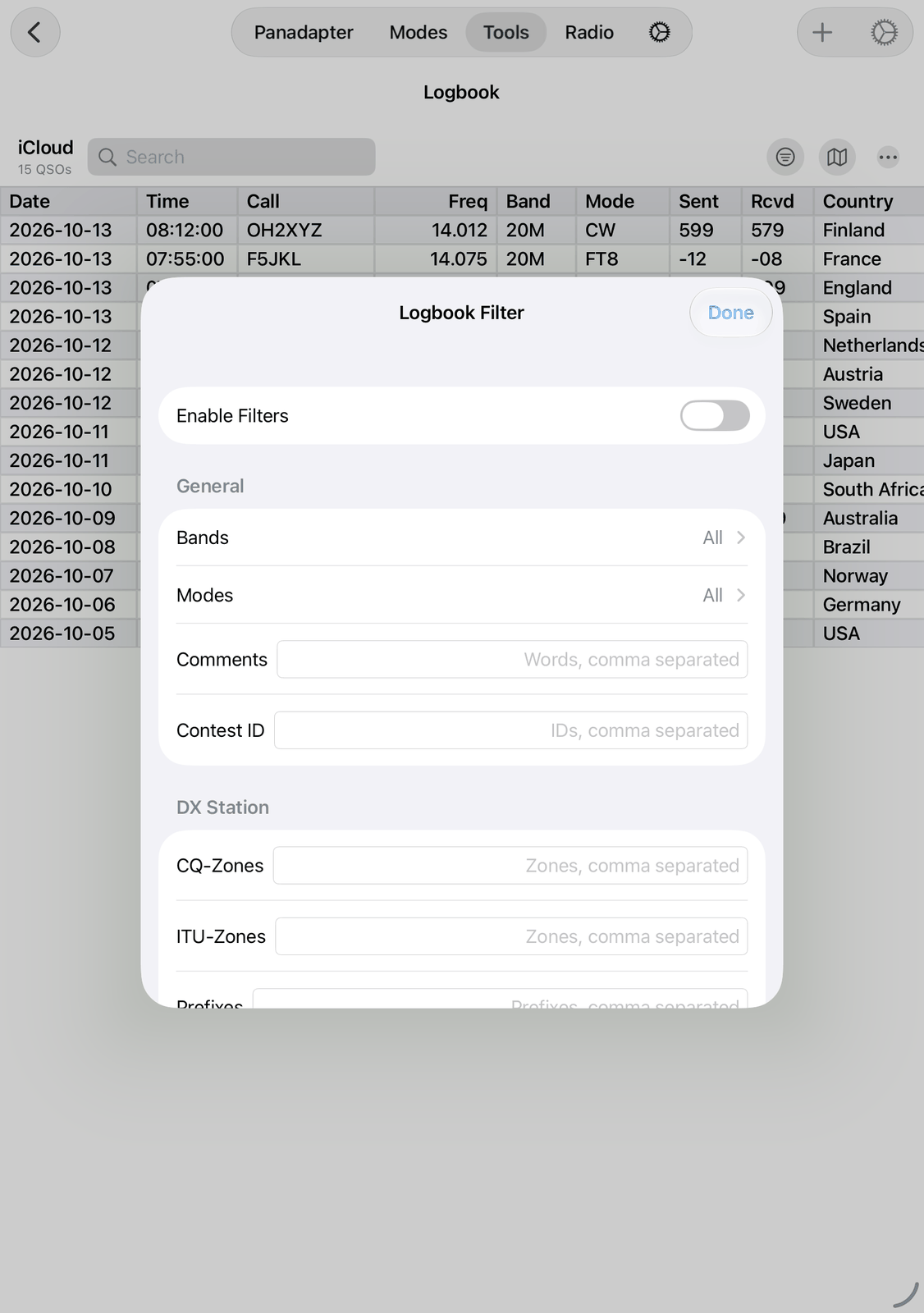
Enable Filters switches the filter on and off. Your choices are kept while it is off.
Bands, Modes and Countries open a list to tick. With nothing ticked, all QSOs are shown. All and None at the top tick or clear everything.
Comments, Contest ID, CQ-Zones, ITU-Zones and Prefixes: type one or more entries, separated by commas. Only QSOs that match are shown. An entry that starts with
-hides the matching QSOs instead, for example-DLin Prefixes.Date filter shows only the QSOs of the last 24 hours, days or years, or of a Date range you choose.
Reset All Filters clears all entries.
The filter can also count for the “worked before” marks (see Settings). Export and share ask whether you want all QSOs or only the filtered ones.
9.6. Map
The map button shows the QSOs of the list on a map, each with a line from your own station. With more than 300 QSOs the map shows the grid squares you worked instead: the stronger the red, the more QSOs. Tap a square to see its QSOs.
Use the filter or the search first to see, for example, only the QSOs of one band.
9.7. Log files and iCloud
Your log is either the iCloud log or a local log file. Choose it in ⚙︎ under Log File.
iCloud is synced with your other devices and with the other apps of this family (SmartSDR, SDR-Control, HAM-Control) on the Mac and on iOS. iCloud and iCloud Drive must be on in your device’s settings, and Enable iCloud in the app’s settings.
Local Log Files stay on this device. Tap + to make a new one, for example one log per contest or per activation. Tap a log to use it. Swipe left to delete one.
The log in use has a checkmark, and its name is shown in the Logbook’s top row.
9.8. ADIF import and export
ADIF (.adi) is the file format all logging programs understand. Tap … in the top row:
Export ADIF File to iCloud Drive saves your log in the SmartSDR folder of your iCloud Drive. Enter a file name; the app suggests the date and time.
Share ADIF File sends the file somewhere else, for example by Mail, with AirDrop or to the Files app.
Import ADIF File from iCloud Drive shows the
.adifiles in the SmartSDR folder of your iCloud Drive, the newest first. Copy the file there first, for example with the Files app. Tap a file: the app asks whether to Append its QSOs to your log or to Replace your log with them.Clear Log deletes all QSOs of the log in use. It asks first.
When a filter or a search is on, export and share ask whether you want All QSOs or only the Filtered QSOs.
Hint
Export your log now and then as a backup.
9.9. Sending QSOs to other programs
The app can send every new QSO over your network to a logging program on a Mac or PC, for example N1MM, Log4OM or a program that understands WSJT-X. Set it up in the app’s settings:
UDP Broadcast: N1MM / Log4OM message — for N1MM, Log4OM and many other PC logging programs.
UDP Broadcast: WSJT-X log message — for every program that takes QSOs from WSJT-X.
For each, enter the IP Address of the computer the program runs on, and the Port the program listens on (often 2237). Switch on Enabled. Test sends a sample QSO, so you can check it arrives.
From then on, each saved QSO is sent. When you change a QSO and tap Save, it is sent again, so the other program gets the updated data. To send an older QSO, open it and tap Send UDP.
9.10. Call databases
For Update from QRZ.com and Update from HamQTH you need an account at that service. Enter your user name and password in the app’s settings:
Call databases: HamQTH and Call databases: QRZ.com.
9.11. Settings
Tap ⚙︎ for the Logbook settings:
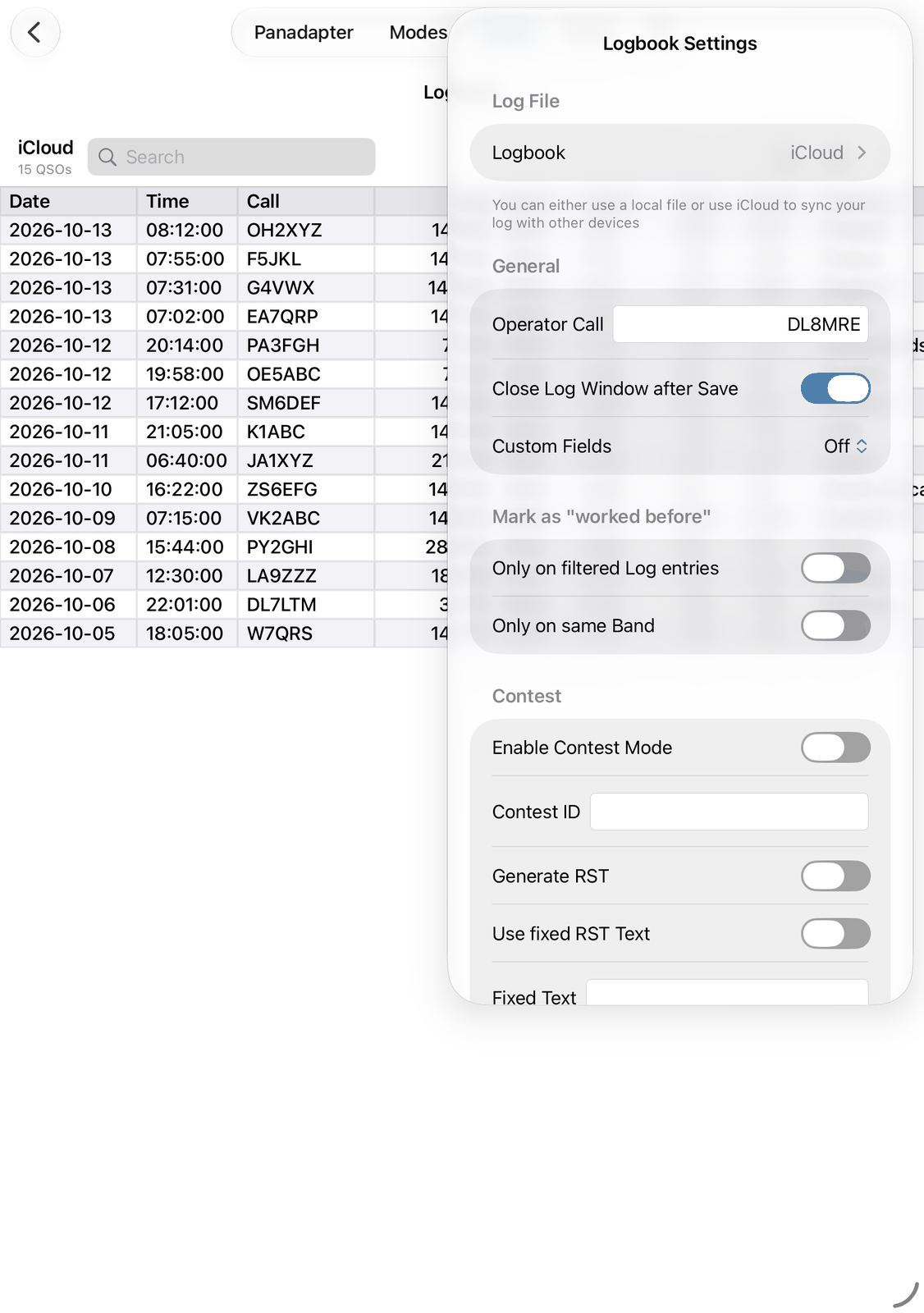
9.11.1. Log File
Logbook — the log in use. See Log files and iCloud.
9.11.2. General
Operator Call — your call, saved with each QSO as operator. It is the same setting as Operator Call in the app’s settings.
Close Log Window after Save — the same as the pin in the log window.
Custom Fields — how many custom fields the log window shows, or Off. See Custom fields.
9.11.3. Mark as “worked before”
Calls you have worked before are marked, for example in the log window and in the lists of the modes.
Only on filtered Log entries — only the QSOs the filter shows count.
Only on same Band — only QSOs on the band you are on now count.
9.11.4. Contest
Enable Contest Mode — saves the Contest ID with each QSO. With Generate RST, your exchange is put into RST TX.
Contest ID — the contest’s name, for example
CQ-WW-SSB.Generate RST — makes the exchange you send. It is saved as the sent exchange. The report you received (without
59or599) is saved as the received exchange.Use fixed RST Text — uses the Fixed Text as your exchange instead of a serial number, for example your zone or state.
Fixed Text — the fixed exchange.
RST Prefix, Serial, Digits and RST Suffix — a serial number instead: for example the prefix
599, serial1and 3 digits give599001. Serial goes up by one with each saved QSO.
9.12. Good to know
Each QSO is saved with your own data from the app’s settings (Logging Information, your locator and call), and with band, country and zones found from the frequency and the call.
When the log window opens, QSO Date, Time on and Time off are set to now. Modes such as FT8 fill in the real times of the QSO instead.
Delete and Clear Log can’t be undone. Export your log first if you are not sure.
The iCloud log is shared by all apps of this family. A local log file is only in this app on this device.
A filter or a search never deletes anything: the hidden QSOs are still in your log.
9.13. On the iPhone
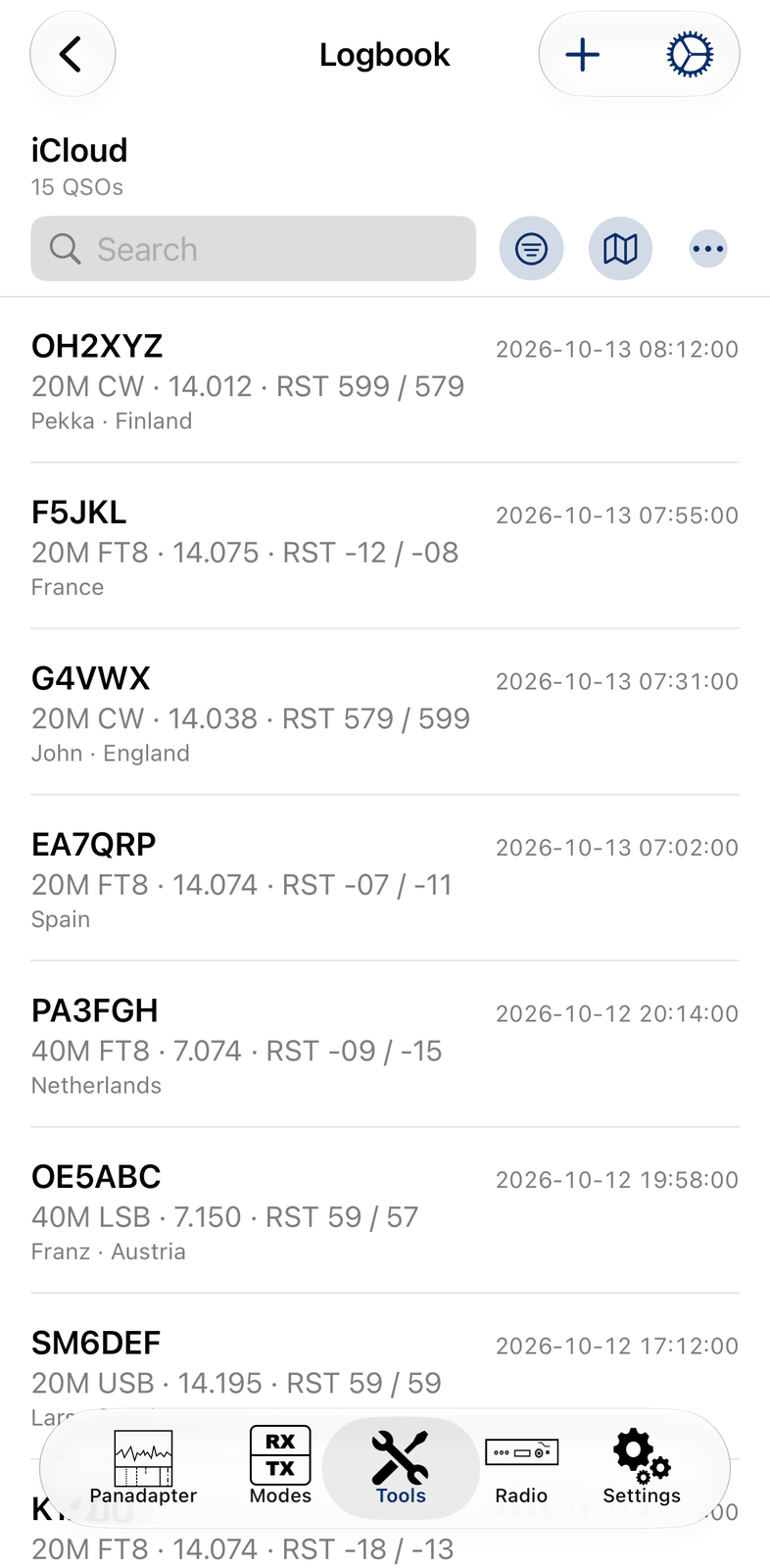
The iPhone shows the same log in a shorter form:
Each row shows the call, date and time, then band, mode, frequency and reports, then name and country.
Search, the funnel, the map and … are in a second row.
Sorting is in … under Sort: choose the column in Sort by and the direction with Ascending.
Swipe a QSO to the left for Delete and Edit.
The log window opens as a sheet over the screen. Swipe it down or tap Close to close it. On the large iPhones (for example the Pro Max models) it floats over the app, as on the iPad.
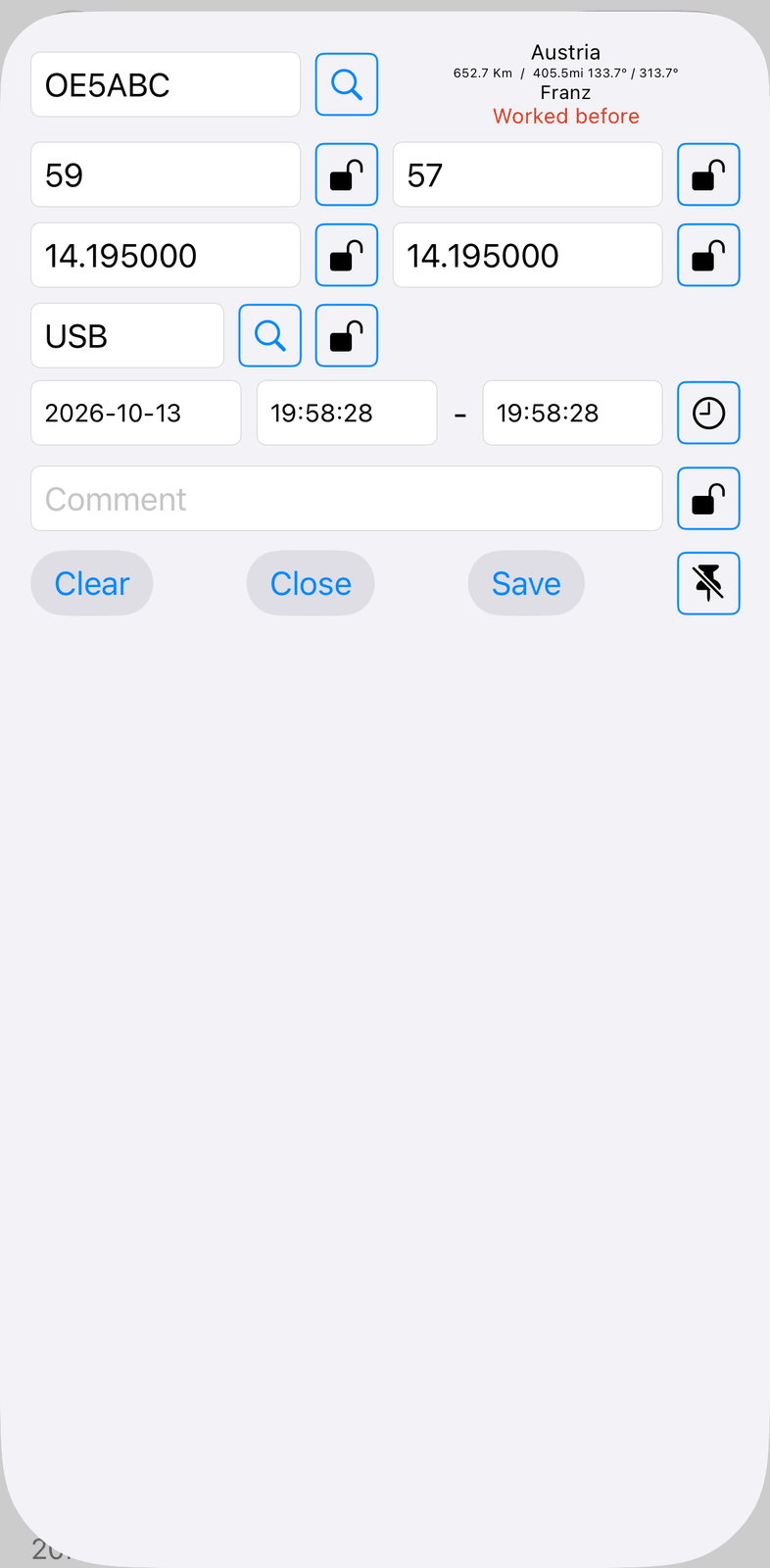
10. Network Stats
Network Stats helps when the connection to your radio is not good: audio that drops out, a waterfall that stops, a radio that reacts slowly or disconnects. It measures your network once per second and tells you in plain words what it finds.
It also checks this device’s network when no radio is connected.
10.1. Quick start
Connect to your radio and open Network Stats. The measuring starts by itself.
Read the Hints at the top.
No problems found.means all is fine.Use the app as usual for a few minutes, or transmit, and watch the values.
To send the results to support, tap the share button.
10.2. The screen
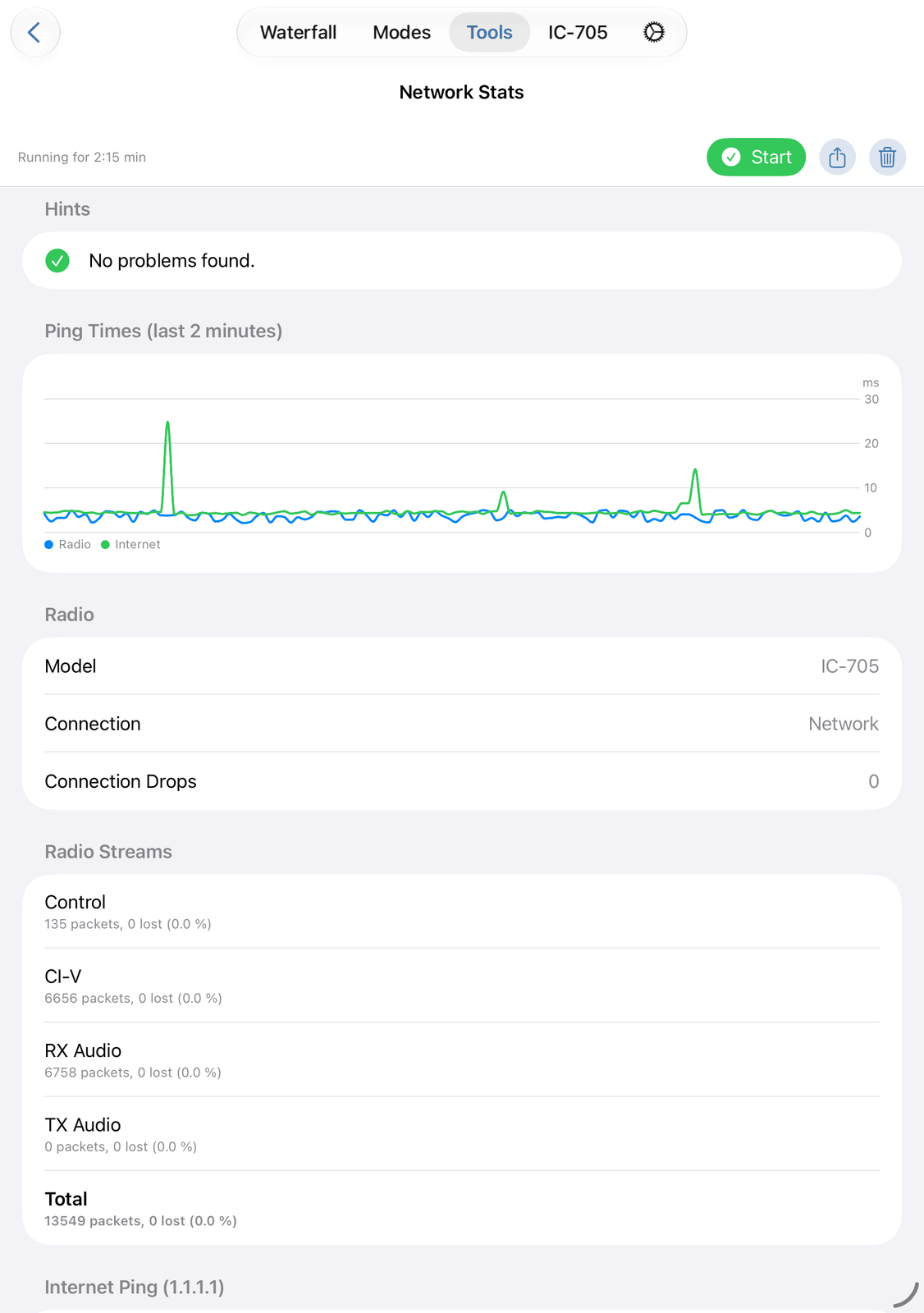
10.2.1. The top row
Running forshows how long the stats have been measuring.Stoppedmeans they don’t measure.Start starts and stops measuring. It is green while the stats run.
The share button sends all values as a text report, for example by Mail or Messages, or copies it. Add it to a support request.
The trash can sets all values back to zero. Then you see whether a change you made helps.
10.2.2. Hints
The app looks at all values and explains what it finds:
A green check:
No problems found.A red sign: a real problem, for example the connection to the radio was lost, pings got no answer, or packets were lost.
An orange sign: something to look at, for example slow answers, ping times that vary a lot (jitter), or a radio in another subnet than this device.
A grey
i: good to know, for example a VPN is on, Low Data Mode is on, the device uses mobile data, or the internet doesn’t answer pings.
10.2.3. Ping Times (last 2 minutes)
A chart of the ping times to the Radio and to the Internet, in milliseconds. Short spikes are normal. Many spikes, or a line that stays high, show a busy or weak network.
10.2.4. Radio
What the app knows about your radio:
Model and Connection.
Radio IP — the radio’s address in the network.
Connection Drops — how often the connection to the radio was lost while the stats ran. It should stay at 0.
10.2.5. Radio Ping
The app pings the radio once per second. This is only shown when the radio is connected over the network.
Now — the last ping time.
No answermeans the radio didn’t answer.Average and Min / Max — the ping times so far.
Jitter — how much the ping times change from one ping to the next. A high jitter makes audio stutter.
Lost — pings without an answer, for example
0 of 120 (0.0 %).
In a local network the radio answers within a few milliseconds.
10.2.6. Radio Streams
The data the radio sends and receives, one row per stream, and the Total:
Control, CI-V, RX Audio and TX Audio.
Each row shows the packets received and how many were lost or broken. The numbers turn red when 1 % or more are lost.
A few lost packets now and then are normal: the app covers them, and you won’t notice. Lost packets all the time point to a network problem.
Hint
Watch the streams while you transmit. If packets get lost only then, RF from your antenna disturbs the network (RFI). Ferrite chokes on the network cables, or another place for the network devices, help.
10.2.7. Internet Ping (1.1.1.1)
The same values as Radio Ping, for a server on the internet. The internet matters for SmartLink, Call Lookup, the DX Cluster and the other online tools. Up to about 50 ms is good.
Some networks block pings. Then all internet pings are lost, although the internet works.
10.2.8. This Device
Network — how this device is connected:
Wi-Fi,EthernetorMobile Data.VPN — a VPN can slow down or block the connection to the radio.
Low Data Mode — when it is on, the system may limit the data.
IPv4 and IPv6 — this device’s addresses.
Radio in This Subnet — whether the radio is in the same local network part (subnet) as this device. The app finds radios by itself only in the same subnet.
10.3. Stats keep running
The stats keep measuring when you leave the screen, so you can use the app as usual and look at the results later. The Network Stats tile shows a green dot while they run.
When you go back while the stats run, the app asks:
Keep Running — the stats go on measuring.
Stop — the stats stop.
Cancel — you stay on the screen.
Tap Start to stop the stats when you don’t need them any more.
10.4. Good to know
A radio far away in the network answers more slowly. In a local network, a network cable is faster and steadier than Wi-Fi, and 5 GHz Wi-Fi is better than 2.4 GHz.
Errors can also come from this device: for example while you switch to another app, or when it is very busy.
If the radio ping is much higher than the internet ping, look at your local network first: cables, Wi-Fi, switches.
More help: Common Issues.
10.5. On the iPhone
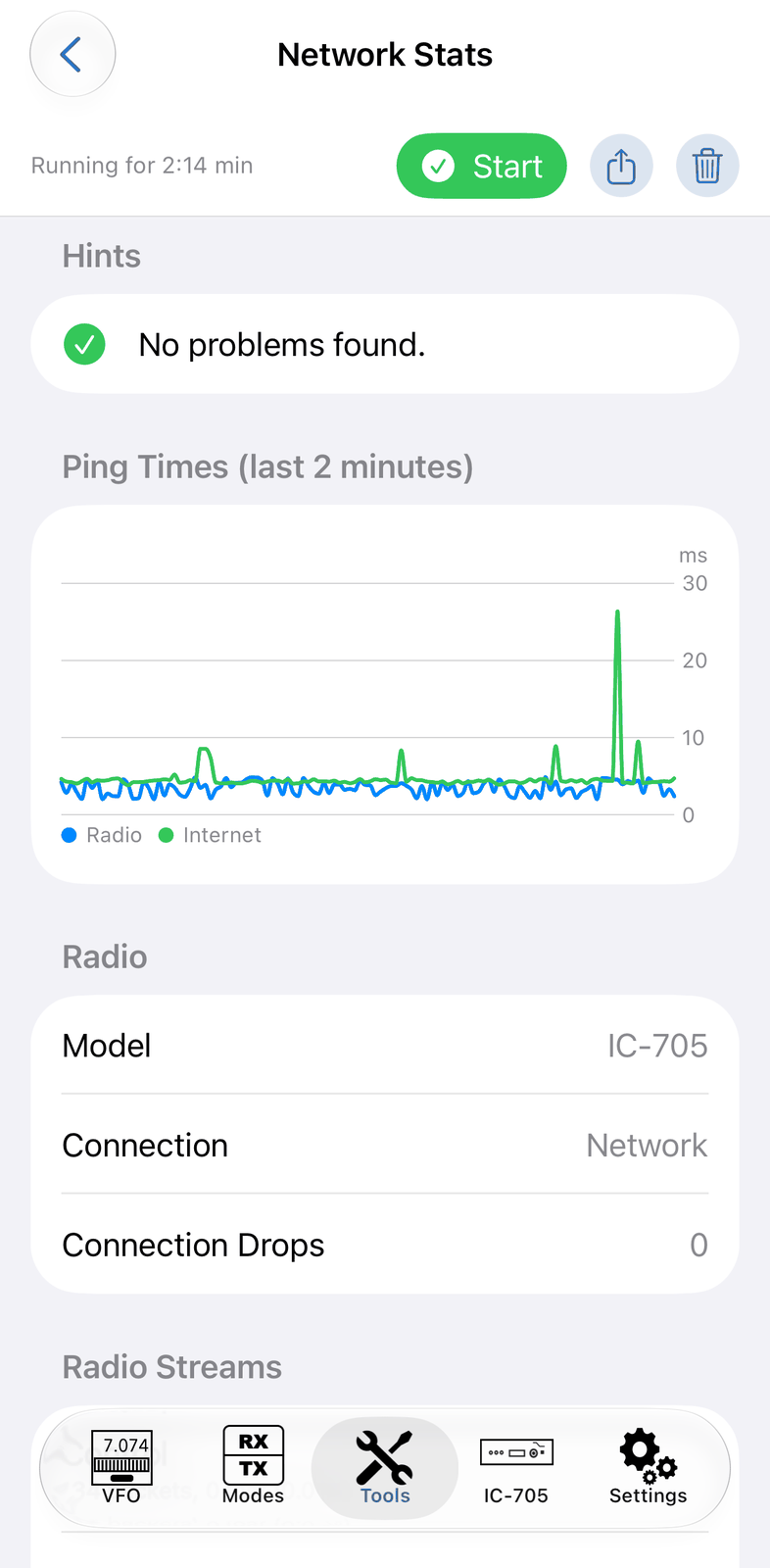
The iPhone shows the same sections, one below the other. Scroll down for the streams, the internet and this device.
11. Call Lookup
Call Lookup tells you more about a call sign: the country, zones, distance and bearing, and whether you have worked the station before. With an account at QRZ.com or HamQTH you also get the name, the address, the exact location and often a photo.
The same results also open from other places: the log window, the Logbook, the DX Cluster, PSK Reporter, the modes and the maps. There they show in a sheet; tap Done to close it.
11.1. Quick start
Type a call sign in Call sign. The country, zones and your QSOs with this station appear at once.
Tap QRZ.com or HamQTH for the station’s details. This needs an account (see Accounts).
Without an account, tap Website to see the station’s page on QRZ.com.
11.2. The screen
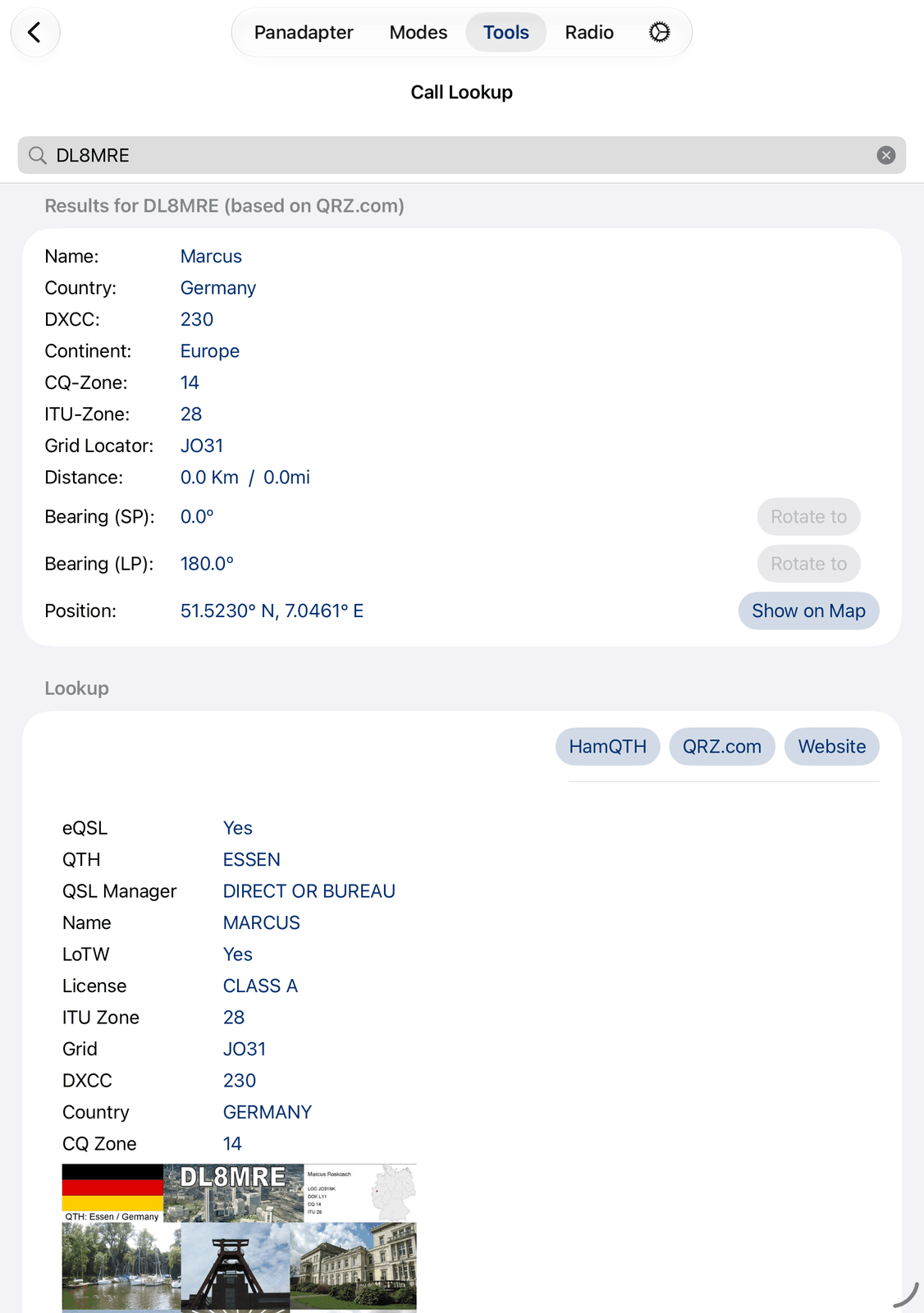
11.2.1. The top row
Call sign — type the call here. The results change while you type. The x clears the call and the results.
11.2.2. The results
The title says where the results come from, for example Results for DL8MRE (based on QRZ.com):
based on Country level— from the call’s prefix only. The country is right, but the position is the middle of the country.based on internal database— the app knows this station from its own list of active stations, often with its locator.based on QRZ.comorbased on HamQTH— after a lookup at that service.
You see:
Name, when it is known.
Country, DXCC, Continent, CQ-Zone and ITU-Zone.
Grid Locator and State, when they are known.
Distance from your station in km and miles.
Bearing (SP) and Bearing (LP) — the direction to turn your beam to: short path and long path. Rotate to turns your rotator there. It works when the app controls a rotator.
Position — where the station is. Show on Map shows it on a map with a line from your station.
Distance and bearing need your own locator: Grid (QTH Locator) in the app’s settings.
11.2.3. Lookup
HamQTH and QRZ.com look the call up at that service. The results above are updated, and more details appear below: for example address, QSL information, e-mail, a link to the station’s web page (Open opens it) and the station’s photo.
Website opens the station’s page on QRZ.com in your browser. It needs no account.
11.2.4. QSO before
Your QSOs with this station from the Logbook: date, band and mode. None means you haven’t worked it yet.
11.3. Accounts
QRZ.com and HamQTH need a user name and password. Enter them in the app’s settings:
Call databases: HamQTH and Call databases: QRZ.com.
Test HamQTH and Test QRZ.com there check your account. An account at HamQTH is free.
11.4. Good to know
The country comes from the call’s prefix, also for calls like
PJ5/SP9FIH: here the country ofPJ5.An invalid call shows
No results forand the call, and nothing is looked up.The internal list of stations is updated with the app now and then. A lookup at QRZ.com or HamQTH is always current.
The tool keeps the last call while the app runs.
11.5. On the iPhone
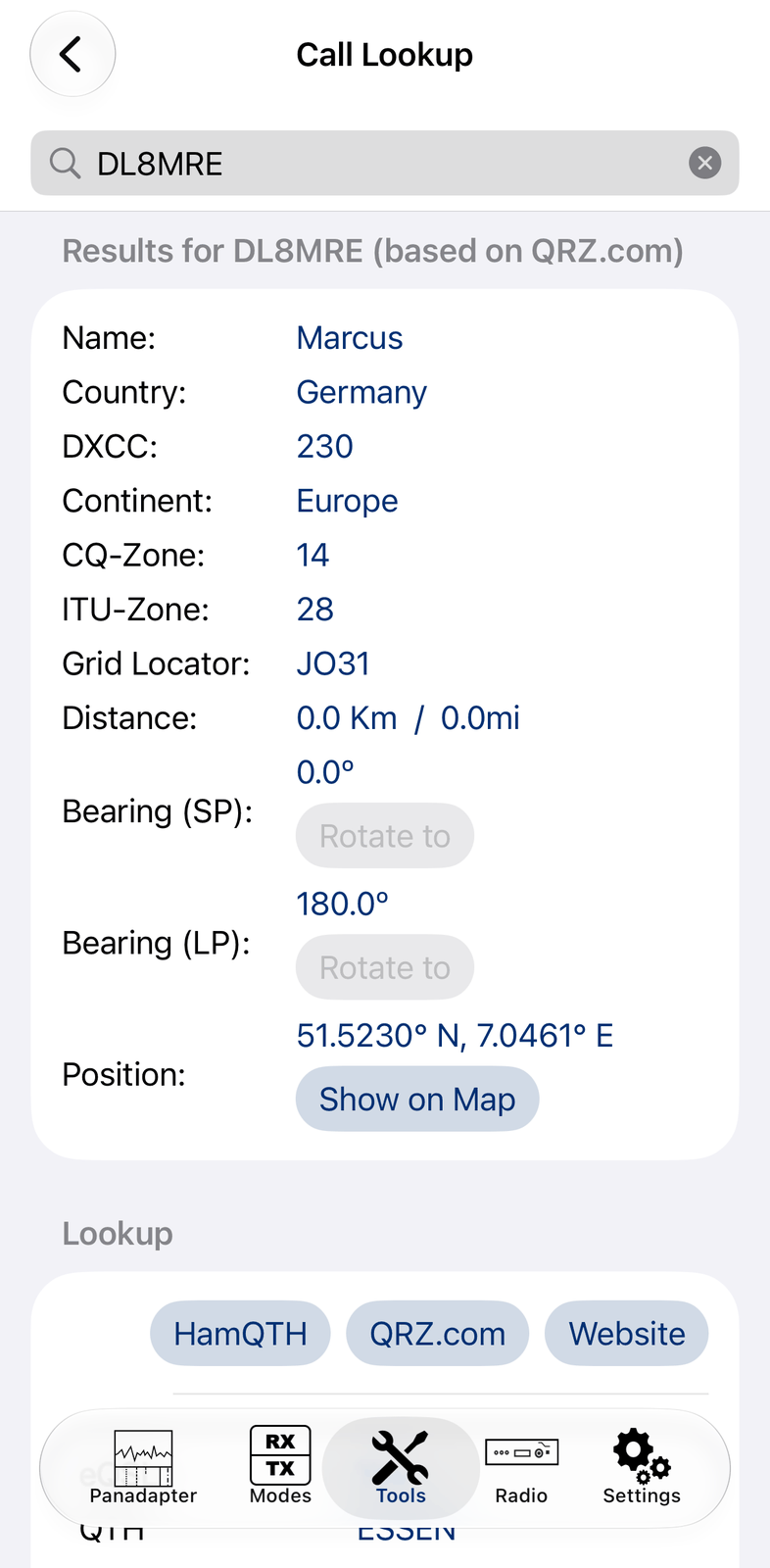
The iPhone shows the same results, one below the other. Rotate to and Show on Map are below their values. Scroll down for the lookup details and your QSOs.
12. Memories
The Memories tool shows the memory channels stored in your radio. Here you can look through them, tune to one, give a channel a name, store the frequency you are on, or clear a channel. Every change is written into the radio.
For quick switching between channels while you operate, the Memories panel on the radio screen is handier. This tool is the place to look through and edit your channels.
12.1. Quick start
Connect the radio and open Memories. The app reads the channels from the radio.
Touch and hold a channel and tap Select. The radio tunes to it.
To keep the frequency you are on: touch and hold an empty channel and tap Store Current Frequency. Type a Name and tap Save.
12.2. The screen
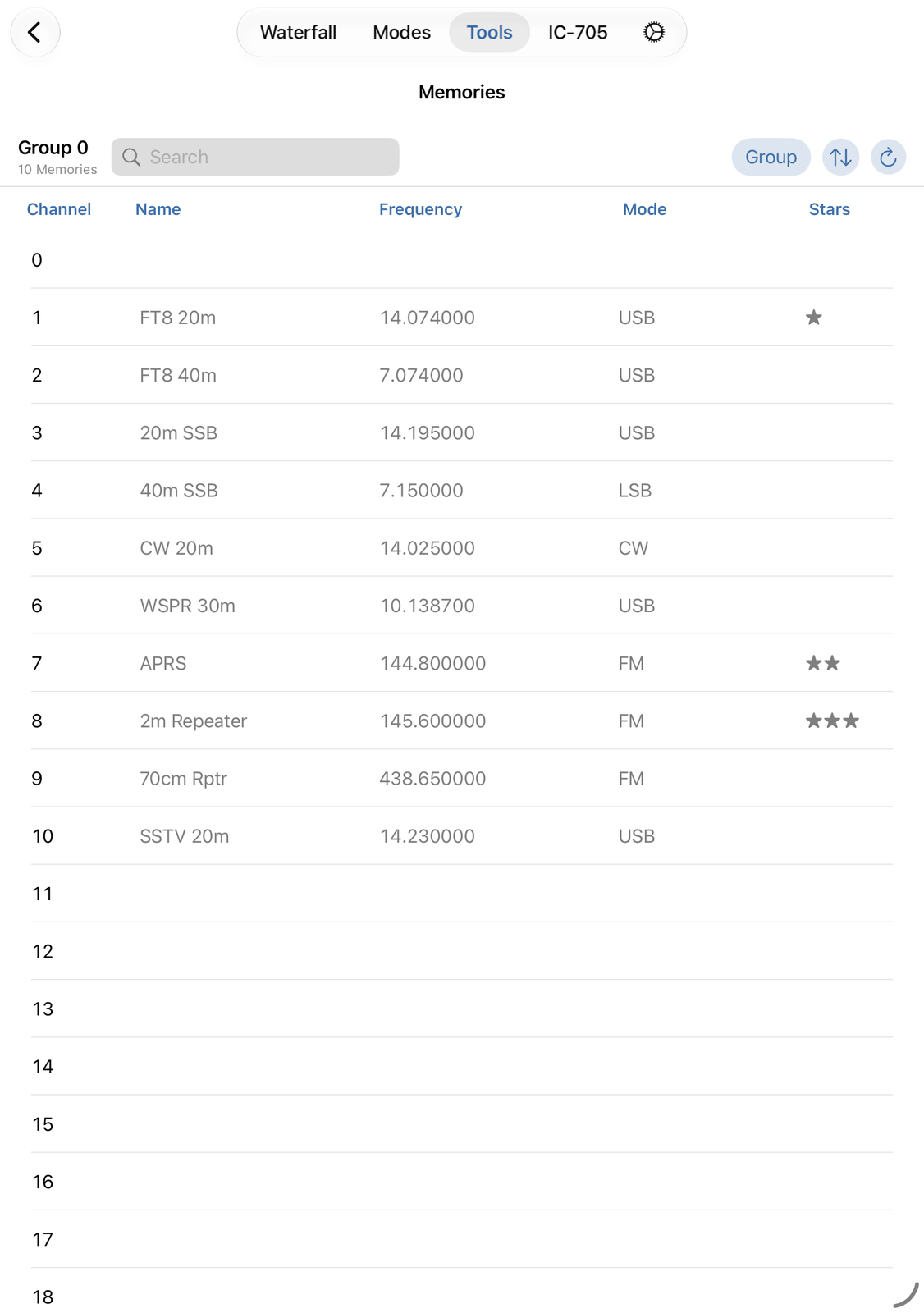
12.2.1. The top row
At the left: the memory group (on radios with memory groups) and how many channels are in use.
Search shows only the channels whose name contains your text.
Group chooses the memory group. It is only there when your radio has memory groups.
The arrows button sorts the list: Sort by Channel, Name or Frequency, and Ascending or Descending.
The round arrow reads the channels from the radio again. Use it when you changed channels on the radio itself.
12.2.2. The list
One row per channel: Channel, Name, Frequency, Mode and Stars. Empty channels have only their number.
Stars mark channels for the radio’s memory scan (see the Scanning tool). Not every radio has them.
Frequencies are shown in kHz, or in MHz with Enter frequencies in MHz (not kHz) on in the app’s settings.
12.3. Using a channel
Tap a channel to edit it.
Touch and hold a channel for all actions:
Select — the radio tunes to the channel.
Edit — opens the channel, see Editing a channel.
Store Current Frequency — puts the radio’s frequency and mode into this channel and opens it, so you can give it a name. Nothing is written into the radio before you tap Save.
Clear — empties the channel, after you confirm it. It is only there for a channel that is not empty.
12.4. Editing a channel
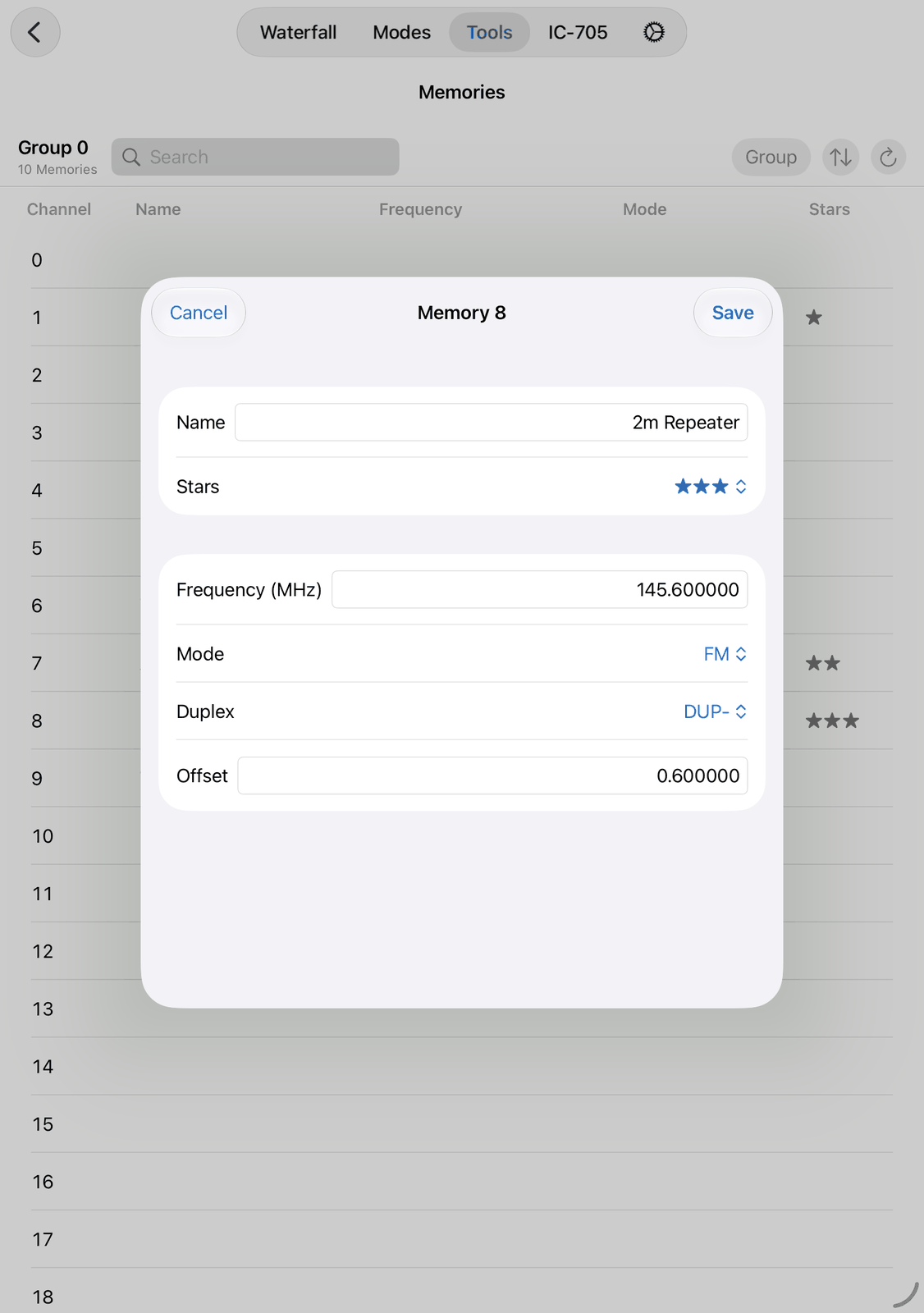
Name — the channel’s name, as the radio shows it.
Stars — marks the channel for the radio’s memory scan: none (–), ★, ★★ or ★★★. Only on radios that have stars.
Frequency — in kHz or MHz, as the title says.
Mode — the mode, for example USB or FM.
Duplex — Simplex, or DUP- / DUP+ for a repeater (you send below / above the frequency).
Offset — how far below or above you send. Only with DUP- or DUP+.
Save writes the channel into the radio. Cancel closes it without a change.
12.6. Good to know
The app reads the channels when it connects to the radio. A channel you change on the radio itself shows up after you tap the round arrow.
Select sets everything stored in the channel: frequency, mode, filter, duplex and tones.
Without a connection the list is empty.
12.7. On the iPhone
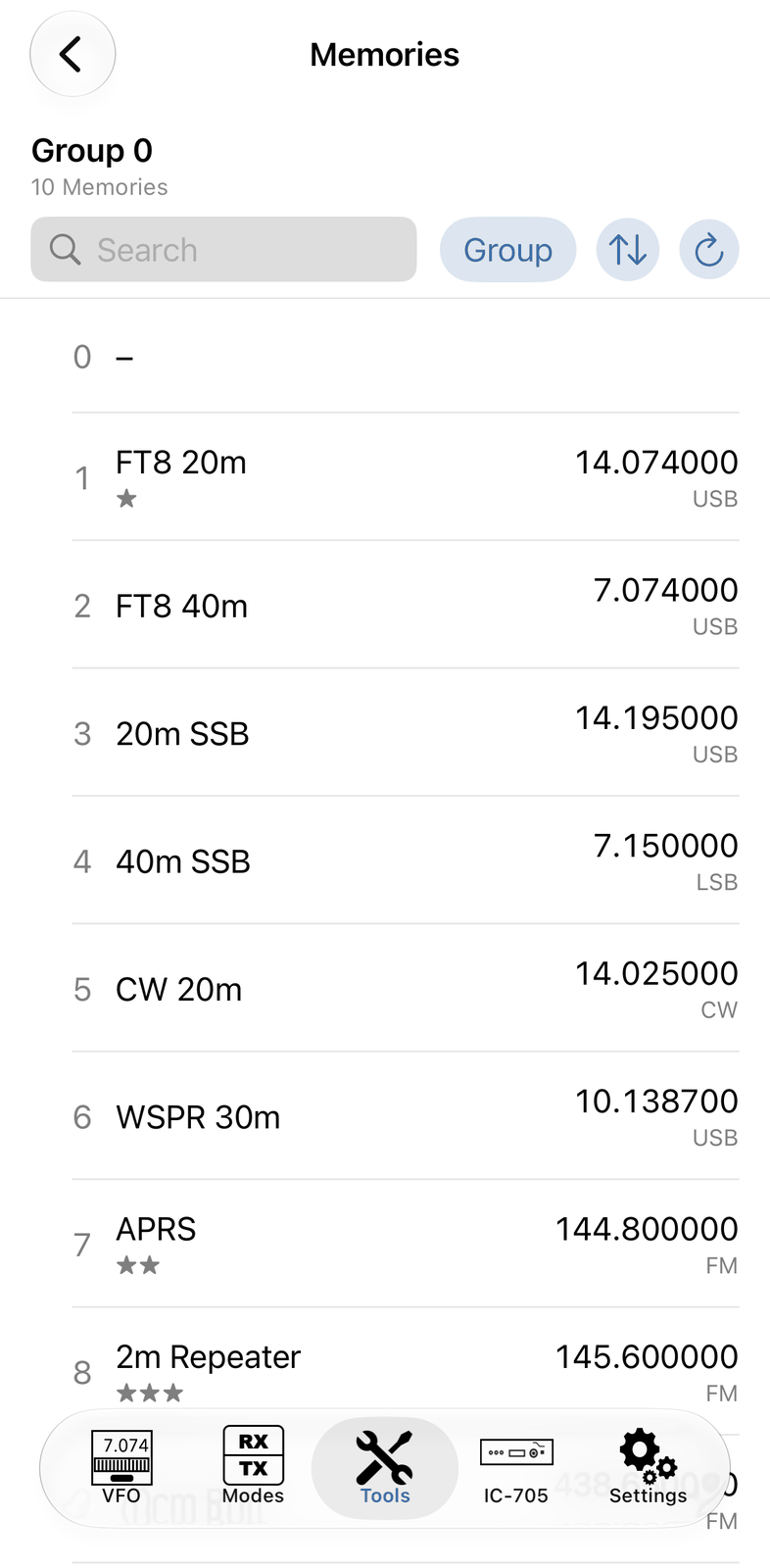
The iPhone shows a simple list: the channel number and the name at the left, the frequency with the mode below it at the right.
The stars are below the name. The search field and the buttons are in a second row.
On the iPhone you can also swipe a channel: to the right for Select, to the left for Edit and Clear. A tap edits the channel, and touch and hold shows all actions, as on the iPad.
13. Scanning
The Scanning tool lets your radio search for signals and lists every frequency where the scan stopped: with the name of the memory channel on that frequency, how strong the signal was and how often the scan stopped there. Use it to find activity on a band, or to see which repeaters and channels are in use.
13.1. Quick start
Set the radio’s squelch so that the noise is quiet. The scan stops where the squelch opens.
Tap ⚙︎ and choose a Scan Type, for example Program.
Tap Start. Every frequency where the scan stops goes into the list.
Tap a row to stop the scan and tune to that frequency.
13.2. The screen
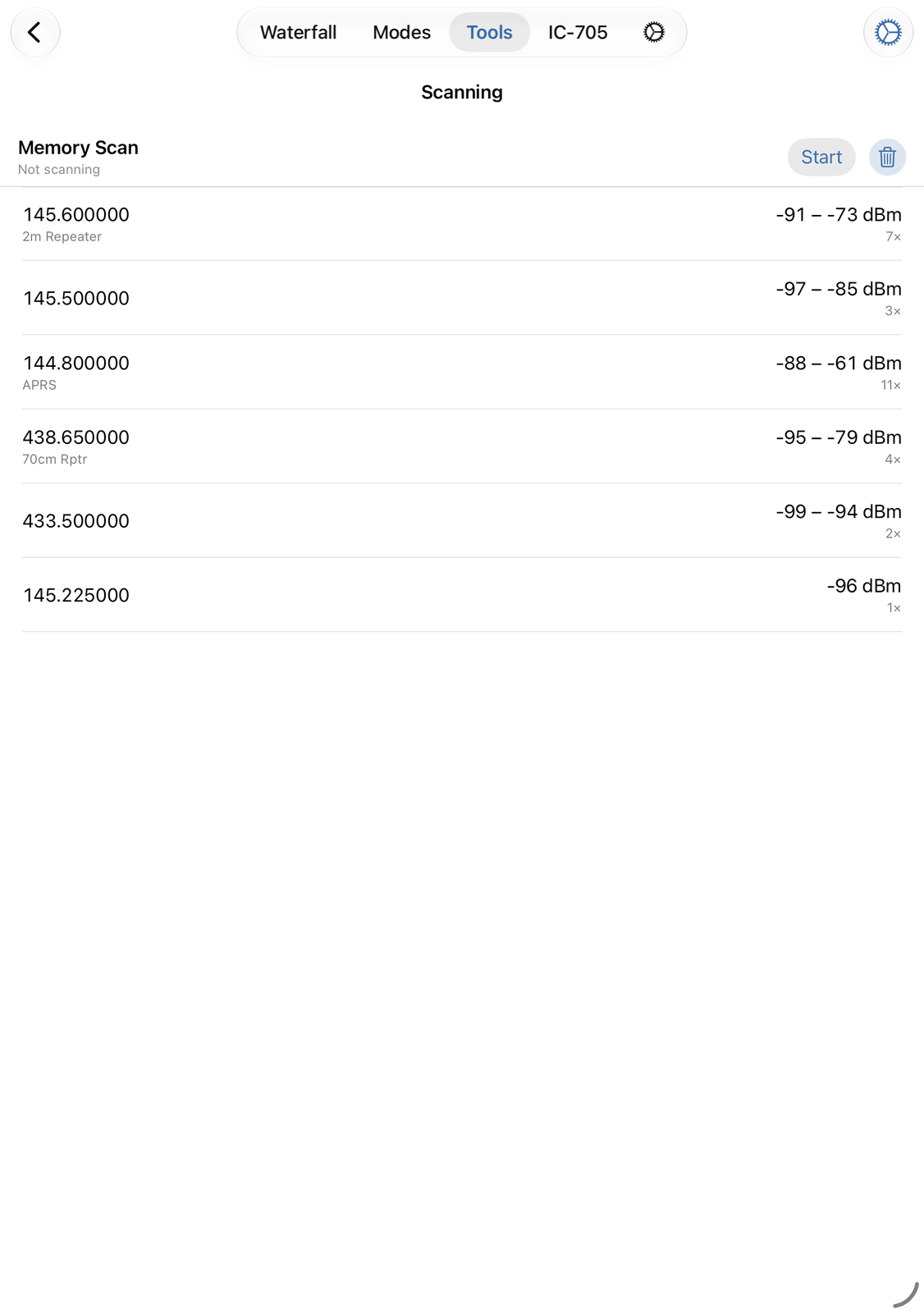
13.2.1. The top row
At the left: the scan type, for example
Program Scan, and what the scan is doing:Not scanning, the frequency the radio is on, or the memory channel (Channel 12). A turning wheel shows that it scans.Skip goes on from a signal where the scan stopped. It is only there while the scan waits on a signal.
Start starts the scan. While it runs, the button is red and reads Stop.
The trash can clears the list.
13.2.2. The list
One row for each frequency where the scan stopped:
At the left: the frequency, and below it the name of the memory channel on that frequency, if there is one.
At the right: the signal level in dBm, the lowest and the highest one measured there, and below it how often the scan stopped there, for example
3×.
Tap a row: the scan stops and the radio tunes to that frequency. The row of the frequency the radio is on is green.
13.3. Scan types
Program — the radio scans between the program scan edges stored in the radio.
∆F — the radio scans a range around the frequency you are on. Set its width in Scan ∆F.
Memory — the radio scans its memory channels: all of them, or only the ones with stars (see Memories in Settings).
Memory Group — the app steps through the channels of one memory group. Only for radios with memory groups.
Important
Icom radios can’t run a memory group scan by remote control. So the app does it itself: it tunes to one channel per second and skips empty channels. This is much slower than the radio’s own scan.
If you are at the radio, there is a faster way: choose Memory, tap Start, then start the memory group scan on the radio’s front panel. The app lists the frequencies where the radio stops.
13.4. Settings
Tap ⚙︎ for the scan settings. A change applies at once.
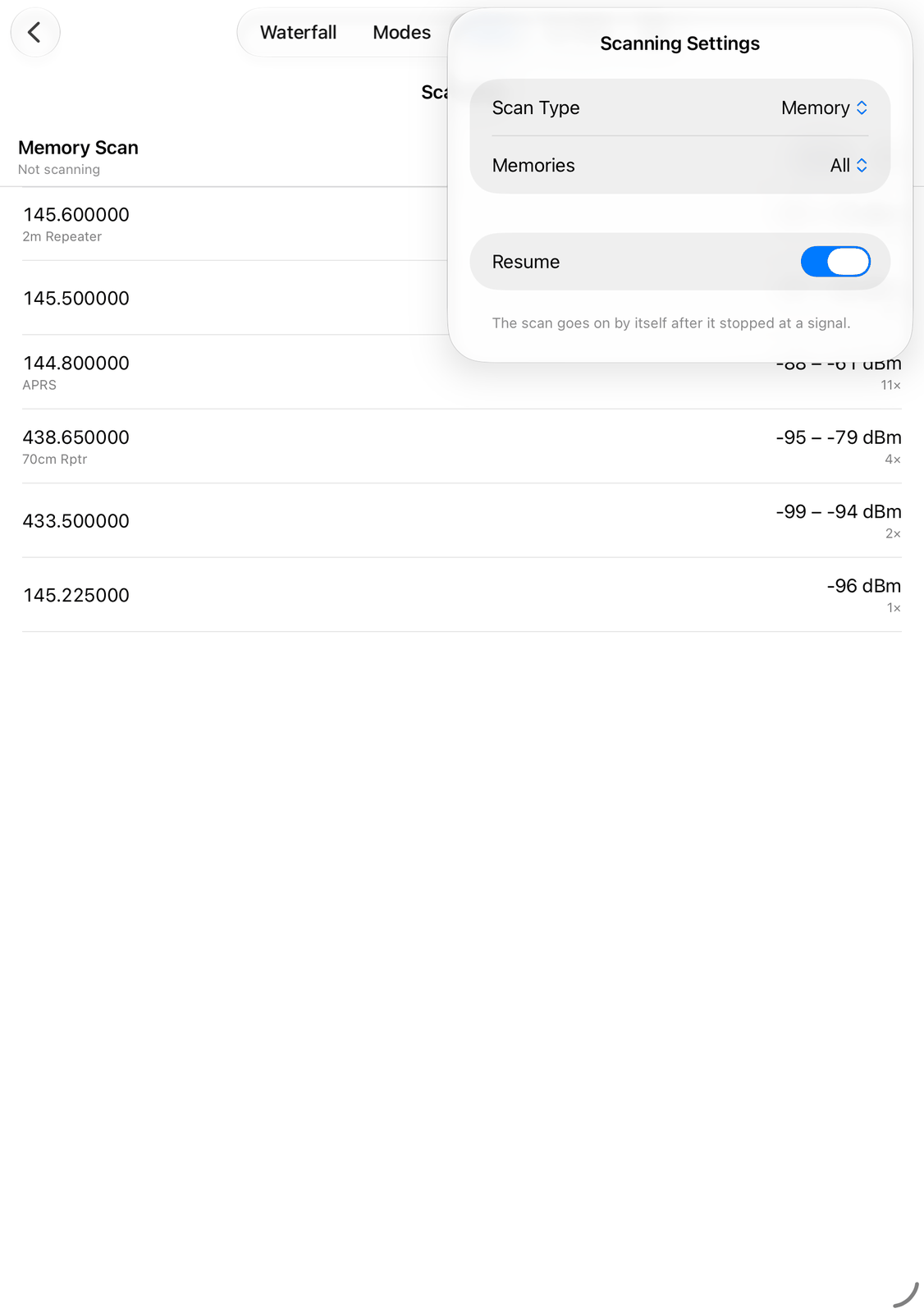
Scan Type — see Scan types.
Scan ∆F — only with ∆F: how far the scan goes below and above your frequency, from
± 5 kHzto± 1 MHz.Memories — only with Memory: All channels, only the channels with ★, ★★ or ★★★, or Selected: all channels with stars. You set the stars in the Memories tool.
Group — only with Memory Group: the memory group to scan.
Fine — only with Program and ∆F: at a signal, the radio scans slowly instead of stopping.
Resume — the scan goes on by itself after it stopped at a signal. Without it, the scan waits at the signal: tap Skip to go on.
13.5. Good to know
The scan keeps running when you leave the screen or switch to another tab. A green dot on the Scanning tile shows that it runs. Tap Stop to end it.
The scan stops when the connection to the radio ends.
A frequency goes into the list when the radio stays on it for about half a second. Frequencies closer together than the filter width count as one row.
The list is kept until you clear it with the trash can.
13.6. On the iPhone
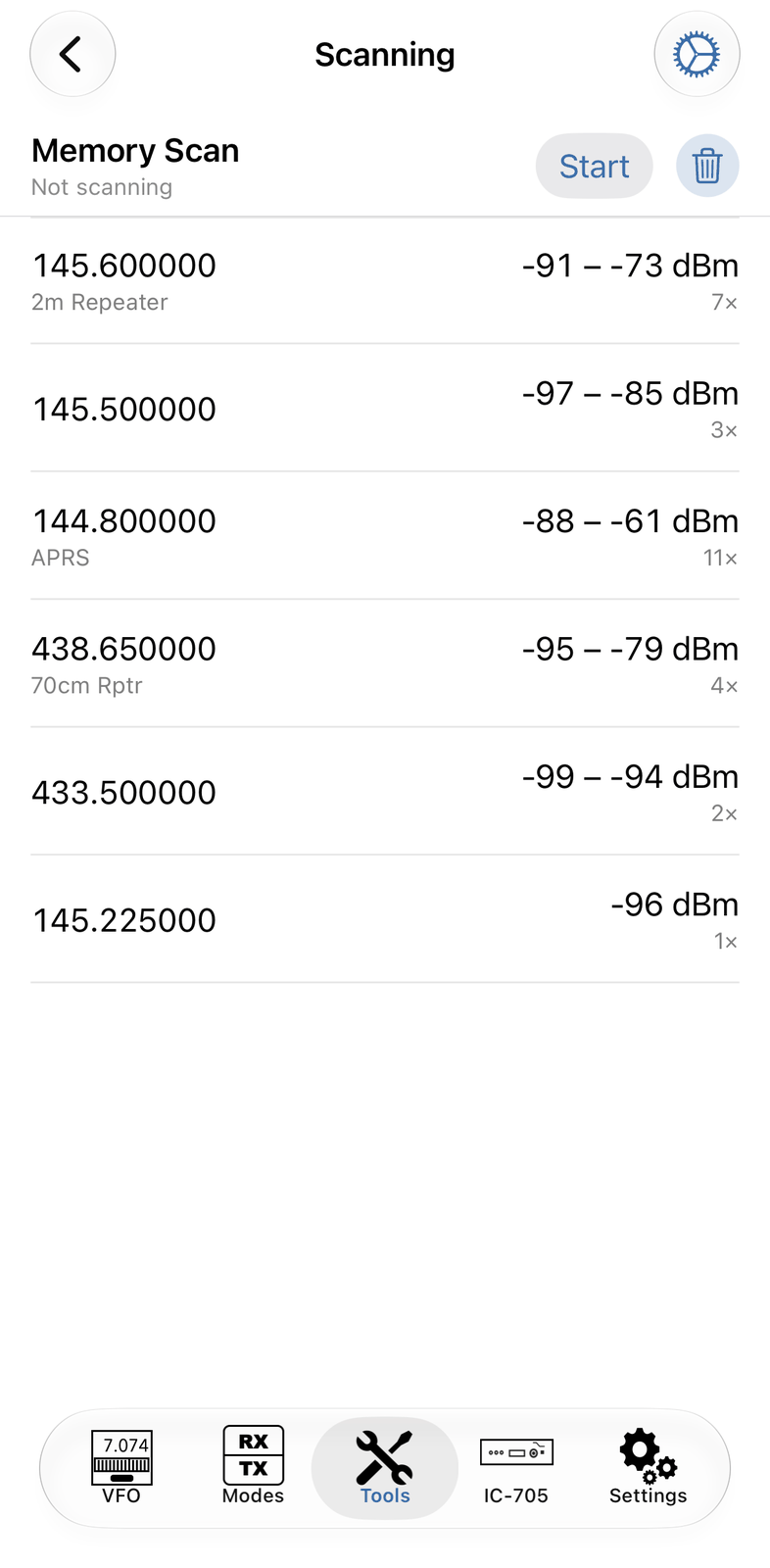
The iPhone shows the same buttons. ⚙︎ opens the settings as a sheet from the bottom; Done closes them.
14. FS2M Keyer
The FS2M Keyer tool lets you send CW with a paddle that is connected to your iPhone or iPad through the FS2M, a MIDI adapter for paddles. The app works as the keyer: it turns your paddle strokes into dots and dashes and keys the radio.
Note
The FS2M is no longer made. The tool stays in the app for those who have one.
14.1. Quick start
Connect the FS2M to your iPhone or iPad.
Choose it in Device and switch Enabled on. Status shows
Connected.Set the radio to CW and send with the paddle.
14.2. The screen
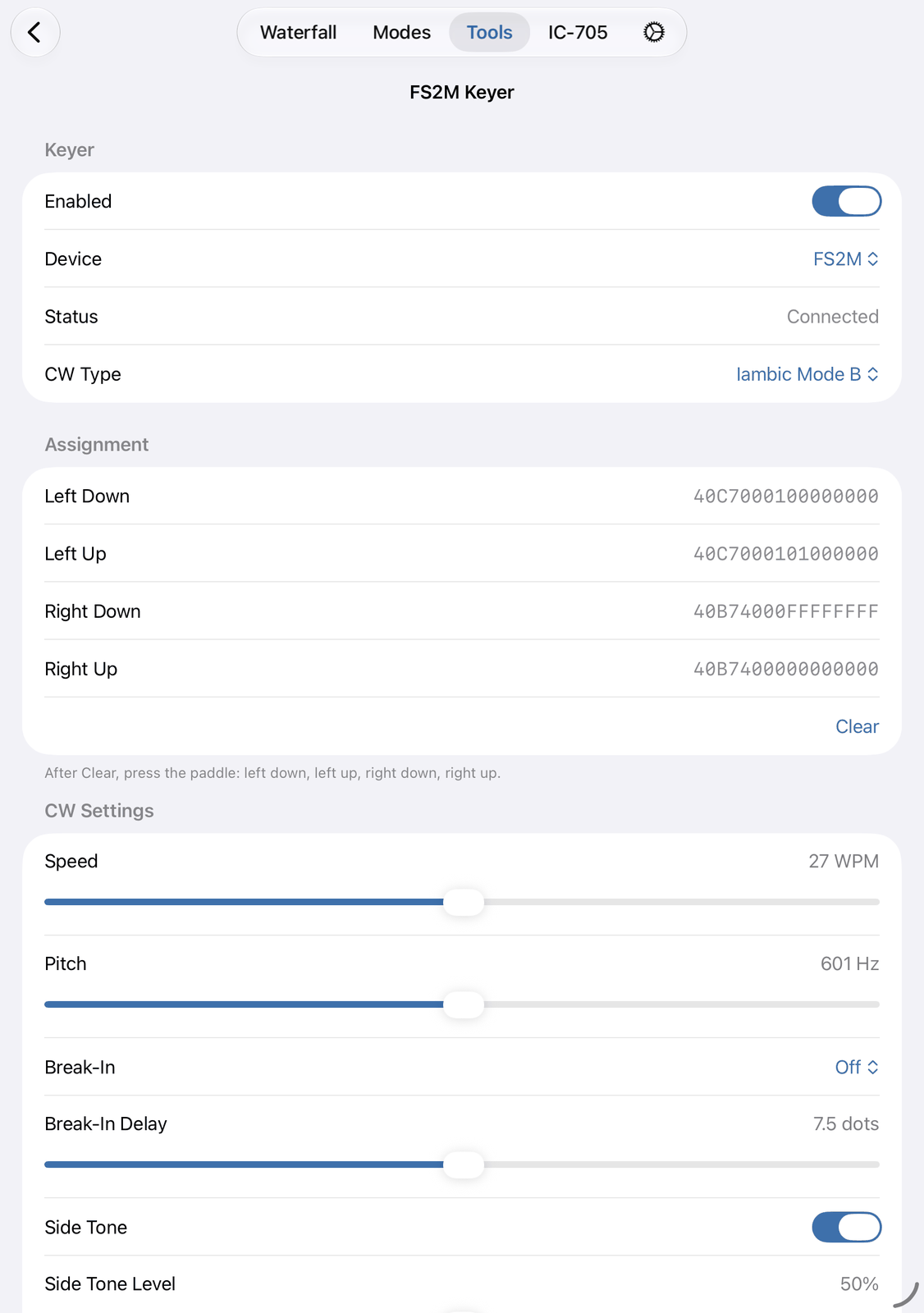
14.2.1. Keyer
Enabled — switches the keyer on and off.
Device — the MIDI device the paddle is connected to. None means no device is chosen yet.
Status —
Connected,Waiting for Controller...,Not Connected, or what went wrong, for exampleError: No MIDI Device selected.CW Type — Iambic Mode A, Iambic Mode B or Iambic Mode B Strict. This is the same setting as Keyer Type in the CW mode’s keyer settings.
14.2.2. Assignment
The MIDI messages the FS2M sends when you press and release a paddle: Left Down, Left Up, Right Down and Right Up. The defaults fit the FS2M. The message the app has just received is shown in bold, so you can check that your paddle is heard.
To assign them again, tap Clear. Then press and release the left paddle, and press and release the right paddle.
14.2.3. CW Settings
Only there while the app is connected to the radio.
Speed — the keyer speed, from 6 to 48 WPM.
Pitch — the CW tone, from 300 to 900 Hz.
Break-In — Off, Semi (the radio goes back to receive between words) or On (you hear between the letters).
Break-In Delay — how long the radio waits before it goes back to receive, from 2 to 13 dot lengths.
Side Tone — plays what you send on your iPhone or iPad, so you hear it.
Side Tone Level — the volume of the side tone.
14.2.4. Showing what you send
Show Keyer Characters — shows the characters you send with the paddle in the CW mode.
14.3. Good to know
The keyer sends only while the radio is in CW.
If dots and dashes come out the wrong way round, switch on Swap Paddles in the CW mode’s keyer settings (⚙︎).
Speed, Pitch and the side tone are the same settings as in the CW mode.
14.4. On the iPhone
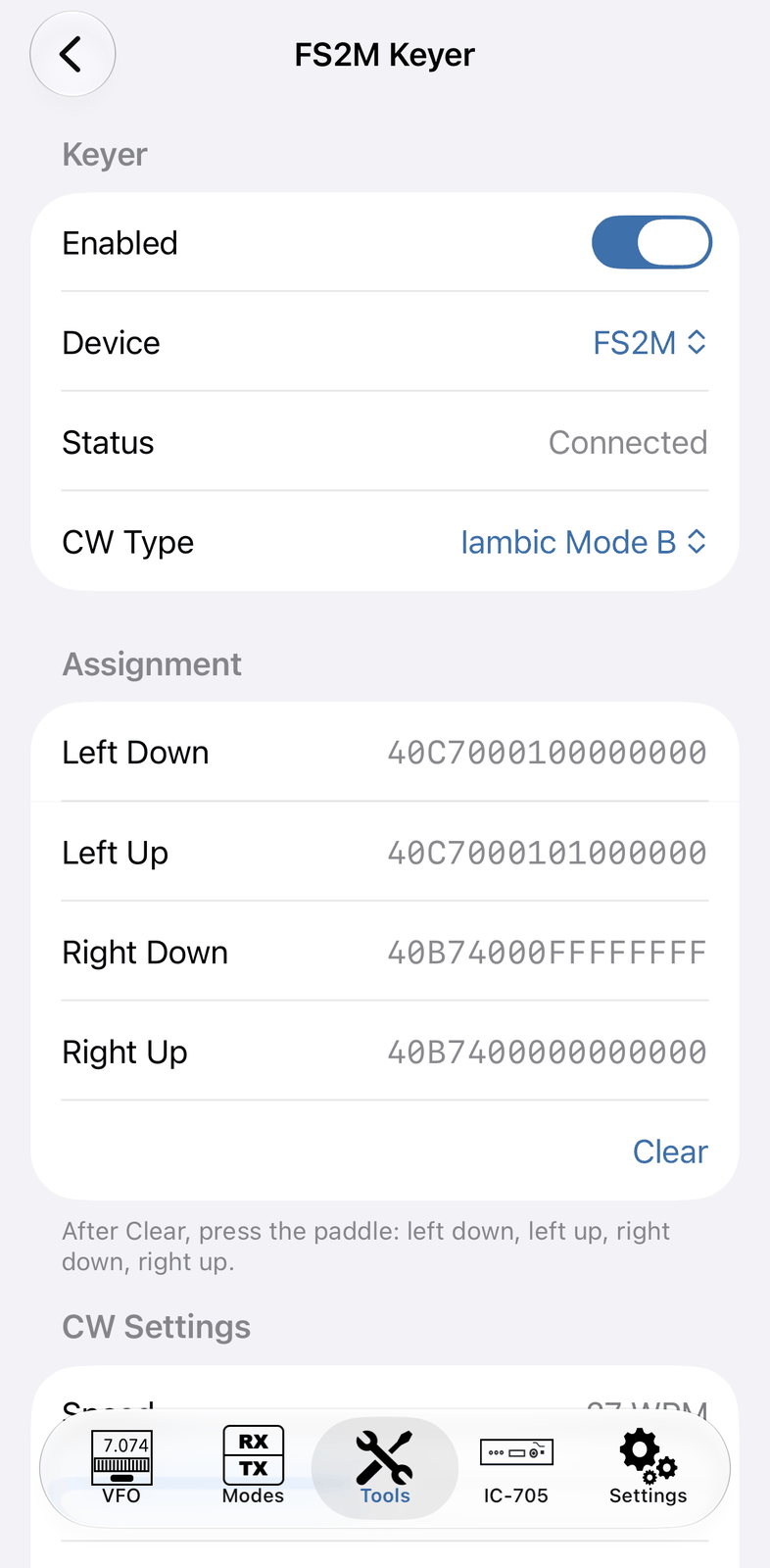
The iPhone shows the same screen.
15. MIDI Controller
The MIDI Controller tool lets you use a DJ controller or another MIDI controller with your radio. Its knobs, wheels and sliders can tune the radio or set the volume, its buttons can switch the mode, the band or PTT, and its LEDs can show what the radio is doing.
These controllers are known to work: Numark DJ2GO2, Behringer CMD Micro, Behringer CMD PL-1 and Hercules DJControl Compact. Most other MIDI controllers work too. You can use several controllers at the same time.
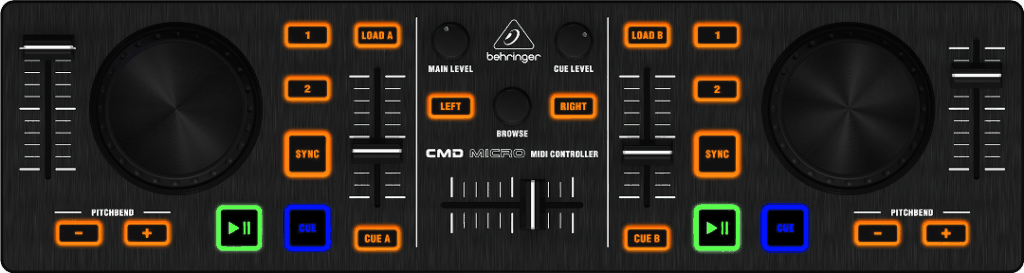
15.1. Quick start
Connect the controller to your iPad or iPhone with a USB cable (see Connecting the controller).
Open Controllers in the Tools tab, then MIDI Controller.
Tap Add MIDI Controller. The new controller’s screen opens.
Choose your controller in Device and switch on Enabled. Status shows Connected.
If your controller is one of the known ones, tap Settings For… and choose it.
Tap Edit Mapping. A new controller starts with an empty mapping. Press a button or turn a knob on the controller, tap its row and choose a Radio Action. Do this for every control you want to use.
15.2. The list of controllers
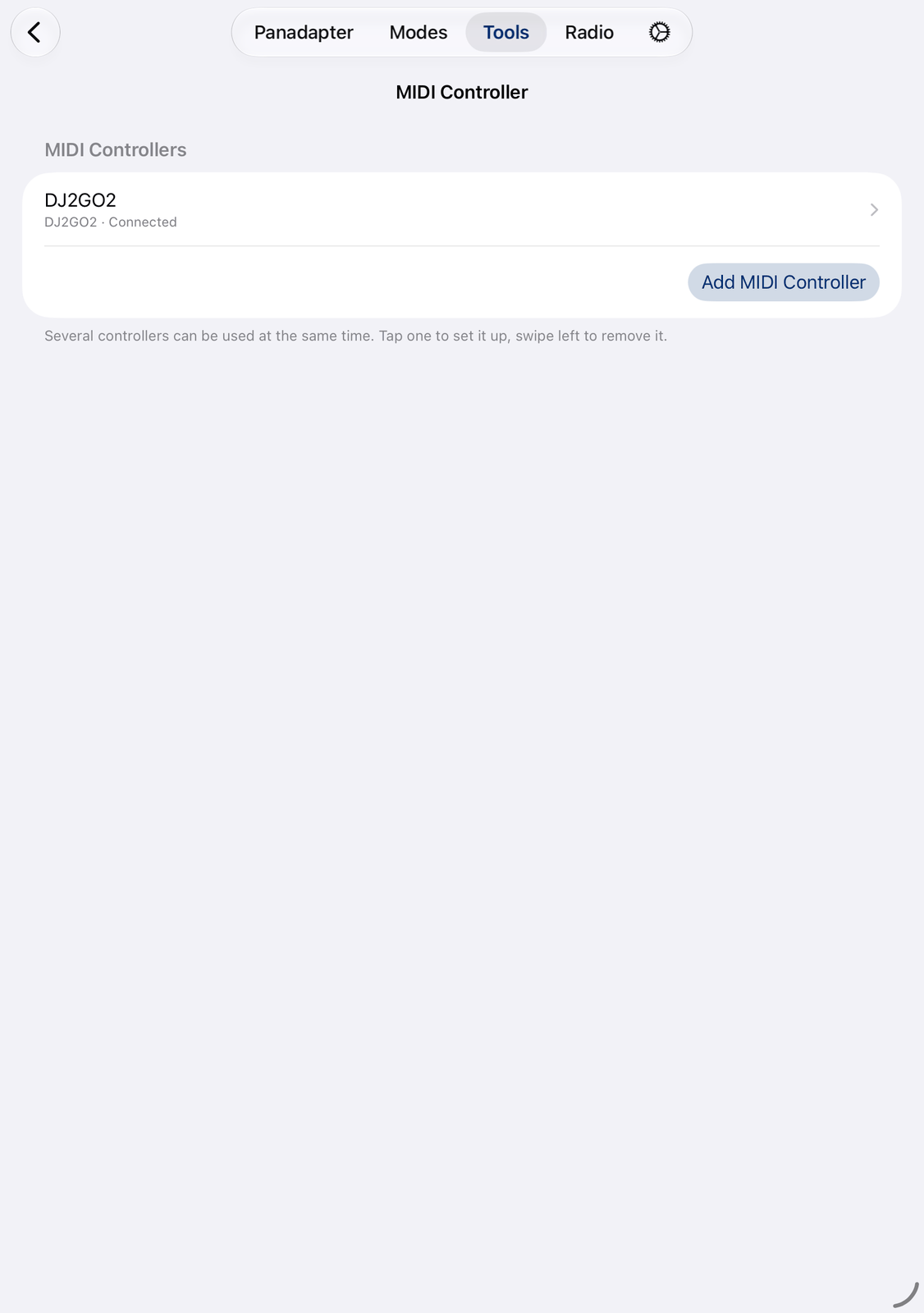
The tool opens with the list of your MIDI controllers.
Each row shows the controller’s name, its device and its state, for example
ConnectedorOff.Tap a row to open the controller’s screen.
Swipe a row to the left and tap Remove to remove the controller and its mapping.
Add MIDI Controller adds a new controller and opens its screen.
15.3. The controller’s screen
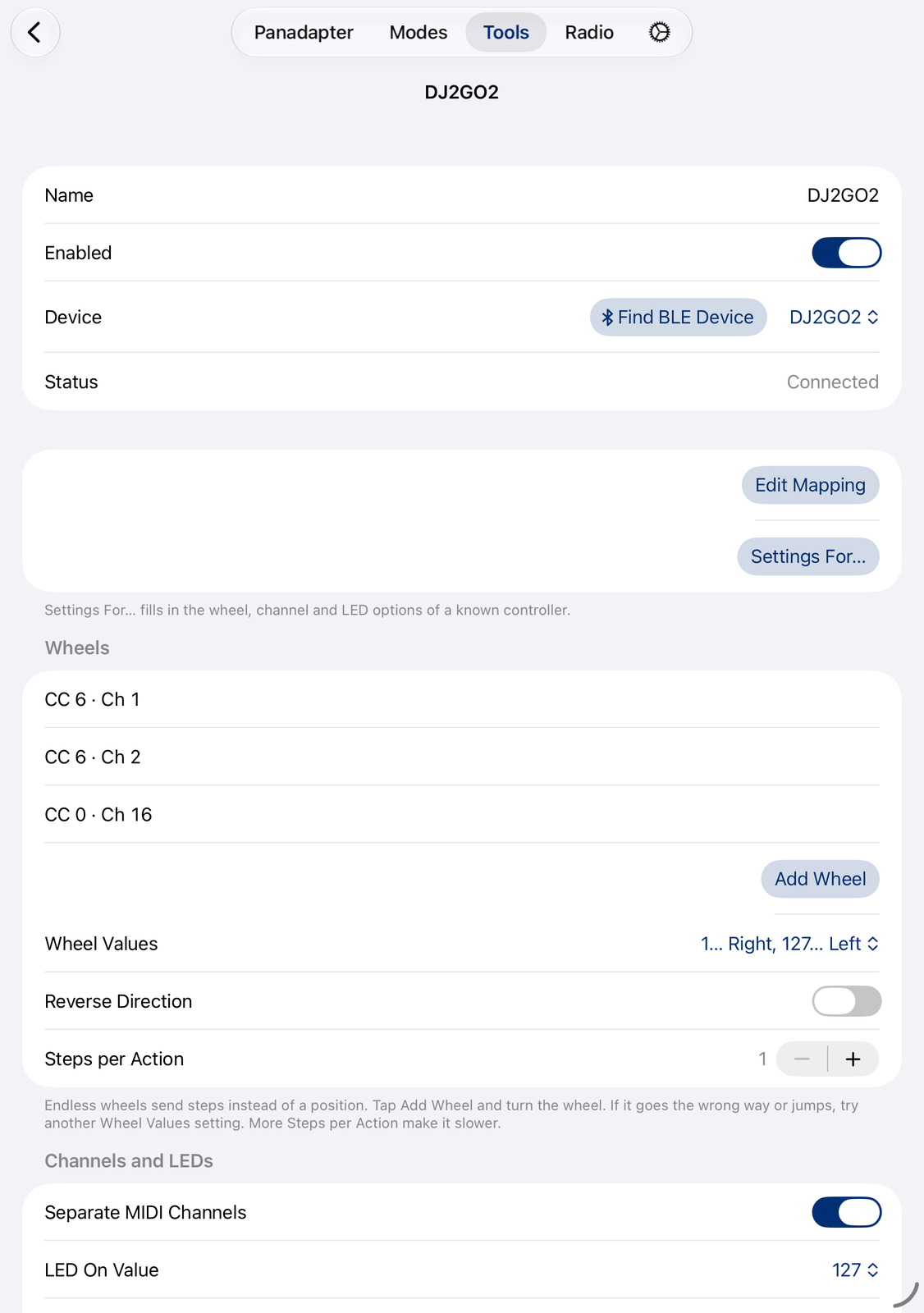
All changes on this screen work at once. There is nothing to save.
15.3.1. The top
Name — a name for the list, for example
DJ2GO2 left. Empty: the list shows the device name.Enabled — switches the controller on and off. It stays on when you close the screen or restart the app.
Device — the MIDI device. A device that is not connected right now shows
(Offline).Find BLE Device — pairs a Bluetooth MIDI controller (see Connecting the controller). On the iPhone the button reads Find.
Status —
Connected,Waiting for …(the device is not there yet),Off, or an error.
15.3.2. Mapping
Edit Mapping opens the mapping editor: which knob or button does what. See The mapping editor.
Settings For… fills in the wheel, channel and LED settings of a known controller: Behringer CMD Micro, Behringer CMD PL-1, Hercules DJControl or Numark DJ2GO2. It doesn’t change the mapping.
15.3.3. Wheels
Many controllers have endless wheels (jog wheels). They send steps instead of a position. Tell the app which of your controls are such wheels:
Tap Add Wheel and turn the wheel. The wheel is added to the list, for example
CC 17. Add Wheel only works while the controller is connected. Swipe a wheel to the left to remove it.Wheel Values — how the wheel counts its steps. If a wheel goes the wrong way or jumps, try another setting.
Reverse Direction — turns the direction of all wheels around.
Steps per Action — more steps make the wheel slower: with
2, every second step tunes.
15.3.4. Channels and LEDs
Separate MIDI Channels — for controllers that use the same numbers on several channels, for example the two decks of the DJ2GO2. The codes in the mapping change with it.
LED On Value, LED Message and Send LED Messages 3 Times — how the app switches the controller’s LEDs. Settings For… sets them for the known controllers. Try others if the LEDs of your controller don’t light up.
Test LEDs lights all LEDs of the mapping for a moment.
15.3.5. MIDI Monitor
While the screen is open, the monitor shows what the controller sends, the newest line on top, for example
CC 6 = 1 Ch 1 · Code 6 · +1. Code is the number the mapping uses. For a wheel, the last number shows its
steps. Clear empties the monitor.
Use it to find out which control sends what, and whether a wheel needs other Wheel Values.
15.4. The mapping editor
Edit Mapping opens the mapping editor. Press a button or turn a knob on the controller: its row is highlighted, or added if it is new. Tap the row, choose a Radio Action and tap Save. The mapping is saved at once.
The editor is explained in its own chapter: Mapping Editor.
15.5. Connecting the controller
With a USB cable: connect the controller directly or with an adapter, for example USB-A to USB-C. The DJ2GO2 needs no extra power. Bigger controllers can need more power than the iPad or iPhone gives: then use a powered USB hub or an adapter with a power input.
With Bluetooth: a Bluetooth MIDI controller must be paired from the app.
Switch the controller on and keep it close to your device.
Tap Find BLE Device. A window lists the Bluetooth MIDI devices nearby.
Tap your controller. The window closes by itself once it is connected. If not, tap Close.
Choose the controller in Device.
15.6. Good to know
The controllers keep working when you leave the tool. Enabled decides whether a controller is used.
A controller that is enabled connects by itself when it is plugged in or switched on later.
If a wheel goes the wrong way, switch on Reverse Direction. If it jumps or only goes one way, try another Wheel Values setting and watch the MIDI Monitor.
A mapping you made with an older version of the app was taken over: you find it as the first controller in the list.
15.7. On the iPhone
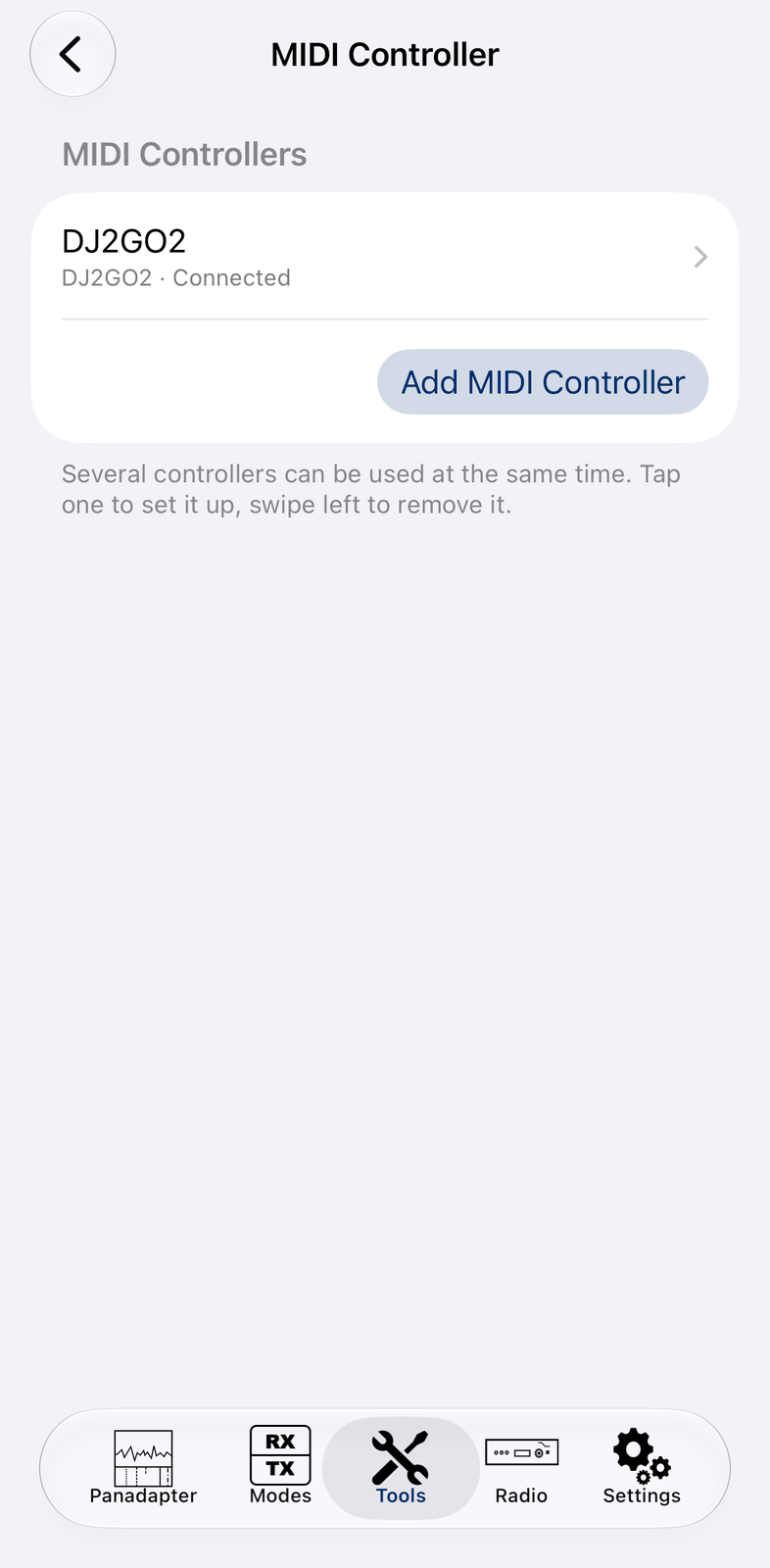
The iPhone shows the same screens. There, Find BLE Device reads Find.
16. Pryme Buttons
The Pryme Buttons tool connects small Bluetooth PTT buttons to the app. Press the button to transmit, or give it another radio action, for example tune or a band change.
Supported are the Pryme buttons with -Z or -ZU in their name
(https://www.pryme.com/index.php?l=product_list&c=163)
and other Bluetooth Zello PTT buttons (https://amzn.to/4tZL073).
They appear in the app as PTT-Z. You can use several buttons at the same time.
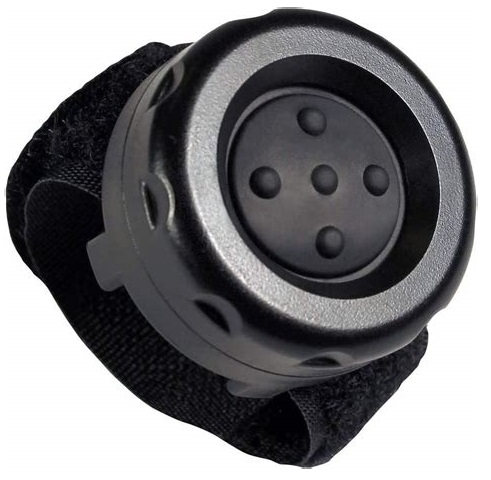
16.1. Quick start
Open Controllers in the Tools tab, then Pryme Buttons.
Switch on Enable Pryme Buttons. The first time, allow Bluetooth for the app.
Wait a moment until your button appears in the list as
PTT-ZwithNot connected. If it doesn’t appear, press it once.Tap Add in its row. After a few seconds it shows
Connected.Tap Map, then Radio Action, choose
PTT Pushand tap Save.
16.2. The screen
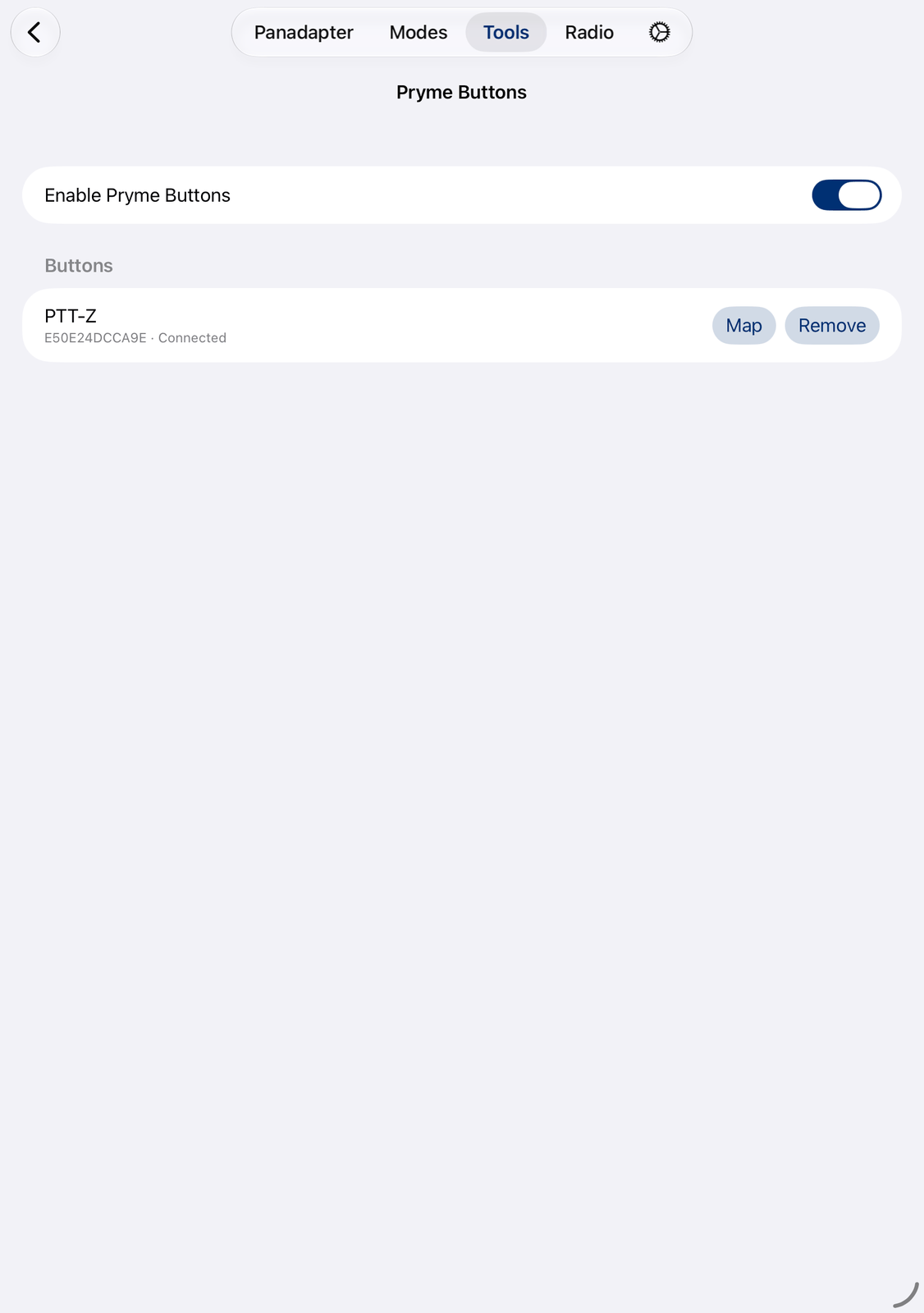
Enable Pryme Buttons — switches the tool on and off. It stays on when you close the screen or restart the app.
Buttons — the buttons found nearby. Each row shows the button’s name, the end of its id, and its state:
Not connected,Connected, orSearching...for a button you added that isn’t found nearby right now.Add — use this button with the app. The app connects to it.
Map — choose what the button does. See Mapping a button.
Remove — stop using this button. It stays in the list while it is nearby, with Add again.
When you press a button, its row is highlighted. That way you can tell several buttons apart.
16.3. Mapping a button
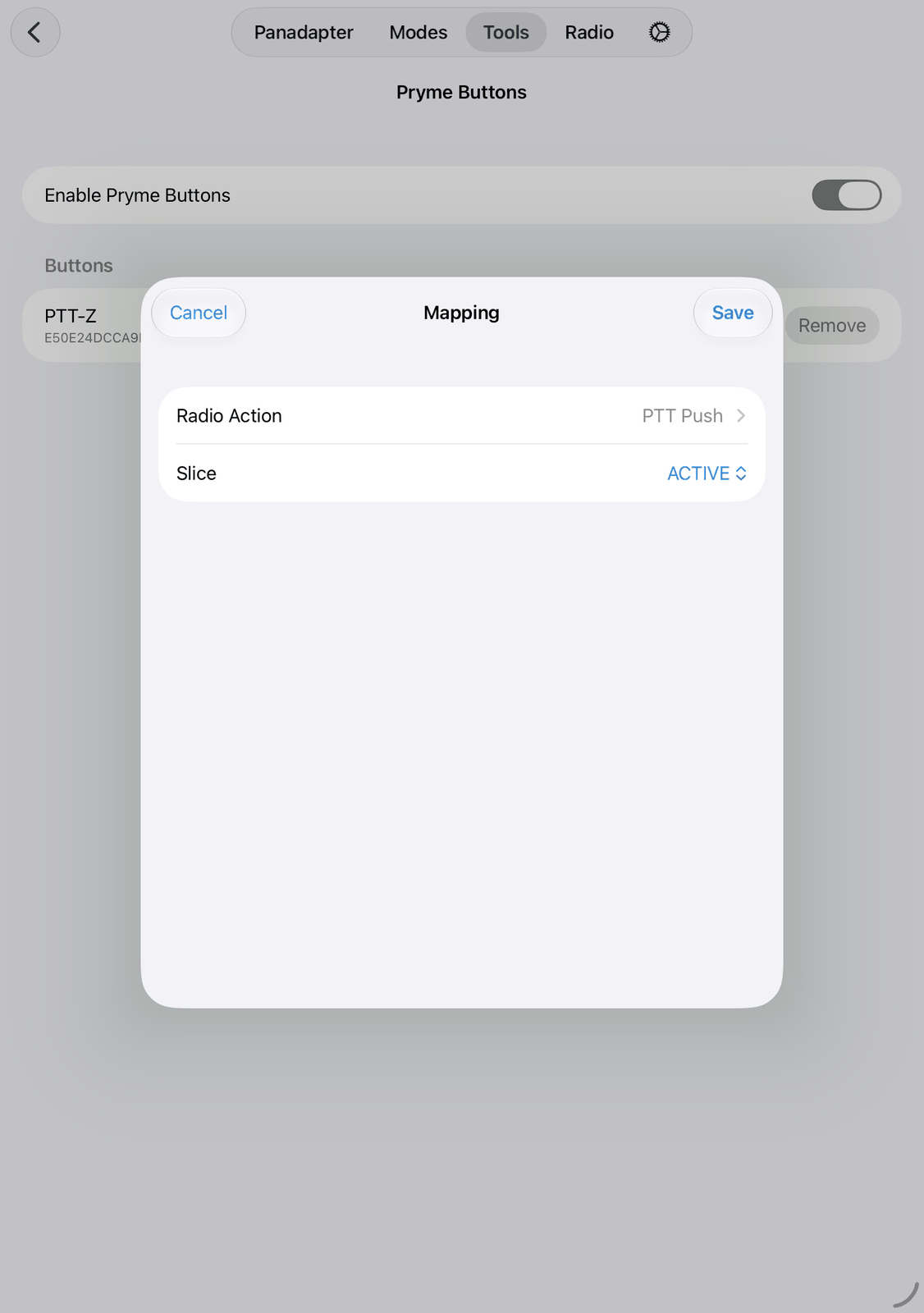
Tap Map in the button’s row.
Radio Action — what the button does. Type in the search field to find an action quickly.
PTT Pushtransmits as long as you hold the button down. Not assigned removes the action.
Tap Save, or Cancel to leave it as it was. A new button does nothing until you map it.
16.4. Good to know
Keep this screen open while you look for a new button: the app searches for new buttons while it is shown. Buttons you added connect by themselves, also when the screen is closed.
The buttons keep working when you leave the tool. Only Enable Pryme Buttons stops them.
Some buttons must be pressed once before they can be found.
16.5. On the iPhone
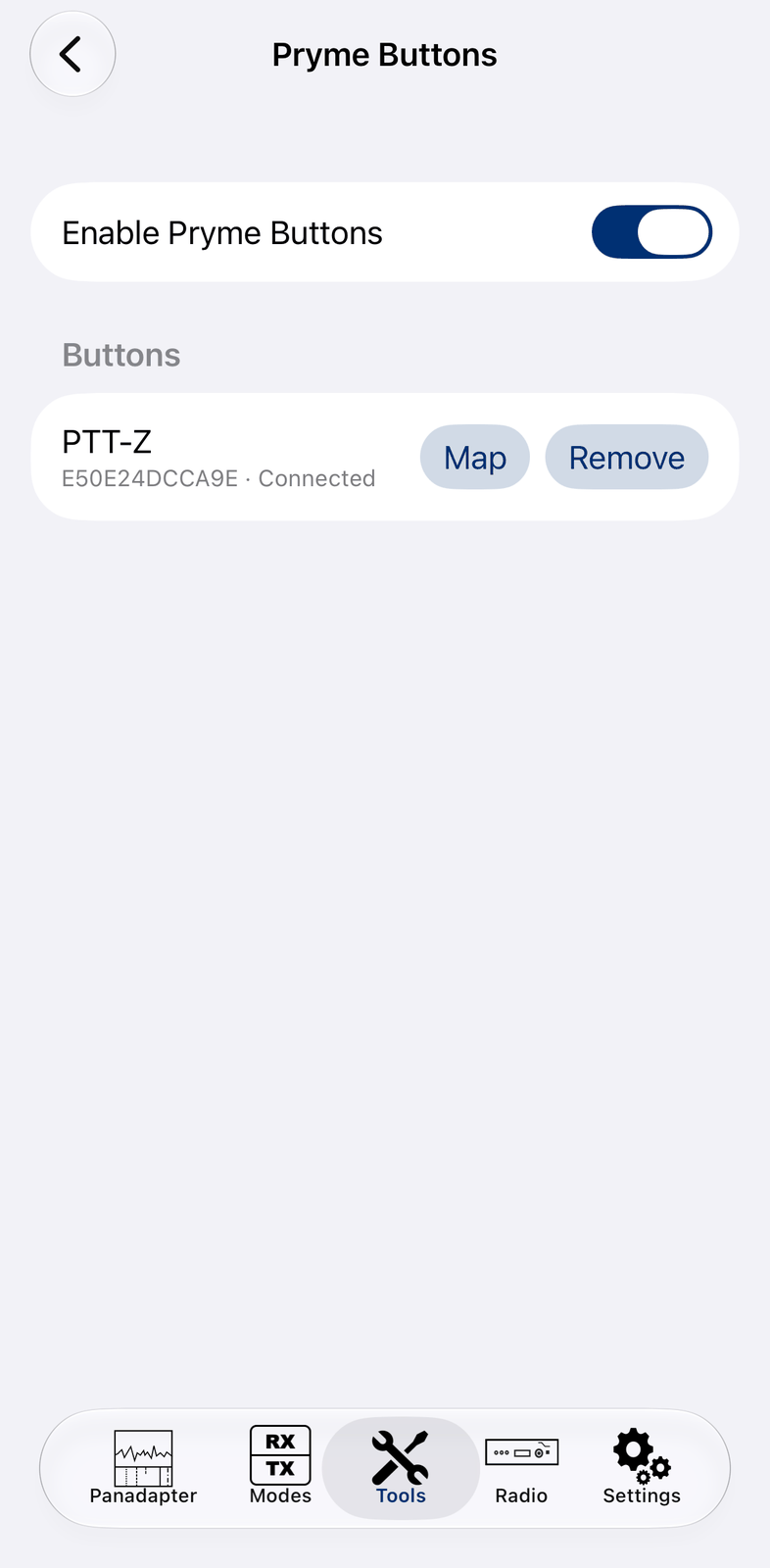
The iPhone shows the same screen.
17. Flic
The Flic tool connects Flic smart buttons (https://flic.io) to the app with Bluetooth. Give each click a radio action: PTT, tune, mute, a band change, a CW macro and more. Both the Flic 2 and the Flic Duo are supported, and you can use as many buttons as you like.
The app pairs the Flic itself. You don’t need the Flic app or a Flic account for it.
17.1. Quick start
Open Controllers in the Tools tab, then Flic.
Switch on Enabled. The first time, allow Bluetooth for the app. Status shows
Ready.Tap Add Flic Button. Hold your Flic for 7 seconds until it blinks. The app finds and adds it.
Tap Done, then tap the new button in the list.
Tap Single click, choose a Radio Action and tap Save.
17.2. The screen
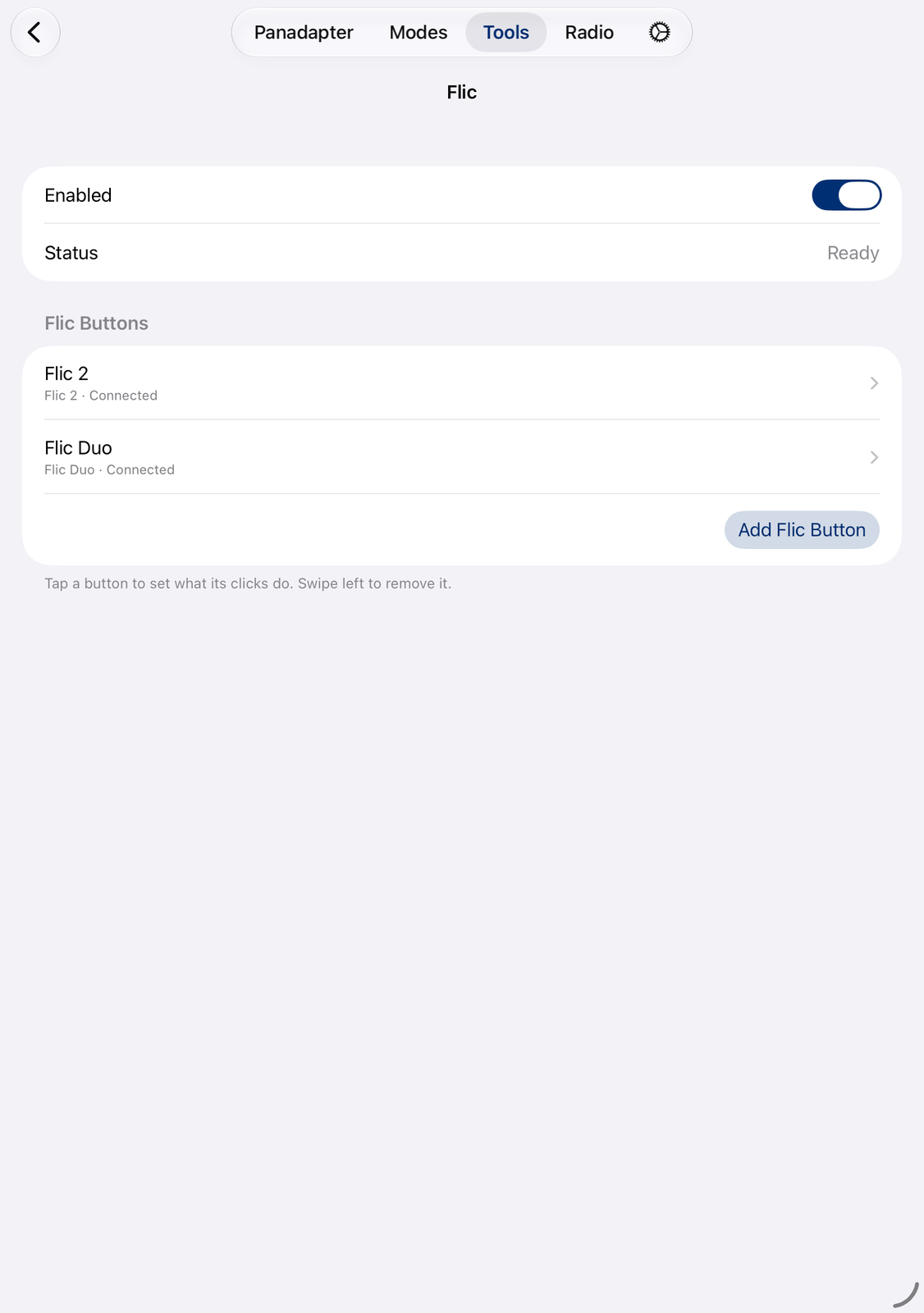
Enabled — switches the tool on and off. It stays on when you close the screen or restart the app.
Status —
Ready,Starting...,Off, or an error, for exampleBluetooth switched off.Flic Buttons — your buttons. Each row shows the button’s name, whether it is a Flic 2 or a Flic Duo, and its state:
Connected— ready to use.Waiting (press it to wake it up)— the Flic sleeps or is out of reach. Press it once.Pairing lost: remove it and add it again— see Good to know.
Tap a button to set what its clicks do. See Mapping a button.
Swipe a button to the left and tap Remove to remove it and its mapping from the app.
Add Flic Button pairs a new Flic. It only works while Enabled is on.
17.3. Adding a Flic
Tap Add Flic Button, then hold your Flic for 7 seconds until it blinks. The window shows the steps:
Flic found, connecting..., Checking the Flic..., and at the end … was added. Tap Done.
If it doesn’t work, the window says why and what to do, for example:
No Flic was found, or it left pairing mode too early: hold it for 7 seconds until it blinks.
It was paired with this device before: remove it in the iOS Settings under Bluetooth (ⓘ, Forget This Device).
It is connected to another phone or tablet: remove it there, or switch off Bluetooth on that device.
Then tap Try Again. Cancel stops the search.
17.4. Mapping a button
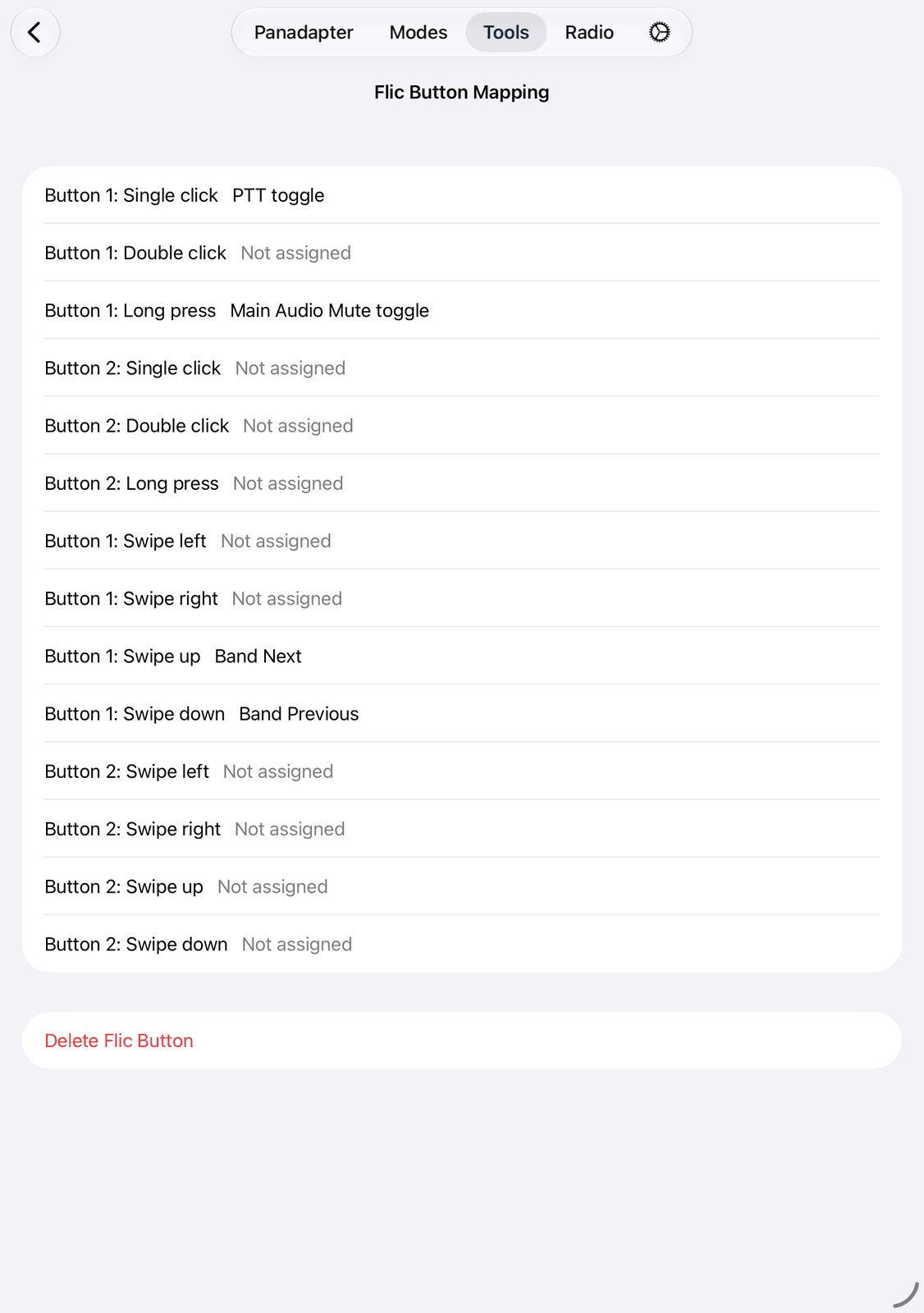
Tap a button in the list. A new Flic starts with an empty mapping: it does nothing until you set its clicks. Its mapping shows one row per click:
Flic 2: Single click, Double click and Long press.
Flic Duo: the same for each of its two buttons (Button 1: and Button 2:), and the swipes: Swipe left, Swipe right, Swipe up and Swipe down.
Click the Flic: its row is highlighted. Tap a row to set it:
Radio Action — what the click does. Type in the search field to find an action quickly. Not assigned removes the action.
Tap Save, or Cancel to leave it as it was.
Swipe a row to the left for Clear (no action) and Edit.
Delete Flic Button at the end removes the whole button, after you confirm it.
The mapping is saved at once. While it is open, the Flic only finds its rows and doesn’t change anything on the radio.
17.4.1. Which action for which click
On a Flic 2, Single click knows when you press and when you let go.
PTT Pushon Single click transmits as long as you hold the Flic down.Double click, Long press, the swipes and all clicks of a Flic Duo are a single event: they don’t tell when you let go. For PTT use
PTT togglethere: one click transmits, the next one stops.On a Flic 2, every press is also a single click, also the presses of a double click and of a long press. If you use Double click or Long press, it is best to leave Single click empty.
17.5. Good to know
The buttons keep working when you leave the tool. Only Enabled stops them.
Pairing lost: the Flic lost its pairing with this device, for example after a reset. Remove it in the list and add it again.Clicks that reach the app more than two seconds late (the Flic was out of reach) are ignored.
One Flic can also be used by other apps on the same device, for example the Flic app, but only by a few.
17.6. On the iPhone
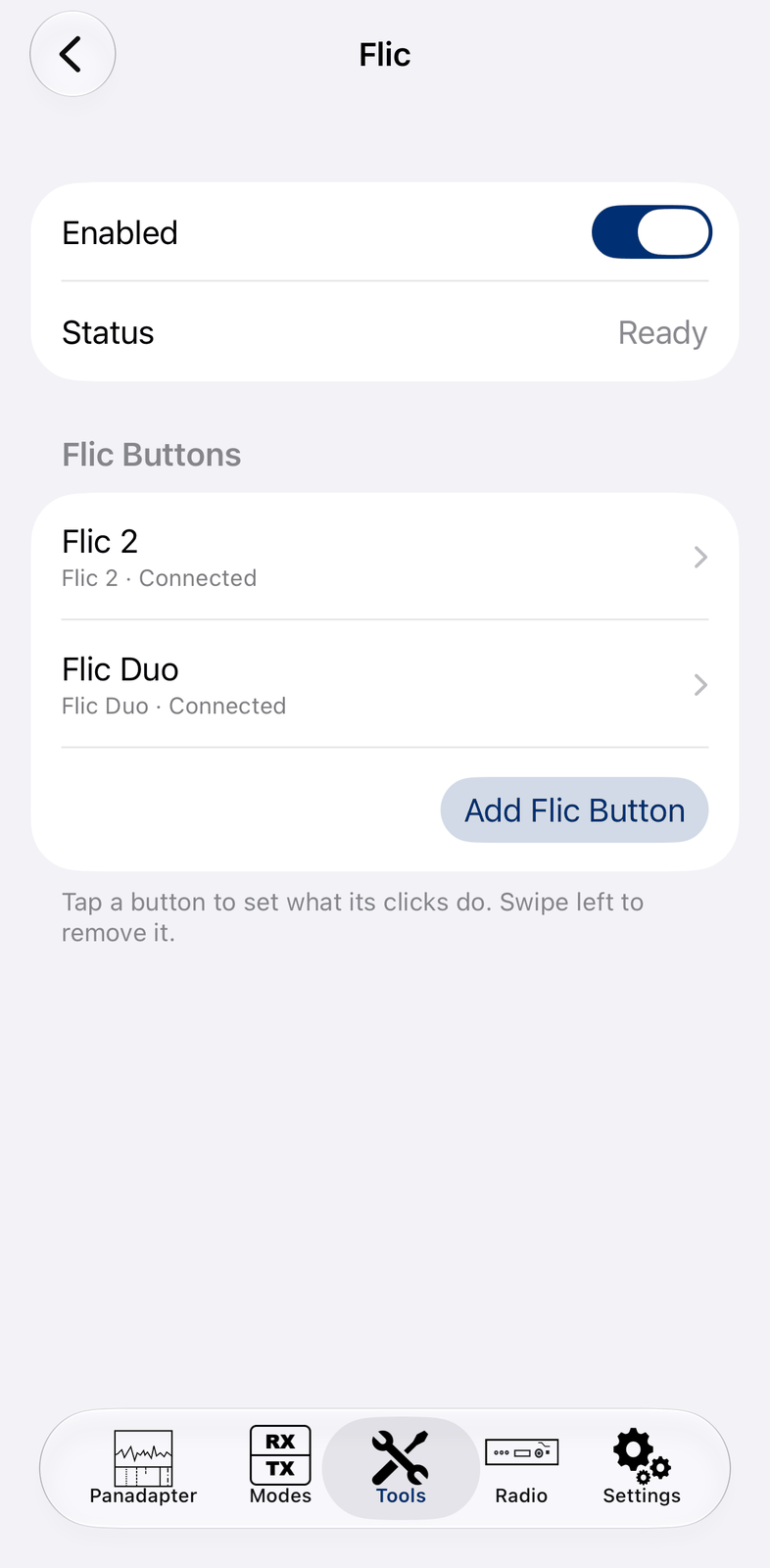
The iPhone shows the same screen.
18. CTR2 Controller and CTR2 Dial Controller
The CTR2 Controller and CTR2 Dial Controller tools connect the CTR2-MIDI and CTR2-Dial controllers made by Lynn Hansen, KU7Q (https://ctr2.lynovation.com). With their knobs you tune the radio and set the volume, with their buttons you switch the mode, the band, PTT and more. A CW paddle connected to the controller keys the radio.
The controllers work with Bluetooth or with a USB cable. Both tools look and work the same; each has its own device and its own mapping, so you can use a CTR2-MIDI and a CTR2-Dial at the same time.
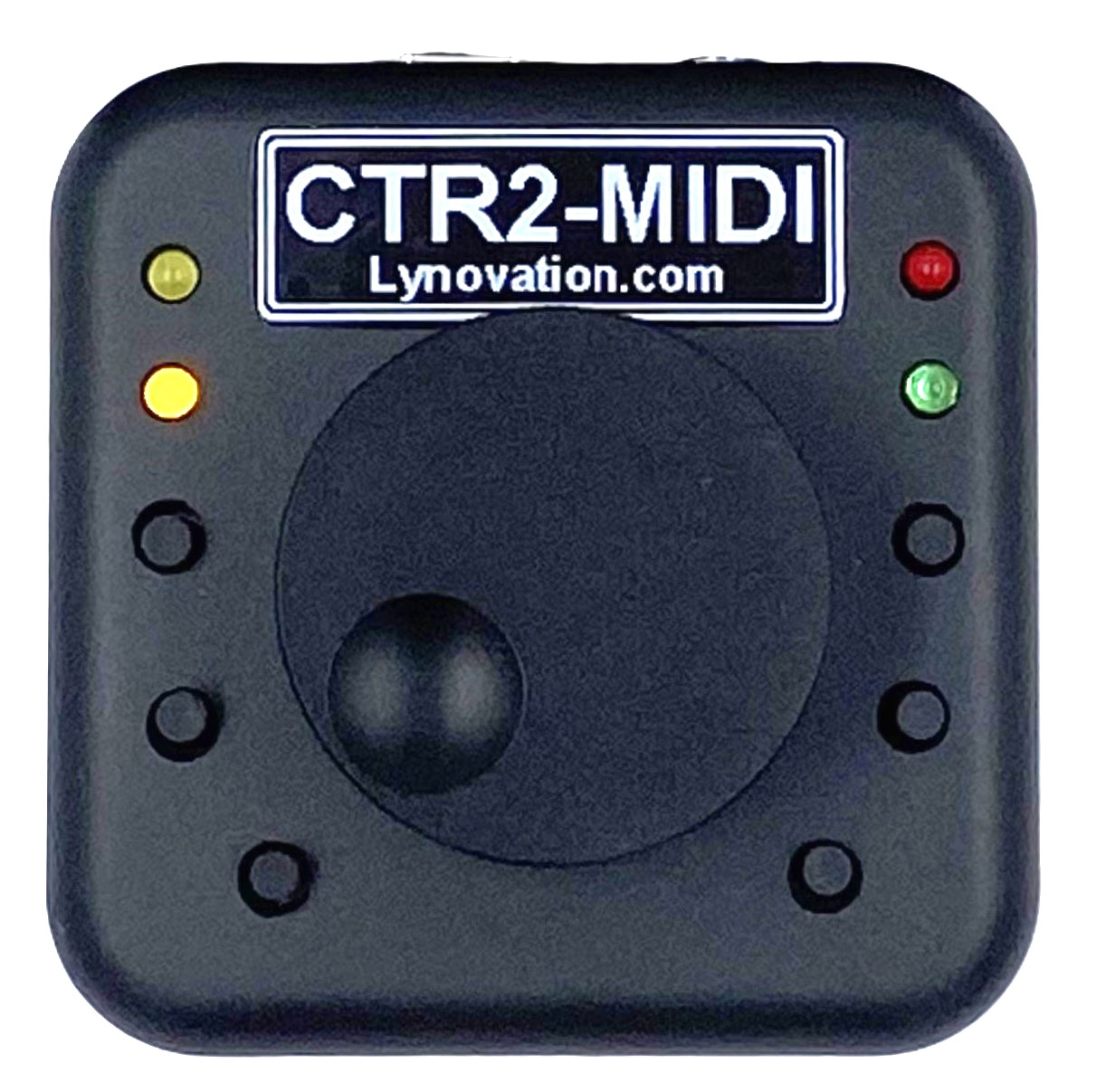
18.1. Quick start
Switch the controller on and keep it close to your device. For USB, plug it in.
Open Controllers in the Tools tab, then CTR2 Controller (or CTR2 Dial Controller).
For Bluetooth: tap Find BLE Device and tap your controller in the list (see Pairing with Bluetooth).
Choose the controller in Device and switch on Enabled. Status shows
Connected.Tap Edit Mapping and map the knobs and buttons you want to use (see The mapping). A new controller starts with an empty mapping.
18.2. The screen
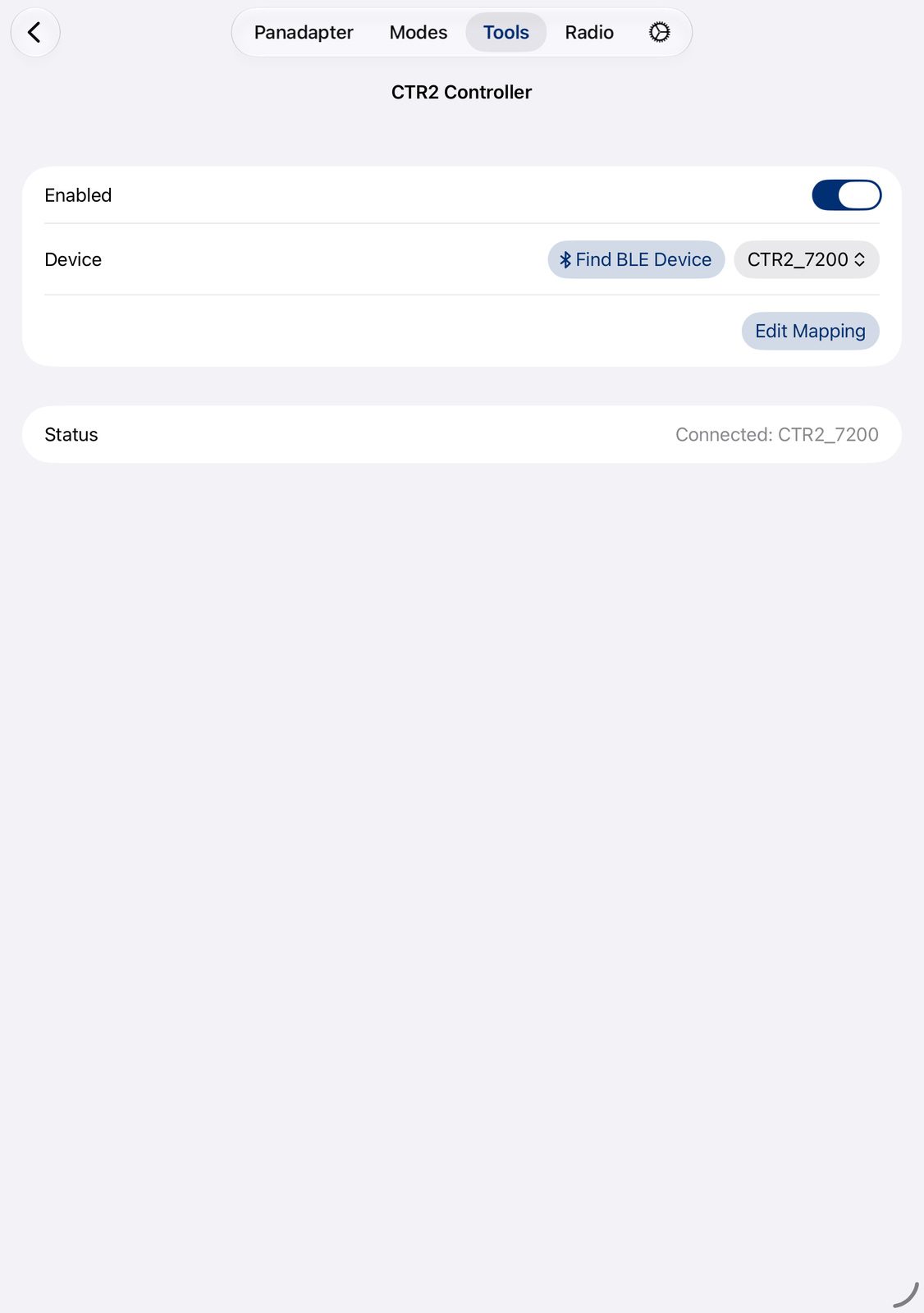
All changes work at once. There is nothing to save.
Enabled — switches the controller on and off. It stays on when you close the screen or restart the app.
Device — the controller:
with Bluetooth:
CTR2_and a number, for exampleCTR2_7200. Each controller has its own number.with USB:
XIAO_ESP32S3for the CTR2-MIDI,STAMP-S3for the CTR2-Dial.
A controller that is not connected right now shows
(Offline).Find BLE Device — pairs a controller with Bluetooth. On the iPhone the button reads Find.
Edit Mapping — which knob or button does what. See The mapping.
Status —
Connected: …,Waiting for Controller...(the controller is not there yet),Not Connected(Enabled is off), or an error, for exampleNo CTR2 Device selected. If the controller can’t start when you switch on Enabled, a message says why.
18.3. Pairing with Bluetooth
Switch the controller on and keep it close to your device.
Tap Find BLE Device. A window lists the Bluetooth MIDI devices nearby.
Tap your controller (
CTR2_…). The window closes by itself once it is connected. If not, tap Close.Choose the controller in Device.
If the controller doesn’t connect, switch it off and on again and try once more. Once paired, the controller connects by itself whenever it is switched on and Enabled is on.
18.4. The mapping
A new controller starts with an empty mapping: it does nothing until you decide what each knob and button does. A mapping you already had from an earlier version of the app is kept.
Tap Edit Mapping. Press a button or turn a knob on the controller to find its row, tap the row and choose a
Radio Action, for example the frequency for the main knob, Adjust Main Volume for another knob, or
PTT Push for the PTT input. The editor is explained in its own chapter:
Mapping Editor.
Lynn’s website has more mappings for the different controller variants.
18.5. The CW paddle
A paddle connected to the CTR2-MIDI or CTR2-Dial keys the radio in CW through the app’s keyer. Map its two contacts
first: close each paddle contact while the mapping editor is open, and give the rows the radio actions
Trigger CW left Paddle and Trigger CW right Paddle.
Speed, keyer type and swapped paddles are set in the CW mode: tap ⚙︎ there.
18.6. Good to know
The controller keeps working when you leave the tool. Only Enabled stops it.
The CTR2-MIDI and the CTR2-Dial each need their own tool: CTR2-MIDI in CTR2 Controller, CTR2-Dial in CTR2 Dial Controller.
While the mapping editor is open, the controller doesn’t change anything on the radio: its knobs and buttons only find their rows.
Lynn’s website has the controller’s own manual.
18.7. On the iPhone
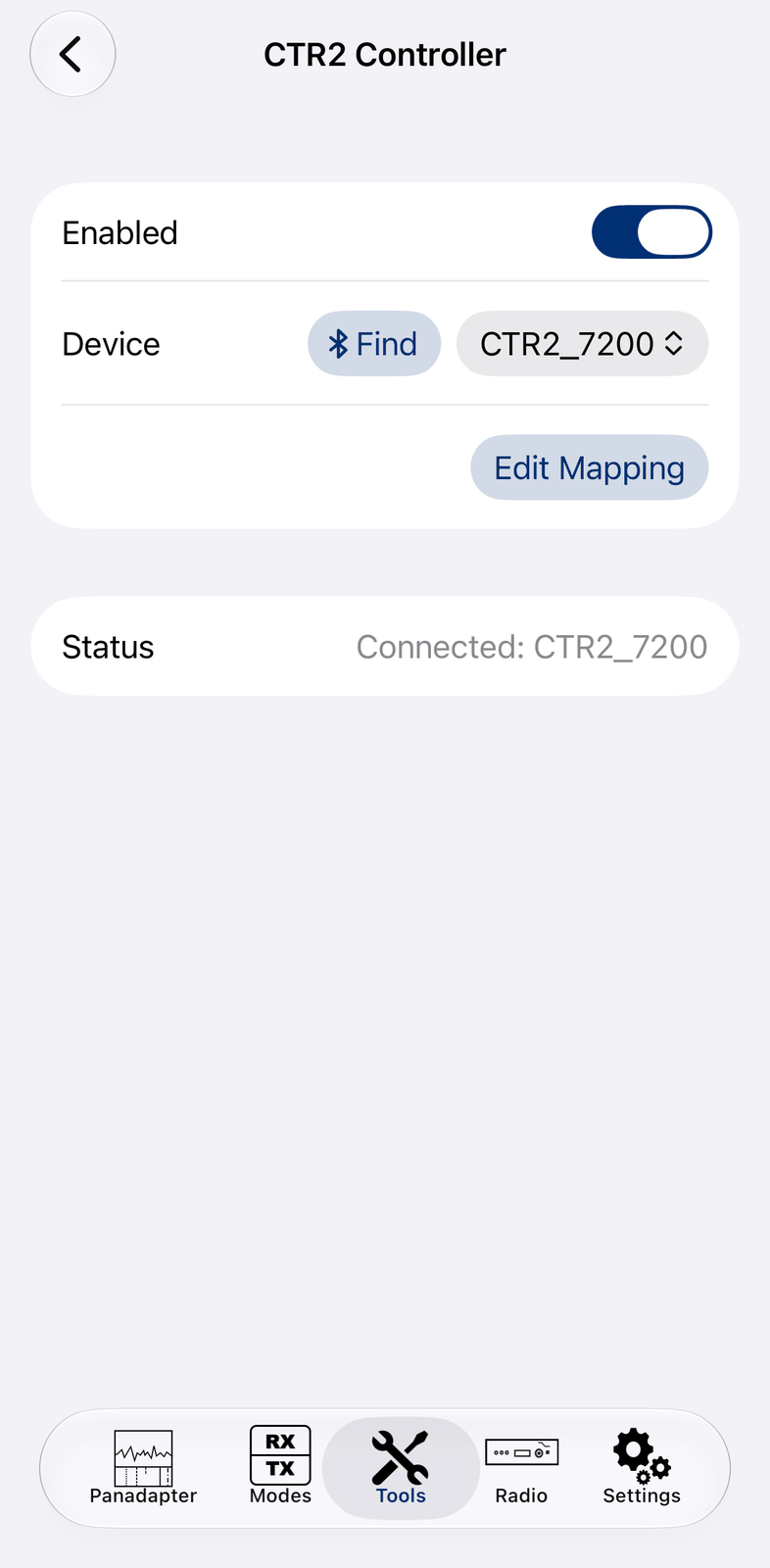
The iPhone shows the same screen. There, Find BLE Device reads Find.
19. HaliKey MIDI
The HaliKey MIDI from Halibut Electronics connects a CW paddle and a PTT foot switch to your iPad or iPhone with USB. With the HaliKey MIDI tool, the paddle keys the radio in CW, and the foot switch switches the radio to transmit in the voice modes.
You can buy the HaliKey MIDI from Halibut Electronics: https://electronics.halibut.com/product/halikey/. How to connect a paddle or a foot switch to it is in the HaliKey documentation: https://electronics.halibut.com/docs/.
19.1. Quick start
Connect the HaliKey MIDI to your device with a USB cable, and the paddle or the foot switch to the HaliKey.
Open Controllers in the Tools tab, then HaliKey MIDI.
Choose the HaliKey in Device and switch on Enabled. Status shows
Connected.Set the radio to CW and use the paddle, or to a voice mode and press the foot switch.
19.2. The screen
All changes work at once. There is nothing to save.
Enabled — switches the HaliKey on and off. It stays on when you close the screen or restart the app.
Device — the HaliKey. A device that is not connected right now shows
(Offline).Status —
Connected: …,Waiting for Controller...(the HaliKey is not plugged in yet),Not Connected(Enabled is off), or an error, for exampleNo MIDI Device selected. If the HaliKey can’t start when you switch on Enabled, a message says why.
19.3. What it does
The HaliKey needs no mapping. What it does depends on the radio’s mode:
CW: the paddle sends dots and dashes through the app’s keyer. Speed, keyer type and swapped paddles are set in the CW mode: tap ⚙︎ there.
Voice modes (SSB, AM, FM): the foot switch is PTT. The radio transmits as long as you hold it down.
Other modes, for example the digital modes: the HaliKey does nothing.
19.4. Good to know
The HaliKey keeps working when you leave the tool. Only Enabled stops it.
If the HaliKey was not plugged in when the app started, it connects as soon as you plug it in.
19.5. On the iPhone
The iPhone shows the same screen.
20. Command Bar
The Command Bar holds up to 20 buttons for things you do often: open a website, start another app or a Shortcut, or send a command straight to the radio. The buttons are shown in a bar on the radio screen. The keyboard of the iPad and the controllers can run them too.
20.1. Quick start
In the Tools tab, open Command Bar.
Tap the row 1. Enter
QRZin Name, choose Open Website in Type, and enterwww.qrz.comin URL. Tap Test to try it, then tap Save.On the radio screen, show the Command Bar:
tap View, then Command Bar.
Tap QRZ in the bar.
20.2. The screen
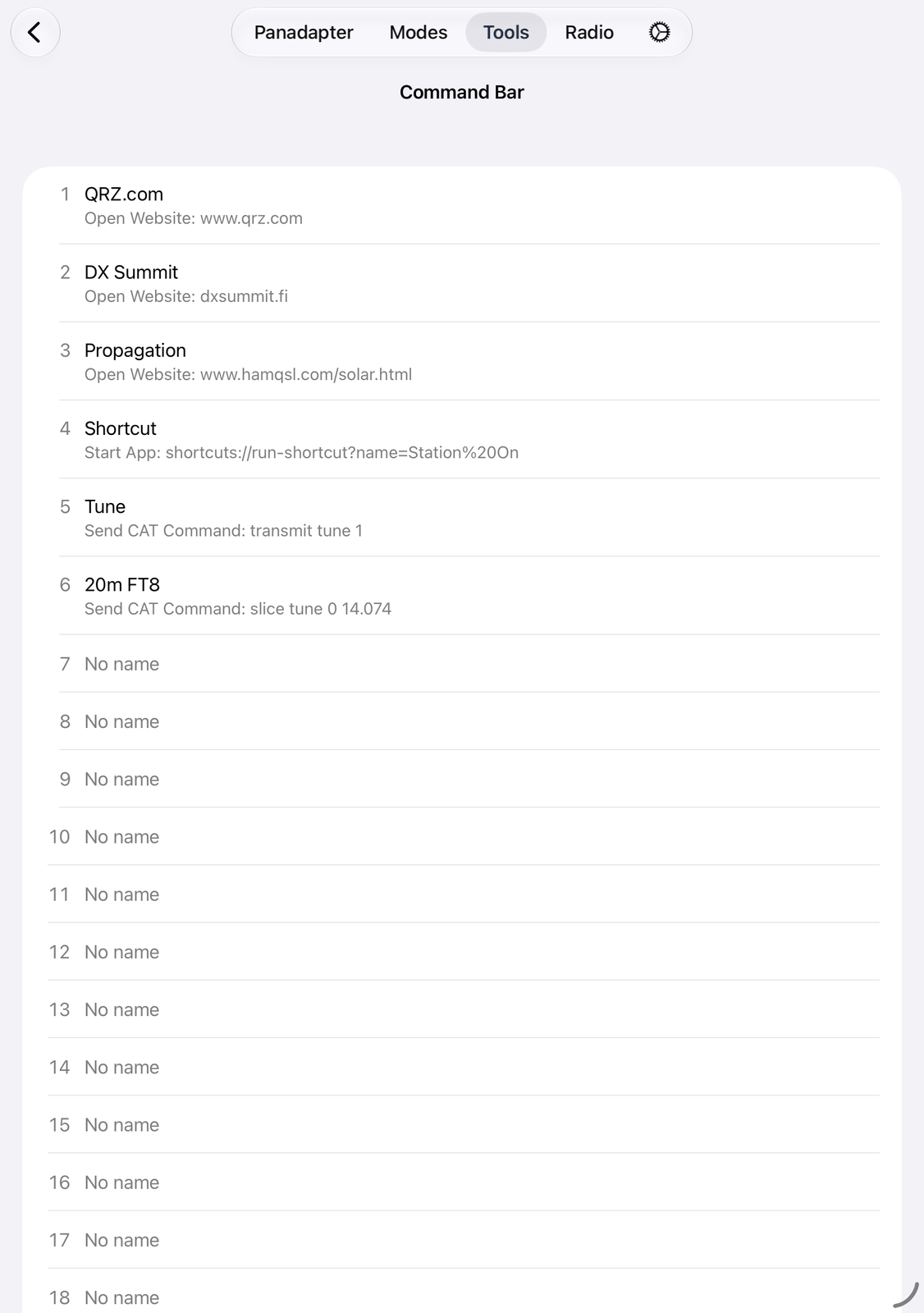
One row per button: its number, its name, and what it does, for example Open Website: www.qrz.com.
An empty button shows No name.
Tap a row to change the button. See Changing a button.
Swipe a row to the right and tap Run to run the button now.
Swipe a row to the left for Edit and Clear. Clear empties the button, after you confirm it.
Touch and hold a row for Run, Edit and Clear.
20.3. Changing a button
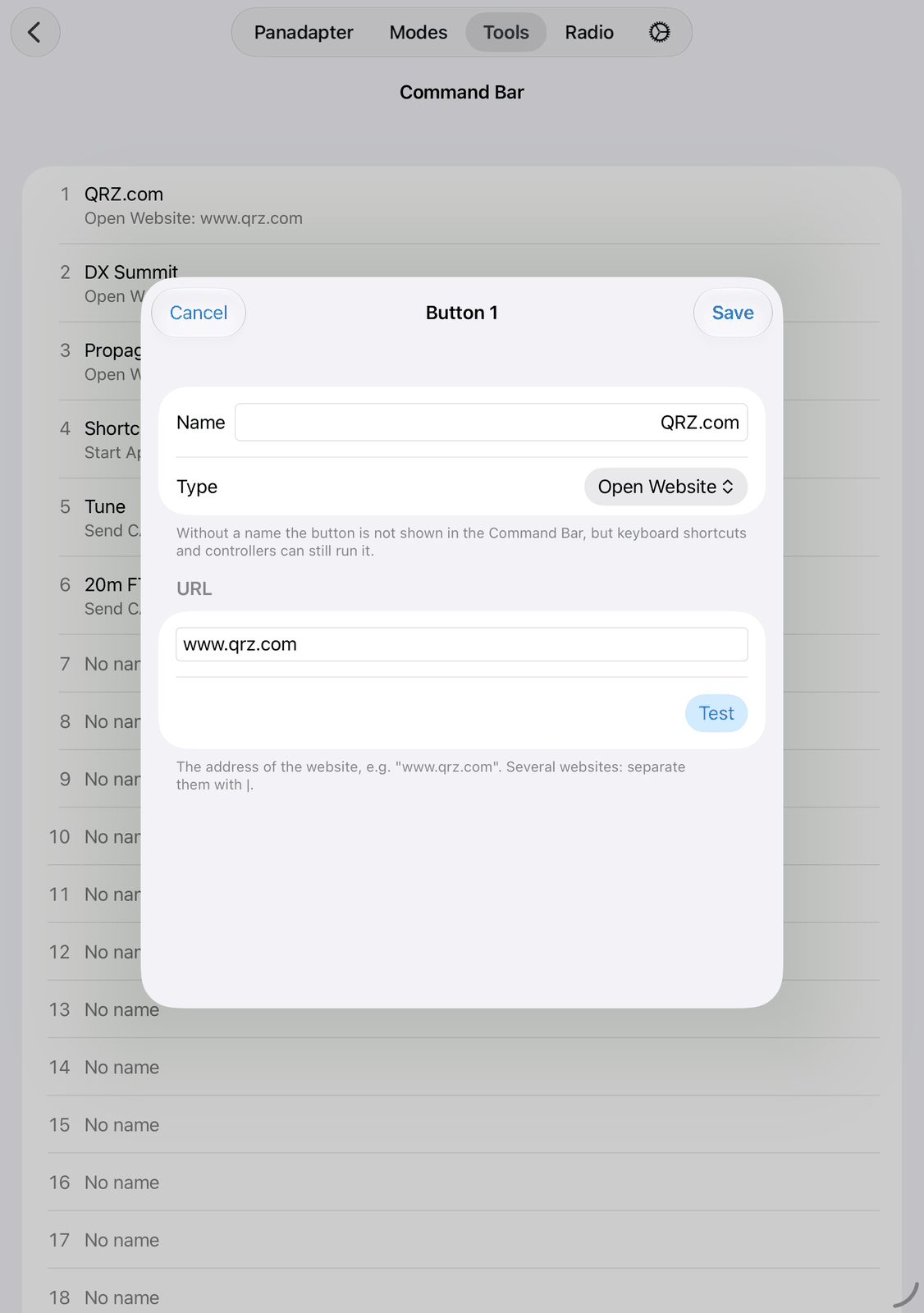
Name — the title of the button in the Command Bar. Without a name the button is not shown in the bar, but the keyboard and the controllers can still run it.
Type — what the button does: Start App, Open Website or Send CAT Command. None does nothing.
The field below depends on the type: App Name, URL or CAT Command Text. See below.
Test runs the button as it is now, before you save it.
Tap Save, or Cancel to leave the button as it was.
One button can do several things at once: separate them with |, for example www.qrz.com | dxsummit.fi.
20.3.1. Start App
Another app is started by its link, its URL scheme. Enter the scheme alone, for example music, or a full link.
The most useful link starts a Shortcut of the Shortcuts app:
shortcuts://run-shortcut?name=My%20Shortcut. Replace My%20Shortcut with the name of your Shortcut,
and write %20 for each space in it. A Shortcut can do a lot: switch on a smart plug, start a playlist,
send a message.
Many apps from the App Store have a URL scheme too. Their makers say which one. If the app can’t be started, a message tells you so.
20.3.2. Open Website
Enter the address, for example www.qrz.com. https:// is added for you. The website opens in your web browser.
20.3.3. Send CAT Command
The command goes straight to the radio, so it can do things that have no button in the app.
The radio must be connected. Several commands separated by | are sent 0.2 seconds apart.
Enter the CI-V command in hexadecimal, two digits per byte, without spaces. Leave out the frame: the app adds
FE FE, the addresses and FD for you. The commands are in the CI-V reference of your radio.
20.4. The Command Bar on the radio screen
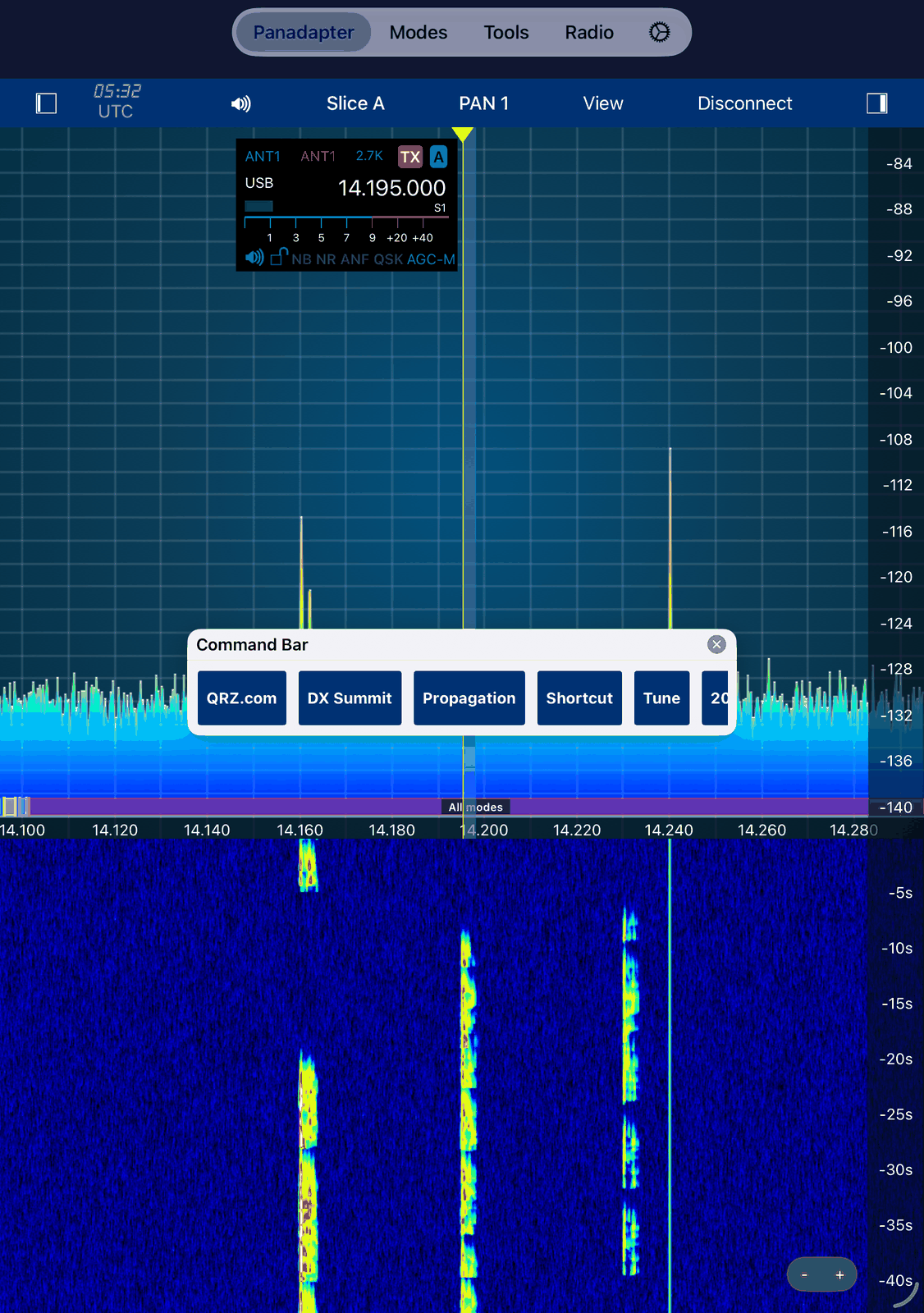
Tap View on the radio screen, then Command Bar, to show or hide it.
The bar floats over the radio screen. Drag its title bar to move it. The x in the title bar closes it. It shows a button for every button with a name, in the order of their numbers. Tap a button to run it. When not all buttons fit, swipe the bar sideways.
Other ways to run a button:
With the keyboard of the iPad: Option-Command-1 to Option-Command-9 run the buttons 1 to 9.
With a controller, for example a MIDI controller or a Flic button: give a button the radio action Command 1, Command 2, and so on, up to Command 10.
20.5. Good to know
The numbers matter: the keyboard and the controllers run a button by its number, whatever its name is.
Start App and Open Website work without a radio. Send CAT Command needs the connection.
A wrong CAT command can change settings of your radio. Try a new command with Test first.
20.6. On the iPhone
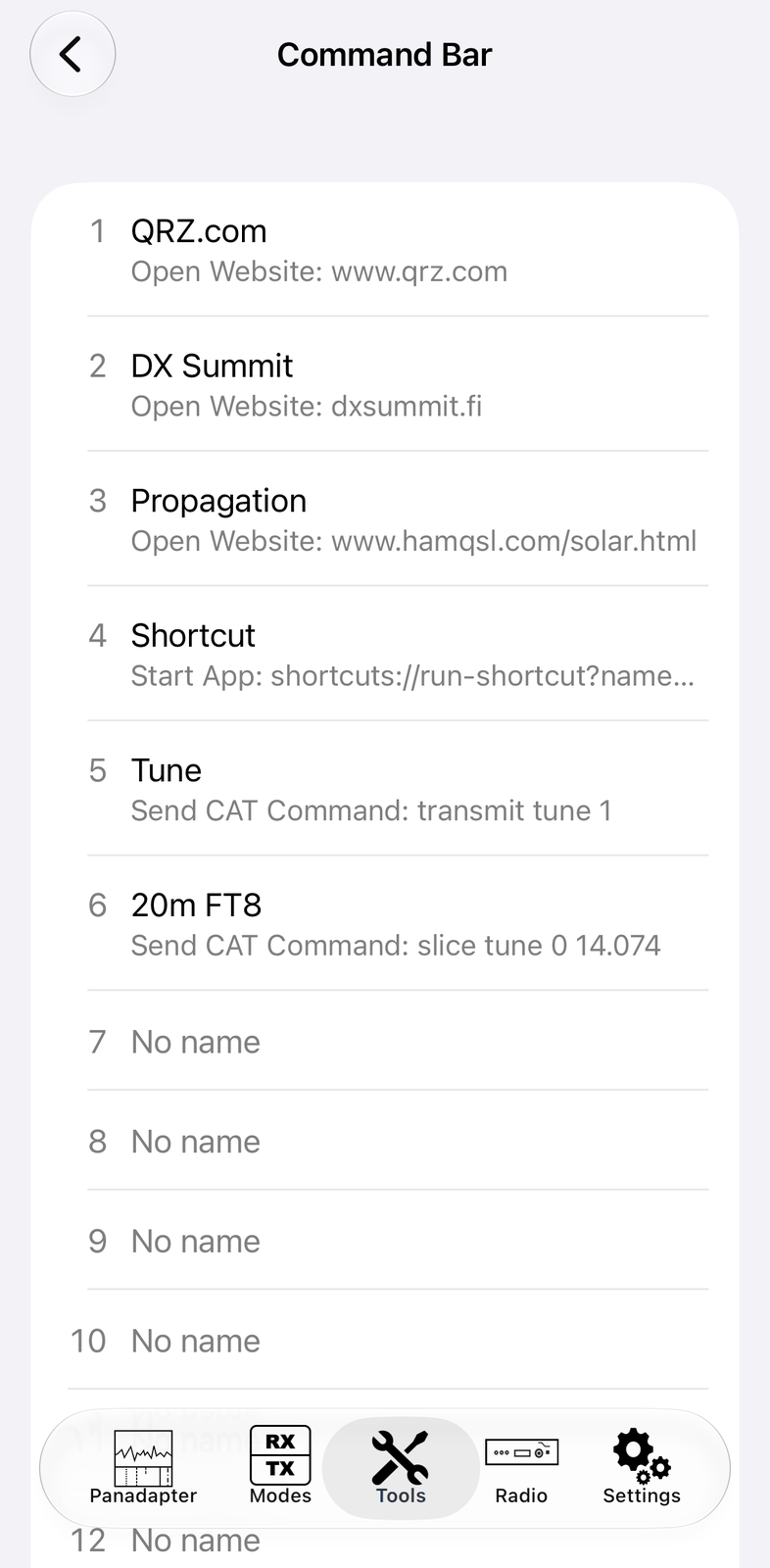
The iPhone shows the same list and the same screen to change a button.
21. Genius Devices
The Genius tool controls the network accessories from 4O3A: the Power Genius XL amplifier (PGXL), the Tuner Genius XL antenna tuner (TGXL), the Antenna Genius antenna switch (AGXL, V3 and V4) and the Rotator Genius rotator controller (RGXL).
The app talks to each device over your network. Each device gets its own small panel that floats over the screen, so you can watch your amplifier or turn your antenna while you work on the radio.
21.1. Quick start
Tap + in the navigation bar.
Tap Find Devices on the Network and tap your device in the list. Name, type, address and port are filled in for you.
Tap Save.
Tap the device in the list. The app connects, and the device’s panel opens.
21.2. The screen
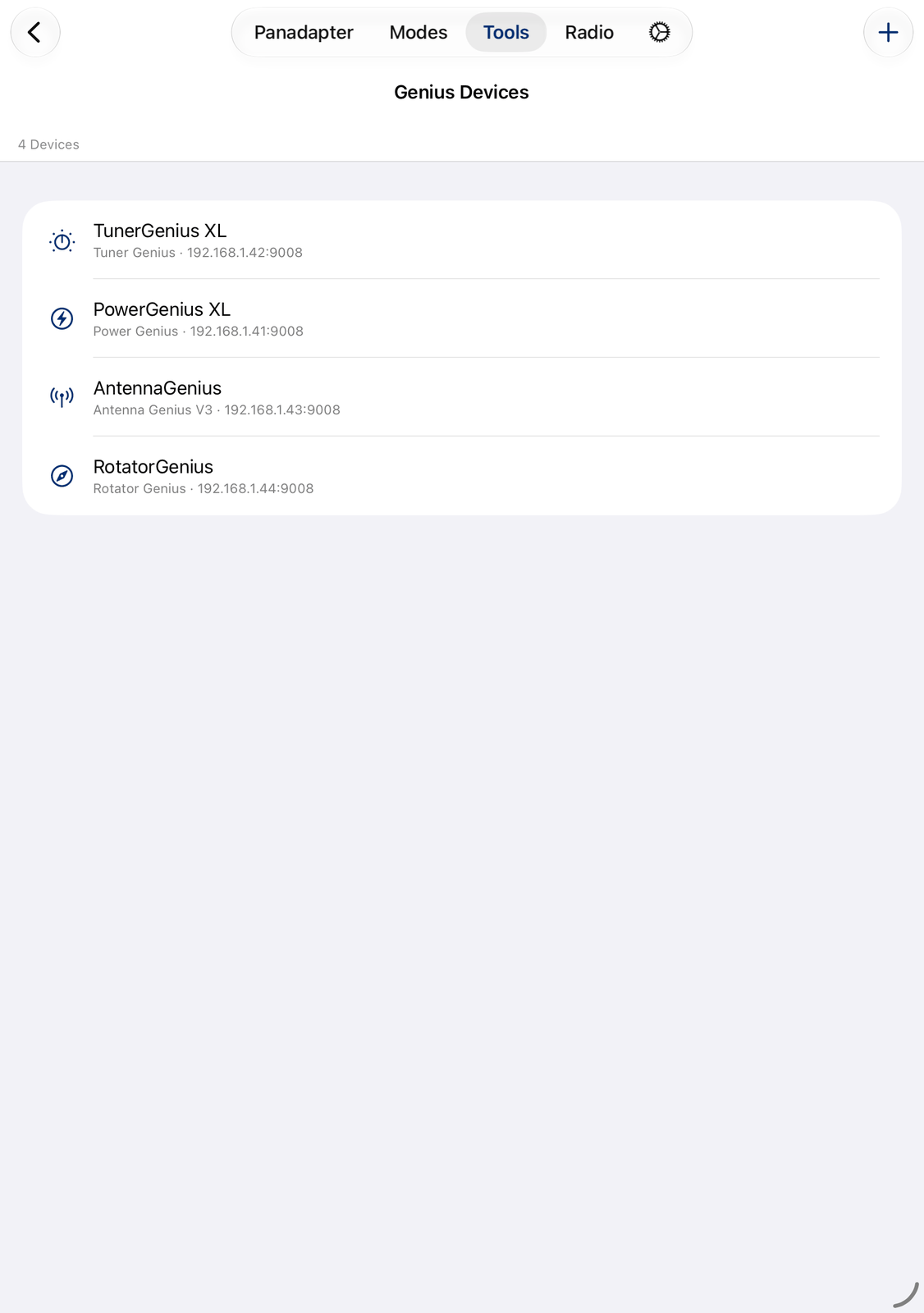
The screen lists your devices. The top row shows how many there are.
+ in the navigation bar adds a device. See Adding a device.
Each row shows the device’s name, its type, its address and port, and its options (Auto open, and where its panel opens, for example On Panadapter).
Tap a row to connect to the device and open its panel.
Touch and hold a row for Open, Edit and Delete. You can also swipe a row to the left for Delete and Edit.
21.3. Adding a device
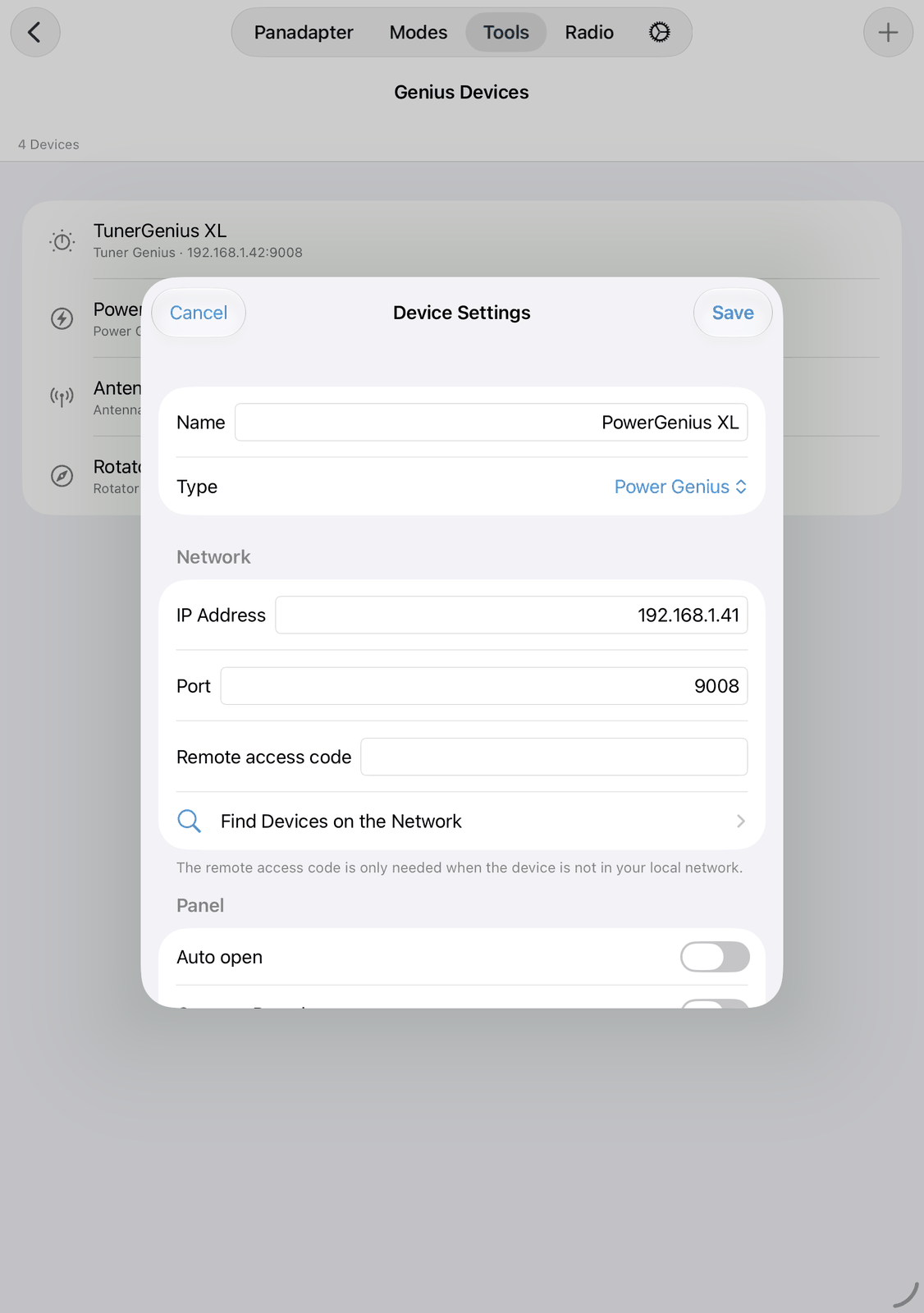
Tap + to add a device, or Edit to change one. Tap Save when you are done.
Name — the name in the list and on the panel.
Type — Power Genius, Tuner Genius, Rotator Genius, Antenna Genius V3 or Antenna Genius V4.
Is 3-Antenna Device (Tuner Genius only) — turn it on for the 3-antenna (SO2R) version of the tuner.
21.3.1. Network
IP Address and Port — where the app finds the device. Choosing a type fills in its usual port.
Remote access code — only needed when the device is not in your local network. See Remote access.
Find Devices on the Network lists the Genius devices the app finds in your local network. Tap one to take over its address, type, name and port.
21.3.2. Panel
Auto open — opens the panel by itself: when the app starts if Open on Waterfall is on, otherwise the first time you open this tool.
Open on Waterfall (on the iPhone Open on VFO) — shows the panel on the radio screen instead of this tool’s screen. The app switches to the radio screen when the panel opens.
Important
Your router may give a device a new IP address after a while. The app then can’t find it any more. In your router, give each Genius device a fixed address. This is often called static lease or always use the same IP address.
21.4. The device panels
A panel floats over the screen. Drag it by its title bar to move it; the app remembers where it was. A tap brings a panel to the front. Close it with the ✕ in its title bar; this also ends the connection to the device. Panels stay open when you switch to another tab.
Every panel has ⚙︎ at the top right for the device’s settings, see Device settings. A panel that shows Offline has lost its connection.
21.4.1. Power Genius XL
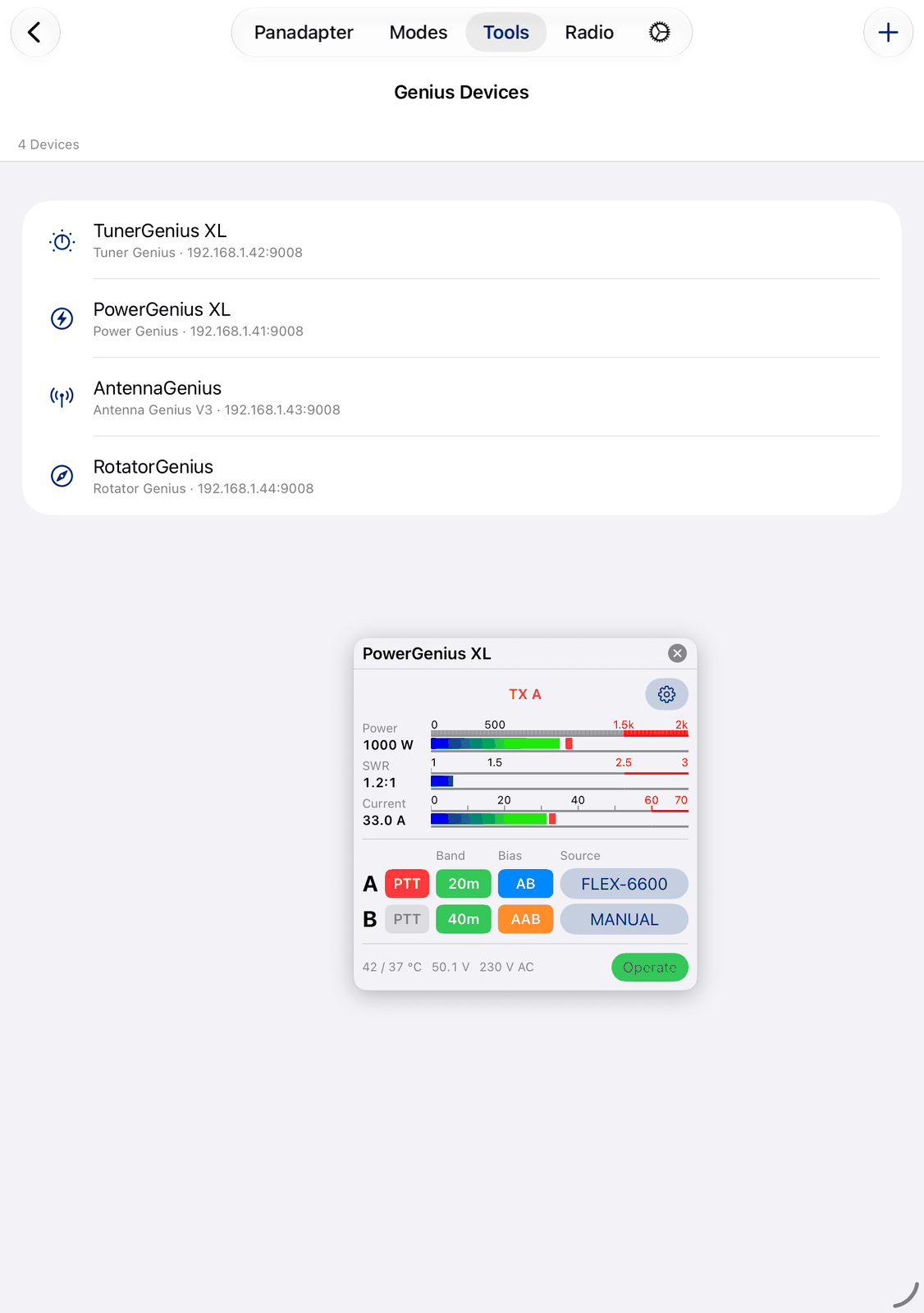
The top line shows the state: Standby, Operate (green), or TX A / TX B (red) while transmitting.
An alarm appears in red, with Reset to clear it. Short notes in orange: APC (power control), Foldback and Unkey.
Power and SWR show while you transmit. Current always shows the amplifier’s current.
One row per input, A and B:
PTT turns red while this input transmits.
Band — the band, green when known. With the band source MANUAL, tap it to choose the band.
Bias — the bias class (AB or AAB, a T means tracking). Blue is automatic, orange is manual, green is set by the radio. Tap it to switch to the next bias.
Source — where the amplifier gets the band from. Tap it to choose: AUTO, FLEX, TCI, CI-V, CAT, BCD, P2B, RF SENSE or MANUAL. With FLEX it shows the radio’s name.
The bottom line shows the temperatures, the supply voltages and Operate. Tap Operate to switch between operate (green) and standby.
The 3-antenna PGXL has input A only, plus a button for each of its three antennas. The selected antenna is green.
21.4.2. Tuner Genius XL
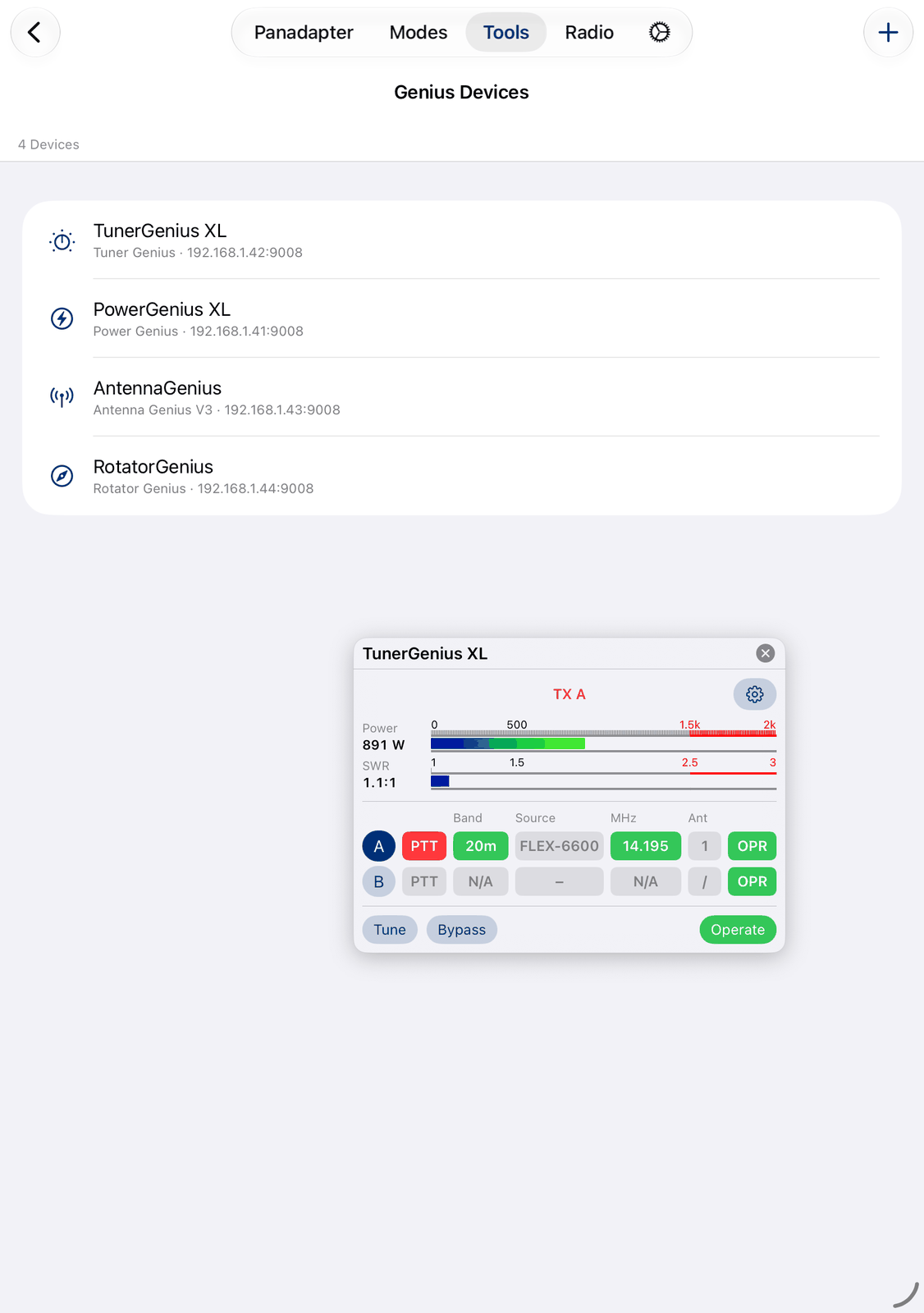
The top line shows the state: Standby, Operate, Tuning or TX A / TX B.
Below it, an error in red and the tuner’s message (green when it has tuned).
Power and SWR show while you transmit.
One row per input, A and B:
A / B — the filled one is the active input. Tap the other one to make it active.
PTT turns red while this input transmits.
Band, Source and MHz — the band, where the tuner gets it from, and the frequency.
Ant — the antenna of a linked Antenna Genius (only shown when one is linked).
OPR / BYP — tap it to switch this input between operate (green) and bypass (orange).
Tune starts tuning. It is red while the tuner tunes.
Bypass puts the whole tuner in bypass (orange while on).
Operate switches between operate (green) and standby.
The 3-antenna TGXL has input A only, plus the buttons ANT 1 to ANT 3.
21.4.3. Antenna Genius
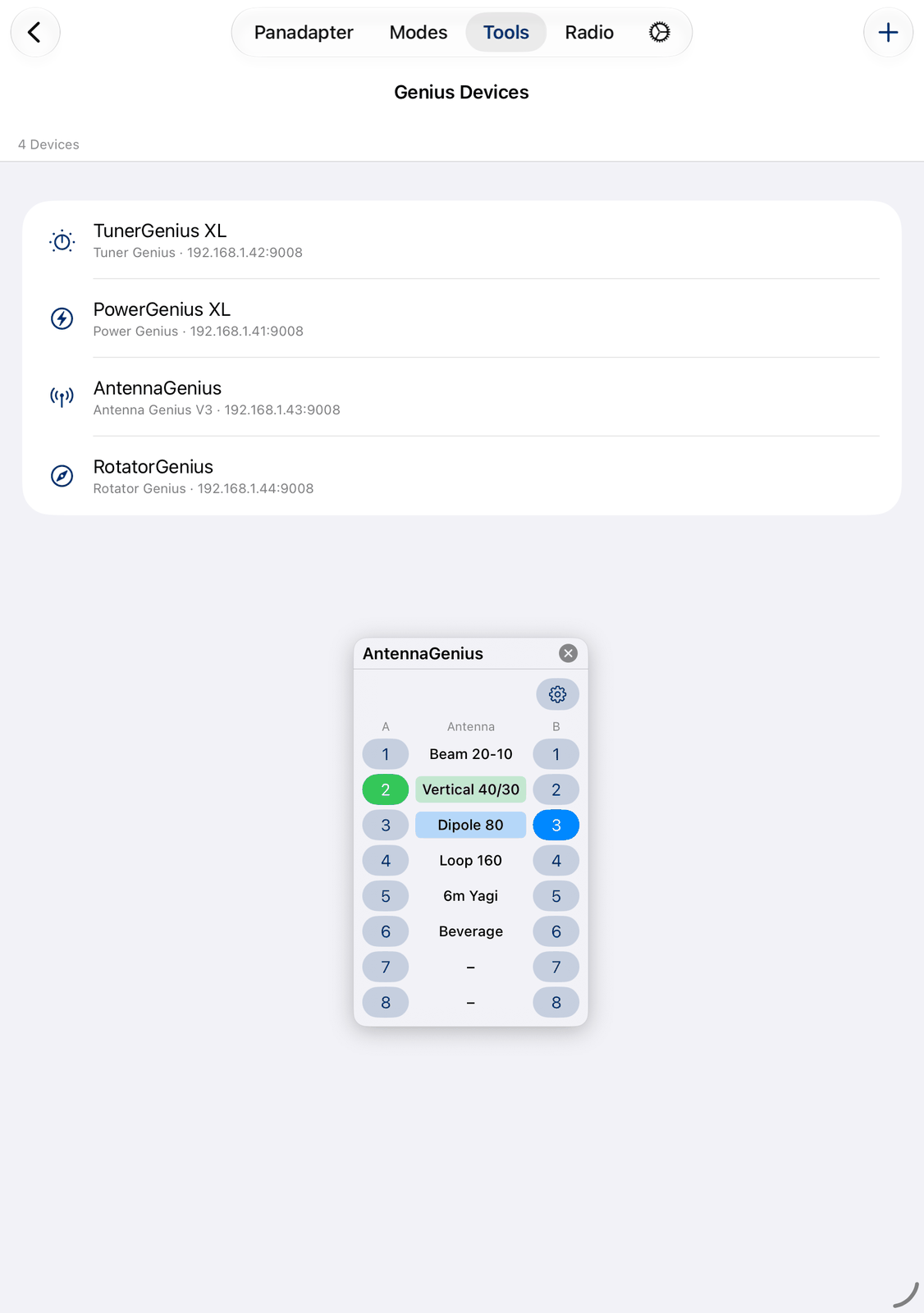
One row per antenna: the button for port A on the left, the antenna’s name in the middle, the button for port B on the right. The antenna of port A is green, the one of port B blue, as on the device.
Tap a number to switch that port to the antenna.
The Antenna Genius V4 shows more:
At the top, one row per port: the Band (with the band source MANUAL, tap it to choose the band), the band source, and TX in red while the port transmits. When a port is blocked, the reason appears in orange.
Touch and hold a number for Receive and Transmit, Receive only or Transmit only. A button then shows RX or TX next to the number.
Outputs — the outputs in use. Tap one to switch it on (green) or off. Red means it is on for transmit.
The V4 8x1 model has no port B.
21.4.4. Rotator Genius
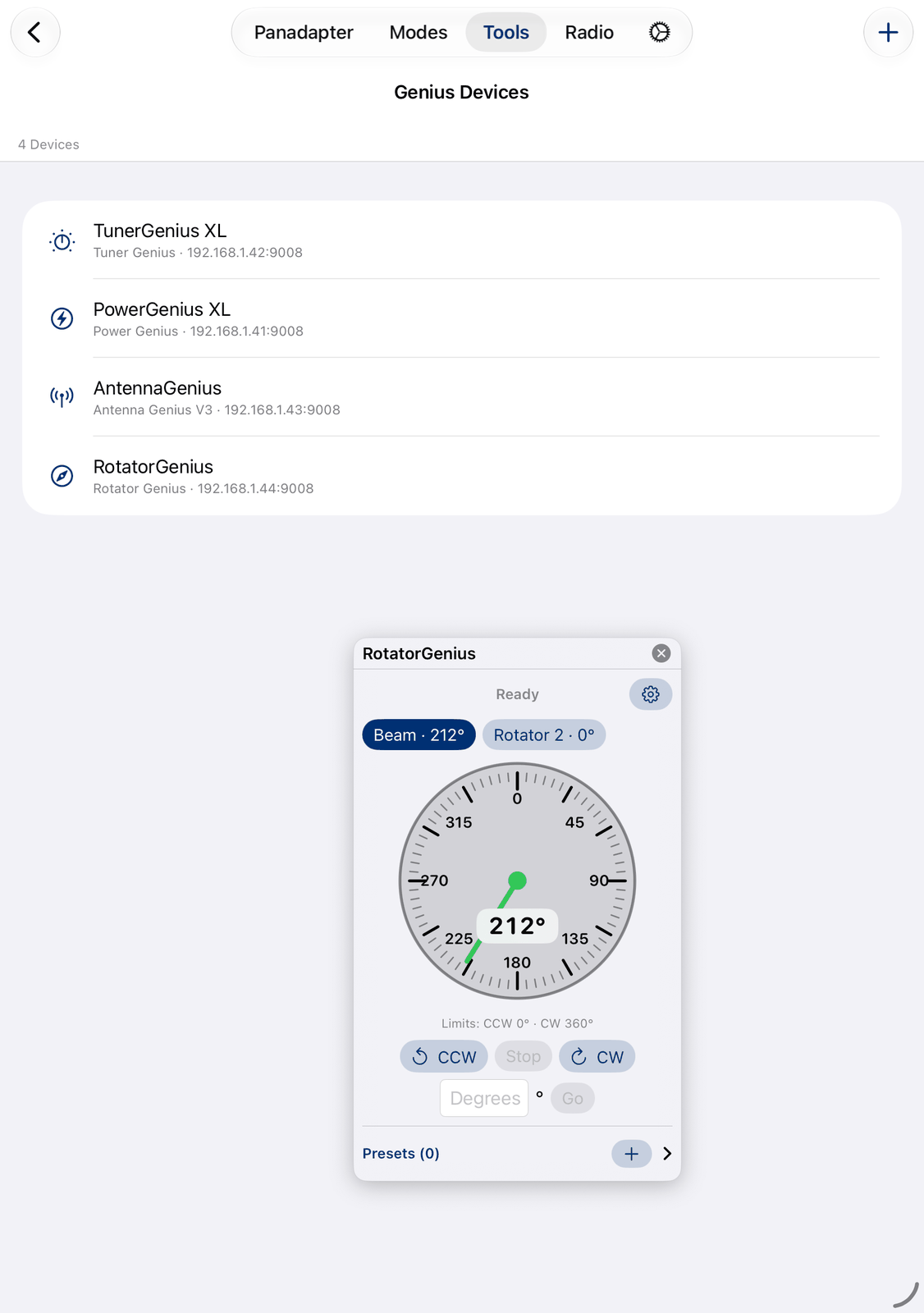
The top line shows Ready, or Turning and the target while the rotator turns.
The two buttons choose rotator 1 or 2. Each shows its name and direction.
Tap or drag on the compass to turn to that direction. Below it you see the rotation limits. A direction outside the limits is refused, with a message in red.
CCW and CW turn the rotator (Down and Up for an elevation rotator). Stop stops it.
Type a direction in Degrees and tap Go.
Presets opens the list of saved directions. + saves the current direction. Tap Go to turn to a preset, tap the preset to edit it, or swipe it to the left for Delete. A preset can turn rotator 1, rotator 2, both to the same direction, or both to their own directions.
21.5. Device settings
Tap ⚙︎ on a panel for the device’s own settings. They are stored on the device: change them, then tap Save. Cancel leaves them as they were.
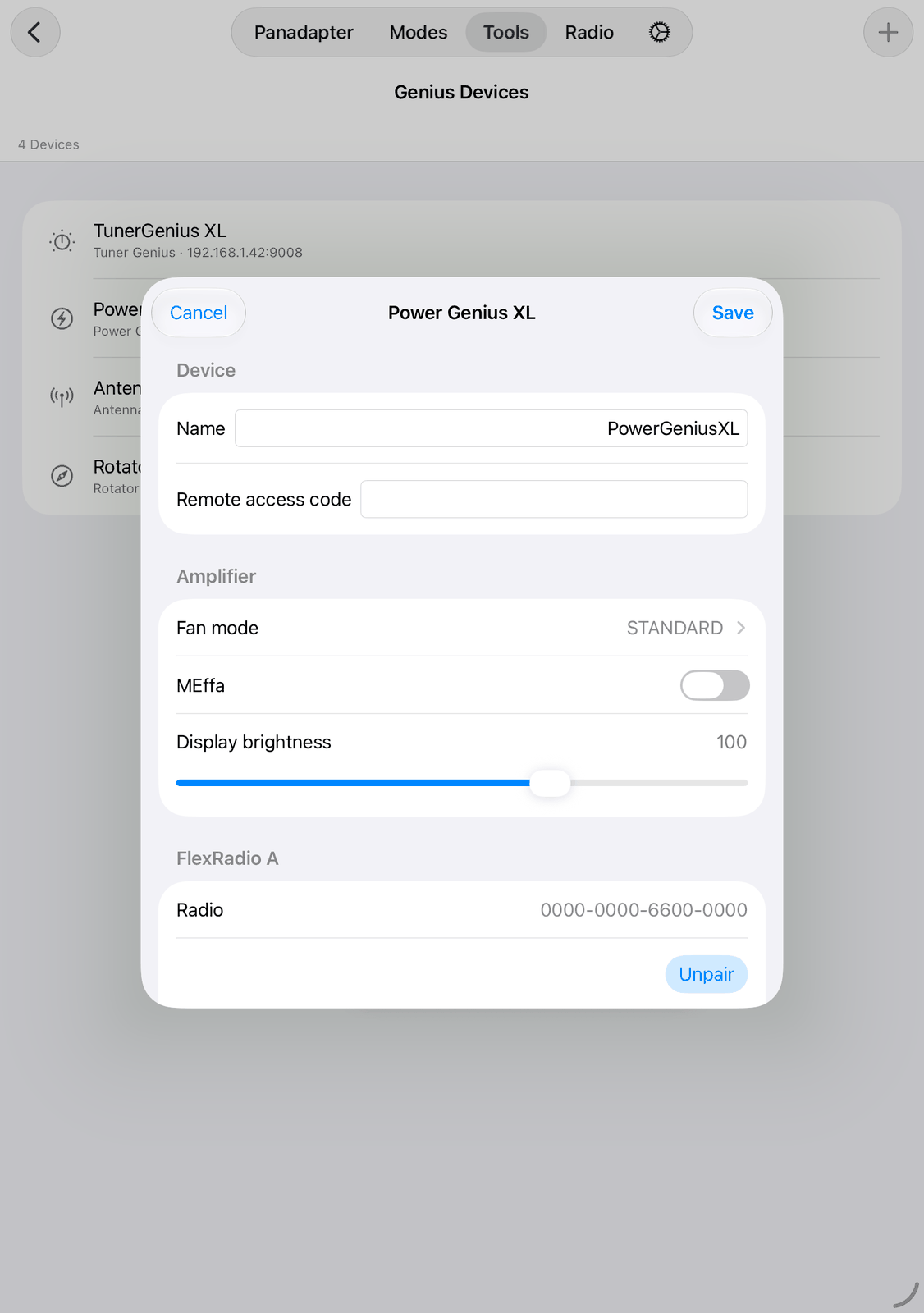
21.5.1. All devices
Name — the name of the device.
Remote access code — the code the device asks for when you connect from outside your network (Power Genius XL, Tuner Genius XL, Antenna Genius V4). Enter the same code in the device list, see Remote access.
21.5.2. Power Genius XL
Fan mode, MEffa and Display brightness.
CAT A / CAT B — the band from the radio over a serial cable: Radio, Baud, Format, and the CI-V address (hex) for Icom radios.
TCI A / TCI B — the band over TCI: IP address, Port and TRX. Needs firmware 3.9.5 or newer.
Antennas (3-antenna PGXL) — the name and the bands of each antenna.
21.5.3. Tuner Genius XL
Display brightness, Tune method, and per input Bypass and Tune with PTT.
Genius Integration — links the tuner with a Power Genius XL and an Antenna Genius.
Band settings A / B — per band: the Antenna, a Bypass range, and Min. SWR (below this SWR the tuner doesn’t tune).
CAT, TCI and LAN per input — where the tuner gets the band from.
21.5.4. Antenna Genius
Antennas — tap an antenna for its name and the bands it may be used on (V4: separately for TX, RX and In-band).
V4 only: Band check, In-band port, the Band source of each port, Stack (two devices as 16x2) and the Outputs.
Reboot Device restarts the Antenna Genius, after asking.
21.5.5. Rotator Genius
The settings belong to the rotator selected on the panel: its Name, Limit CCW (°), Limit CW (°), Offset (°), and the Calibration.
21.5.6. Band data from the radio
The devices get the band from your radio over CAT, TCI or LAN, or by RF SENSE. Set this in the device’s settings. The FlexRadio pairing is not available in this app.
21.6. Remote access
You can reach your Genius devices from outside your home network:
In your router, open one TCP port per device:
Device
Port
Power Genius XL
9008
Tuner Genius XL
9010
Antenna Genius
9007
Rotator Genius
9006
Add the device a second time to the list, with your public IP address or a DynDNS name instead of the local address.
For the Power Genius XL and Tuner Genius XL, set a Remote access code in the device’s settings (⚙︎ on its panel), and enter the same code in this second entry.
You then have two entries per device: one for home, one for remote access. With a VPN to your home network, the normal entry works too.
21.7. Good to know
Find Devices on the Network only finds devices in the same local network.
Each device can have one panel open. A second tap on the device brings its panel to the front. Two devices of the same type can be open at the same time.
When a device refuses the remote access code, the app tells you. Check the code in both places.
Where the app shows the bearing to a station with Rotate to, for example in Call Lookup, a tap turns the antenna to that station while the Rotator Genius is connected.
Keep the firmware of your devices up to date with the 4O3A utility.
21.8. On the iPhone
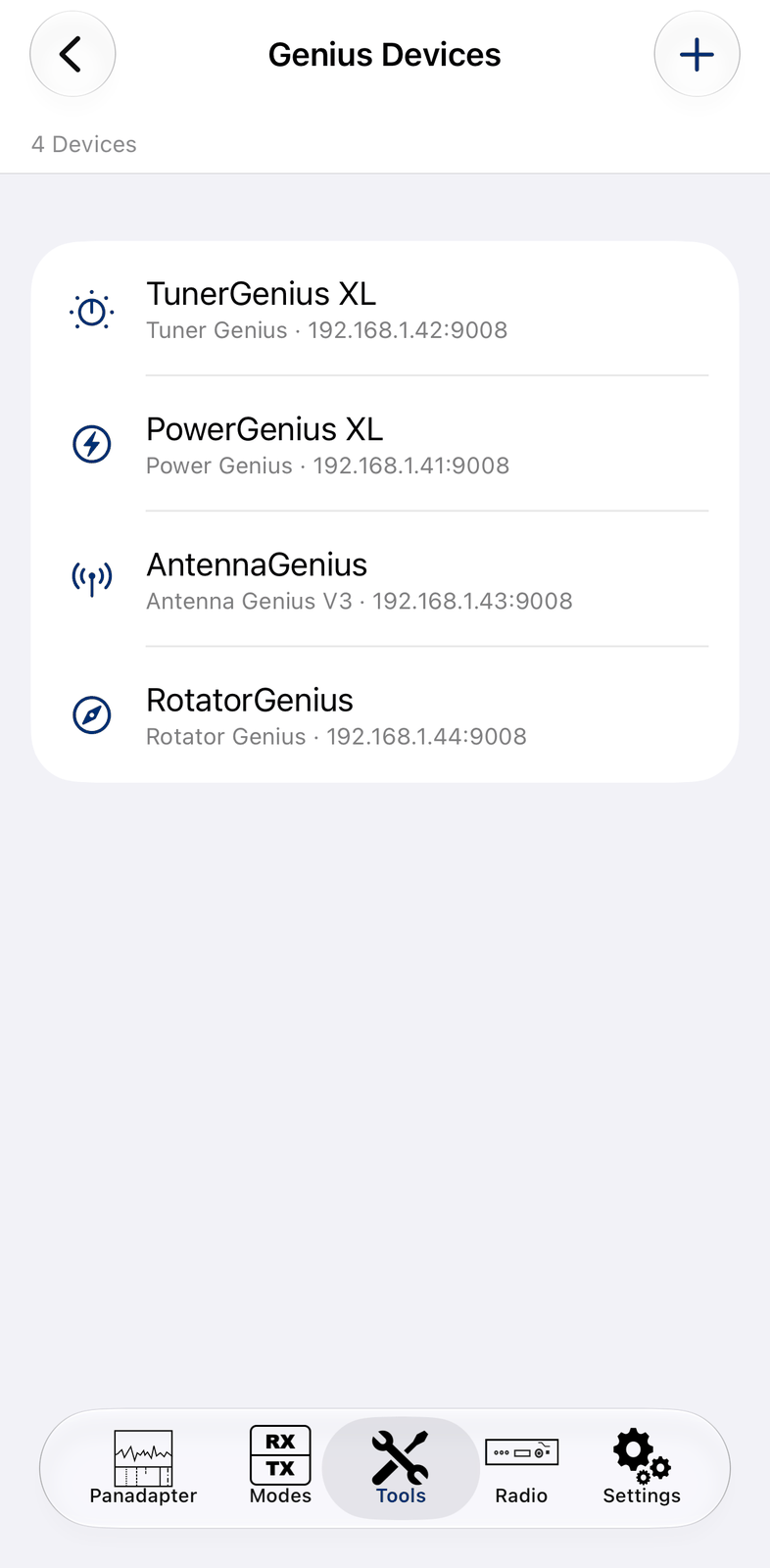
The iPhone has the same list and the same panels. The panels float over the screen; drag them aside or close them when you need the room.
22. Ultra Beam
The Ultra Beam tool controls an Ultra Beam antenna. The elements of an Ultra Beam are moved by motors, so the antenna can be tuned to any frequency from 40 m to 6 m. The tool sets the antenna’s frequency, band and direction, and it can make the antenna follow your radio.
You need the Ultra Beam RCU-06 control unit and the UltraBeam Remote Controller software on a Raspberry Pi. The app talks to that software over your network. No CAT cable between the radio and the control unit is needed, so the antenna follows whichever radio the app is connected to.
More about the antennas: https://go-to.me/ultrabeam
22.1. Quick start
Tap ⚙︎ and enter the IP address of the Raspberry Pi in Address.
Turn on Enabled. The top row changes to
Connected.Choose Follow TX in Automation, so the antenna follows your transmit frequency. Or leave it on Manual and tap a band button.
22.2. The screen
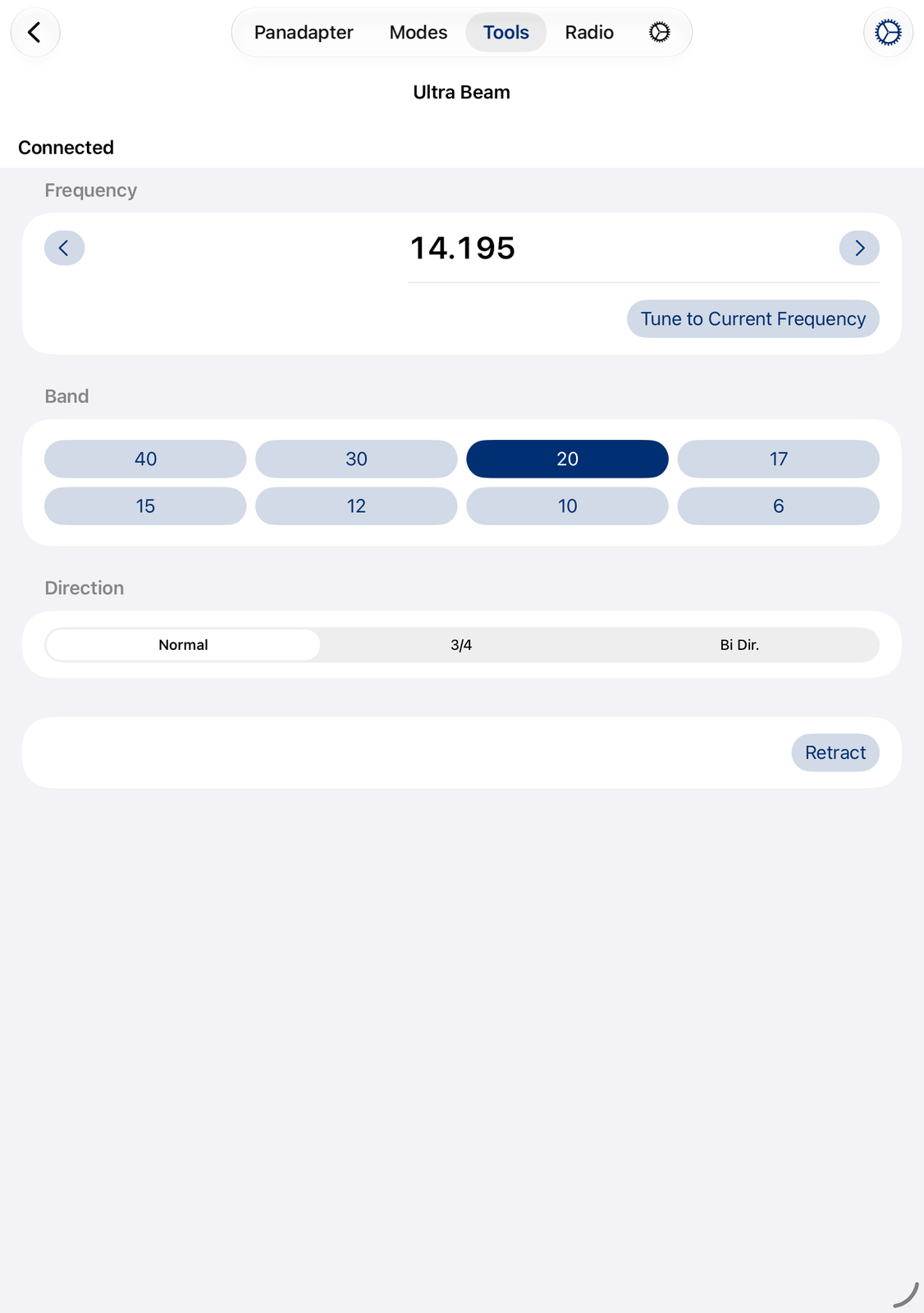
The top row shows the state of the connection:
Connected— the controller answers.Moving— the motors are moving the elements.Not connected— the controller doesn’t answer. Check the address in ⚙︎.Disabled— Enabled is off in ⚙︎.
The controls only work while the controller is connected.
22.2.1. Frequency
The large number is the frequency the antenna is tuned to, in MHz.
Retractedmeans the elements are pulled in.Tap the frequency to type a new one in MHz, for example
14.200.The arrows on the left and right move the frequency down or up by 5 kHz. While the elements are retracted, tap a band or type a frequency instead.
Tune to Current Frequency tunes the antenna to the radio’s transmit frequency, once.
22.2.2. Band
40, 30, 20, 17, 15, 12, 10 and 6 tune the antenna to the middle of that band. The current band is filled. A tap on the current band also works, for example to get back to the middle of the band.
22.2.3. Direction
Normal, 3/4 and Bi Dir. switch the antenna’s direction mode, the same modes the control unit offers. Bi Dir. makes the antenna work in both directions.
22.2.4. Retract
Retract pulls all elements in, for example before a storm.
22.3. Settings
Tap ⚙︎ for the Ultra Beam settings. Changes apply right away.
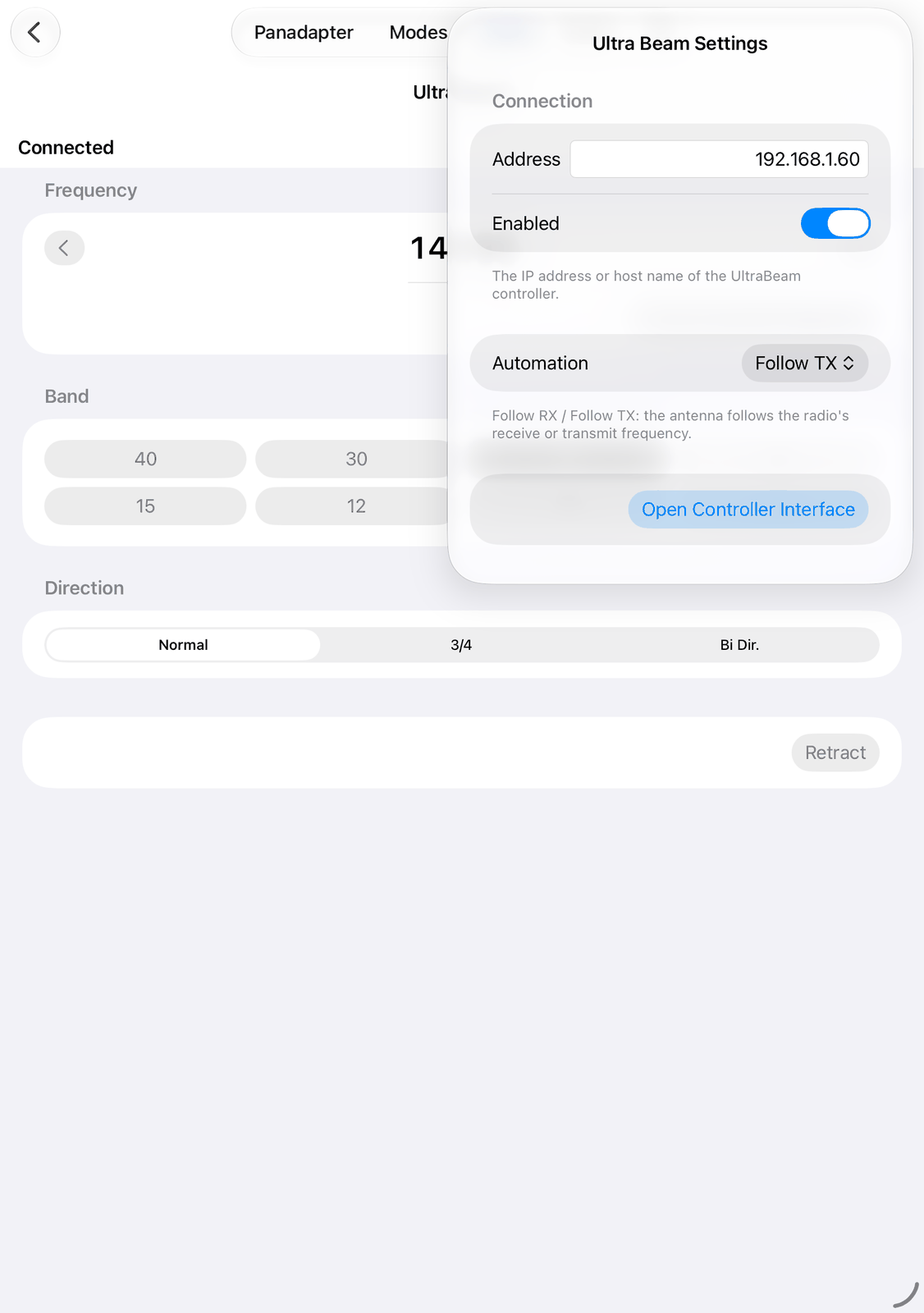
Address — the IP address or host name of the Raspberry Pi with the UltraBeam Remote Controller.
Enabled — connects to the controller. Turn it off when the antenna is not in use.
Automation — Manual: you set the frequency on this screen. Follow RX or Follow TX: the antenna follows the radio’s receive or transmit frequency by itself.
Open Controller Interface opens the controller’s web page in the browser. Use it to check the address.
22.4. Remote access
You can reach the controller from outside your home network:
In your router, forward a port to port 80 of the Raspberry Pi. Use another port than 80 on the outside, for example
20001.In Address, enter your public IP address or a DynDNS name, a colon and that port, for example
myhome.dyndns.org:20001.
With a VPN to your home network, the local address works too.
22.5. Good to know
With Follow RX or Follow TX, the antenna moves whenever the radio’s frequency changes, also when this screen is closed.
Tuning takes a moment, because the motors move the elements. The top row shows
Movingmeanwhile.The Ultra Beam can also get the frequency over a CAT cable through a Waveshare RS232 to ETH device, see the Waveshare chapter. You can use both at the same time.
For everything else about the antenna and the control unit, see the Ultra Beam manuals.
22.6. On the iPhone
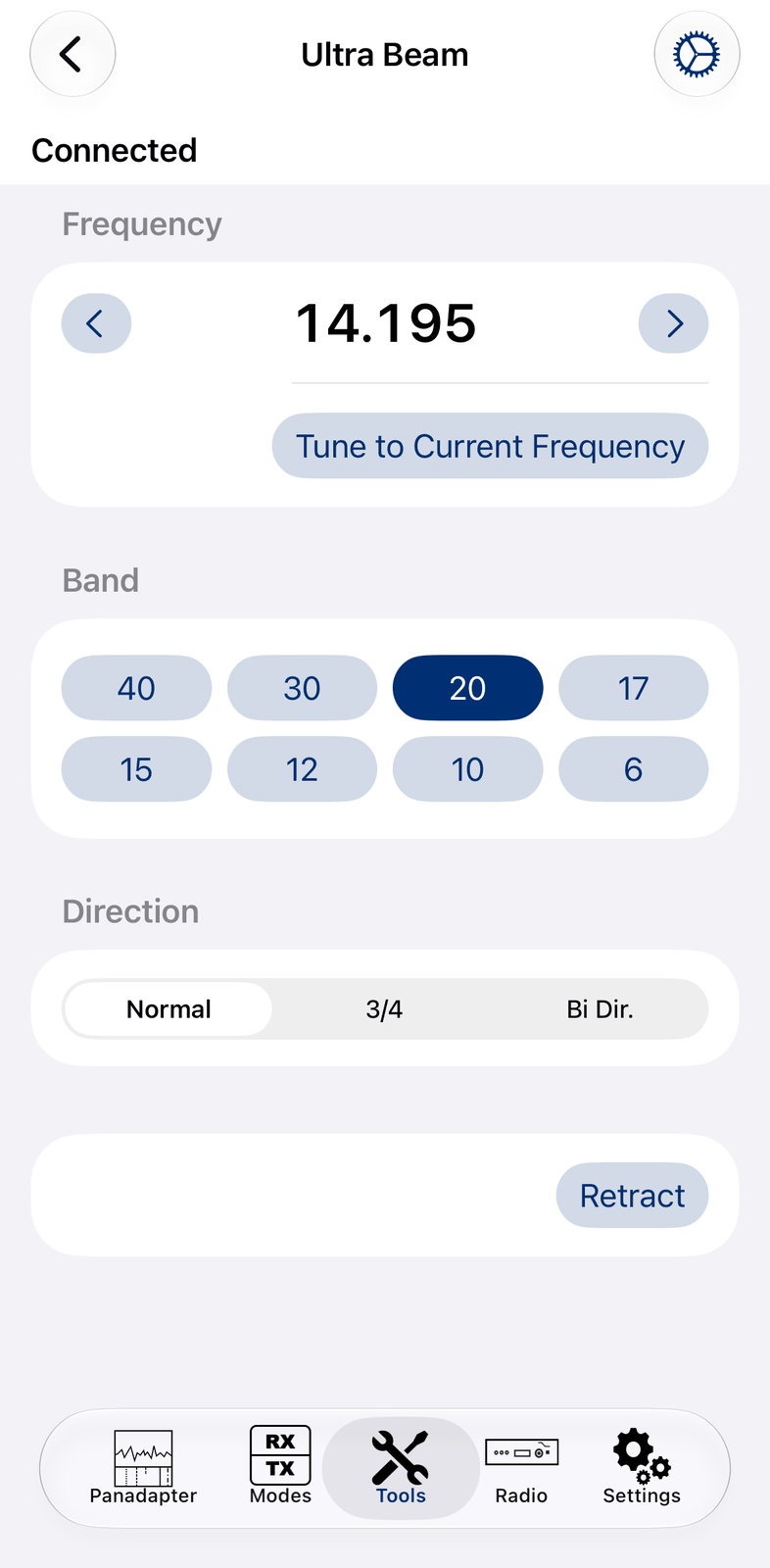
The iPhone shows the same screen. ⚙︎ opens the settings as a full sheet; tap Done to close it.
23. Metropwr
The Metropwr tool controls network devices from Metropwr: the FX775 MK2 Power Meter, the antenna switches connected to it, and the RT1 Rotator Controller. Each device gets a small panel that floats over the screen, so you can watch your power and SWR or switch antennas while you work on the radio.
More about the devices: https://www.metropwr.com
Before you start, set up the devices as their manuals describe. Each device needs a LAN cable to your local network. The antenna switches are the exception: they don’t connect to the network themselves, but to a power meter. One power meter controls up to two antenna switches, connected one after the other.
23.1. Quick start
Tap + in the navigation bar.
Choose the Type and enter the IP Address of the device. The Port is filled in for you.
Tap Save.
Double-tap the device in the list. Its panel opens.
23.2. The screen
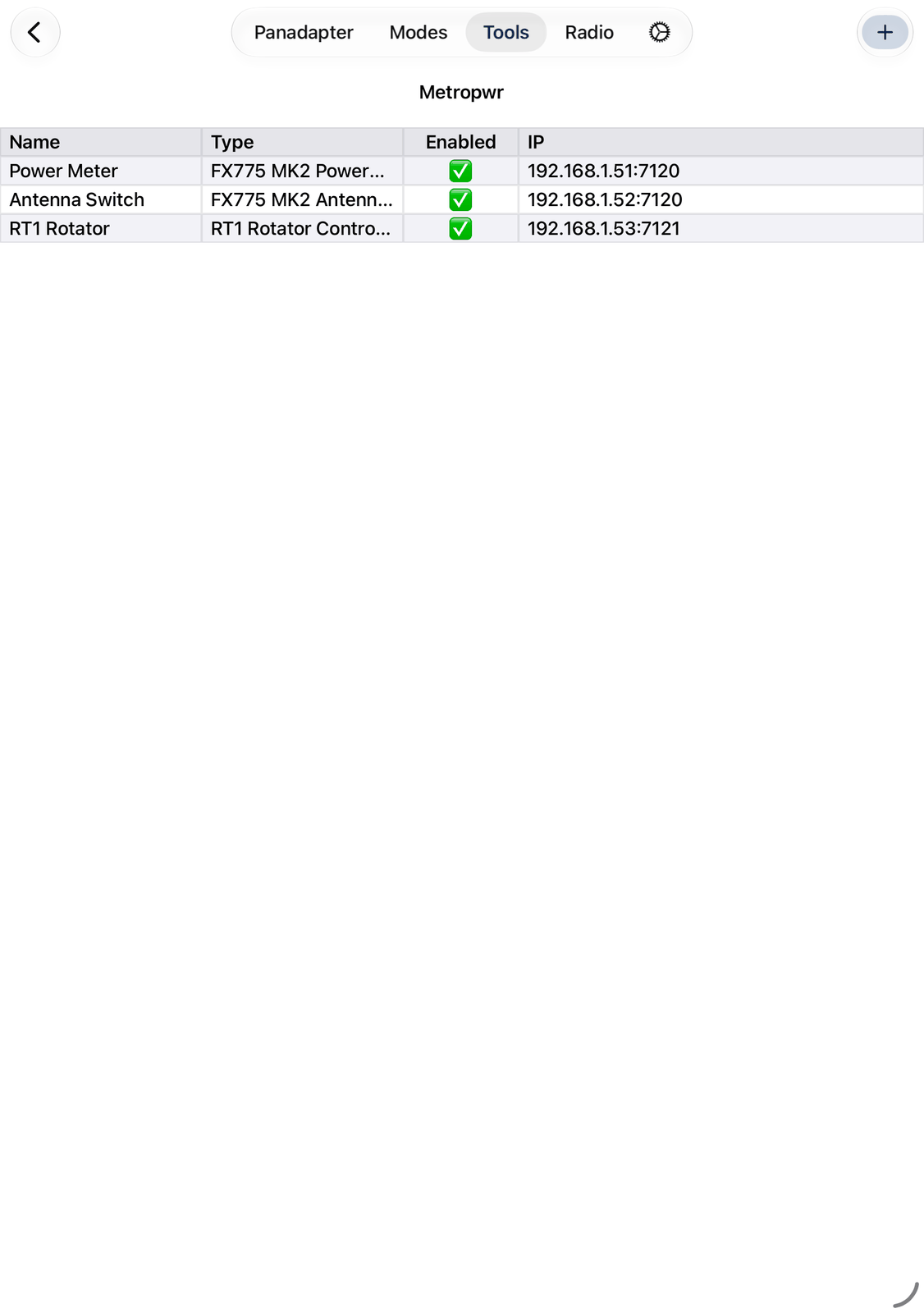
The screen lists your devices, one row each: Name, Type, Enabled and IP (address and port).
+ in the navigation bar adds a device. See Adding a device.
Tap a row to select it. Tap in the Enabled column to switch the device on or off.
Double-tap a row to open the device’s panel. This also switches the device on.
Touch and hold a row for Connect (opens the panel), Edit and Delete.
23.3. Adding a device
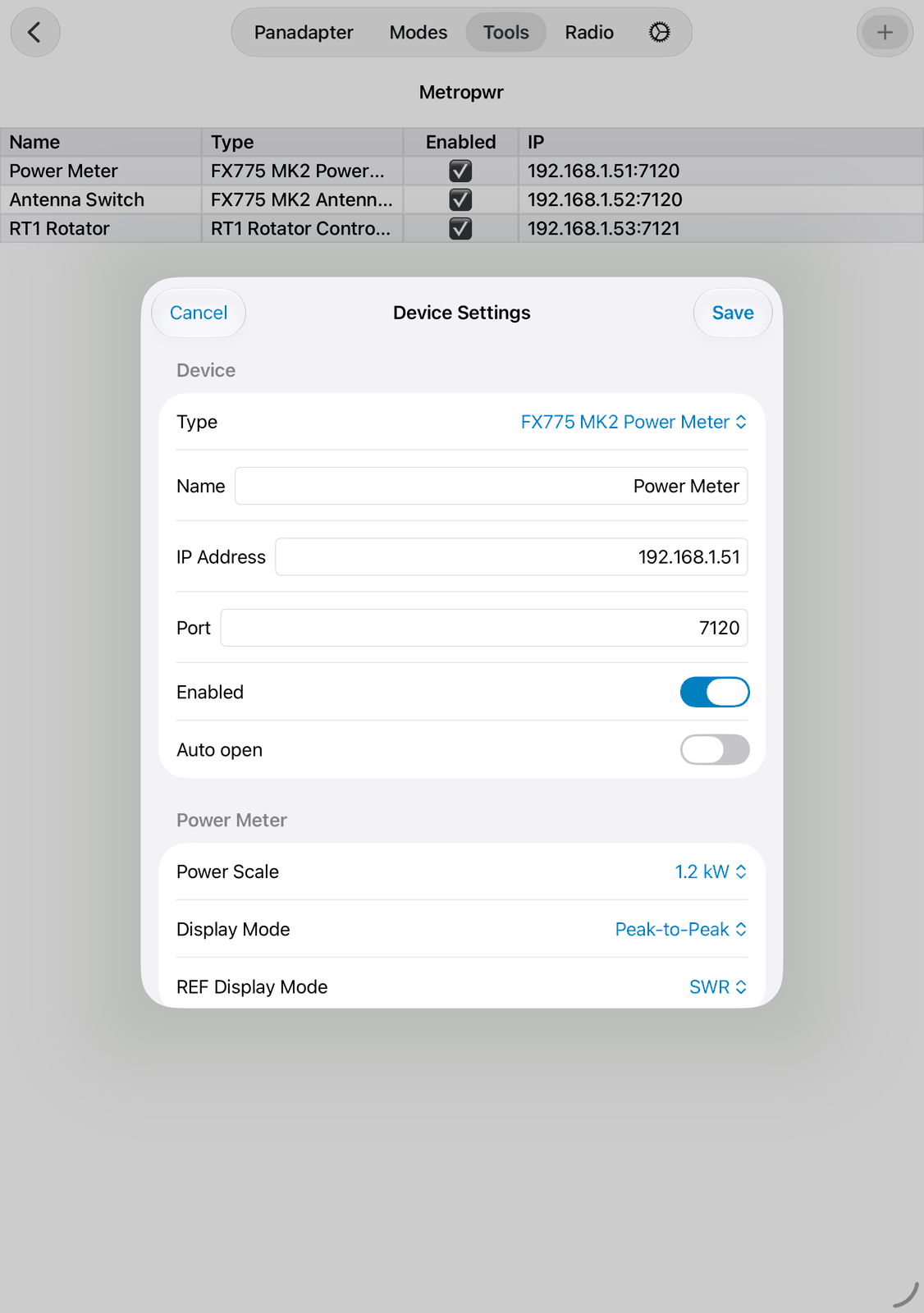
Tap + to add a device (New Device), or Edit to change one (Device Settings). Tap Save when you are done.
Type — FX775 MK2 Power Meter, FX775 MK2 Antenna Switch or RT1 Rotator Controller.
Name — the name in the list and on the panel. Left empty, the type is used.
IP Address — the address of the device. For an antenna switch, enter the address of the power meter it is connected to.
Port — filled in when you choose the type:
7120for the power meter and the antenna switch,7121for the RT1.Enabled — the app connects to the device. Enabled devices are connected when the app starts.
Auto open — opens the device’s panel when the app starts.
Below these, each type has its own settings. They are described with the panels.
23.4. The device panels
A panel floats over the screen. Drag it by its title bar to move it, and close it with the ✕ in its title bar.
Instead of the controls, a panel shows Not enabled when the device is switched off, Not connected while the
app can’t reach the device, or the error in red.
23.4.1. Power meter
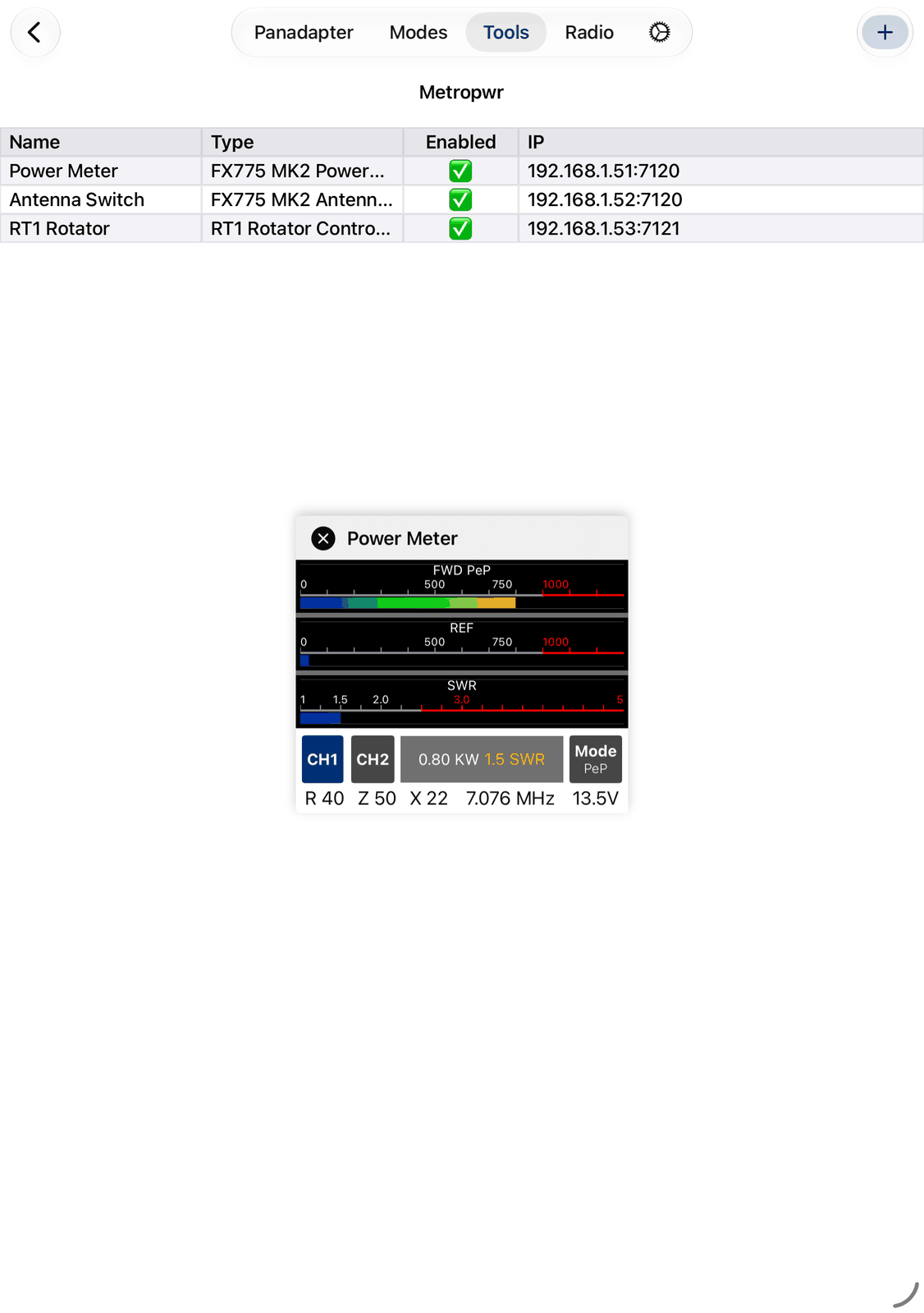
Three meters: FWD (forward power, peak or average), REF (reflected power) and SWR. Tap the FWD meter to switch to the next power scale, from 10 W up to 6 kW.
CH1 and CH2 switch between the two channels of the power meter.
The black field shows the power, and on the right the SWR, the power in dBm or the reflected power. Tap the field to switch between them.
Mode switches between peak (
PeP) and average (Avg) power.The bottom line shows the impedance (R, Z, X), the frequency and the supply voltage.
In the device’s settings, section Power Meter:
Power Scale — the power scale, 10 Watt to 6 kW.
Display Mode — Peak-to-Peak or Average.
REF Display Mode — what the black field shows on the right: SWR, dBm or Reflected Power (W).
You can change these on the panel too. The next time the app starts, the values from the settings are back.
23.4.2. Antenna switch
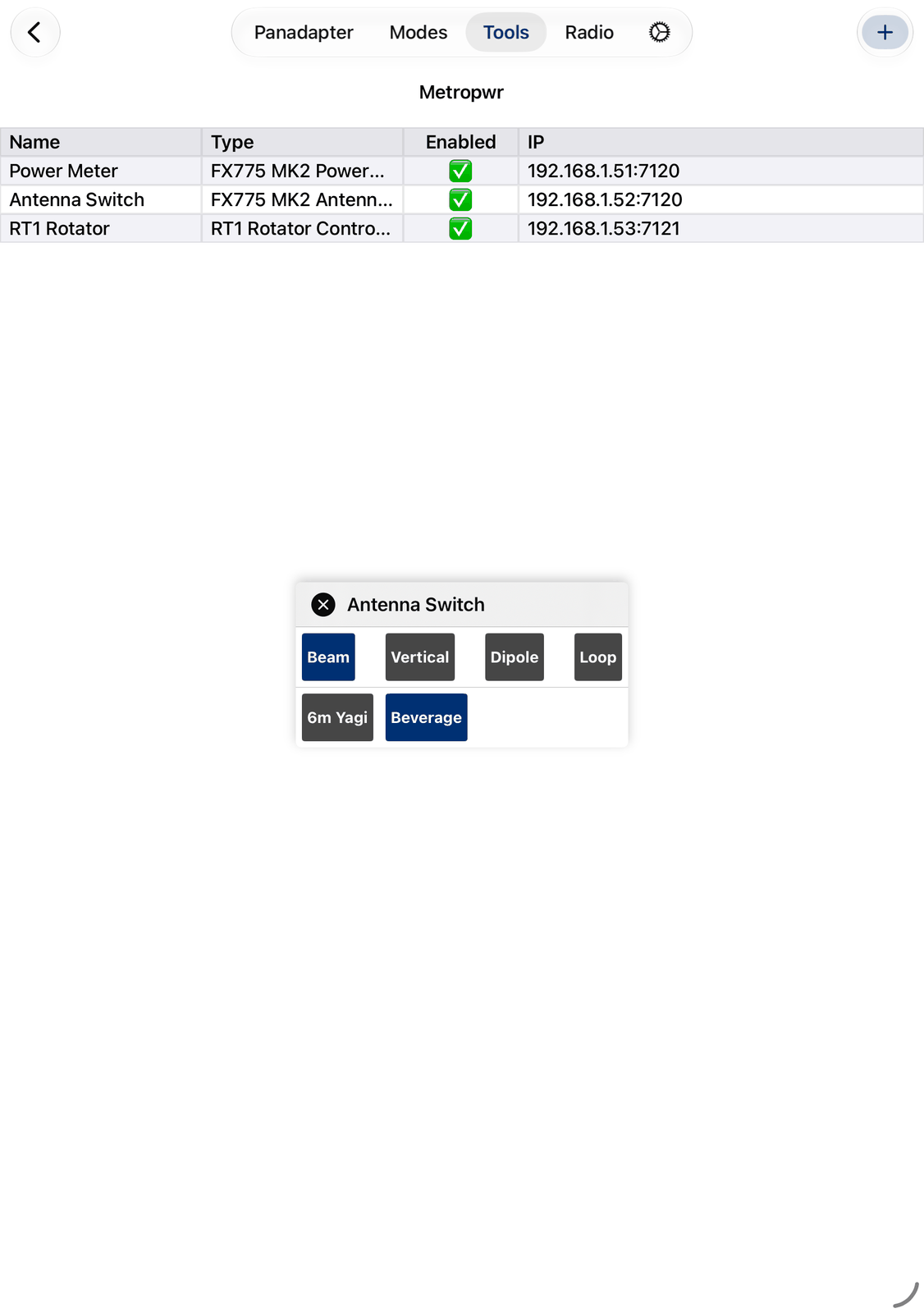
The panel has one button per antenna. The selected antenna is highlighted. Tap a button to switch to that antenna. With two antenna switches, the second one has its own row of buttons.
In the device’s settings, sections Antenna Switch, Switch 1 and Switch 2:
Type — 1 Antenna Switch or 2 Antenna Switches.
Switch 1 — Antenna 1 to Antenna 4, the names of the first switch’s antennas. Switch 2 (with two switches) — Antenna 5 to Antenna 8. Only antennas with a name get a button.
Button Alignment — where the buttons sit in their row: Left, Centered, Filled (spread over the row) or Right.
23.4.3. RT1 rotator
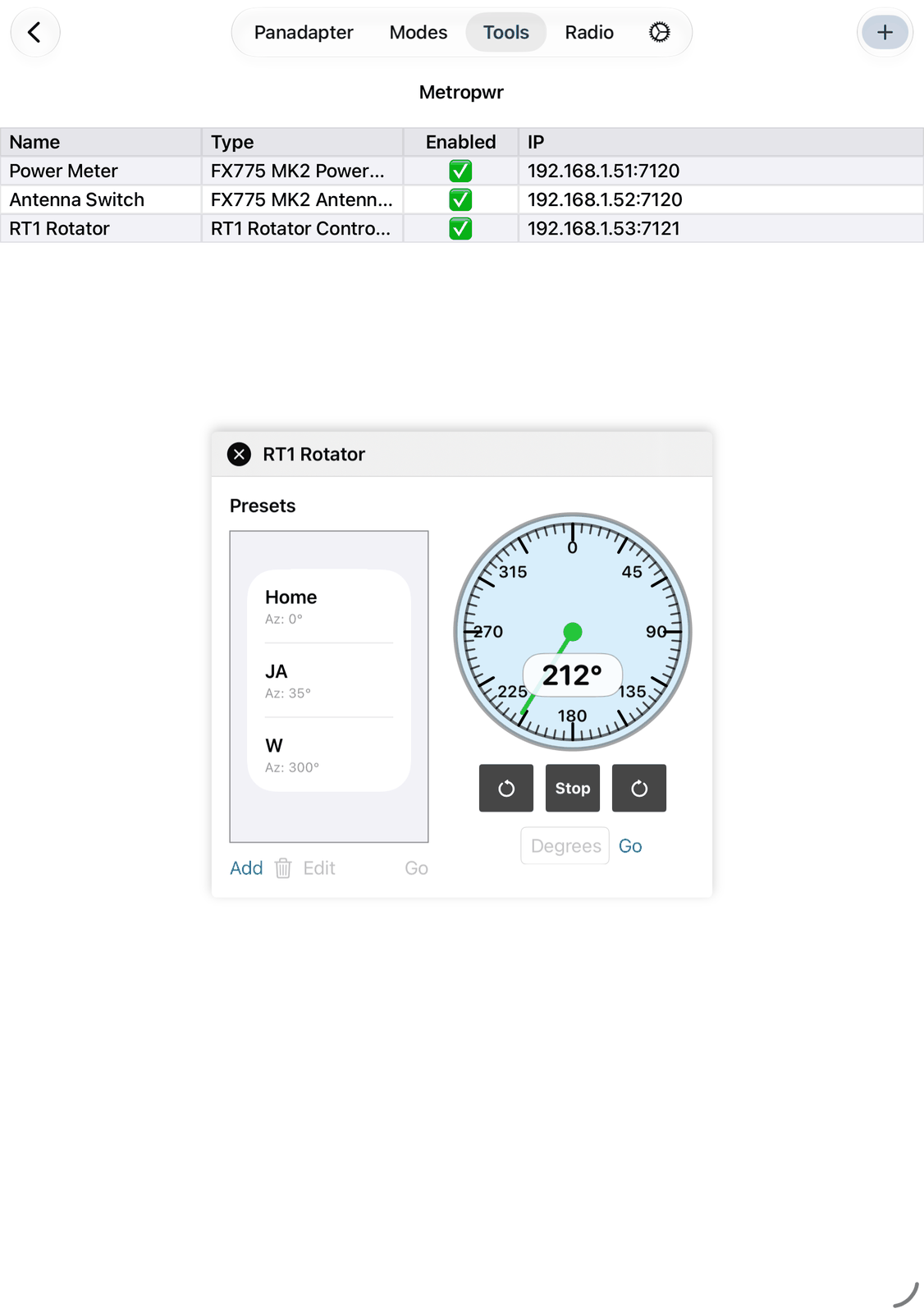
The compass shows the direction of the antenna. Tap or drag on the compass to turn to a new direction.
The arrow buttons left and right of Stop turn the antenna 10° counterclockwise or clockwise. Stop stops it.
Type a direction in Degrees and tap Go.
Presets — your saved directions, for example
Home. Select one and tap Go, or double-tap it. Add saves a new one (the current direction is filled in), Edit changes the selected one, and the trash can deletes it.
In the device’s settings, section Rotator:
Azimuth offset (°) — corrects the direction the RT1 reports, in degrees.
23.5. Remote access
You can reach the devices from outside your home network:
In your router, open the port of each device:
7120for the power meter (and its antenna switches),7121for the RT1.In the device’s IP Address, enter your public IP address or a DynDNS name instead of the local address.
With a VPN to your home network, the local addresses and ports work as at home.
23.6. Good to know
Switch off (Enabled) a device you don’t use for a while. The app then doesn’t try to reach it.
Where the app shows the bearing to a station with Rotate to, for example in Call Lookup, a tap turns the antenna to that station while the RT1 is connected.
Closing a panel doesn’t switch the device off. Double-tap it in the list to open the panel again.
23.7. On the iPhone
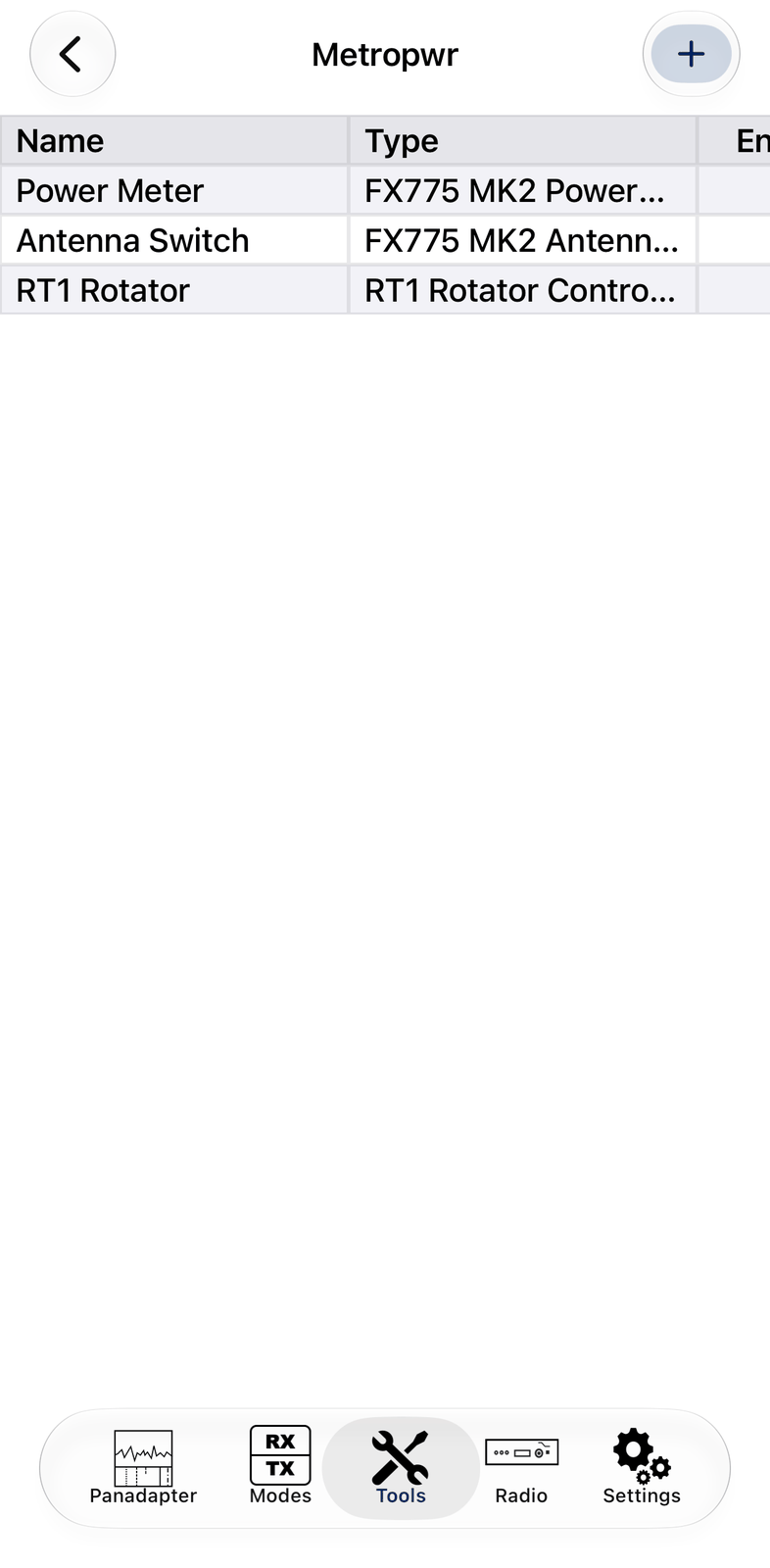
The iPhone has the same list and the same panels. The list shows Name and Type; swipe it sideways for the other columns. The panels float over the screen; drag them aside or close them when you need the room.
24. Green Heron
The Green Heron tool controls the RT-21 rotator controller from Green Heron Engineering over your network. The rotator’s panel floats over the screen, so you can turn your antenna while you work on the radio.
You need an RT-21 with the LAN or WiFi option. Set it up as its manual describes. More about the RT-21: https://www.greenheronengineering.com
24.1. Quick start
Tap + in the navigation bar.
Enter a Name and the IP Address of the RT-21. Leave the Port at
6555unless you changed it in the RT-21’s setup.Tap Save.
Double-tap the rotator in the list. Its panel opens.
24.2. The screen
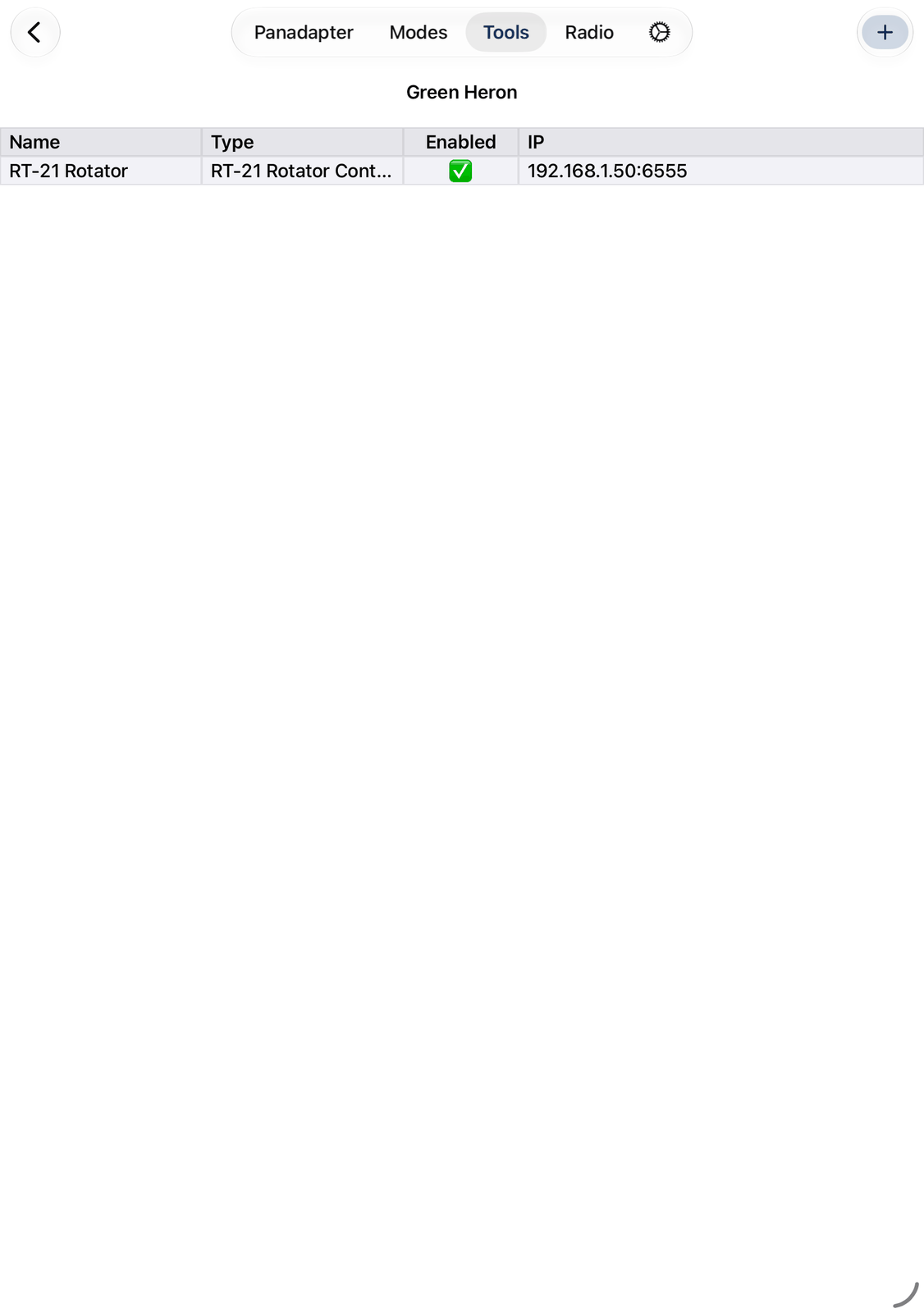
The screen lists your rotators, one row each: Name, Type, Enabled and IP (address and port).
+ in the navigation bar adds a rotator. See Adding a rotator.
Tap a row to select it. Tap in the Enabled column to switch the rotator on or off.
Double-tap a row to open the rotator’s panel. This also switches it on.
Touch and hold a row for Connect (opens the panel), Edit and Delete.
24.3. Adding a rotator
Tap + to add a rotator (New Device), or Edit to change one (Device Settings). Tap Save when you are done.
Type — RT-21 Rotator Controller.
Name — the name in the list and on the panel. Left empty, the type is used.
IP Address and Port — where the app finds the RT-21. The usual port is
6555.Enabled — the app connects to the rotator. Enabled rotators are connected when the app starts.
Auto open — opens the rotator’s panel when the app starts.
24.4. The rotator panel
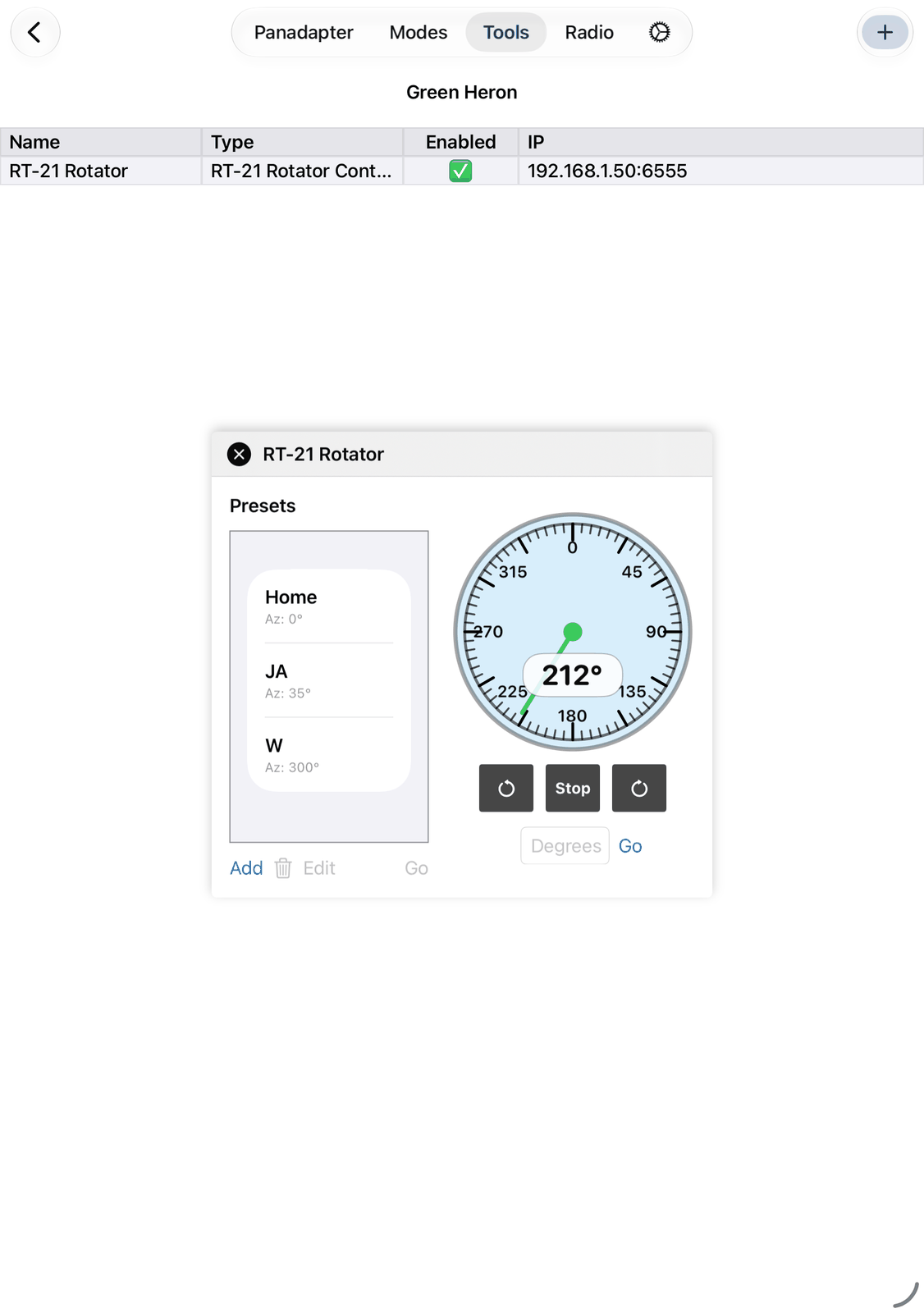
The panel floats over the screen. Drag it by its title bar to move it, and close it with the ✕ in its title bar.
Instead of the controls, it shows Not enabled when the rotator is switched off, Not connected while the
app can’t reach the RT-21, or the error in red.
The compass shows the direction of the antenna. Tap or drag on the compass to turn to a new direction.
The arrow buttons left and right of Stop turn the antenna counterclockwise or clockwise until you tap Stop. The button of the direction it turns is highlighted.
Type a direction in Degrees and tap Go.
Presets — your saved directions, for example
Home. Select one and tap Go, or double-tap it. Add saves a new one (the current direction is filled in), Edit changes the selected one, and the trash can deletes it.
24.5. Remote access
You can reach the RT-21 from outside your home network:
In your router, open port
6555(or the port you set in the RT-21).In the rotator’s IP Address, enter your public IP address or a DynDNS name instead of the local address.
With a VPN to your home network, the local address and port work as at home.
24.6. Good to know
Where the app shows the bearing to a station with Rotate to, for example in Call Lookup, a tap turns the antenna to that station while the rotator is connected.
Closing the panel doesn’t switch the rotator off. Double-tap it in the list to open the panel again.
24.7. On the iPhone
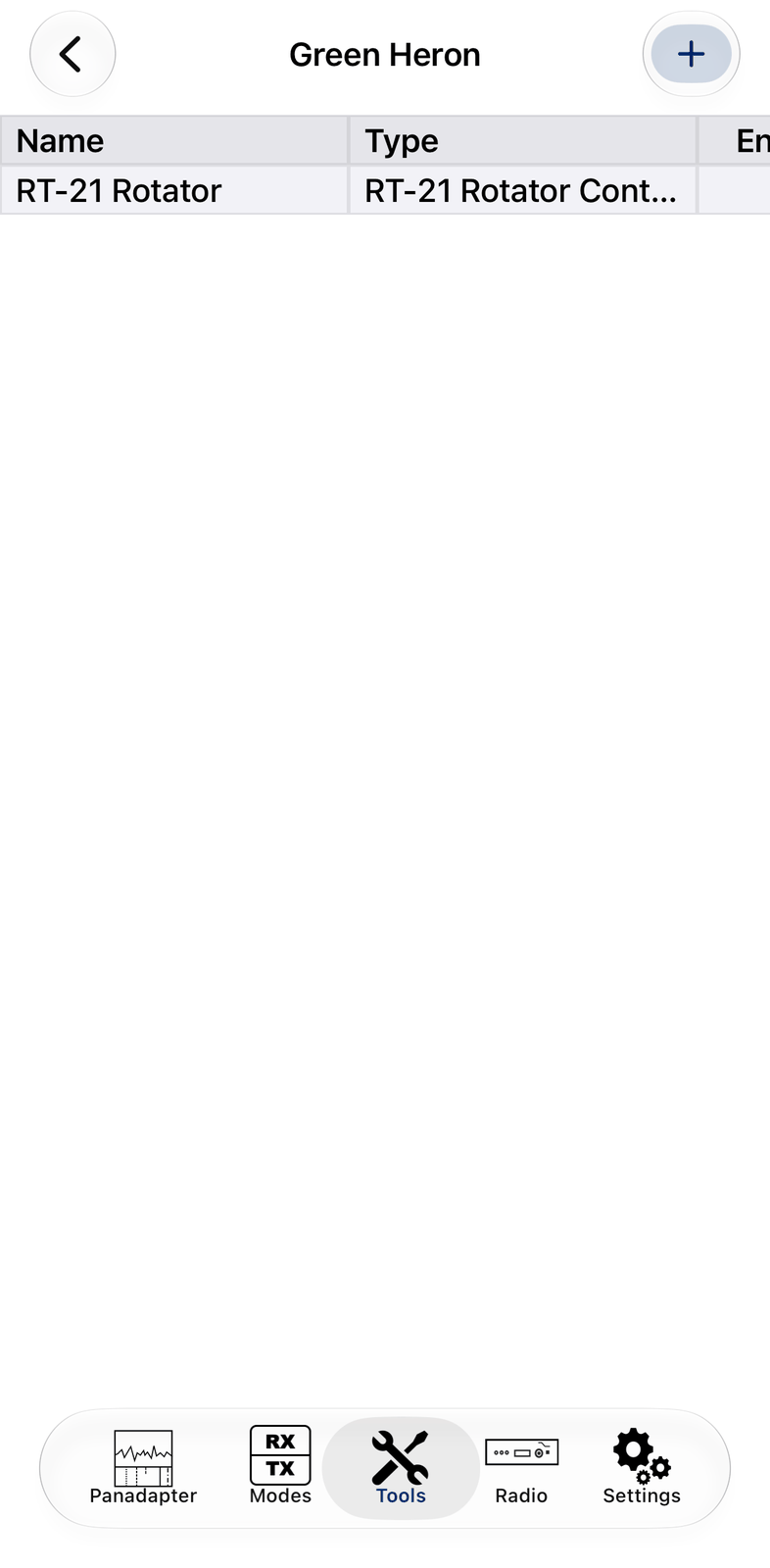
The iPhone has the same list and the same panel. The list shows Name and Type; swipe it sideways for the other columns. The panel floats over the screen; drag it aside or close it when you need the room.
25. Waveshare
The Waveshare tool works with two kinds of small network devices from Waveshare:
The RS232 to ETH device gives an RS232 (serial) CAT connection over your network. The app sends your radio’s frequency and mode to it, so an antenna controller (for example the Ultra Beam RCU-06), an antenna tuner, a power amplifier or any other device with an RS232 CAT input follows your radio.
The Ethernet Relay device has eight relays and eight inputs. The relays can switch your radio or any other device, by hand or when you transmit. The inputs can key the radio (PTT) or show the state of something in the app.
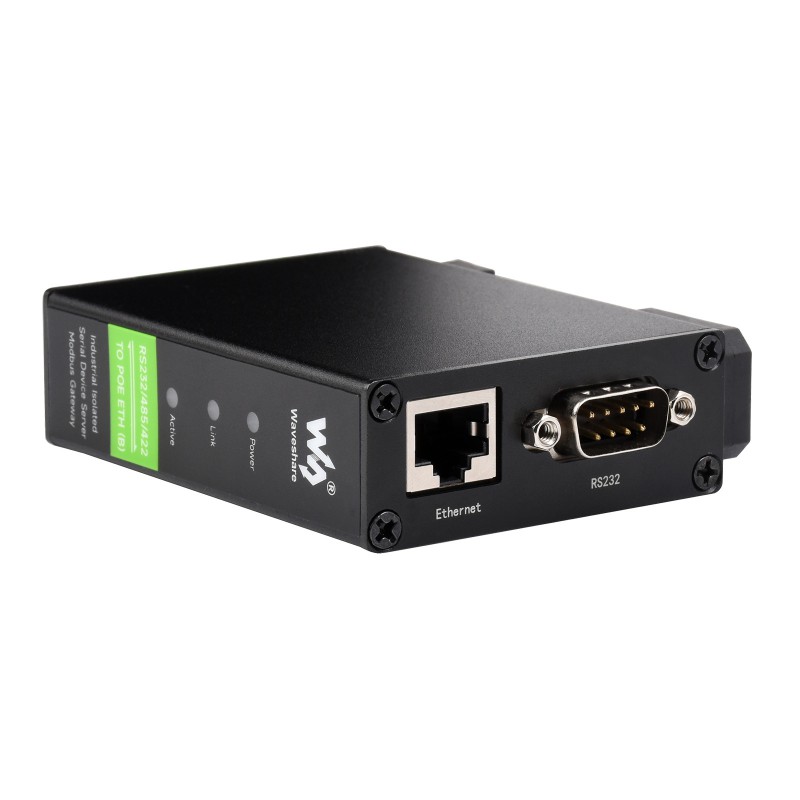
Amazon links for the RS232 to ETH device: https://amzn.to/49ILUN5, or the PoE version https://amzn.to/4wo570o
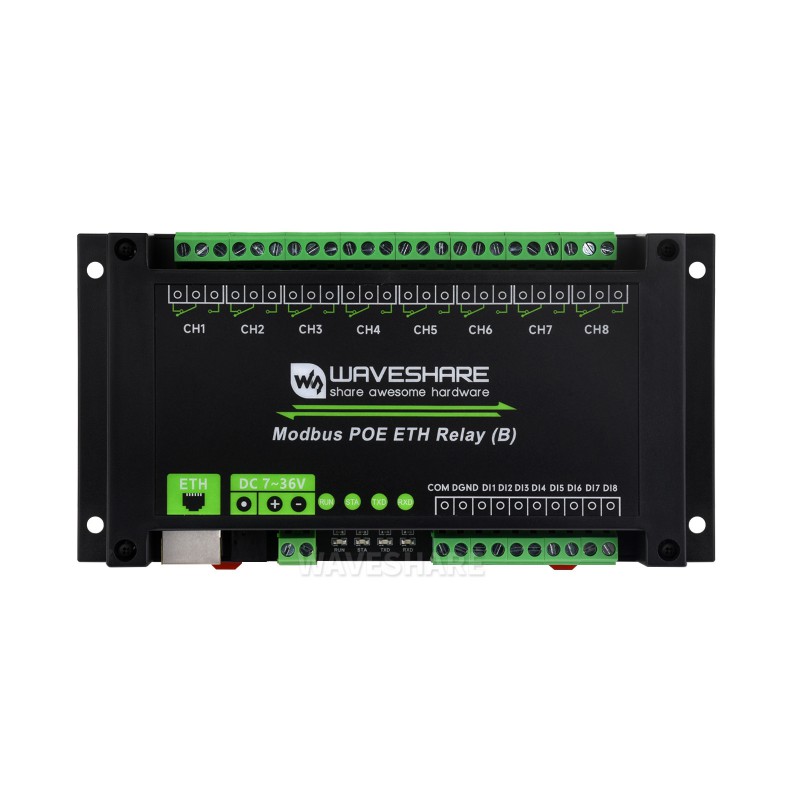
Amazon link for the Ethernet Relay device: https://amzn.to/4dg1fWj
All variants of these devices work: with one or two Ethernet ports (the second one can connect further devices), and with or without Power over Ethernet (PoE). A PoE device can also get its power from a 7–36 V supply, like the others. You can buy them from Waveshare, or from online shops such as Amazon or eBay. Product pages:
RS232 to ETH: https://www.waveshare.com/product/rs232-485-422-to-poe-eth-b.htm
Ethernet Relay: https://www.waveshare.com/modbus-poe-eth-relay-b.htm
25.1. Quick start
Set up the device in its web page, see Setting up a Waveshare device.
In the app, tap + in the navigation bar.
Choose the Type, enter the IP Address of the device and leave the Port at
4196.Tap Save.
Double-tap the device in the list. Its panel opens.
25.2. Setting up a Waveshare device
The setup is the same for both kinds of device.
Connect the device to your local network with a LAN cable and power it on.
Open the device’s IP address in a web browser. It is often
x.x.x.254, wherex.x.xare the first three numbers of your local network, for example192.168.1.254. If you are not sure, look in your router’s list of devices, or on the Waveshare website.When the page asks for a password, leave it empty and tap the login button.
Change these settings:
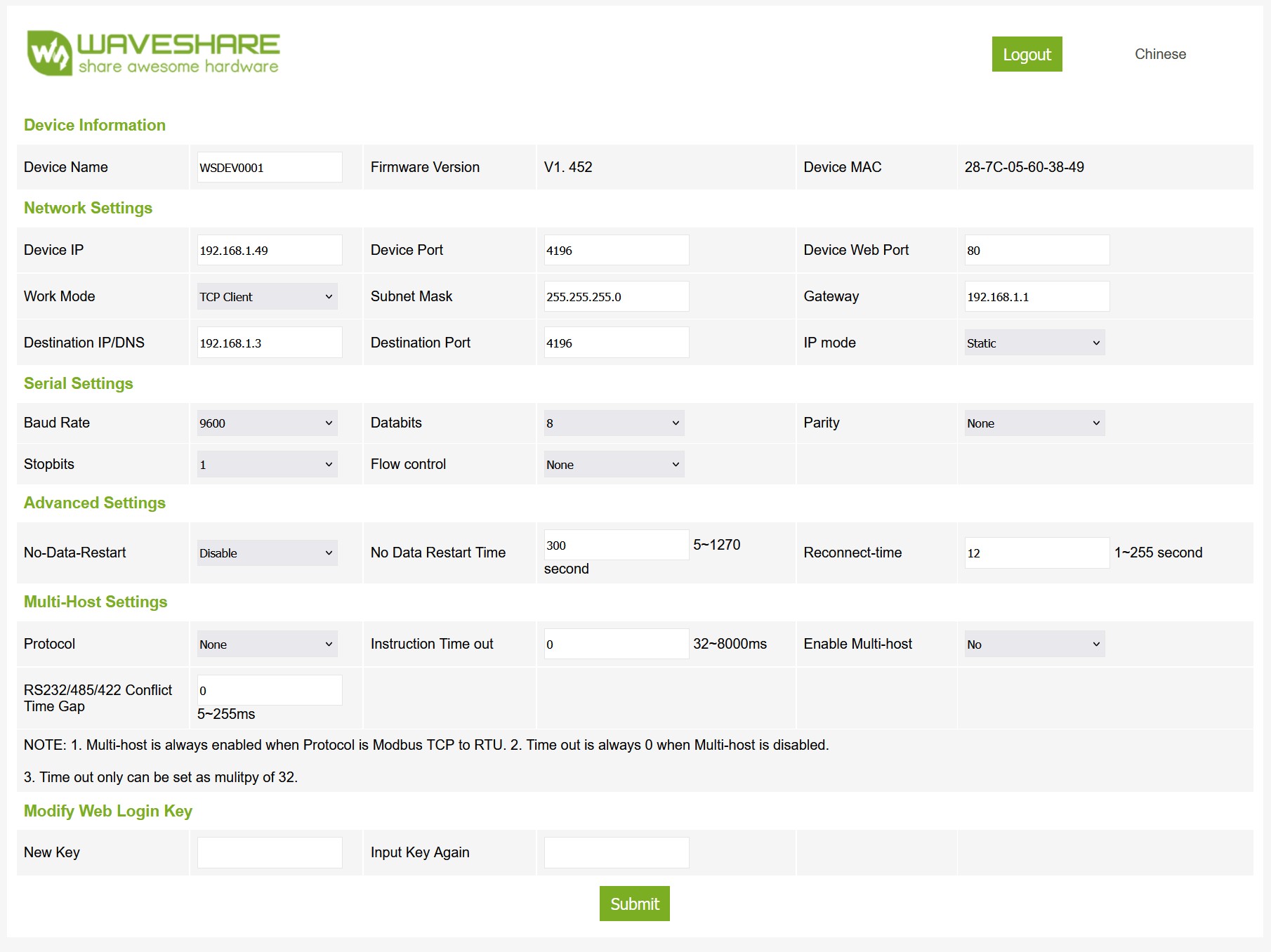
Device IP — a fixed address outside the range your router hands out (DHCP).
Work Mode — TCP Client.
Device Port — keep
4196, unless you want to reach the device over the internet. Then give each device its own port.RS232 to ETH only: the Serial Settings the connected device needs, for example 9600 baud and its stop bits and parity.
Click Submit. The device can now be reached at its new address.
RS232 to ETH: connect it to your device with a normal RS232 cable. Depending on the connectors you may need a male-to-female or a female-to-female cable. A crossover cable is usually not needed.
Ethernet Relay: while you set it up, keep it where you can see it. Its blue LEDs show the state of the relays and inputs.
25.3. The screen
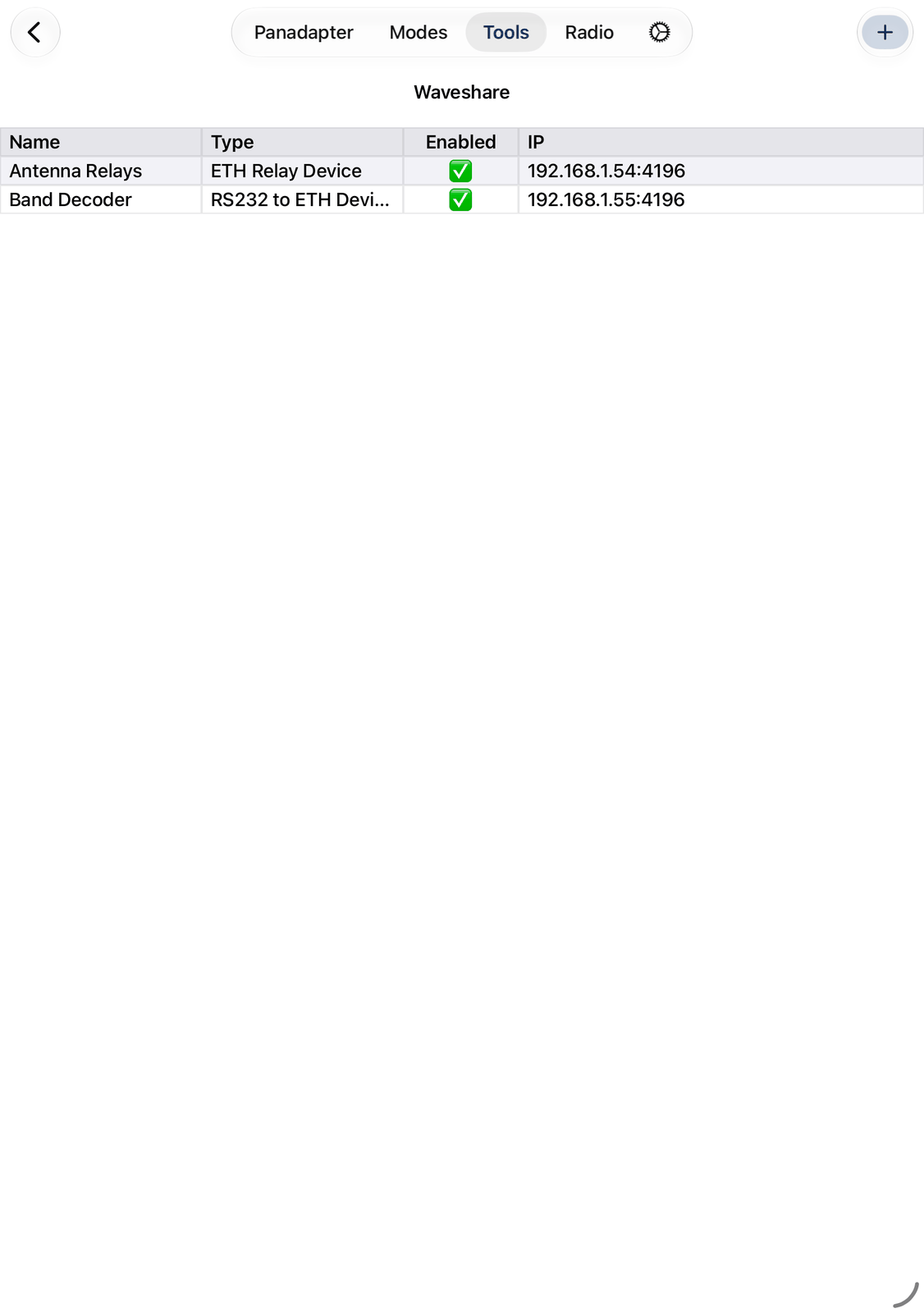
The screen lists your devices, one row each: Name, Type, Enabled and IP (address and port).
+ in the navigation bar adds a device. See Adding a device.
Tap a row to select it. Tap in the Enabled column to switch the device on or off.
Double-tap a row to open the device’s panel. This also switches the device on.
Touch and hold a row for Open, Edit and Delete.
25.4. Adding a device
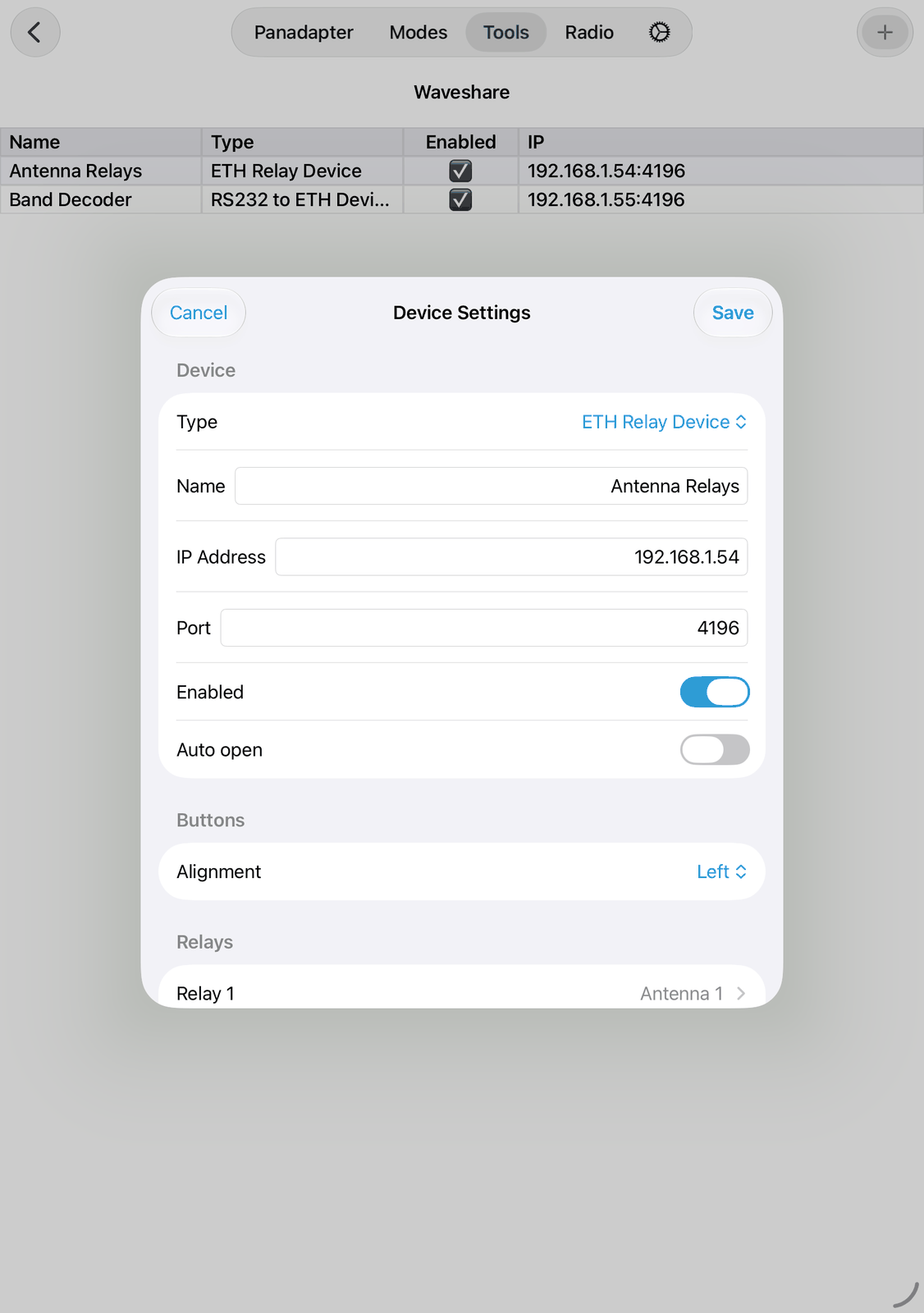
Tap + to add a device (New Device), or Edit to change one (Device Settings). Tap Save when you are done.
Type — RS232 to ETH Device or ETH Relay Device.
Name — the name in the list and on the panel. Left empty, the type is used.
IP Address and Port — where the app finds the device. The usual port is
4196.Enabled — the app connects to the device. Enabled devices are connected when the app starts. Turn it off while a device is offline for a while.
Auto open — opens the device’s panel when the app starts.
Below these, each type has its own settings. They are described with the panels.
25.5. The device panels
A panel floats over the screen. Drag it by its title bar to move it, and close it with the ✕ in its title bar.
Instead of its content, a panel shows Not enabled when the device is switched off, Not connected while the
app can’t reach the device, or the error in red.
25.5.1. RS232 to ETH
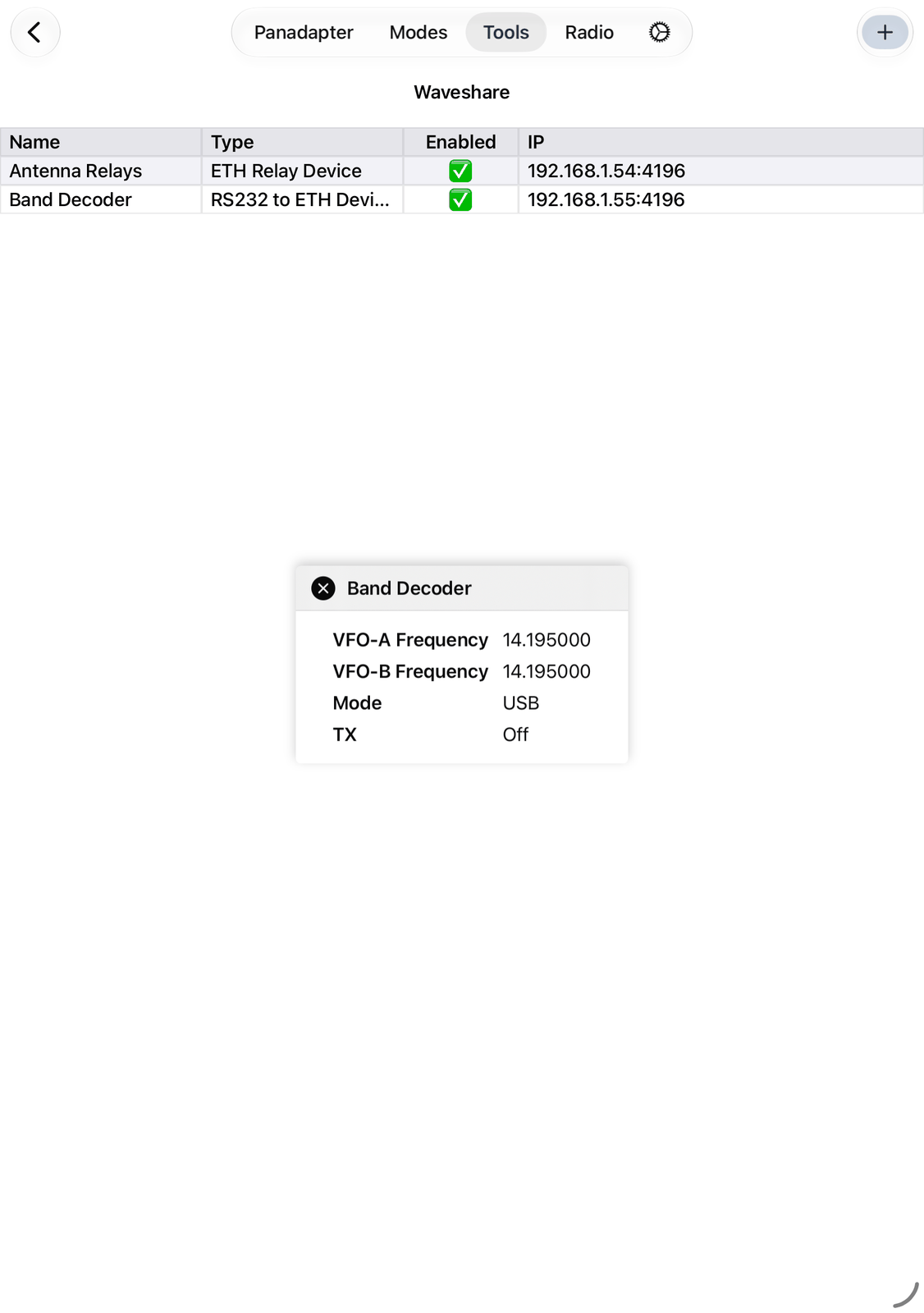
The panel shows what the app sends to the device over CAT: VFO-A Frequency, VFO-B Frequency, Mode and
TX (On while you transmit). Without a connected radio it shows Radio Not connected.
In the device’s settings, section CAT:
Protocol — the CAT language the connected device understands: YAESU, Kenwood, FlexRadio or Elecraft. Kenwood is the most common.
Transceive — leave it off when the connected device asks for the frequency itself (polling). Turn it on when the app should send the frequency whenever it changes.
VFO A = TX VFO — on: VFO A carries your transmit frequency, VFO B the receive frequency. Off: the other way round. For tuners and antenna controllers, leave it on.
Note
For an Ultra Beam RCU-06 you can also use the Ultra Beam tool. A Waveshare device often gives the more reliable connection, but you can’t retract the elements or change the direction with it. You can use both at the same time.
25.5.2. Ethernet Relay
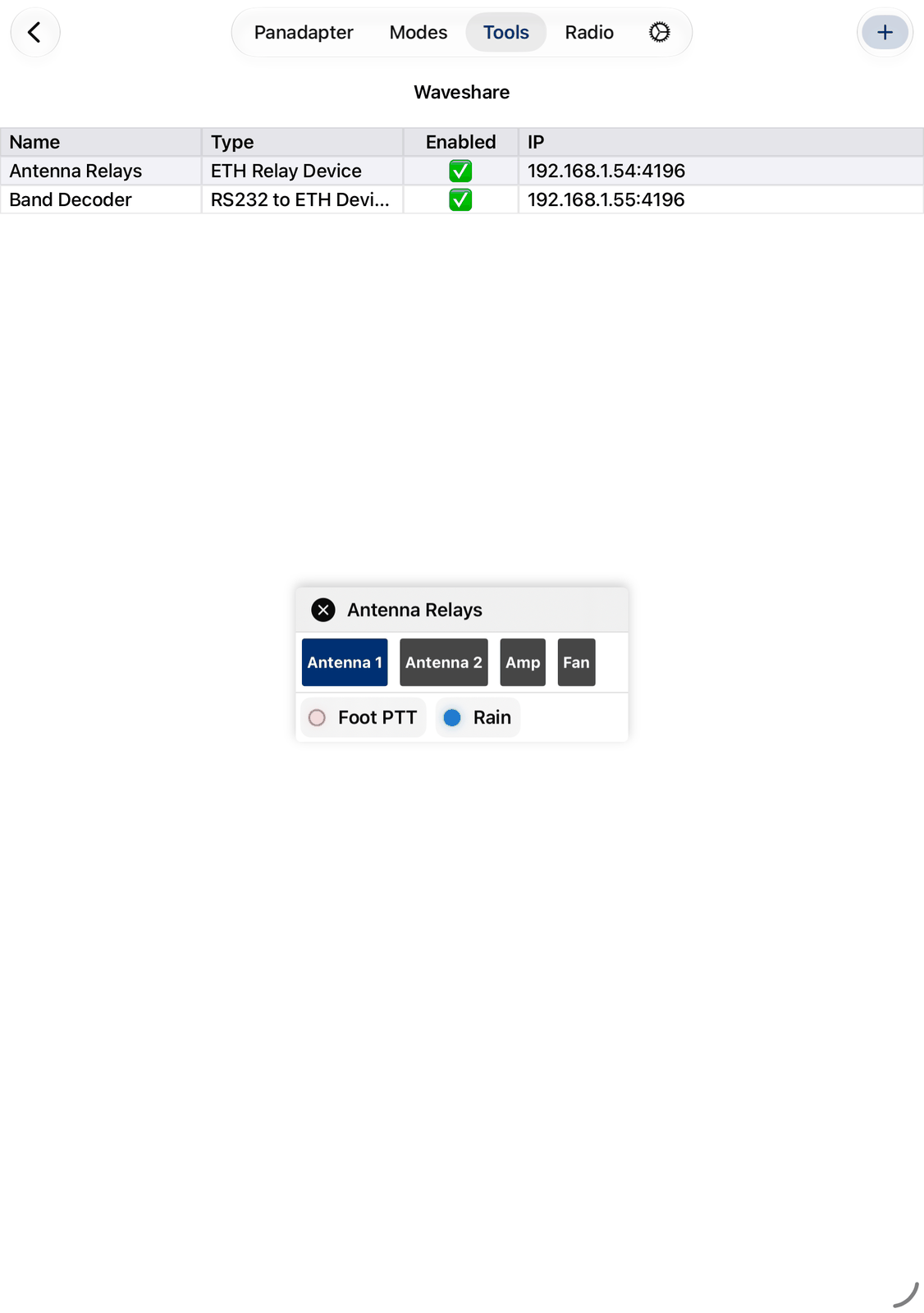
The upper row has a button for each relay with a name. A highlighted button means the relay is on. Tap it to switch the relay.
The lower row shows the inputs with a name. An input’s light is bright while the input is on.
In the device’s settings:
Buttons — Alignment: where the buttons sit in their row: Left, Centered, Filled (spread over the row) or Right.
Relays — tap Relay 1 to Relay 8 to set one up:
Name. Only relays with a name get a button.
Type: On / Off or Flash. A flash relay switches on for a moment only, for example to press a button on another device.
Trigger: None, On TX (on while you transmit) or On Connect (on while the app is connected to the radio).
Inputs — tap Input 1 to Input 8 to set one up:
Name.
Color of its light: Red, Green, Yellow or Blue. Black shows no light. The panel shows the inputs with a name or a color.
Trigger: None or PTT. With PTT, the radio transmits while the input is on, for example with a foot switch.
25.6. Remote access
You can reach the devices from outside your home network:
Give each device its own Device Port in its web page, and open that port in your router.
In the device’s IP Address, enter your public IP address or a DynDNS name instead of the local address, and its port in Port.
With a VPN to your home network, the local addresses and ports work as at home.
25.7. Good to know
The RS232 to ETH device only gets data while the app is connected to your radio.
Relays with On TX or On Connect switch by themselves, also while the panel is closed.
Closing a panel doesn’t switch the device off. Double-tap it in the list to open the panel again.
25.8. On the iPhone
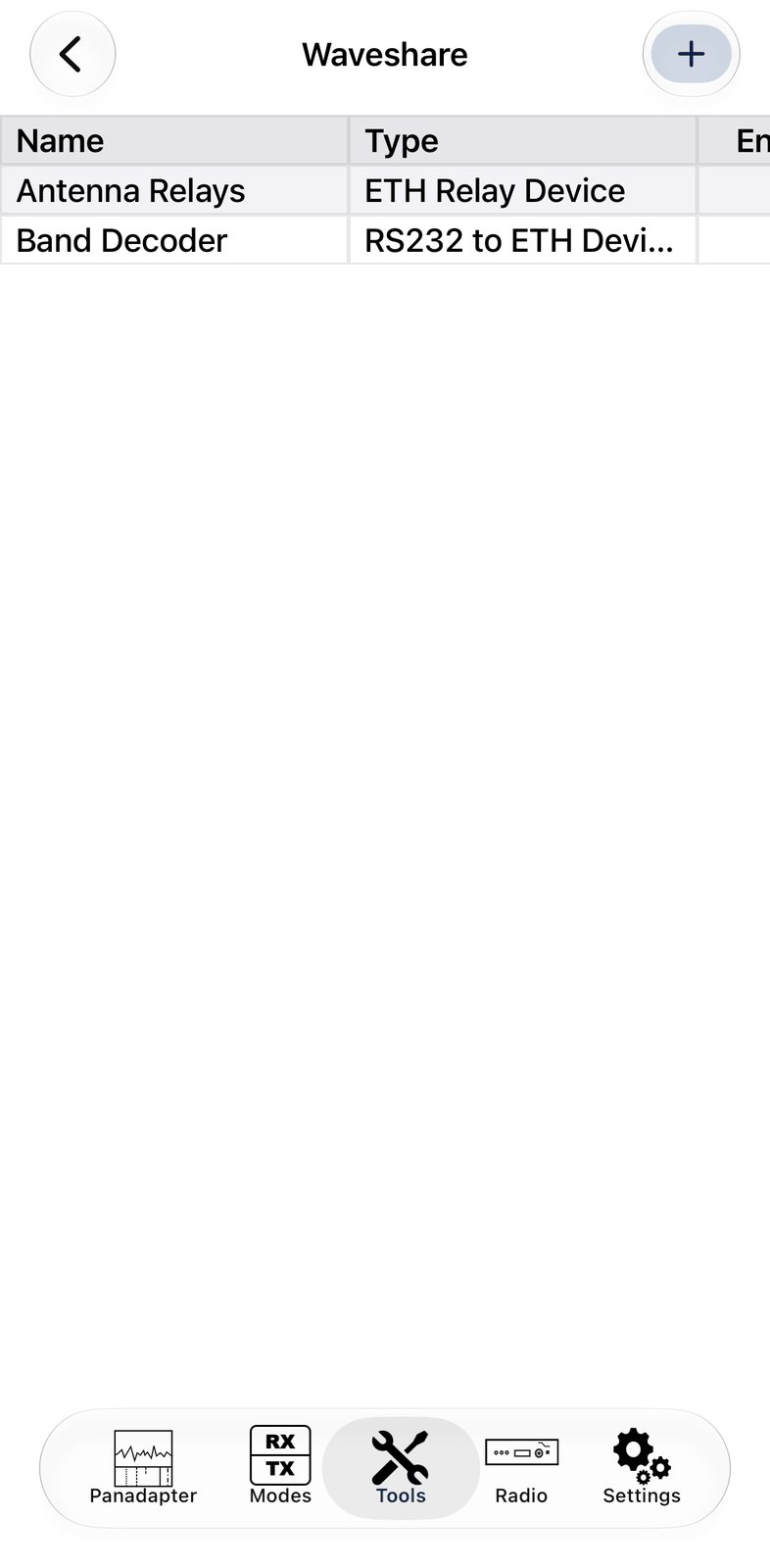
The iPhone has the same list and the same panels. The list shows Name and Type; swipe it sideways for the other columns. The panels float over the screen; drag them aside or close them when you need the room.
1. Modes
The Modes tab holds the operating modes of the app: digital modes such as FT8 and JS8, CW, pictures with SSTV and HF-Fax, and more. Each mode has its own chapter in this manual.
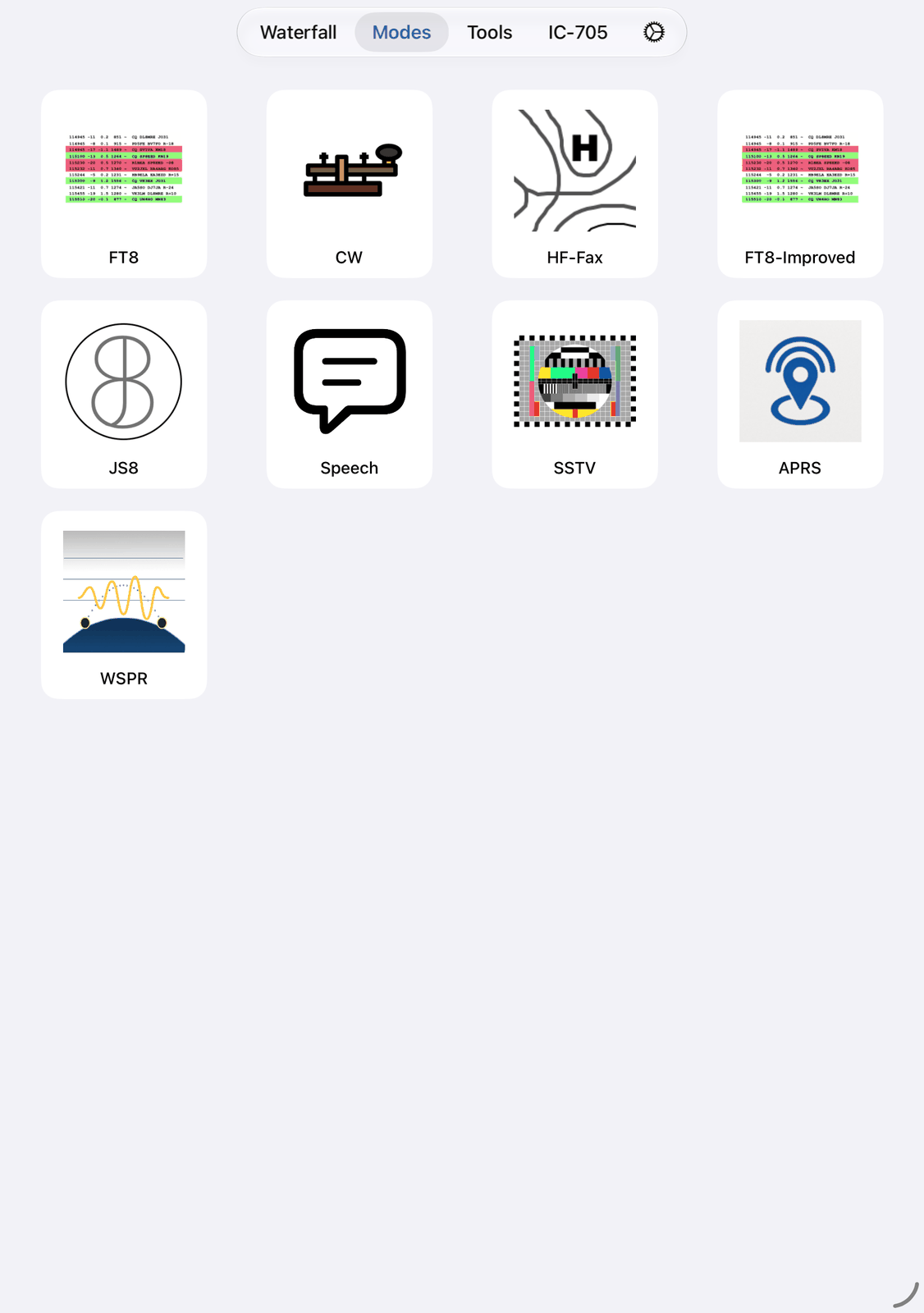
1.1. Using the tiles
Tap a tile to open its mode. The back button at the top left brings you back to the tiles.
A green dot on a tile means the mode is running: its RX is on.
To move a tile, touch and hold it, then drag it to its new place. The other tiles make room. The app keeps the new order.
With a keyboard on the iPad, ⌘M opens the Modes tab, and ⌘8 opens FT8 while the radio is connected.
1.2. Modes keep running
A mode keeps receiving, and sending, when you leave its screen or switch to another tab. You can look at the waterfall or write a log entry while FT8 goes on. Only the mode’s RX button stops it.
The green dots show which modes are still running. Stop the ones you don’t need: a running mode keeps using the radio.
The Modes tab can always be opened. Without a connection to the radio, a mode asks you to connect first.
1.3. The modes
Mode |
What it does |
|---|---|
FT8 |
FT8 and FT4 contacts with weak signals. The older version, for every device. |
FT8-Improved |
FT8, FT4 and FT2, with automatic answering and CQ calls. Needs iOS 26. |
JS8 |
Chat by typing, also with very weak signals. Needs iOS 26. |
Speech |
Turns speech into text, translates it, and speaks your typed text. Needs iOS 26. |
CW |
Reads Morse code and sends your typed text. |
HF-Fax |
Receives weather charts (weather fax). |
SSTV |
Receives and sends pictures (Slow-Scan TV). |
APRS |
Receives and sends APRS packets: positions, messages and status. |
WSPR |
Receives and sends WSPR beacons to check the propagation. Needs iOS 26. |
On the iPhone, SDR-Control also has D-Star: the calls and messages of the radio’s D-Star mode (DV). On the iPad, D-Star is a panel on the radio screen instead.
FT8-Improved, JS8, Speech and WSPR need iOS 26 or later. On an older device their tiles are not shown. The older FT8 mode works on every device.
1.4. On the iPhone
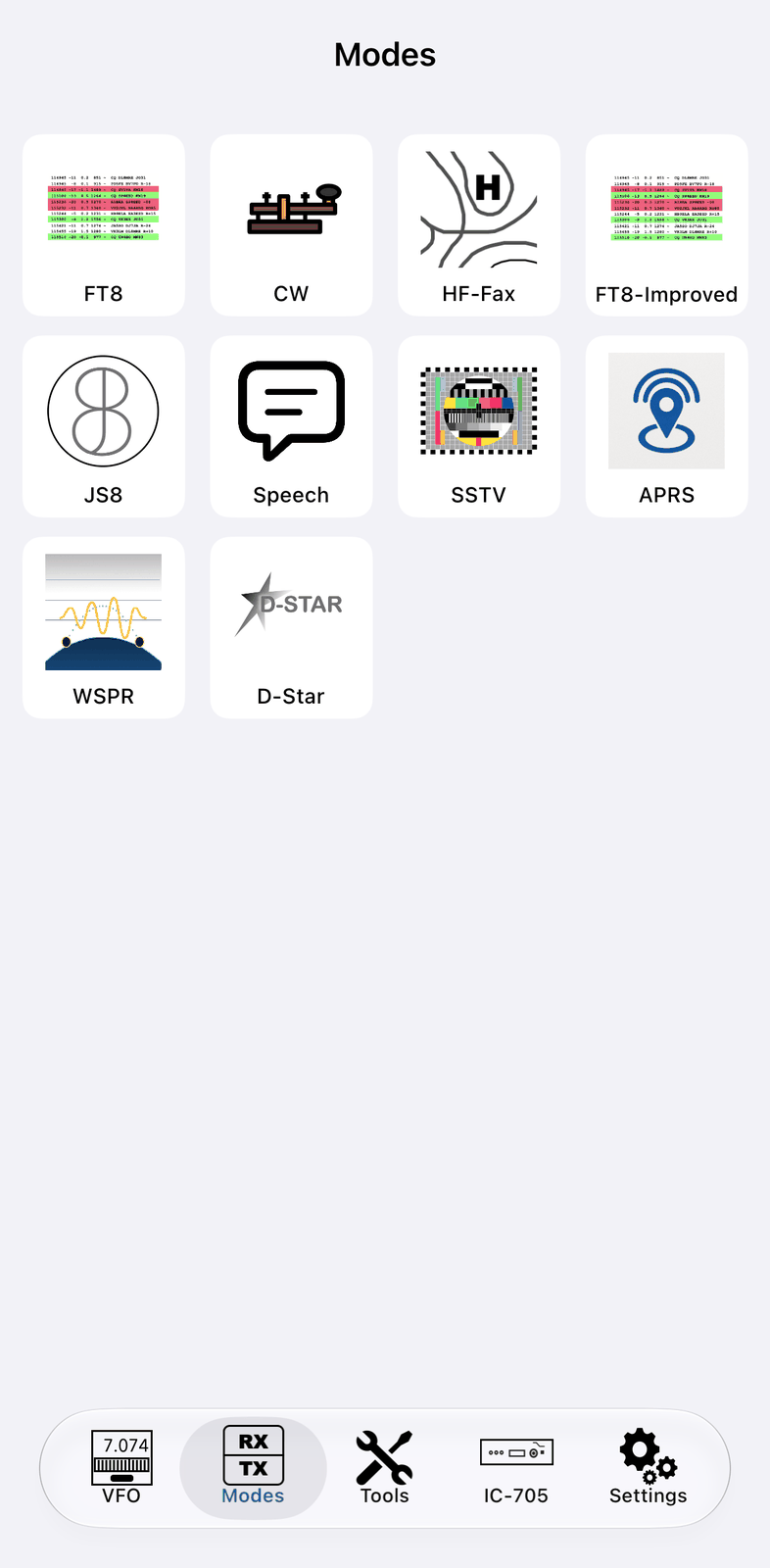
The iPhone shows the modes in smaller tiles.
2. FT8
FT8 lets you work stations in FT8 and FT4, the modes made popular by WSJT-X. You need no cables, no audio interface and no CAT setup: the app does everything.
This is the older FT8 mode. It runs on every device. On iOS 26 or later the Modes tab also has FT8-Improved, the newer version: it adds FT2 and works on its own with Auto Answer and Auto CQ. Use FT8-Improved when your device has iOS 26, and this FT8 mode on older devices. Use only one of them at a time.
FT8 sends short messages in fixed time slots of 15 seconds (FT4: 7.5 seconds). A contact (QSO) is a few messages back and forth: calls, locators and signal reports. The app does most of it for you.
2.1. Quick start
In the app’s settings, check Your Call, Operator Call and Grid (QTH Locator) under HAM Radio.
Tap the band, for example 20m (14074 kHz), and choose FT8 next to it.
Tap RX. After 15 seconds the first messages appear.
Double-tap a green row: a station calling CQ.
Wait. The app answers, sends the reports and logs the QSO when it is finished.
2.2. A few FT8 basics
A station (K1CQ) calls CQ. You (DC1ME) answer. You send each other signal reports and finish the QSO:
Other station |
You |
Meaning |
|---|---|---|
|
K1CQ calls CQ from locator EN61. |
|
|
You answer with your locator. |
|
|
K1CQ gives you a report: -11 dB. |
|
|
You confirm (R) and give your report. |
|
|
K1CQ confirms and says goodbye. The QSO is complete. |
Some stations end with RRR and 73 instead of RR73. When you call CQ yourself, it works the same way
with the roles swapped.
CQ DX means the station only wants long-distance contacts, CQ JA only Japan, and so on.
A message takes about 13 seconds. Slots start at second 0 and 30 (Even) or 15 and 45 (Odd). The two stations of a QSO always send in opposite slots.
To learn more, read Gary Hinson ZL2IFB’s FT8 guide: https://www.g4ifb.com.
2.3. The screen
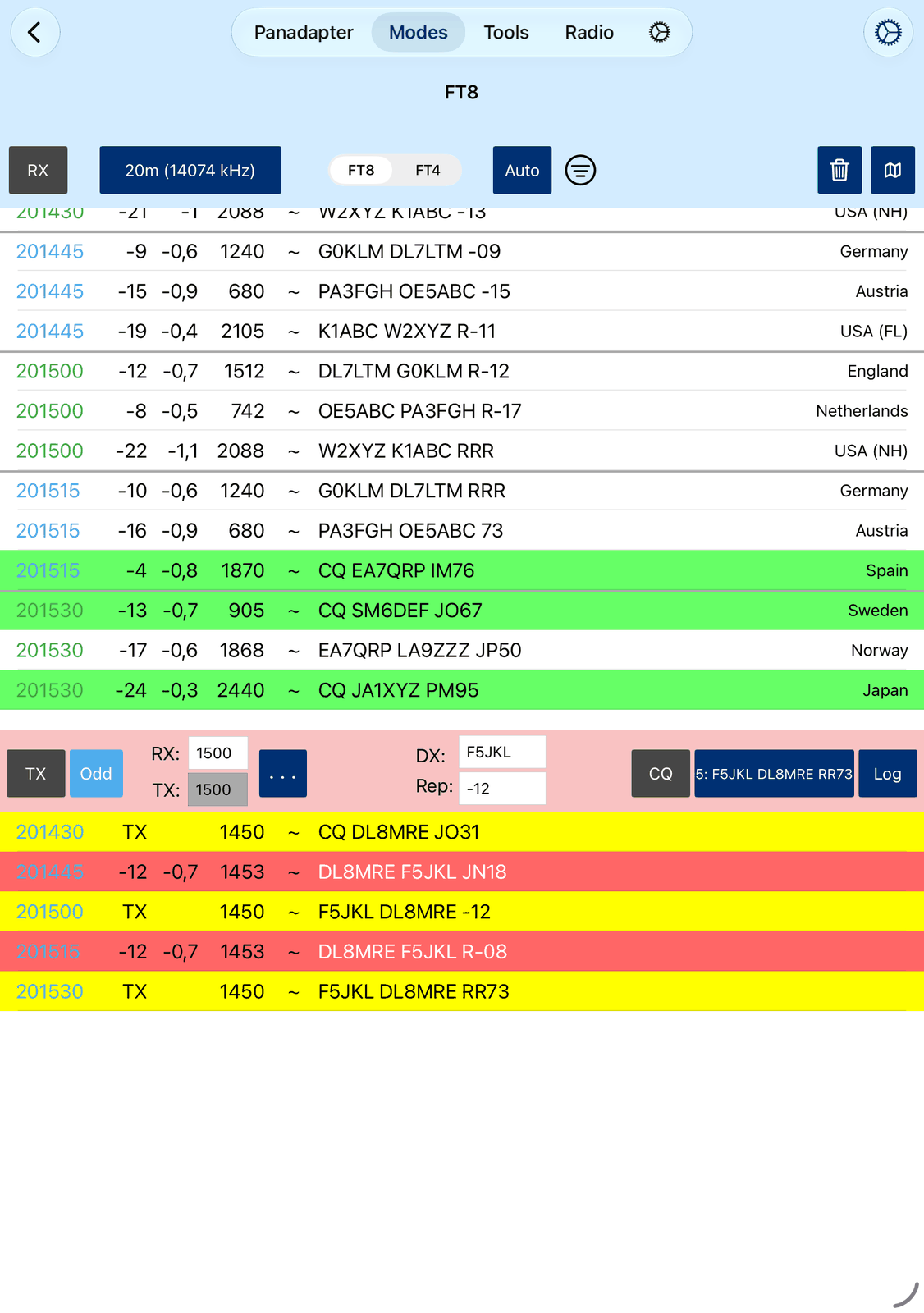
The blue bar with the list of received messages is at the top, the red bar with your QSO below it. Until you tap RX, the screen only shows a hint.
2.3.1. The blue bar
RX starts and stops listening. It also tunes the radio to the band and sets its mode and filter for FT8. Tap it twice to set them again if you changed something by mistake.
20m (14074 kHz) is the band. Tap it to choose another band. Manual leaves the radio where it is: tune it yourself, for example to a DXpedition.
FT8 / FT4 chooses the mode. A change clears the lists.
Auto lets the app choose the next message by itself and carry the QSO on. Off: you choose each message yourself. See Sending.
The funnel opens the filter. It is filled while the filter is on. See Filter.
The trash can clears the red list and your QSO fields. Double-tap it to clear the blue list too.
The map shows the stations of the list on a map. See Map.
Below the bar, a thin line shows how far the current slot has run: green in an even slot, blue in an odd slot, red while you send.
2.3.2. The list
Each row shows the time (UTC), the signal (dB), the time difference (DT), the audio frequency (Freq), the Message and the country of the station. The time is green for an even slot and blue for an odd slot.
Green rows are stations calling CQ.
Red rows are messages to you.
Grey rows are stations you have worked on this band before (with Mark worked before in ⚙︎).
Tap a row to take over the station’s call, report, frequency and slot. Double-tap a row to start the QSO right away: the app also switches TX on. Touch and hold a row for more: Lookup Call … looks up a call, Show on Map … shows the stations of this message on a map.
2.3.3. The red bar
TX sends in your next slot. Blue: waiting to send. Red: sending. Grey: listening only. Grey with red letters: paused, for example while the log window is open. Double-tap TX to start sending at once, in the slot that is running now.
Even / Odd is your slot. It is set for you when you tap a station. You only need it when you call CQ.
RX: and TX: are your audio frequencies in Hz, usually between 100 and 2900. Tapping a station sets them.
… opens a menu for the two frequencies: RX → TX copies the RX frequency to TX, RX ← TX the other way. TX = RX (with a checkmark): TX always follows RX. Keep it on when you answer stations. Switch it off when you call CQ, so that you stay on your own frequency.
DX: is the call of the station you work, Rep: the signal report you send. Tapping a station fills them in.
CQ switches between answering and calling CQ. Blue: you call CQ. See Calling CQ.
The message button shows what you send next, for example
2: K1CQ DC1ME JO12. Tap it to choose another message. See Sending.Log opens the log window, already filled in for the station in DX:.
Below the red bar you see your QSO: your messages in yellow (TX instead of the dB value), messages to you
in red, and other messages on your frequency. The app also writes short notes there, for example
QSO finished or Max. retries exceeded.
Tap or double-tap a row there to work a station that called you while you were busy.
You can also set the audio frequencies from the waterfall: touch and hold the waterfall where you want to be, then choose Set FT8 TX or Set FT8 RX. This sets the frequency for FT8-Improved too.
2.4. Sending
With Auto on, the app reads each message to you and chooses the right answer for the next slot:
your locator, the report, R plus the report, RR73 or 73. You only start the QSO.
With Auto off, you choose each message yourself with the message button:
No. |
Message |
When |
|---|---|---|
1 |
|
Nothing to send while you answer stations / your CQ when you call CQ. |
2 |
|
Your answer with your locator. |
3 |
|
Your report. |
4 |
|
You confirm and give your report. |
5 |
|
You confirm and say goodbye. |
6 |
|
You confirm. |
7 |
|
You say goodbye. |
9 |
{Individual} |
Your own short text. Choosing it asks for the text (Individual Message). |
An FT8 message has room for about 13 characters of free text.
A message is sent again in each of your slots until the other station answers. After Max. TX retries
(in ⚙︎) the app stops and writes Max. retries exceeded.
If the station you call answers somebody else, the app pauses (answered somebody else, pausing...).
It goes on when the station calls CQ again or answers you.
2.5. Calling CQ
Find a free frequency and set your TX: frequency there. Switch TX = RX off in the … menu.
Choose your slot with Even / Odd.
Tap CQ. The app calls CQ in each of your slots.
When a station answers, the app works it (with Auto on), logs the QSO and calls CQ again.
After 3 calls without an answer during a QSO, the app gives up (No further response) and calls CQ again.
Tap CQ again to stop calling CQ.
2.6. Logging
When a QSO is finished, the app logs it. With Enable Auto Logging (no log window) on in ⚙︎, it is saved to the logbook at once. With it off, the log window opens, already filled in: check it and save it. While the log window is open, the app doesn’t send. When you call CQ, it goes on after you close the window.
Log opens the log window at any time, for example for a QSO the app couldn’t finish.
2.7. Filter
The funnel opens the filter. It shows fewer rows in the blue list:
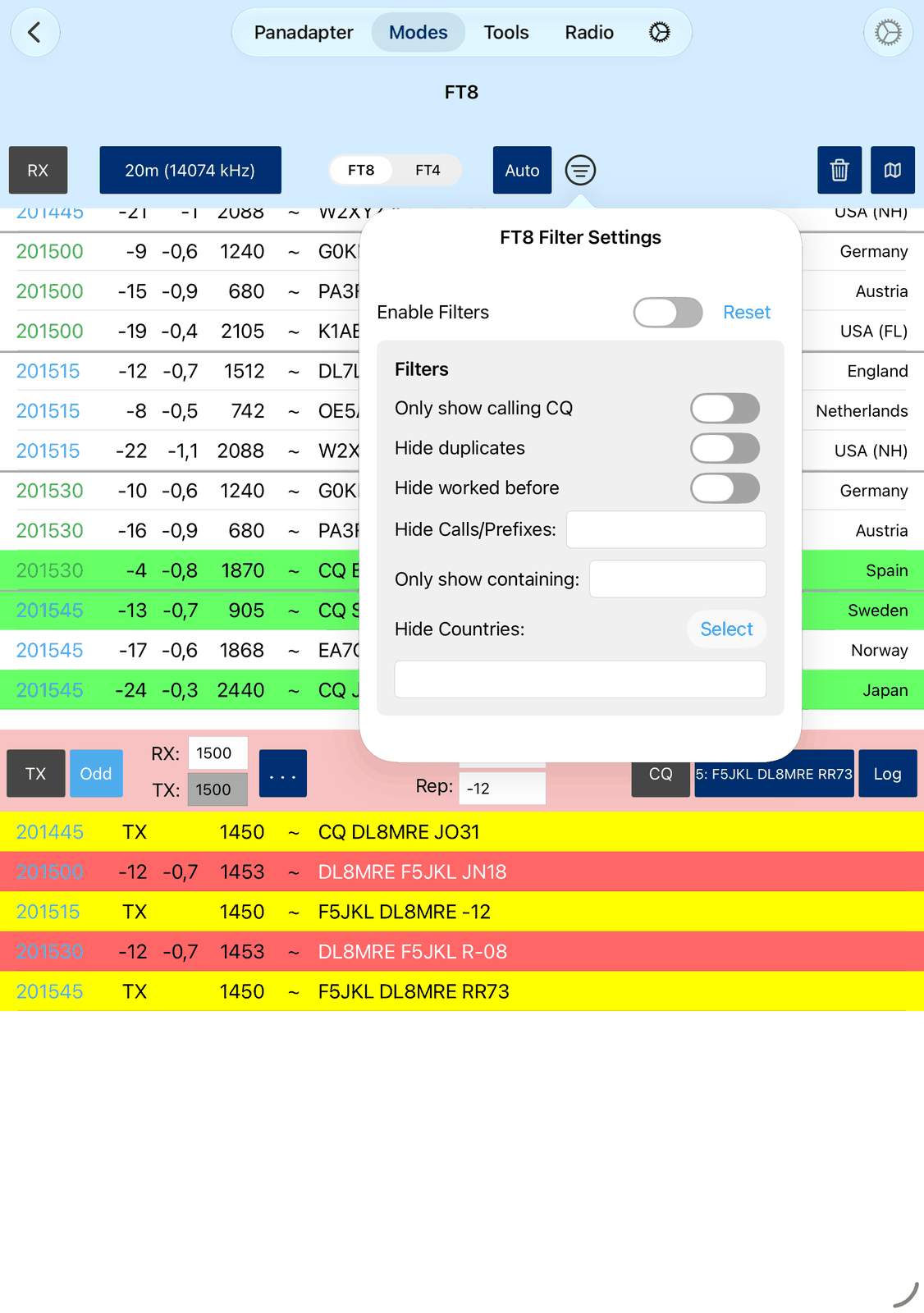
Enable Filters switches the filter on and off. Reset clears the filters.
Only show calling CQ — only CQ calls.
Hide duplicates — only the newest row of each station.
Hide worked before — no stations you have worked on this band before.
Hide Calls/Prefixes — calls that start with one of these texts are hidden, for example
DL, G0KLM.Only show containing — only messages that contain one of these texts, for example
CQ DX, JA.Hide Countries — tap Select and tick the countries to hide.
Separate several entries with commas. The list changes at once. Stations hidden by Hide Calls/Prefixes, Hide Countries or Hide worked before are not answered, even when they call you.
2.8. Map
The map button in the blue bar shows the stations of the blue list on a map, each with a line from your location. It follows the list in every slot. With the filter on, it shows only the filtered stations.
Tap a pin to see the country, the signal and the locator, the distance and the direction. Look Up Call there looks the station up. The buttons at the top left show all stations, switch to the globe view and to satellite pictures.
2.9. Settings
Tap ⚙︎ for the FT8 settings:
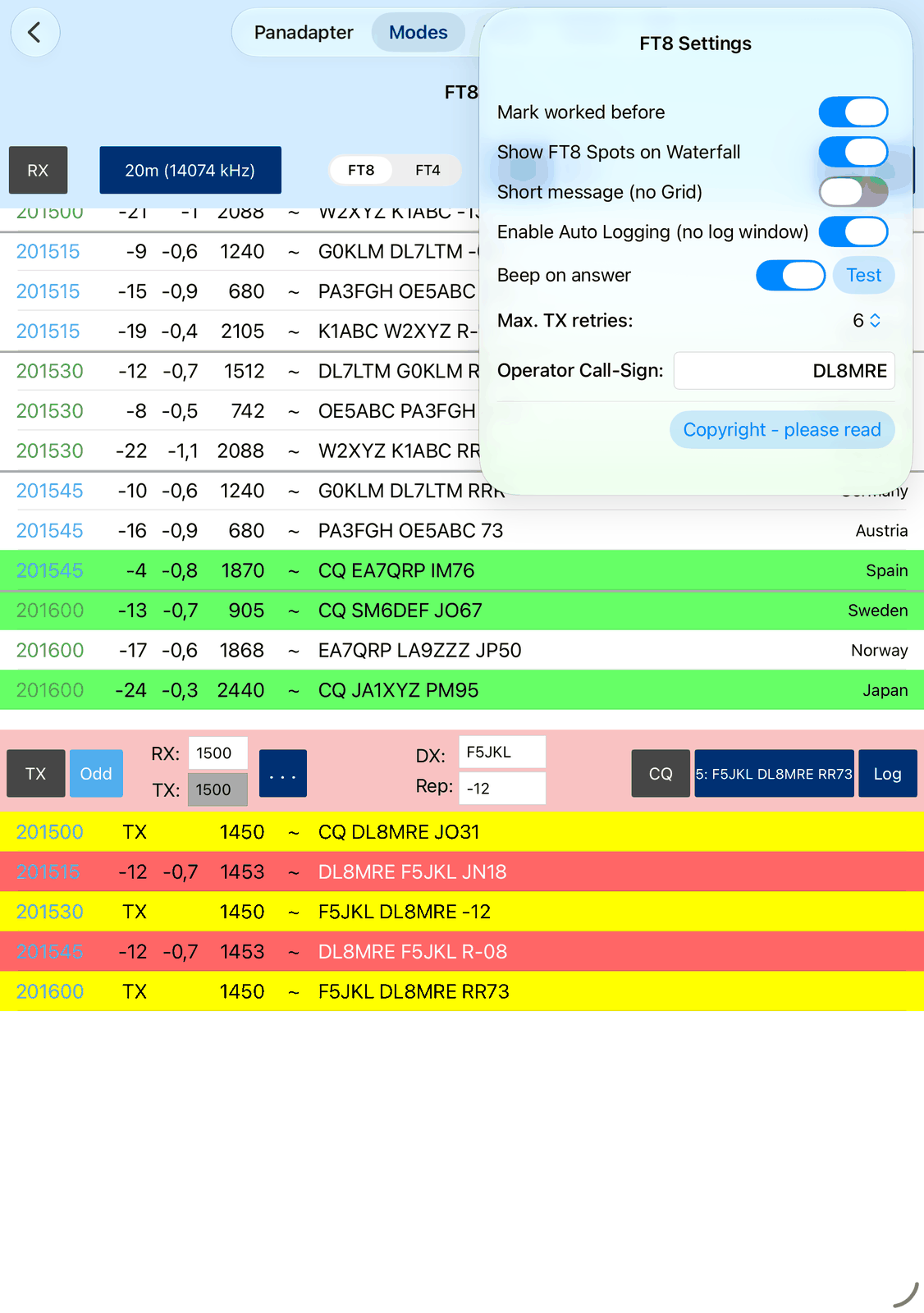
Mark worked before — shows stations you have worked on this band before in grey.
Show FT8 Spots on Waterfall — shows the stations calling CQ on the waterfall.
Short message (no Grid) — your CQ goes out without your locator, and when you answer a CQ, you send the report at once instead of your locator. This makes the QSO one slot shorter.
Enable Auto Logging (no log window) — saves each finished QSO to the logbook without showing the log window.
Beep on answer — a beep when a station answers you. Test plays it.
Max. TX retries — how often the app sends the same message before it gives up.
Operator Call-Sign — the call FT8 sends. It is the same as Operator Call in the app’s settings.
Copyright - please read — FT8 and FT4 were made by Joe Taylor, K1JT, and the WSJT Development Group. This button shows their copyright notice.
2.10. Good to know
FT8 keeps running when you switch to another tab. Only RX stops it.
Check the time on your device: it must be exact to the second. DT should be close to 0.
Without Your Call and Grid (QTH Locator) in the settings, the app asks for them when you tap RX.
DXpeditions (Fox and Hound): choose Manual as band, switch TX = RX off, and listen on the DXpedition’s frequency. Send on the frequency they ask for. Multi-answer messages may not be logged automatically; then tap Log.
Long or special calls (with
/or more than 6 characters) are sent in short form, as WSJT-X does. The locator may be left out then, because the message has no room for it.Stations you hear are reported to PSK Reporter when Propagate Spots is on in the app’s settings (PSK Reporter). With UDP Broadcast: WSJT-X decode message on, the app sends what it decodes to programs such as GridTracker.
2.11. On the iPhone
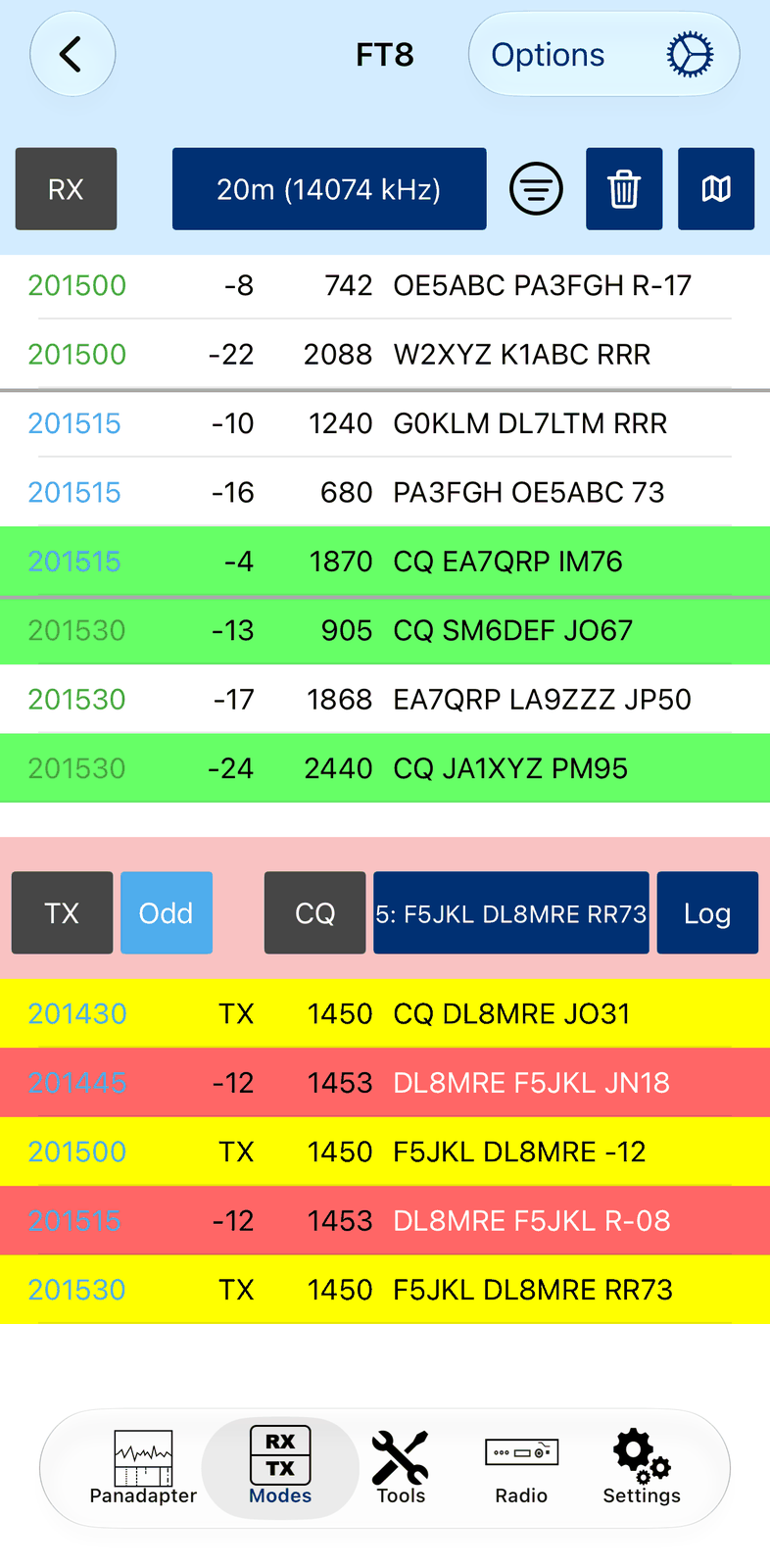
The iPhone has less room, so a few things are in other places:
Options in the navigation bar opens FT8 Options: the mode (FT8 / FT4), Auto Sequence (the Auto button), the audio frequencies RX (Hz), TX = RX and TX (Hz), and the QSO fields His Call (DX:) and His dB (Rep:). Done closes it. That’s why the red bar has no … button and no RX:, TX:, DX: and Rep: fields on the iPhone.
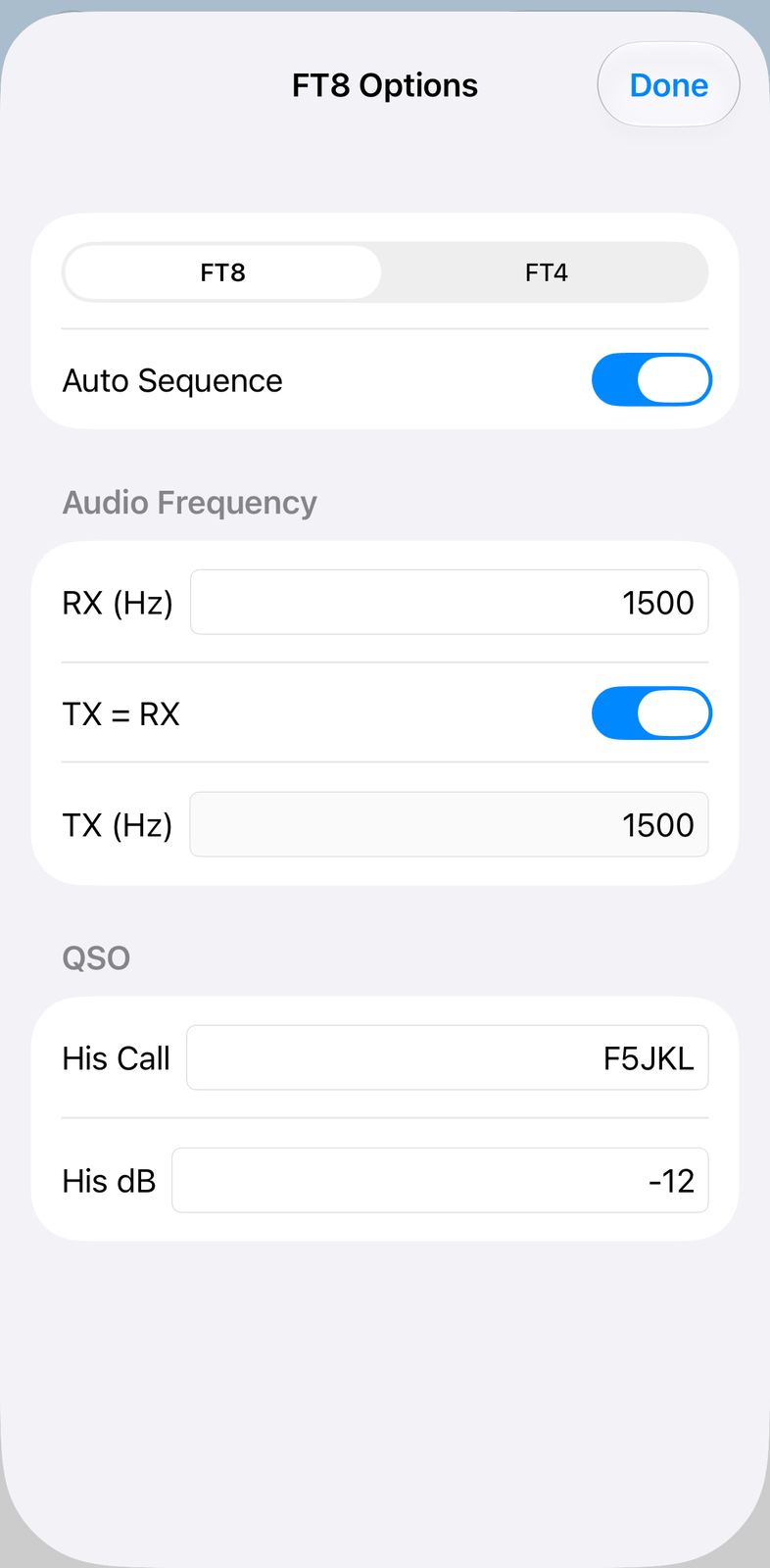
The list has no DT column and no country.
⚙︎ opens the settings as a sheet. Done closes it.
3. FT8-Improved
FT8-Improved lets you work stations in FT8, FT4 and FT2, the modes made popular by WSJT-X. You need no cables, no audio interface and no CAT setup: the app does everything. FT8-Improved needs iOS 26. The older FT8 mode stays available for older devices.
FT8 sends short messages in fixed time slots of 15 seconds. A contact (QSO) is a few messages back and forth: calls, locators and signal reports. The app does most of it for you.
3.1. Quick start
Tap ⚙︎ and check Operator Call-sign and Operator Grid Locator.
Choose the band, for example 20m (14.074 MHz), and the mode FT8.
Tap RX. After 15 seconds the first messages appear.
Double-tap a green row: a station calling CQ.
Wait. The app answers, sends the reports and logs the QSO when it is finished.
3.2. A few FT8 basics
A station (K1CQ) calls CQ. You (DC1ME) answer. You send each other signal reports and finish the QSO:
Other station |
You |
Meaning |
|---|---|---|
|
K1CQ calls CQ from locator EN61. |
|
|
You answer with your locator. |
|
|
K1CQ gives you a report: -11 dB. |
|
|
You confirm (R) and give your report. |
|
|
K1CQ confirms and says goodbye. The QSO is complete. |
Some stations end with RRR and 73 instead of RR73. When you call CQ yourself, it works the same way
with the roles swapped.
CQ DX means the station only wants long-distance contacts, CQ JA only Japan, and so on.
A message takes about 13 seconds. Slots start at second 0 and 30 (even) or 15 and 45 (odd). The two stations of a QSO always send in opposite slots.
To learn more, read Gary Hinson ZL2IFB’s FT8 guide: https://www.g4ifb.com.
3.3. The screen
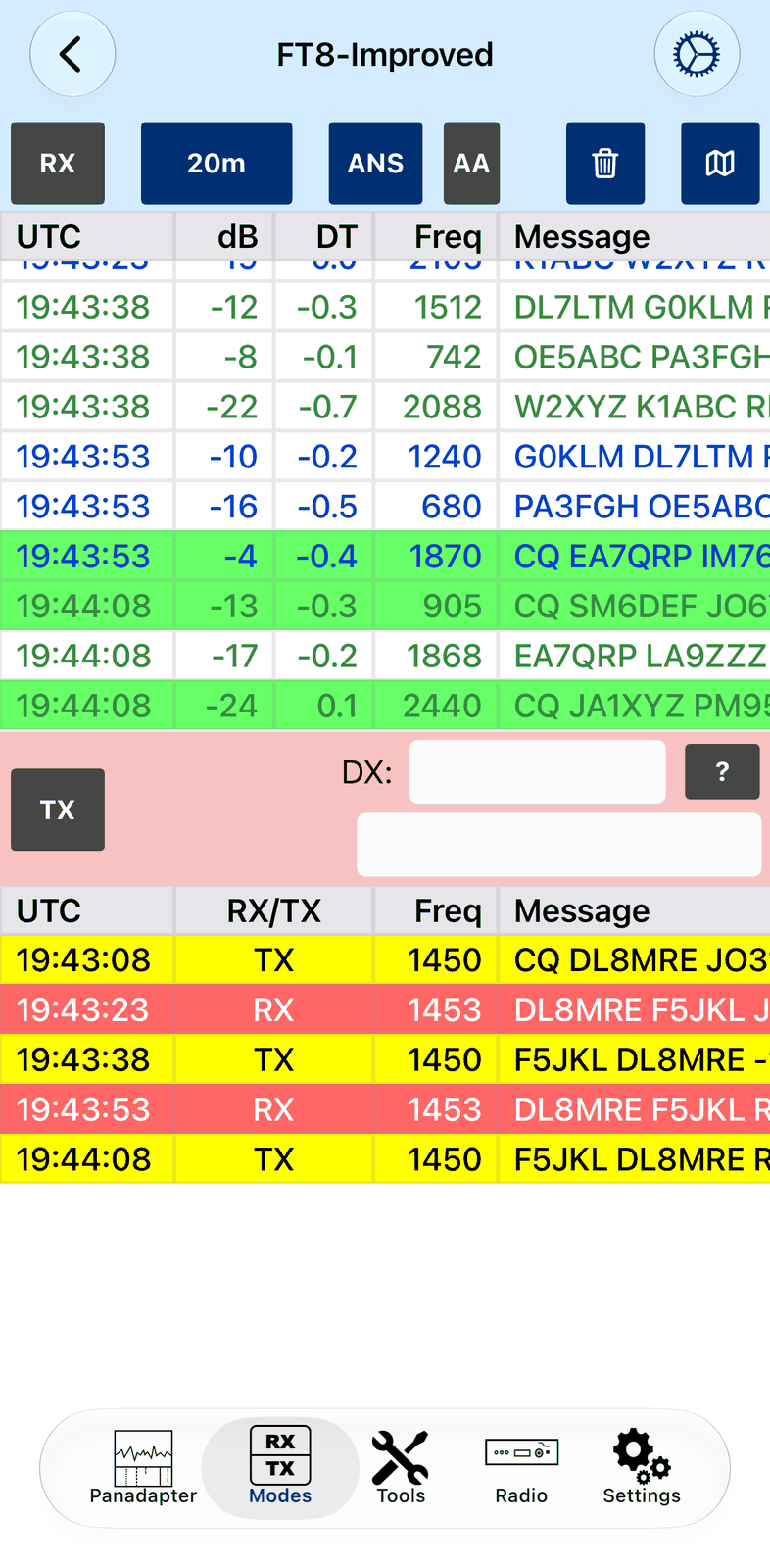
The blue bar with the list of received messages is at the top, the red bar with your QSO below it. Swipe a list sideways to see more columns.
3.3.1. The blue bar
RX starts and stops listening. It also sets the radio’s mode and filter for FT8. Tap it twice to set them again if you changed something by mistake.
20m is the band. Tap it to choose another band. Manual lets you tune to any frequency, for example for a DXpedition.
ANS / CQ chooses whether you answer stations (ANS) or call CQ yourself (CQ).
AA (Auto Answer) / Auto CQ switches automatic operation on and off. See Automatic operation.
The trash can clears the red list and your QSO fields. Double-tap it to clear the blue list too. This also stops Auto Answer and starts again with a clean list.
The map button shows all stations on a map or as a list. See Stations.
The mode (FT8, FT4, FT2), your slot, the frequencies and the filter are in ⚙︎. See Settings.
3.3.2. The list
Green rows are stations calling CQ.
Red rows are messages to you.
Grey rows are stations you have worked before (with Mark Worked Before in ⚙︎).
Tap a row to take over the station’s call, report, frequency and slot. Double-tap a row to start the QSO right away. A double-tap also sets ANS or CQ for you.
3.3.3. The red bar
TX sends in the next slot. Blue: waiting to send. Red: sending. Grey: listening only.
DX is the station you work. During a QSO it reads QSO with. ? looks up the call.
Below DX is the message you send next. The app chooses it for you.
Below the red bar you see your QSO: your messages in yellow (TX), messages to you in red, and other messages on your frequency. Tap or double-tap a row there to work a station that called you while you were busy.
3.4. Automatic operation
With AA / Auto CQ off, you choose the station: tap a row, then TX. The app finishes the QSO and logs it.
With AA (Auto Answer) on, the app picks a station calling CQ and answers it. With Auto CQ on, the app calls CQ and works everyone who answers. After each QSO it starts the next one. If a station does not answer, it moves on.
A running QSO is never interrupted. Stations who call meanwhile stay in the red list.
Auto Answer never answers the same station twice in a session. Use the filter Hide Worked Before to skip stations from earlier sessions too.
3.5. Stations
The map button shows everyone you hear on a map:
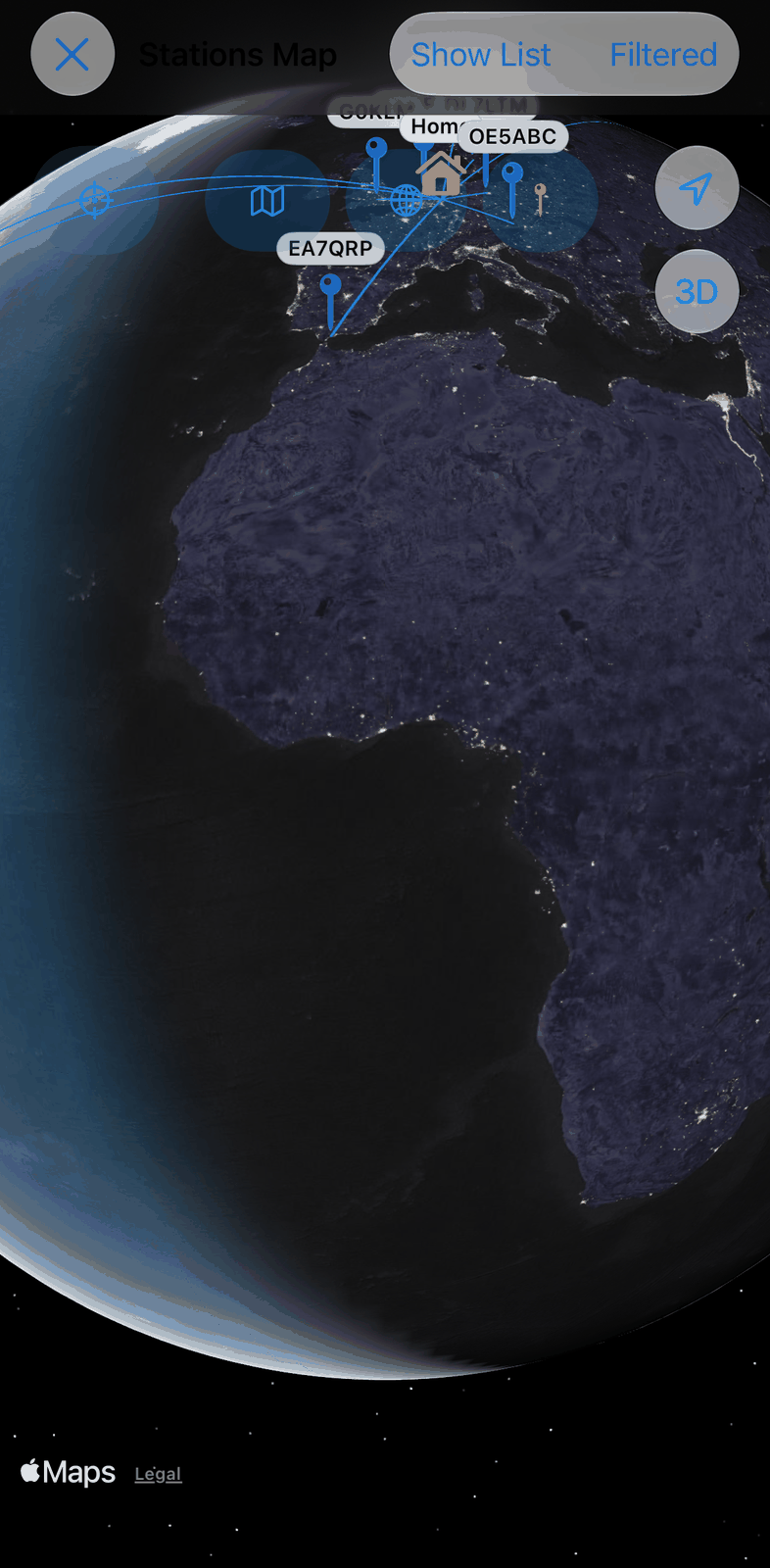
A red line shows the QSO you are in.
The pin button chooses what you are looking for: stations not in your log, new grids, new countries (DXCC), states or zones. Matching stations get red pins.
Tap a pin to work that station (with Auto Answer and Auto CQ off).
Filtered applies your filter to the map. Without it you see all band activity.
Show List shows the same stations as a list:
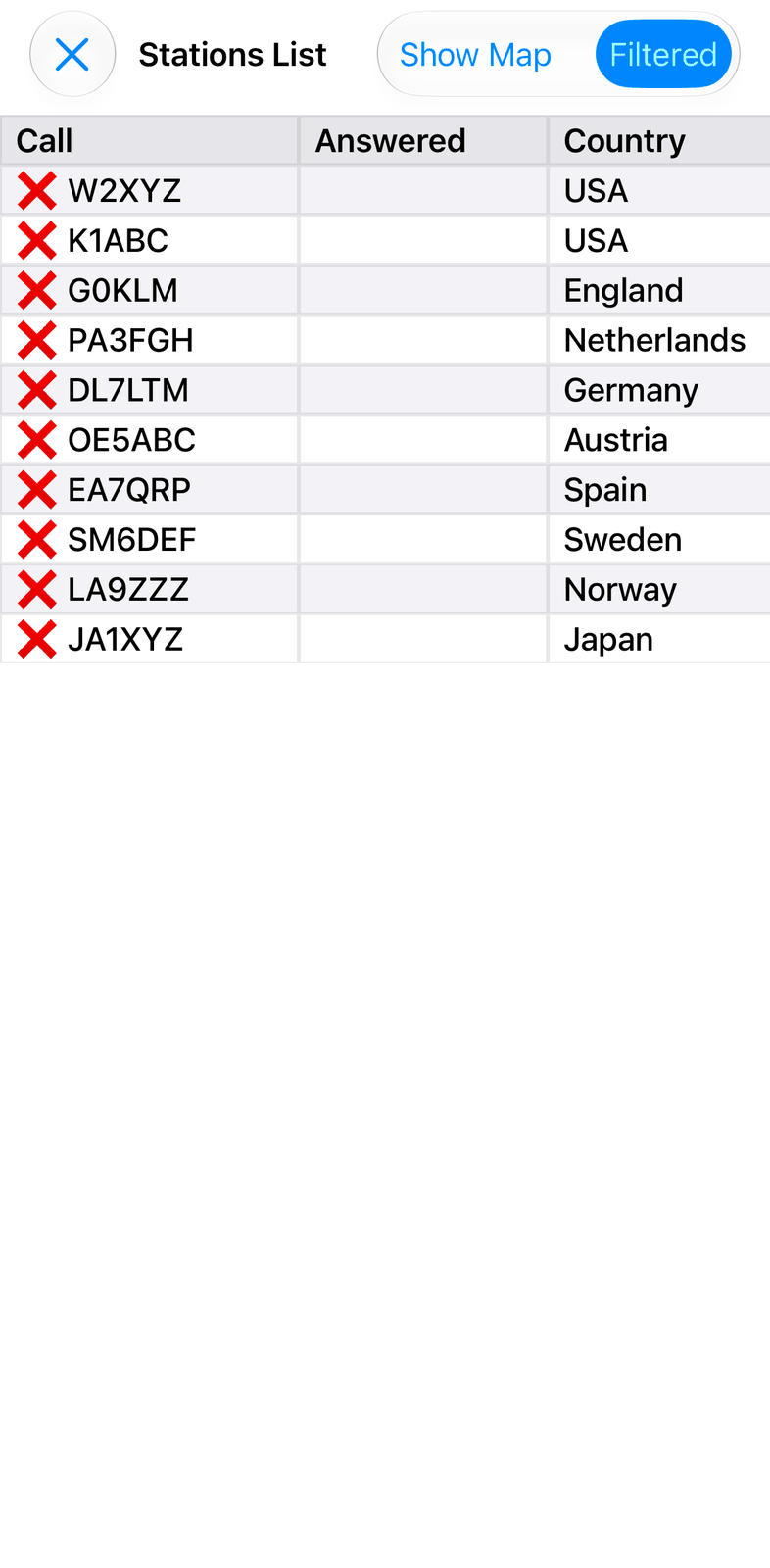
A red ✕ means “not in your log yet”: the call, the grid, the country (DXCC), the state or the zone. Answered marks stations that called you during your last QSO. If such a station still has a red ✕, you may want to call it back.
✕ at the top left closes the map or list.
3.6. Filter
Filter at the top of ⚙︎ opens the filter. It shows fewer rows in the blue list:
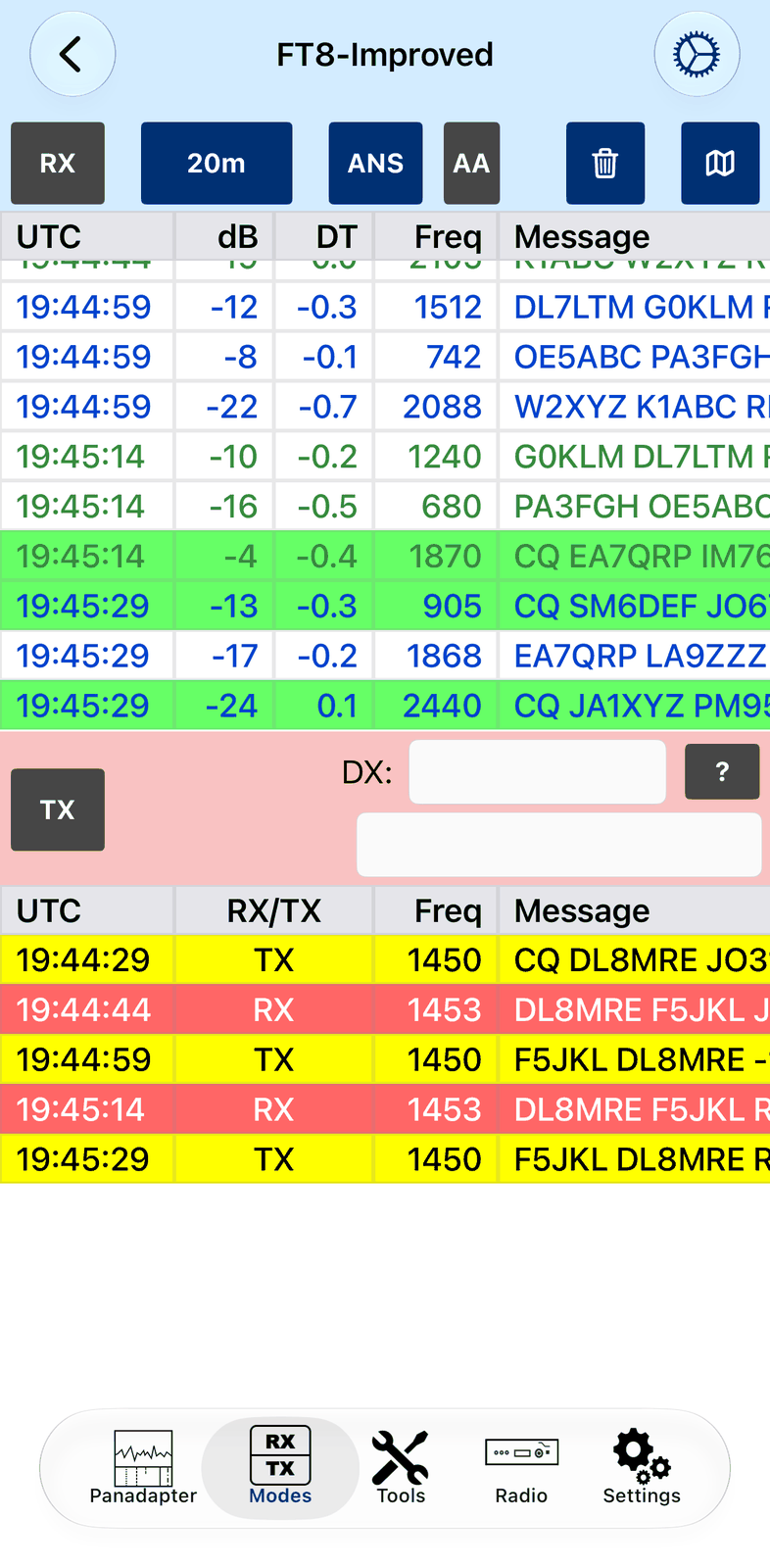
Switch the filter on with Filter Enabled. The list changes at once, so just try the options: Only Show CQ, Hide Duplicate lines, Hide Worked Before, text to show or hide, and calls, continents, zones or countries.
Only Show CQ and Only Show Containing only change the receive list: Auto CQ still answers a station that replies to your CQ. The other filters also apply to answering: a station from a hidden country is never answered automatically. A station with an alert is shown and answered whatever the filter says.
3.7. Settings
Tap ⚙︎ for the FT8 settings. On the iPhone they start with Filter, Mode and Frequencies (Hz):
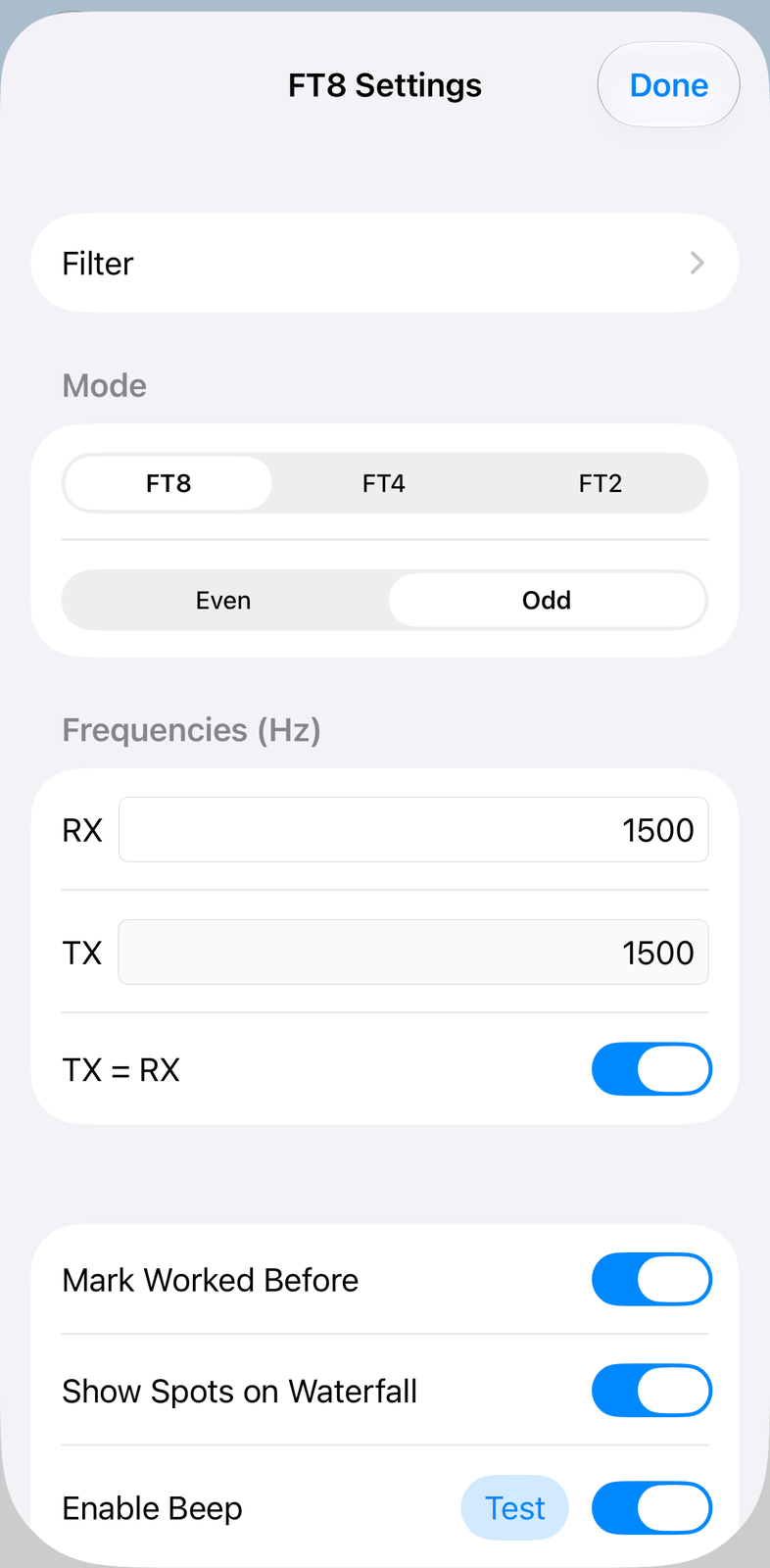
Filter — opens the filter, see Filter.
Mode — FT8, FT4 or FT2, and TX Slot: Even or Odd. Set for you when you tap a station; you only need it when you call CQ.
Frequencies (Hz) — your RX and TX audio frequencies. With TX = RX on, TX follows RX. Keep it on when you answer stations, switch it off when you call CQ.
Mark Worked Before — shows stations you have worked before in grey.
Show Spots on Waterfall — shows the stations on the waterfall.
Enable Beep — a beep when a station calls you and the QSO starts. Test plays it.
Auto Sequence — the app answers messages to you by itself and carries the QSO on. Off: you tap each step.
Reply with 73 on RR73 — sends a 73 after the other station’s RR73. Not needed,
RR73already ends the QSO.Max TX Retries / Max Auto Answer Retries — how often the app calls before it gives up and moves on.
Lead (ms) — leave it at 0. Your device’s clock is set automatically. Only for special cases such as satellites. Keep it between -500 and +1200 ms.
Include grid in CQ — sends your locator with CQ.
CQ Modifier (optional) — adds for example
POTA,DXorTESTto your CQ. The preview shows your CQ.Individual Message (Message 9, Answer mode) — your own short text, the last message you can choose in a QSO.
Operator Call-sign / Operator Grid Locator — your call and locator.
3.8. Good to know
FT2 is faster than FT8, but needs stronger signals and good timing. It has no odd or even slots, so DT means little there. FT2 always ends with a 73.
FT4 and FT2 are less used than FT8. Most QSOs happen in FT8.
The dB value shows how well a message was decoded. It is not the same as in other FT8 programs.
DXpeditions (Fox and Hound): choose Manual as band, switch TX = RX off, and listen on the DXpedition’s frequency. Send on the frequency they ask for. Multi-answer messages may not be logged automatically; then log the QSO yourself.
QSOs are logged automatically when they are complete. There is no separate Log button.
FT8 keeps running when you switch to another tab. Only RX stops it.
4. JS8
JS8 lets you chat with other stations by typing, like text messages over the radio. It works with very weak signals, where you could not hear a voice or CW any more.
JS8 sends in fixed time slots. At the normal speed a slot is 15 seconds long. Everything heard in a slot appears in the list at the end of that slot. Your own text goes out at the start of the next slot. A longer text needs several slots, so it arrives piece by piece.
4.1. Quick start
Tap ⚙︎ and enter your Operator Call-sign and Operator Grid Locator.
Tap RX. The app starts listening. The first messages appear after one or two slots.
Watch the list. Red rows are meant for you, green rows are CQ calls.
Tap a row to answer that station. The app moves your transmit frequency (TX) to the station and puts its call in To.
Type your text in Message to send and tap Send. It goes out at the start of the next slot.
4.2. The screen
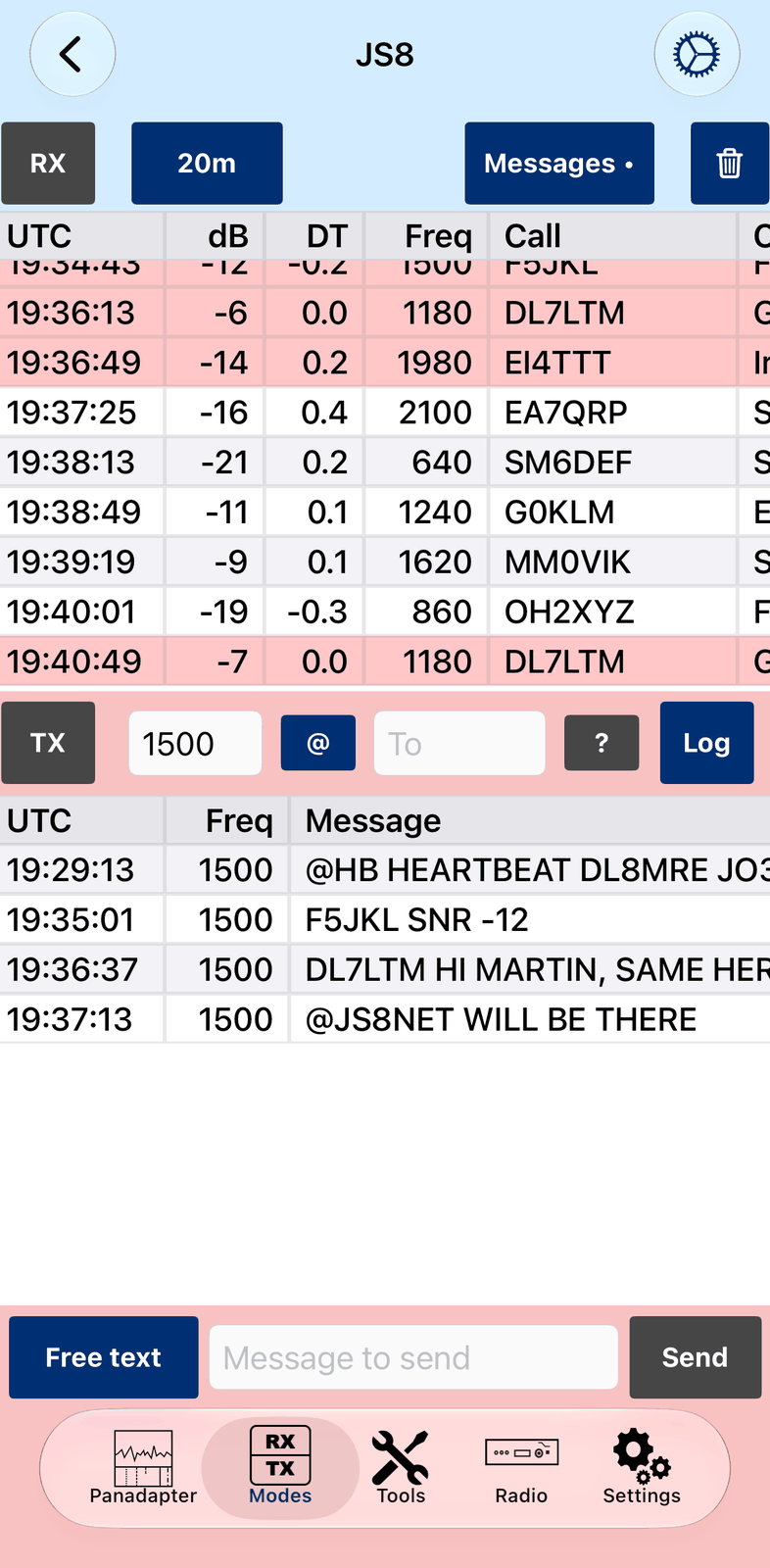
The screen has three parts: the blue bar with the list of messages, the red bar with what you have sent, and the row for your message at the bottom. Swipe a list sideways to see more columns.
4.2.1. The blue bar
RX starts and stops listening. JS8 keeps listening when you switch to another tab.
20m shows the band. Tap it to choose another band. The radio tunes to the JS8 frequency of that band. The lists are cleared, your chats are kept.
Messages switches the list between Messages, Activity and Chats. A dot means there is an unread chat.
A funnel appears when a filter is on. See Filter.
The trash can clears the lists. Tap it twice to also clear the sent list and To.
The speed and the filter are in ⚙︎ under Receive. See Settings.
4.2.2. The red bar
TX sends a heartbeat when nothing is waiting. While a message is waiting or being sent, TX stops it. A red frame around TX means the app may send on its own (automatic replies or heartbeats are on).
The number next to TX is your audio frequency in Hz. You listen and send on the same frequency. Tap a row in the list to move it to that station.
@ chooses a group, for example
@HBor@JS8NET.To is the station or group you write to. Leave it empty to write to everyone.
? looks up the call in To.
Log opens the logbook, already filled in for the station in To.
Below the red bar you see what you have sent. A row ends with … while parts of it
are still waiting.
4.2.3. The bottom row
Free text chooses what you send: normal text, CQ or a JS8 command. See Sending.
Type your text in Message to send and tap Send.
4.3. Messages, Activity and Chats
Messages in the blue bar switches between three lists.
4.3.1. Messages
Everything the app has heard, with time (UTC), signal (dB), time difference (DT), audio frequency (Freq), Call, Country and Message.
Green rows are CQ calls.
Red rows are meant for you: sent to your call or to one of your groups, or your call is in the text.
Tap a row to answer: your TX frequency moves to that station, its call goes into To, and the logbook entry is started.
A long message needs several slots. Its row grows while the parts come in, and ends with …
until the message is complete.
4.3.2. Activity
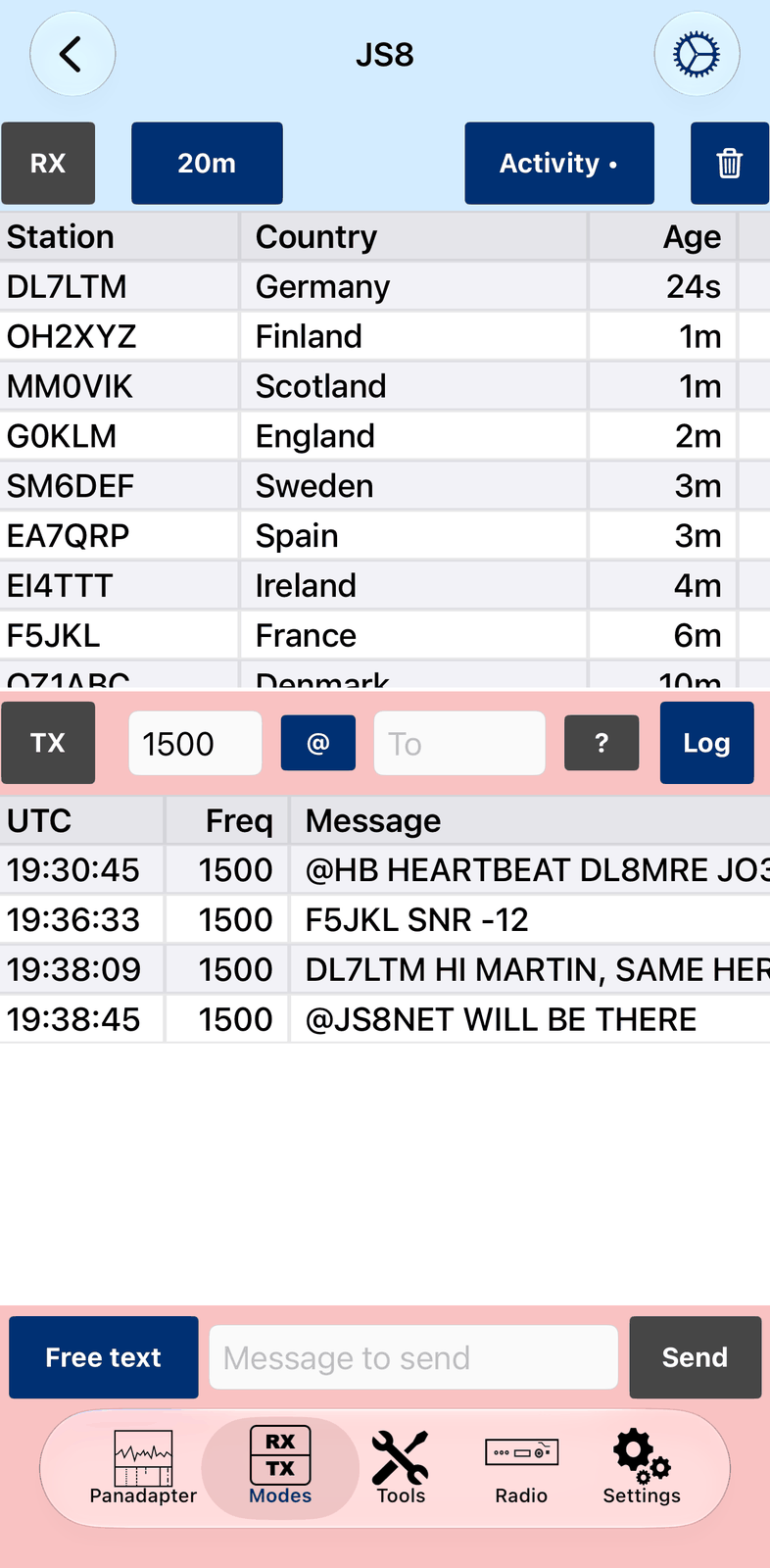
One row per station. Age shows when you heard the station last, Frames how much you heard from it. Stations you heard often and recently are the ones you can work. A station is removed after one hour of silence. Tap a row to answer, as in Messages.
4.3.3. Chats
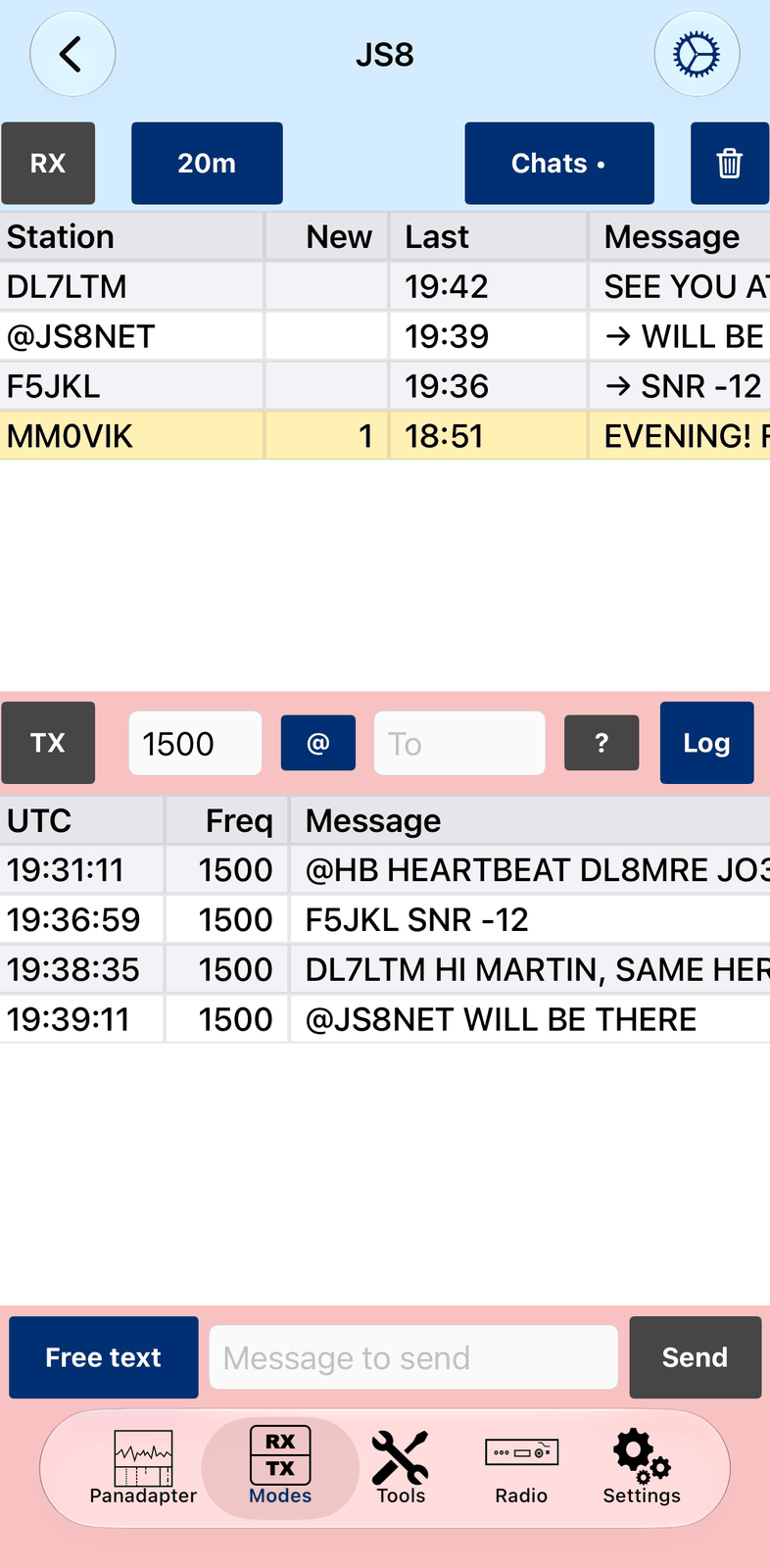
Your conversations, one row per station or group, the newest first.
New shows how many messages you have not read yet. Such rows are yellow.
→in front of a message means you sent it.A dot on the Chats button means there is something new.
Tap a row to open the conversation:
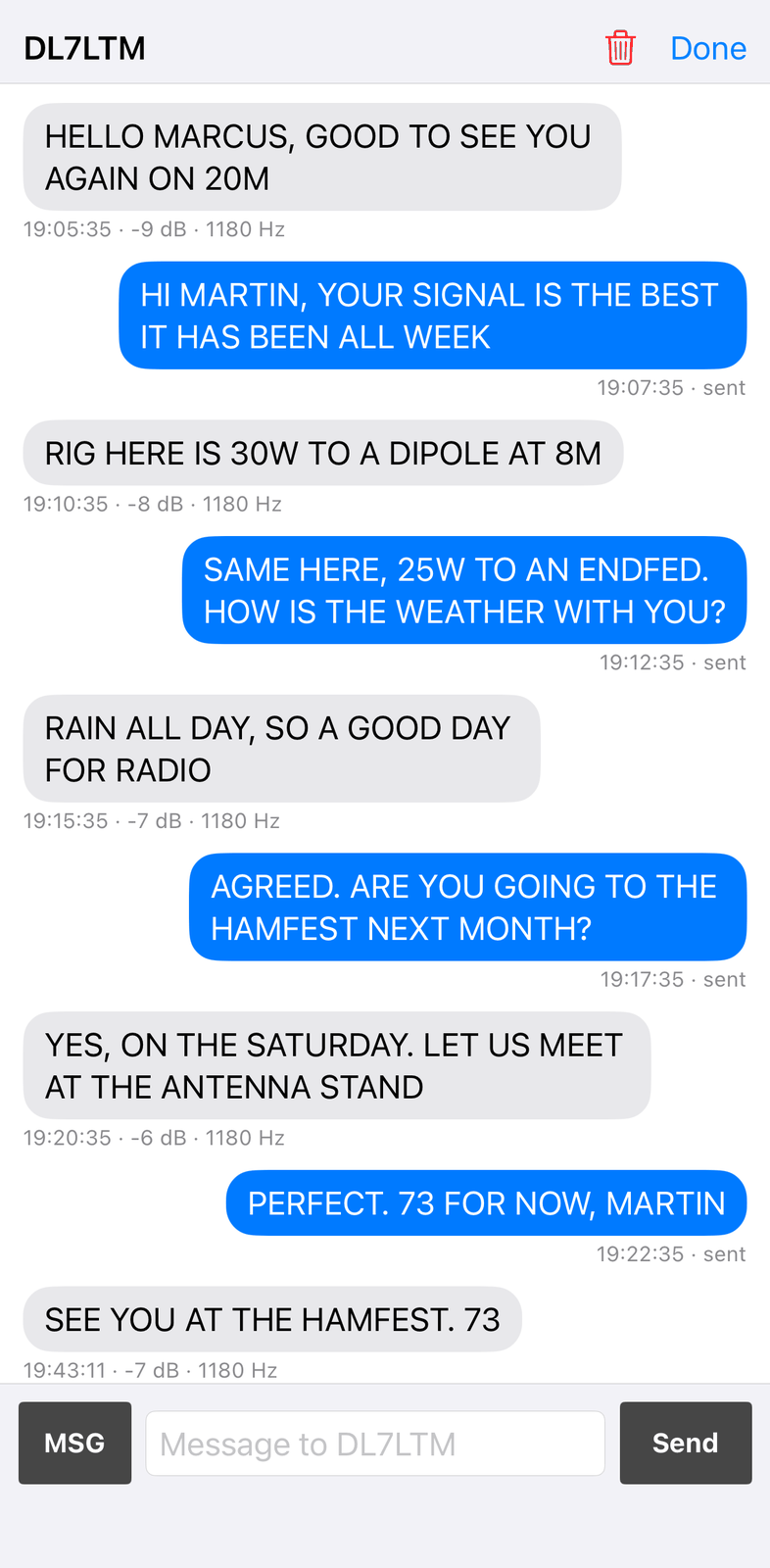
Your messages are on the right, the other station’s on the left.
Under each message: the time, and for received messages the signal and the audio frequency.
A message that is still coming in shows
receiving….incompletemeans its end never arrived.Type in Message to … and tap Send to write to this station.
MSG leaves your text as a stored message at that station, for someone else to pick up later.
The trash can deletes the whole conversation, after you confirm it.
Done closes the conversation.
Conversations are kept on your device, also after a band change or a restart. Heartbeats and CQ calls are not kept as conversations.
4.4. Sending
Type your text in Message to send and tap Send (or press Return).
With To empty, everyone can read your text.
With a call or a group in To, your text is addressed to that station or group.
A long text is split into parts automatically. Each part needs one slot.
Free text sends what you type. Tap Free text to choose a JS8 command instead. Every JS8 station understands these commands, and many answer them automatically:
Command |
What it does |
|---|---|
CQ |
Calls CQ. |
SNR? / SNR |
Asks how you are heard / gives the station its report, for example |
GRID? / GRID |
Asks for the locator / sends yours (from ⚙︎, or type another one). |
STATUS? / INFO? |
Asks for the station’s status or info line. |
INFO |
Sends your info line (from ⚙︎, or type another one). |
HEARING? |
Asks which stations the station hears. |
MSG / MSG TO: |
Leaves a message at the station for someone else. With MSG TO: type the call first. |
QUERY MSGS / QUERY |
Asks if a message is waiting for you / picks it up by its number, for example |
QSL? / QSL / RR |
Asks for or gives a confirmation. |
FB, HW CPY?, AGN? |
“Fine business”, “How do you copy?”, “Please send again”. |
YES / NO |
Answers a question. |
73, SK, DIT DIT |
Ends the contact. |
After Send the list goes back to Free text.
4.5. Heartbeat, CQ and automatic replies
TX sends a heartbeat when nothing is waiting: your call and locator in one slot. It shows others that you are on the air. Stations that hear you may answer with your signal report.
CQ in the Free text list asks for a contact.
With Automatic Replies on (in ⚙︎), the app answers questions to you by itself:
SNR?, GRID?, STATUS?, INFO?, HEARING?, AGN? and QUERY MSGS.
Questions to everybody (@ALLCALL) are never answered.
Note
With automatic replies or the automatic heartbeat on, your station can transmit on its own. TX has a red frame then. Set Idle Timeout in ⚙︎: when you do nothing for that time, the app switches these off by itself.
4.6. Filter
Filter in ⚙︎ under Receive shows only some rows in Messages and Activity. Nothing is lost: the app still receives everything and keeps your conversations. The Chats list is not filtered.
Separate the terms with commas. Upper and lower case don’t matter. Examples:
DL*— only calls that start with DL (*stands for any text)-MM0VIK— everything except MM0VIKDL*, G*, -G0KLM— German and British stations, but not G0KLM
The filter is kept until you clear it. A funnel in the blue bar shows that a filter is on.
4.7. Speeds
JS8 has five speeds. Set it with Mode in ⚙︎ under Receive. Both stations must use the same one. Normal is used most, so start there. Slower speeds work with weaker signals, faster speeds need stronger signals.
Speed |
Slot |
Width |
Down to |
Good for |
|---|---|---|---|---|
Slow |
30 s |
25 Hz |
−28 dB |
very weak signals, low power |
Normal |
15 s |
50 Hz |
−24 dB |
everyday use |
Fast |
10 s |
80 Hz |
−22 dB |
good signals, quicker chats |
JS8 40 |
6 s |
160 Hz |
−20 dB |
strong signals |
JS8 60 |
4 s |
250 Hz |
−18 dB |
very strong signals, almost live chat |
4.8. Settings
Tap ⚙︎ to open the JS8 settings.
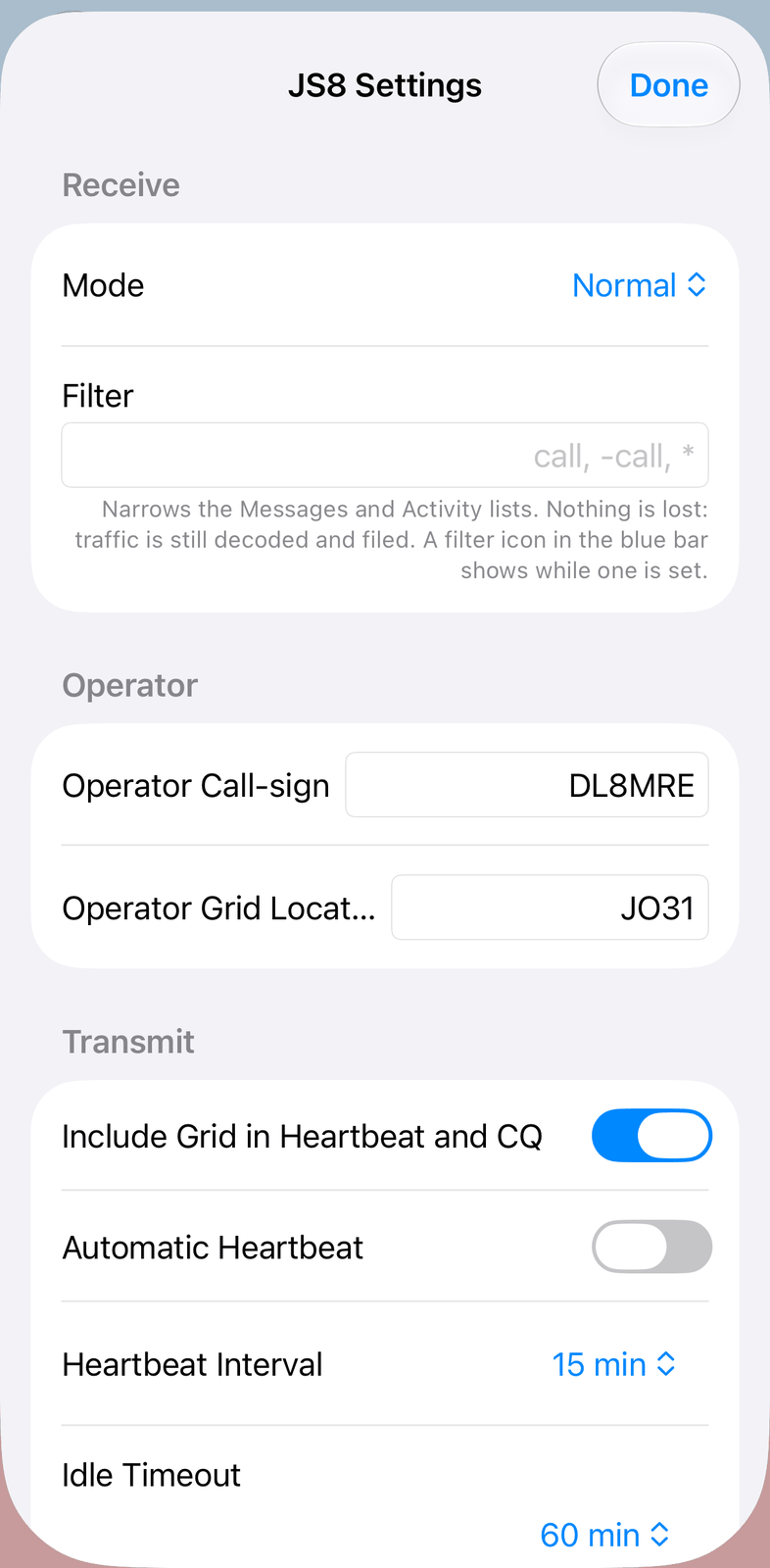
4.8.1. Receive
4.8.2. Operator
Operator Call-sign — your call. Without it you cannot send.
Operator Grid Locator — your locator. The first four characters are sent.
4.8.3. Transmit
Include Grid in Heartbeat and CQ — sends your locator with heartbeats and CQ calls.
Automatic Heartbeat — sends a heartbeat regularly, by itself.
Heartbeat Interval — the time between automatic heartbeats.
Idle Timeout — after this time without any action from you, automatic replies and automatic heartbeats switch off. Off keeps them on.
4.8.4. Groups
My Groups — your groups, for example
@JS8NET. Messages to them are shown as meant for you.@ALLCALLalways reaches you.Automatic Replies — answers questions to you by itself (see above).
Acknowledge Messages — sends
ACKwhen someone leaves a message for you.Acknowledge Heartbeats — answers heartbeats with the signal report. Needs Automatic Replies.
Status — your answer to STATUS?. Empty: no answer.
Info — your answer to INFO?, for example radio, power and antenna.
4.8.5. Conversations
Keep History — how long your conversations are kept.
4.8.6. Waterfall
Show Spots on Waterfall — shows the stations you heard on the waterfall.
4.8.7. Decoder
Lead (ms) — corrects a clock that is early or late. Take the DT other stations report, multiply by 1000 and change the sign: a DT of
+0.2becomes-200.
4.9. Good to know
JS8 keeps listening and sending when you switch to another tab. Only RX stops it.
The first slot after RX is not decoded, because it is not complete.
A band change clears Messages and Activity. Your Chats are kept.
The trash can never deletes a conversation and never stops a message that is already waiting.
[…]in a message: a part of it was not received.[?]: a part arrived, but its text was broken. Ask the station to send again (AGN?).DT should be close to 0. If it is not, check the time on your device, or use Lead (ms).
Stations you hear are reported to PSK Reporter when PSK Reporter is on in the app’s settings.
5. Speech
Speech turns what you hear into text on the screen, and can translate it into your language. It also works the other way round: you type, and the app speaks your text over the air. Speech needs iOS 26.
Everything runs on your device with Apple’s speech and translation models. A language is downloaded the first time you use it, then it works without internet.
5.1. Quick start
Tune to a voice signal (SSB or FM) and tap RX.
Choose the language spoken on the air in Language, for example en-US. The text appears.
To read it in your own language, choose it in Translate.
To answer, type a sentence in the bottom line and tap Add. Tap TX, then Send.
5.2. The screen
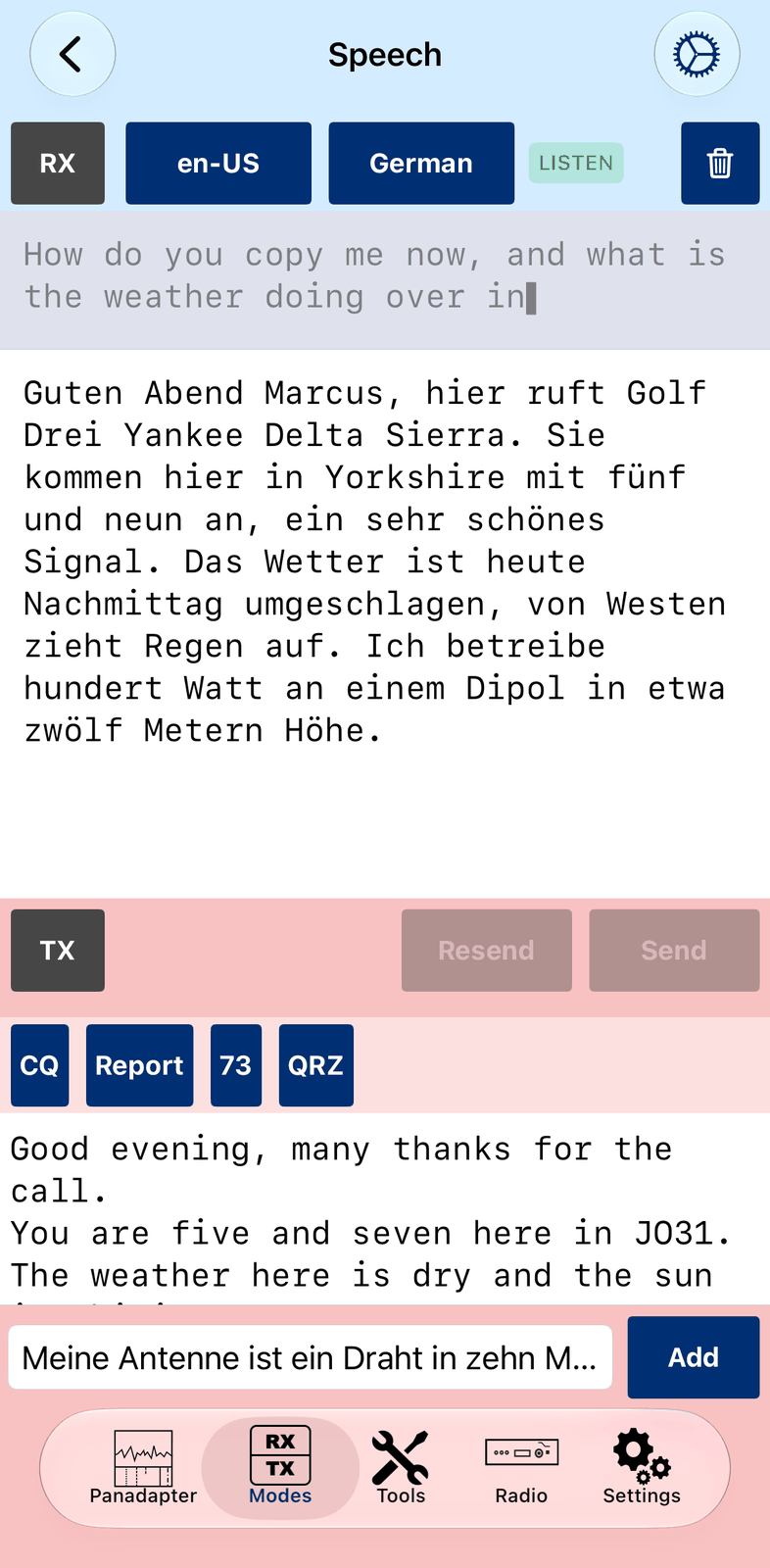
The blue bar with the received text is at the top. Below it the red bar, your macros, the text to send, and the line where you type.
5.2.1. The blue bar
RX starts and stops listening.
en-US (Language) is the language spoken on the air.
German (Translate) is the language you want to read. None shows the text as it was heard. A language marked
(download)is downloaded the first time you use it.The status shows what Speech is doing:
IDLE— RX is off.PREP— getting ready for the language.DLand a percentage — the language is being downloaded (only once).LISTEN— listening and writing.N/A— this language is not available on your device.ERR— something went wrong.
A red line under the bar tells you why.
The trash can clears the received text. Tap it twice to clear the text to send too.
5.2.2. The received text
The grey part at the top is what Speech hears right now. It may still change. When a sentence is finished, it moves down into the white part, translated if Translate is set.
Note
Speech knows everyday language, not radio language. Calls come out as words, CQ as
seek you, 73 as a number, and the phonetic alphabet as names. Plain sentences work well.
5.2.3. The red bar
TX allows Speech to send. Its frame is red then. Nothing goes out until you tap Send. While Speech sends, the whole button is red: tap it to stop.
Resend sends your last text again, for example when the other station asks you to repeat.
Send speaks the text to send and sends it. It needs TX on.
The voice is chosen in ⚙︎, see Settings.
Below the red bar are your Speech macros, for example CQ or 73. Tap one to send it. You set them up in the Speech Macros tool. Macros are never translated: write them in the language on the air.
5.3. Sending
The white area below the macros holds the text to send. You can change it like any text: correct a word, delete a line, or type straight into it. After sending it is emptied.
Type a sentence in the bottom line and tap Add (or press Return). It moves up into the text to send. With Translate set, you type in your own language: Add translates the sentence into the language on the air.
Return in the bottom line does the next step:
a sentence typed: adds it,
the line empty: sends the text,
both empty: sends the last text again.
Tap Add twice to add a sentence and send it at once.
5.3.1. Writing for the other station
The voice reads punctuation, so how you write changes what is heard:
Put commas between spelled letters:
Delta, Bravo, 6. Without them the letters run together.End a sentence with a full stop. The voice then goes down at the end, as a speaker does.
Write short sentences, one per line. Add does this for you, and Speech pauses between the lines.
Note
With Translate on, check the text before you send it. A translator does not know names:
the town Essen went out in English as food.
5.4. Settings
Tap ⚙︎ for the Speech settings. Done closes them.
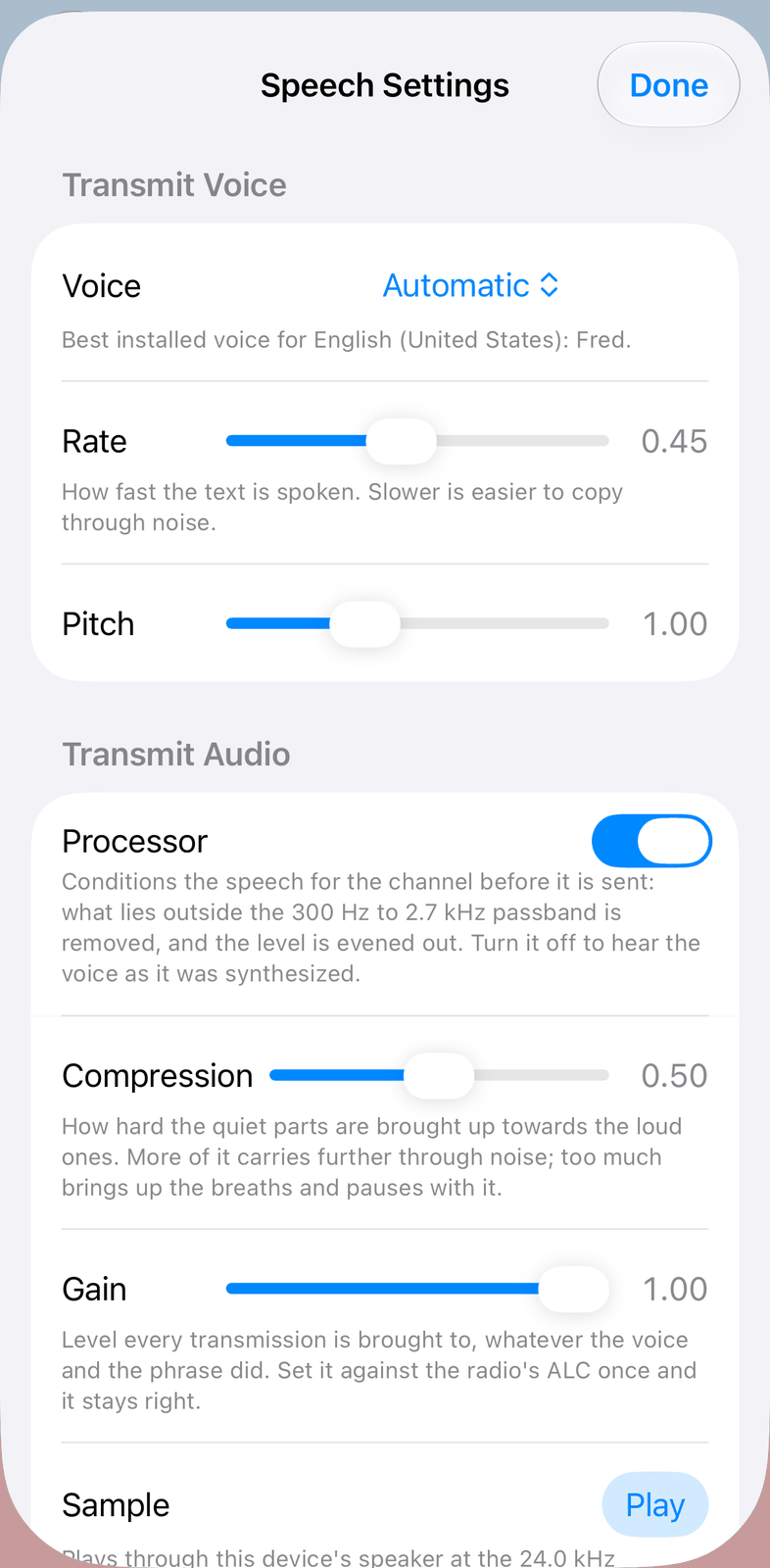
5.4.1. Transmit Voice
Voice — the voice that speaks your text. Automatic picks the best voice installed for Language; the line below shows which one. Use Play further down to hear it.
Rate — how fast the voice speaks. Slower is easier to understand through noise.
Pitch — how high the voice is.
Only installed voices are listed. You add more in the iOS Settings app under Accessibility →
Spoken Content → Voices. A Premium or Enhanced voice sounds much better on the air.
5.4.2. Transmit Audio
Processor — prepares the voice for the radio, like a radio’s speech processor: it keeps only 300 Hz to 2.7 kHz and makes quiet parts louder. Leave it on.
Compression — how much quiet parts are brought up. More carries further through noise; too much makes breaths and pauses loud too.
Gain — the level sent to the radio. Set it once with Send Test while you watch the radio’s ALC.
Play (Sample) — plays a sample on your device, as it will sound on the air. Nothing is sent.
Sentence pause (ms) — a pause between the lines of your text, so the other station hears where a sentence ends.
Lead (ms) / Tail (ms) — silence before and after your text, so the first and the last word are not cut off.
Send Test — sends a short test with your call. It needs TX on.
5.5. Good to know
Speech keeps listening when you switch to another tab. Only RX stops it.
Sending works with RX off too.
FM works best. On SSB tune exactly, especially for weak signals. A lower Rate helps in both.
iOS keeps only a few languages ready at the same time. Speech handles this for you: languages you have not used for a while are released and come back when you choose them again.
6. CW
CW lets you read Morse code on the screen and send it by typing. The app decodes what you hear and keys the radio’s own keyer with your text.
6.1. Quick start
Tune to a CW signal and tap RX. The decoded text appears in the white area.
Tap a call in the text, for example
OH2XYZ. It goes into DX.Type your text in Text to send and tap Send, or tap one of your macros, for example Answer.
When the QSO is done, tap Log.
6.2. The screen
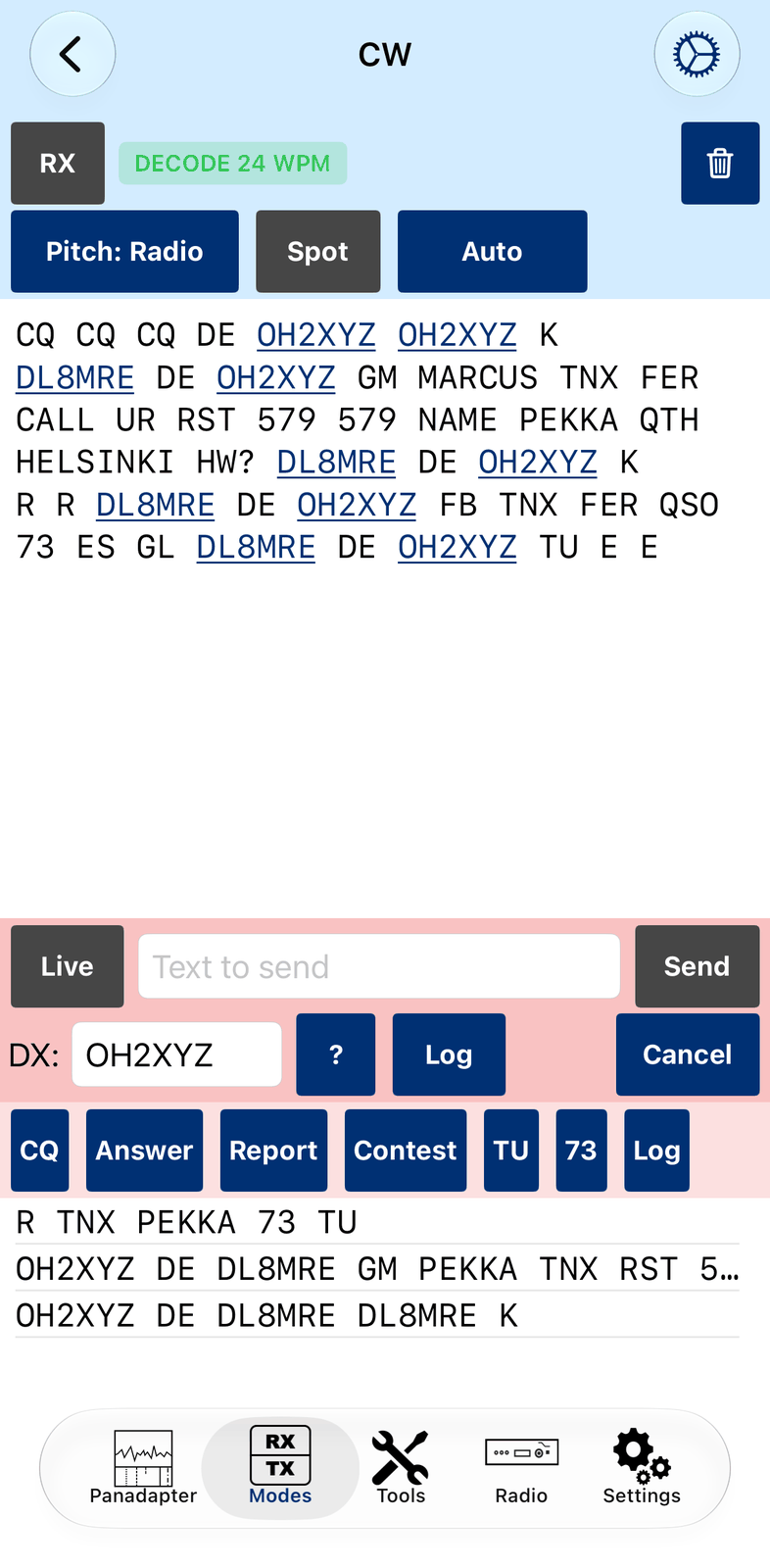
The blue bar with the received text is at the top, the red bar with what you send below it. The blue and the red bar take two rows each.
6.2.1. The blue bar
RX starts and stops the decoder.
Pitch: Radio is the tone the decoder listens for. Radio follows the radio’s CW pitch. Tap it to choose a fixed pitch from 300 to 1000 Hz instead.
Spot plays a tone at the decoder’s pitch on your device, never over the air. Tune the radio until the station sounds like this tone (zero beat). The tone stops after 10 seconds.
Auto is the speed the decoder expects. Auto finds the speed by itself. If you know the station’s speed, choose it (5 to 50 WPM): the first letters are then read right too.
DECODE 24 WPM shows that the decoder reads CW, and the speed it found. IDLE means nothing is decoded.
The trash can clears the received text. Tap it twice to clear your sent lines too.
6.2.2. The received text
Every word that looks like a call is underlined. Tap it to put it into DX.
The decoder needs a few letters to find the speed, so the first letters of a signal may be missing or wrong. A letter the decoder is not sure about is left out.
6.2.3. The red bar
Live sends every letter as you type it. See Sending.
Text to send is where you type.
Send sends the text. It is not there with Live on.
DX is the station you work. Tap a call in the received text, or type it.
? looks up the call in DX.
Log opens the logbook, already filled in for the call in DX.
Cancel stops sending at once.
Below the red bar are your CW macros, for example CQ, Answer and 73. Tap one to send it.
You set them up in the CW Macros tool. Placeholders like {CALL} are filled in for you.
Below the macros you see what you have sent, the newest line on top.
6.3. Sending
With Live off, you send line by line: type the text and tap Send or press Return. The line appears in the sent list.
To send a prosign, put ^ in front of it, for example ^BK or ^SK: the letters are sent as one sign,
without a gap. This works with Live off only.
With Live on, every letter is sent as you type it. You cannot take a letter back once it is typed. A space is added by itself when you pause (CW Autospace in ⚙︎).
6.3.1. The sent list
Text the radio has not keyed yet is grey. It turns black letter by letter, at the radio’s speed. The radio does not report what it keys, so this is an estimate.
Tap a line to send it again.
Cancel stops sending. The rest of the line stays grey: it was not sent.
6.4. ESM (Enter Sends Message)
ESM is for contests and fast QSOs, like in N1MM. Switch it on in ⚙︎ under ESM. It works with Live off.
With ESM on, Return (or Send) with an empty text field sends the next step of the QSO:
No call in DX: the CQ text.
A call in DX: the Exchange text.
Then the TU text. DX is cleared for the next QSO. The default TU text also logs the QSO.
Send shows what comes next: CQ, Exch or TU.
The texts can use the macro placeholders, for example {MYCALL} (your call), {CALL} (the call in DX),
{NR} (your report or contest number) and {LOG} (logs the QSO). The defaults are CQ TEST {MYCALL},
{CALL} 5NN {NR} and TU {MYCALL}{LOG}.
6.5. Keyer settings
Tap ⚙︎ for the keyer settings. They are the radio’s own settings, so they differ from radio to radio. Done closes them.
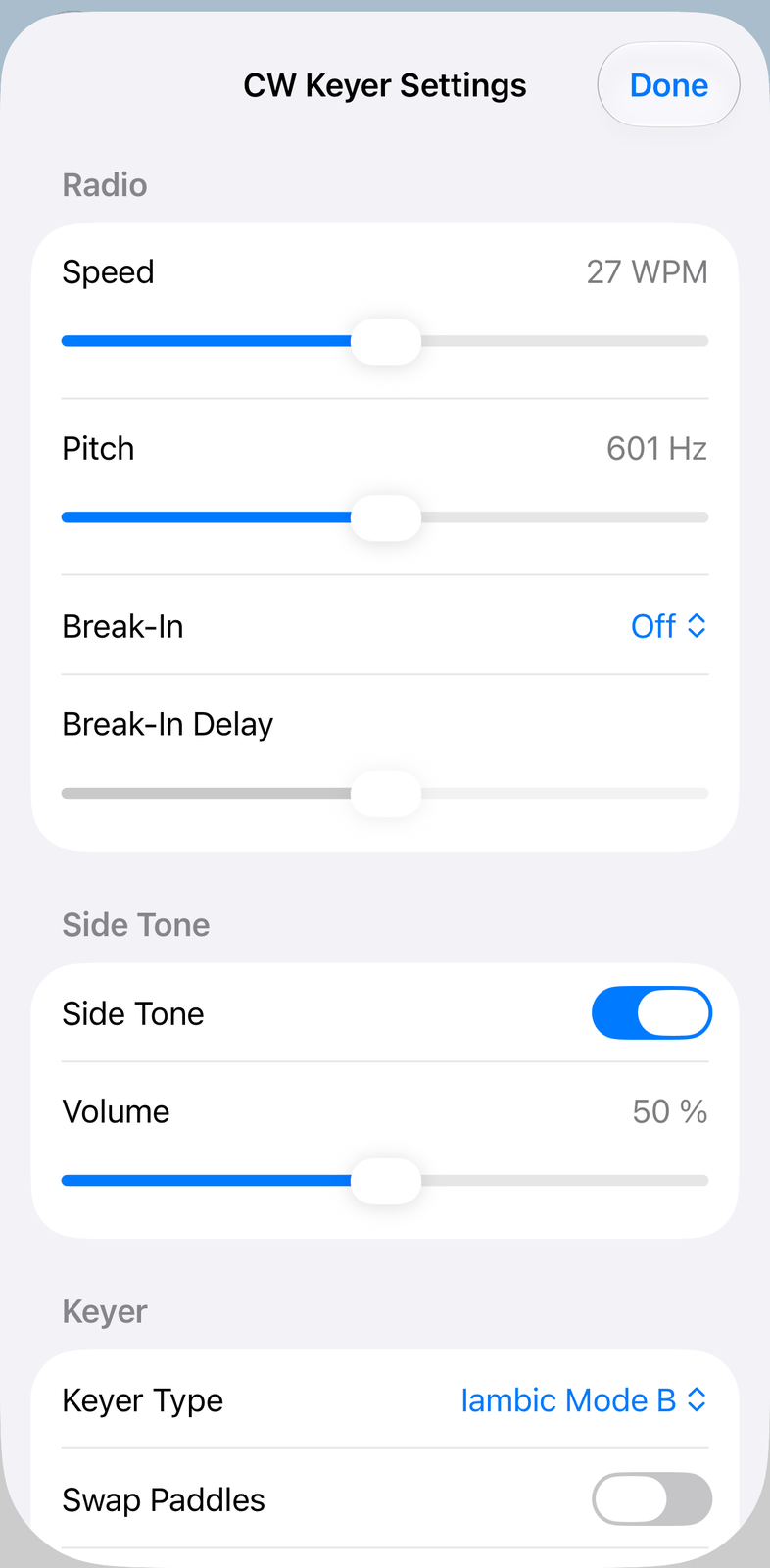
Speed — the keyer speed in WPM.
Pitch — the CW tone in Hz.
Break-In — Off, Semi (back to receive between words) or Full (you hear between the letters). Break-In Delay sets how long the radio waits with Semi.
Side Tone / Volume — the app’s side tone on your device, so you hear what you send.
Keyer Type and Swap Paddles — for the app’s Paddle keyboard.
Show Keyer Characters — shows what you send in the received text too.
CW Keyboard — the keyboard for Text to send: the normal iOS keyboard, a CW keyboard with the letters and signs used in CW (QWERTY or QWERTZ), or Paddle buttons to key by hand.
CW Autospace / Autospace Delay — adds a space when you pause in Live, after this time.
ESM — see ESM (Enter Sends Message).
6.6. Good to know
CW keeps decoding when you switch to another tab. Only RX stops it.
The decoder reads one signal at the pitch. Use a narrow CW filter on the radio when the band is busy.
The decoder is a little behind the signal, about half a second at normal speeds and up to two seconds when the speed changes or is slow.
Spot only plays on your device. It never goes over the air.
7. HF-Fax
HF-Fax receives weather charts that weather services send on shortwave, for example the German weather service (DWD) or the UK Met Office. This is also called weather fax or WEFAX. HF-Fax only receives.
A chart is sent line by line and takes about 10 minutes. The stations send at fixed times; their schedules are on their websites.
7.1. Quick start
Tap Manual and choose a country, for example Germany. Then choose a station in Station, for example
7880 DDK3. The radio tunes to it.Tap RX.
Leave Auto on. When a chart starts, its start tone begins the picture by itself.
Watch the chart appear line by line. Tap the share button to save it.
7.2. The screen
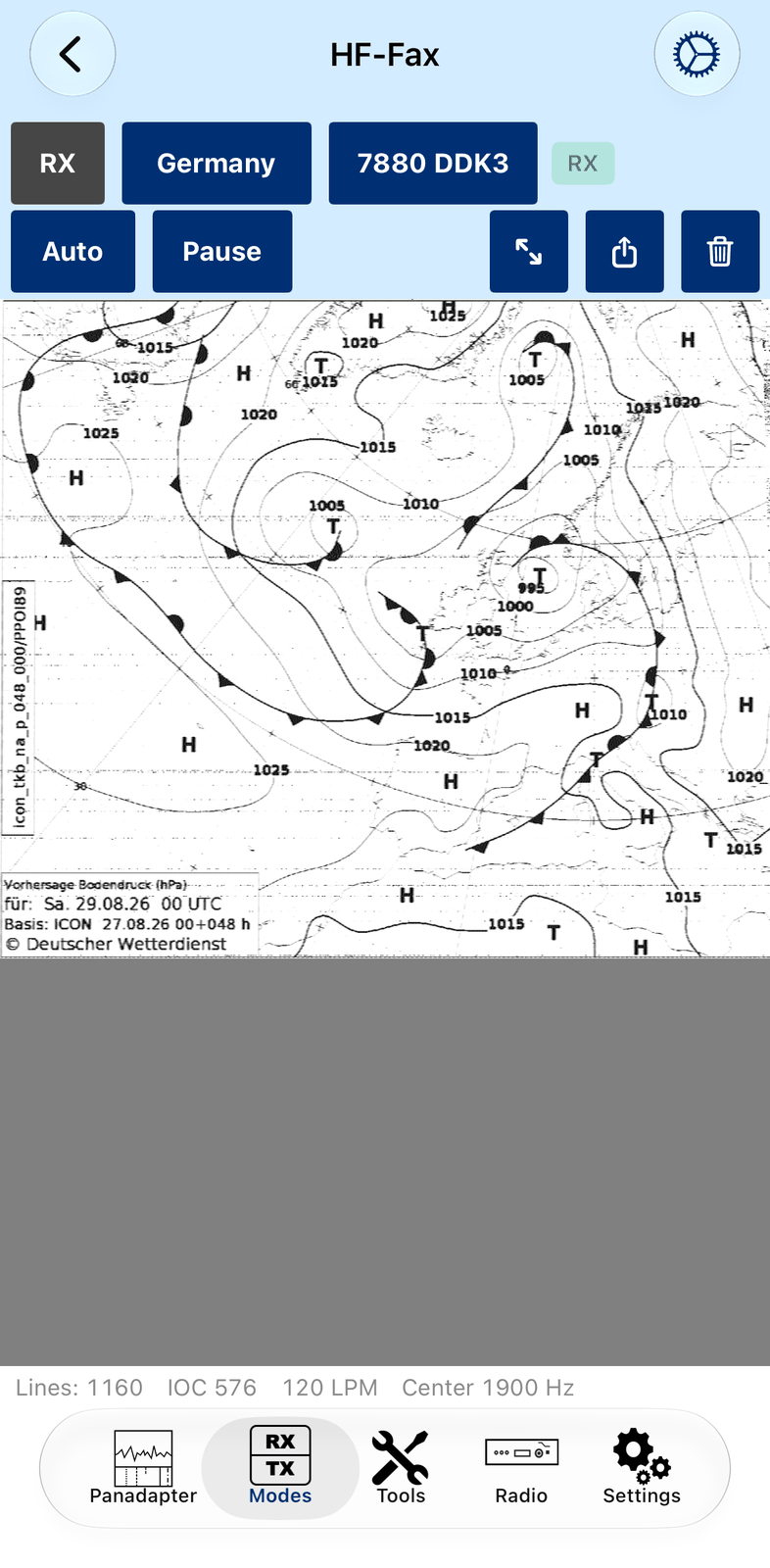
7.2.1. The blue bar
The blue bar takes two rows.
RX starts and stops receiving. It sets the radio’s mode and filter for the fax.
Manual chooses the country. Manual leaves the radio where it is: tune it yourself.
Station chooses a station of that country: its frequency and call, for example
7880 DDK3. The radio tunes to it, and the fax settings are set for it.Auto waits for the start tone of a chart and starts a new picture by itself. The stop tone at the end finishes it.
Start starts a picture now, without waiting for the start tone. While a picture is drawn, it reads Pause: tap it to stop drawing for a moment.
The status shows what HF-Fax is doing:
IDLE— RX is off.WAIT— waiting for the start tone (Auto on).READY— ready, tap Start.RX— drawing a picture.PAUSE— paused.
The arrows switch between the whole width of the picture and its full size. At full size you can move the picture with your finger.
The share button saves the picture or sends it on, for example to Photos or Files.
The trash can clears the picture.
Below the picture you see the number of lines received and the fax settings in use.
7.3. Settings
Tap ⚙︎ for the HF-Fax settings. Done closes them.
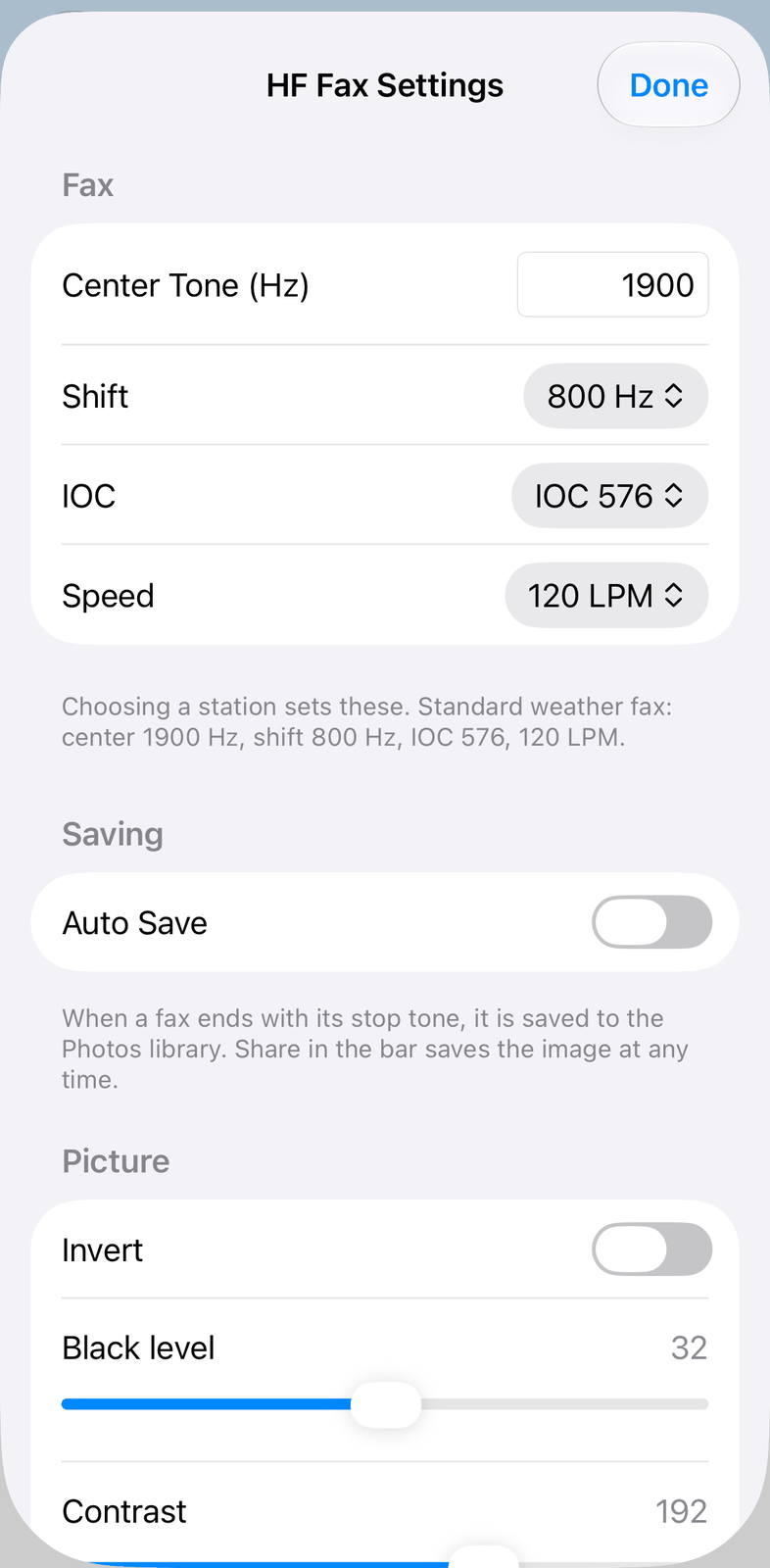
7.3.1. Fax
Center Tone (Hz), Shift, IOC and Speed — how the station sends. Choosing a station sets them. Most weather fax stations use 1900 Hz, IOC 576 and 120 LPM.
7.3.2. Saving
Auto Save — saves every chart that ends with its stop tone to the Photos library. The share button in the bar saves a picture at any time.
7.3.3. Picture
Invert — swaps black and white.
Black level and Contrast — make a weak chart easier to read.
7.3.4. Correction
PPM — straightens a slanted picture. A slant comes from a small clock difference between the station and your device.
Phase — moves the picture sideways, for example to bring a margin from the middle to the edge.
Reset PPM and Phase — sets both back to 0.
7.4. Good to know
HF-Fax keeps receiving when you switch to another tab. Only RX stops it.
Tune exactly: the app tunes 1.9 kHz below the station’s frequency, so the fax tones are in the middle of the filter. If you tune by hand, do the same.
A slanted chart is normal at first. Straighten it once with PPM; the value is kept.
If a chart doesn’t start, tap Start at the beginning of a chart, then move it into place with Phase.
8. D-Star
D-Star is the digital voice mode (DV) of Icom radios. The D-Star screen shows who you hear: the call, the call they are calling and the repeaters they use, and the short text messages that come along with a transmission. You can also send a text message of your own.
D-Star only works when your radio has D-Star and is set to the DV mode.
8.1. Quick start
Set the radio to DV and tune to a D-Star repeater or a D-Star simplex frequency.
Open D-Star in the Modes tab. Each call you hear appears in the list.
To send a text message, type it in Message at the bottom and tap Send.
8.2. The screen
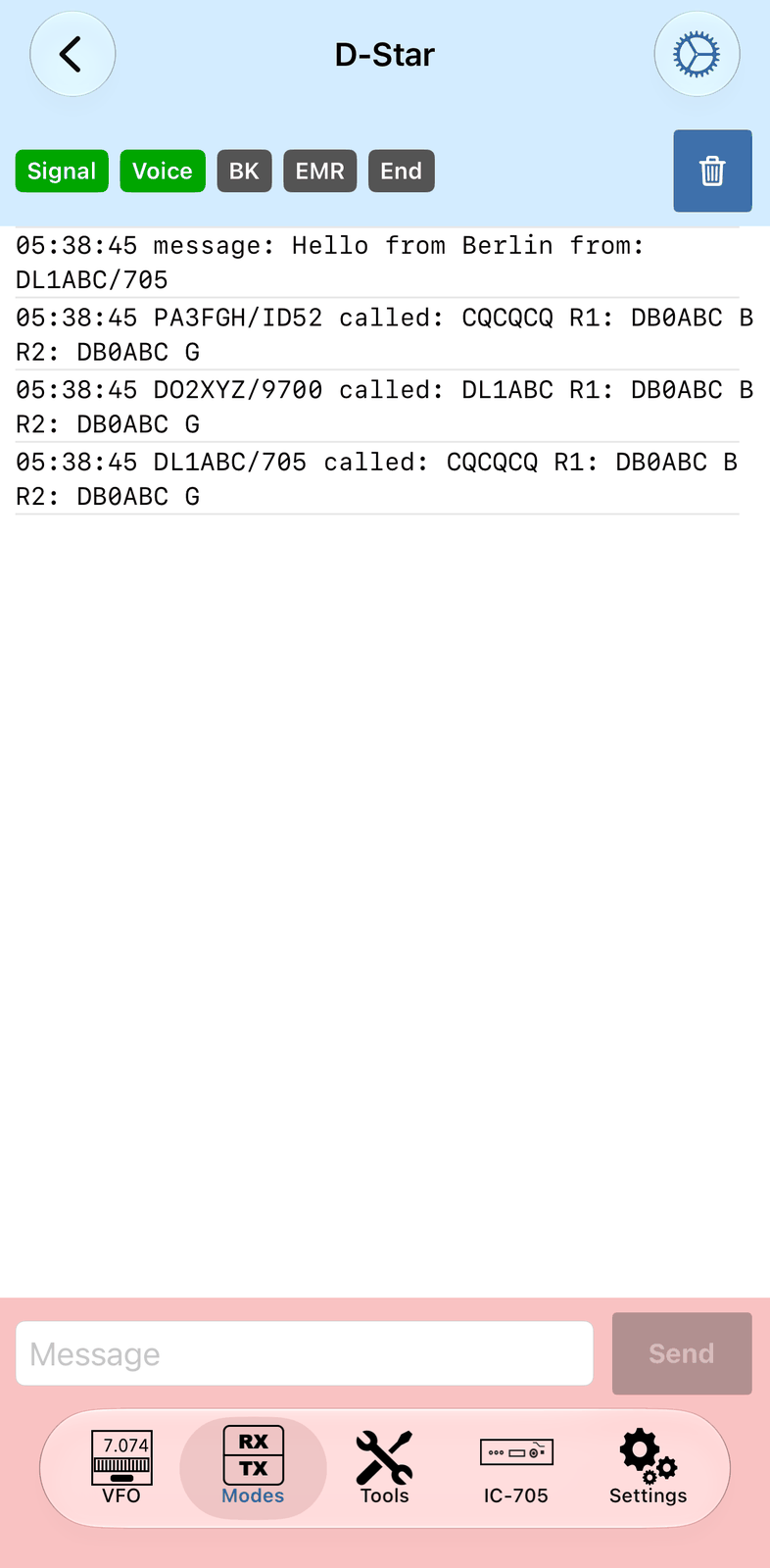
The blue bar with the radio’s D-Star status is at the top, the list of calls and messages below it, and the red bar with your message at the bottom.
8.2.1. The blue bar
The status labels turn green while they are on:
Signal — the radio receives a D-Star signal.
Voice — a voice call.
BK — a break-in call.
EMR — an emergency call.
End — the transmission has ended.
The trash can clears the list. The radio keeps its own history.
8.2.2. The list
One line for each call and each message, with the time in UTC:
12:34:56 DL1ABC/705 called: CQCQCQ R1: DB0ABC B R2: DB0ABC G— DL1ABC (with the note 705) calledCQCQCQthrough the repeaters R1 and R2.12:35:10 message: Hello from Berlin from: DL1ABC/705— a text message from DL1ABC.
8.2.3. The red bar
Message is the text message your radio sends along with your transmissions. What you type is set in the radio at once. The radio sends at most 20 characters.
Send sends the message right away with a short transmission. Then the radio is back in DV receive, and the field is empty again.
8.3. Settings
Tap ⚙︎ for the D-Star settings. They are the radio’s own call sign settings; a change is sent to the radio at once.
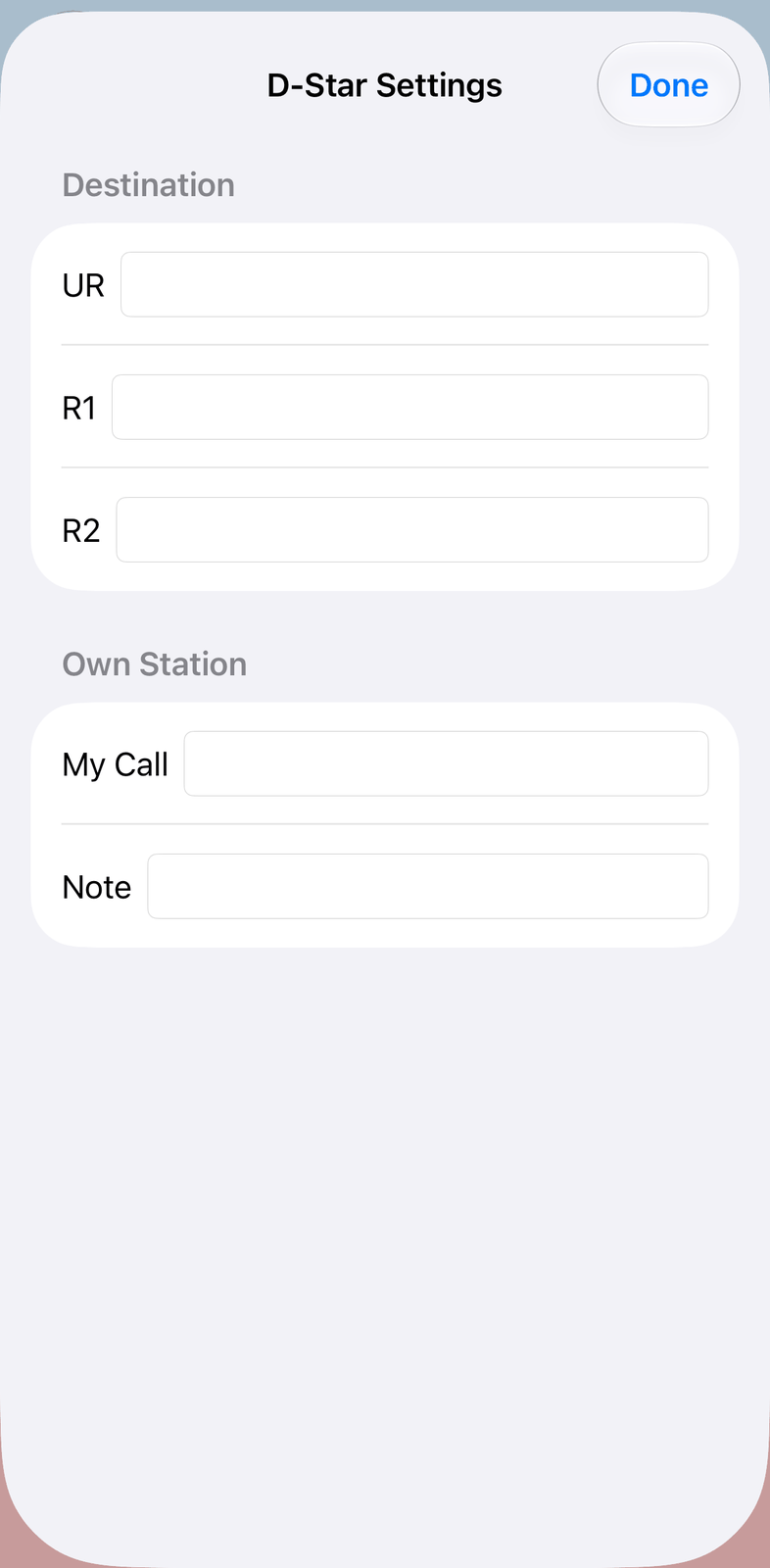
8.3.1. Destination
UR — the call you call, for example
CQCQCQfor everyone.R1 — the repeater you use (access repeater).
R2 — the gateway or the repeater you link to.
8.3.2. Own Station
My Call — your call (up to 8 characters).
Note — a note of up to 4 characters sent after your call, for example
705for your radio.
Done closes the settings.
8.4. Good to know
The app collects the calls and messages while it is connected to the radio, also while the D-Star screen is closed.
Without a connection to the radio, the screen shows
You are not currently connected.On the iPad, D-Star is not in the Modes tab: it has its own panel on the radio screen.
9. SSTV
SSTV (slow-scan television) sends still pictures over the radio. You can receive pictures, save them, and send your own pictures, for example with your call written on them.
A picture takes from a few seconds to a few minutes, depending on the SSTV mode. Every picture starts with a short code (the VIS code) that names its mode, so the app finds the right mode by itself.
9.1. Quick start
Tap Manual and choose a frequency, for example
14.230 Calling. The radio tunes to it.Tap RX. Leave the mode on Auto.
When a picture starts, it appears line by line from the top. The status shows
PIC.Tap the save button to keep the picture.
To send a picture: tap Load and choose a picture. Choose the mode in the red bar, for example Martin M1, and tap TX.
9.2. The screen
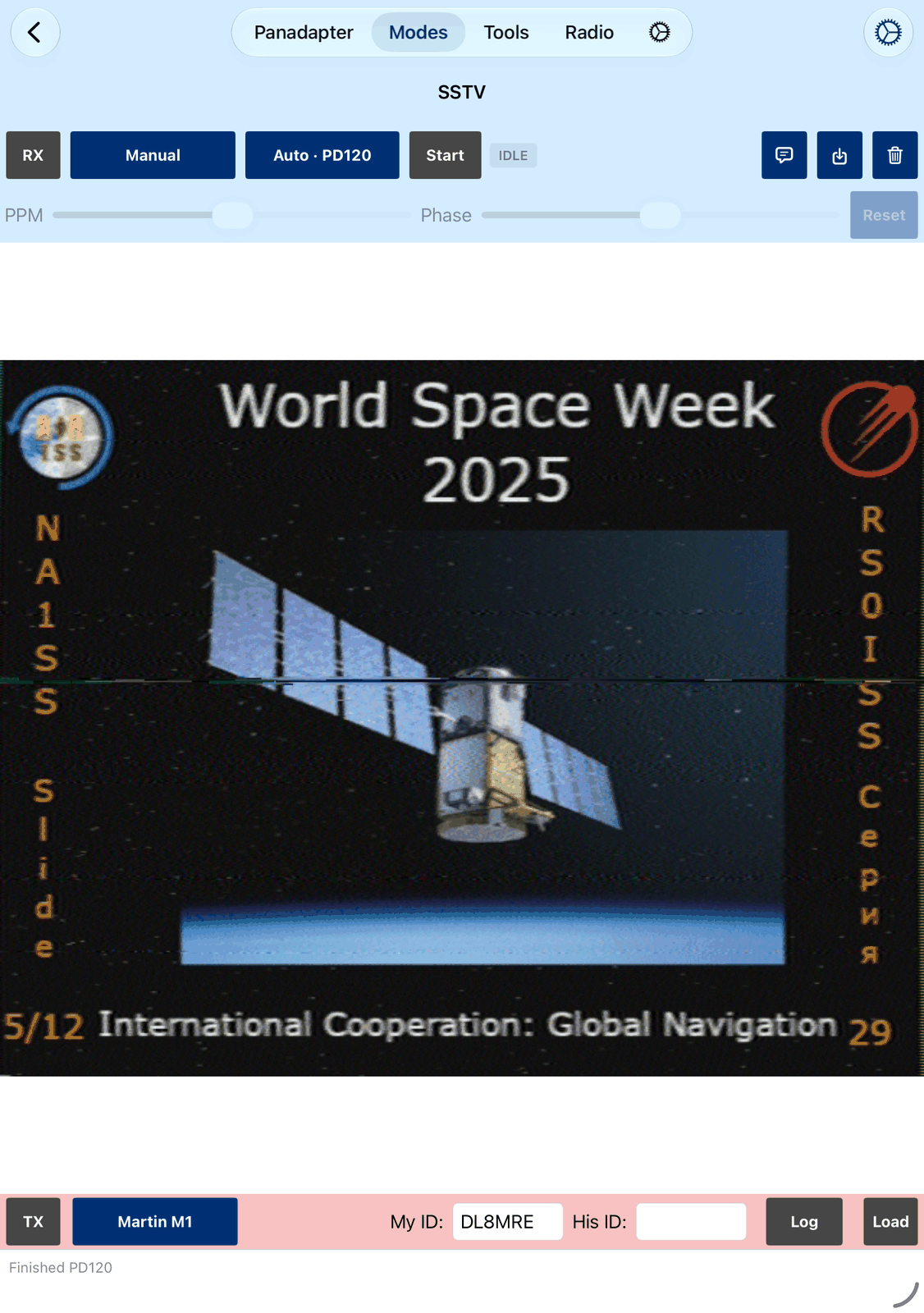
The blue bar with the picture is at the top, the red bar for sending at the bottom.
9.2.1. The blue bar
RX starts and stops receiving. The app starts waiting for a picture right away. SSTV keeps receiving when you switch to another tab.
RX switches the radio to its data mode, so the audio comes in with the full filter width.
Manual chooses a frequency from the list: the common SSTV frequencies on HF (LSB on 80 m and 40 m, USB above) and on 2 m (FM). The radio tunes to it and sets the mode. Manual leaves the radio where it is: tune it yourself.
Auto is the mode of the pictures you receive. Auto reads the mode from the start of each picture and then shows it, for example
Auto · M1. Choose one mode to receive a picture whose start you missed, for example when you tuned in late.Start clears the picture and waits for the next one. With RX off, it also turns RX on. While the app waits or receives, the button reads Stop: tap it to stop. The picture stays.
The status shows what SSTV is doing:
IDLE— RX is off.RDY— ready, but not waiting for a picture. Tap Start.VIS— waiting for the next picture.PIC— receiving a picture.FSKID— reading the call the station sends after its picture.DONE— the picture is complete.
The speech bubble puts your own text on the picture. See Your text on the picture.
The save button saves the picture or sends it on, for example to Photos or Files. The picture is saved as PNG, with your text on it.
The trash can clears the picture. If the app is waiting for a picture, it goes on waiting.
Below these buttons:
PPM straightens a slanted picture. A slant comes from a small clock difference between the station and your device.
Phase moves the picture sideways, for example to bring an edge from the middle to the side.
Reset sets PPM and Phase back to 0.
PPM, Phase and Reset work on a complete picture, received or loaded. While a picture comes in, they are greyed out.
A thin line above the picture shows how far the picture is: green while receiving, red while sending.
The line at the bottom of the screen tells you what the app is doing, for example Waiting for VIS
or Receiving Martin M1.
9.2.2. The red bar
TX sends the picture you see, once. Tap it again to stop. It turns off by itself at the end.
Martin M1 is the mode for sending. See SSTV modes.
My ID is your call. It is sent as a short data burst (FSK ID) after the picture, so the other station’s app can show who sent it. At first it shows your Operator Call from the app’s settings; a call you type stays. Leave it empty to send no ID.
His ID shows the call that the other station sent after its picture. The app fills it in.
Log opens the logbook, already filled in with the call in His ID and the mode SSTV.
Load chooses a picture from your Photos library. The app stops waiting for pictures, so the loaded picture stays on the screen. Tap Start to receive again.
9.3. Receiving
A normal SSB filter (2.4 kHz or wider) is enough. The tones of SSTV are between 1100 and 2300 Hz.
After a picture, the app waits for the next one by itself.
A slanted picture is normal. When it is complete, move PPM until the edges are straight. Move Phase if the picture is shifted sideways.
If a picture starts in the middle (you tuned in late), choose its mode instead of Auto.
The International Space Station (ISS) sometimes sends SSTV pictures on 145.800 MHz (FM). Choose Manual and tune the radio yourself.
9.4. Sending
Tap Load and choose a picture. Or send a picture you received.
Put your text on it, if you like: see Your text on the picture.
Choose the mode in the red bar. Ask the other station which mode it prefers.
Check My ID.
Tap TX.
The app fits the picture into the size of the mode. If the picture has another shape, white borders fill the rest.
Hint
Martin M1 and Scottie S1 are used most and give good quality. Martin M4 is much quicker, but the quality is low.
9.4.1. SSTV modes
The app receives all these modes. The ones marked “yes” can also be sent.
Mode |
Size |
Send |
|---|---|---|
Martin M1, Martin M2 |
320 × 256 |
yes |
Martin M3, Martin M4 |
320 × 128 |
yes |
Scottie S1, Scottie S2, Scottie DX |
320 × 256 |
yes |
Robot 72, Robot 36, Robot 24 |
320 × 240 |
– |
Robot 24 B/W |
320 × 240 |
yes |
Robot 12 B/W, Robot 8 B/W |
320 × 120 |
yes |
PD-50, PD-90 |
320 × 256 |
– |
PD-120, PD-180, PD-240 |
640 × 496 |
– |
PD-160 |
512 × 400 |
– |
PD-290 |
800 × 616 |
– |
Pasokon P3, Pasokon P5, Pasokon P7 |
640 × 496 |
yes |
Wraase SC-2 120, Wraase SC-2 180 |
320 × 256 |
yes |
9.5. Your text on the picture
Tap the speech bubble to put a text on the picture, for example your call and a greeting.
Text — the text. It can contain variables, for example
{MYCALL}(your call) or{CALL}(the call in the logbook entry). The app fills them in. See the chapter Macro Variables.Previous — your last texts. Choose one to use it again. The trash can deletes the list.
Text Size, Position, Padding — how big the text is, in which corner (or the center), and how far from the edge.
Text Color and Background Color — the colors of the text and of the box behind it.
Sample — shows how the text looks.
Apply puts the text on the picture. Close closes without a change.
The text is part of the picture you send and save. A new picture (received or loaded) starts without the text: load the picture first, then add the text.
9.6. Settings
Tap ⚙︎ for the SSTV settings.
Auto Save — saves every received picture (PNG) to the Photos library, also while you are on another tab. The first time, iOS asks for permission. The save button in the bar saves a picture at any time.
9.7. Good to know
SSTV keeps receiving when you switch to another tab. Only RX stops it.
Stop keeps the picture, the trash can clears it, Start clears it and waits for the next one.
TX also sends a picture you received, for example to send it back to the station.
9.8. On the iPhone
The iPhone has less room:
The blue bar takes two rows. Start and the buttons for the picture are in the second row.
The mode buttons show the short name of the mode, for example M1.
My ID, His ID and Log are in a second row of the red bar.
The settings fill the screen. Tap Done to close them.
10. WSPR
WSPR (say “whisper”) shows how far signals get on a band. Stations send short beacons with their call, locator and power. Every station that hears a beacon reports it to the website WSPRnet (https://wsprnet.org), so you can see who heard whom, and when. This helps you compare bands and times of day, or test an antenna.
WSPR works with very weak signals and low power, often less than one watt. A beacon starts at an even minute and takes almost two minutes (110 seconds). WSPR needs iOS 26.
10.1. Quick start
Check Operator Call and Grid (QTH Locator) in the app’s settings.
Tap 20m (14 MHz) and choose a band. The radio tunes to the WSPR frequency of that band.
Tap RX. At the end of each two-minute period, the stations heard appear in the list.
To send your own beacon as well: set Power (W) to the power of your radio and tap TX. The line at the bottom of the screen counts the seconds until your beacon goes out.
10.2. The screen
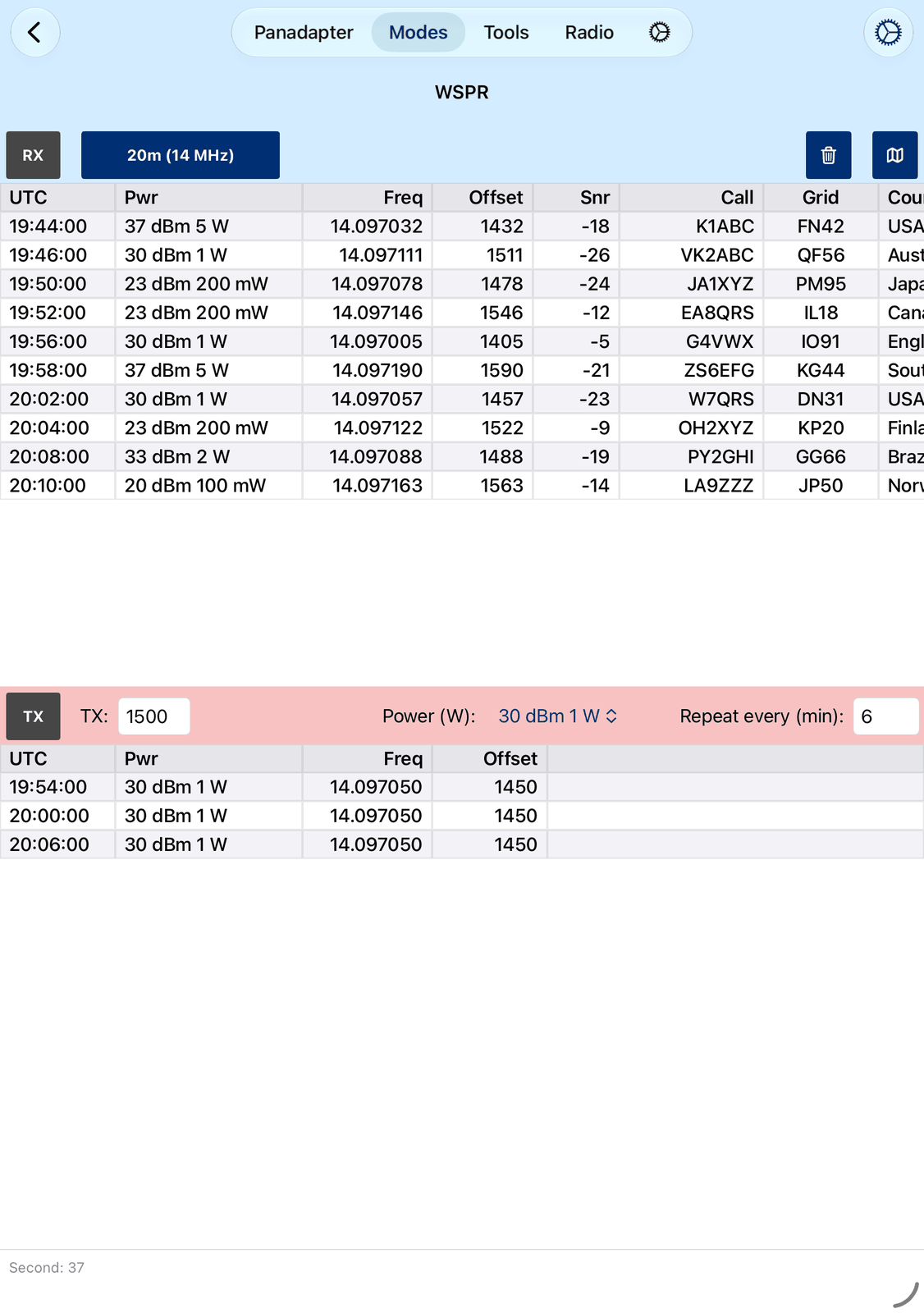
The blue bar with the stations you heard is at the top. Below it the red bar with your beacons.
10.2.1. The blue bar
RX starts and stops receiving. It sets the radio’s mode for WSPR.
20m (14 MHz) shows the band. Tap it to choose another band. The radio tunes to the WSPR frequency of that band. Manual leaves the radio where it is: tune it yourself.
The trash can clears the list of stations heard. Tap it twice to also clear the list of your beacons.
The map button shows the stations on a map. See The map.
The list shows one row for each beacon heard:
UTC — when the beacon was heard.
Pwr — the power the station reports, in dBm and watts.
Freq — the frequency of the beacon, in MHz.
Offset — the audio frequency of the beacon, in Hz.
Snr — how strong the beacon was, in dB. WSPR decodes down to about −28 dB.
Call, Grid and Country — the station, its locator and its country.
Distance — how far away the station is, in km and miles (from your Grid (QTH Locator)).
The list is wider than the screen: swipe it sideways to see Country and Distance.
A thin line above the list shows how far the current two-minute period is.
10.2.2. The red bar
TX switches your beacons on and off. A red frame around TX means your beacons are on and the app waits for the next one. While a beacon goes out, TX is red. The beacons are timed while receiving: turn on RX first. Turning RX off also switches TX off.
TX: is the audio frequency of your beacon, from 1400 to 1600 Hz. Choose a value between, for example
1450. 1500 Hz is used by many stations.Power (W) is the power your beacon reports, for example
30 dBm 1 W. It doesn’t change the radio’s power: set it to the power your radio really sends.Repeat every (min) is the time between your beacons, in minutes. It is an even number, at least 2.
Below the red bar you see your beacons: UTC, Pwr, Freq and Offset.
The line at the bottom of the screen shows the second of the current period and, with TX on, the seconds until your next beacon.
10.3. Sending
Check Operator Call and Grid (QTH Locator) in the app’s settings. Your beacon carries your call and the first four characters of your locator.
Tap RX.
Choose TX:, Power (W) and Repeat every (min).
Tap TX. The app sends a beacon every Repeat every (min) minutes, always at the start of an even minute. The line at the bottom of the screen counts the seconds until the next one.
To see who heard you, search for your call on https://wsprnet.org.
Note
WSPR is meant to be sent with little power. Many stations send in only one of five periods,
for example with Repeat every (min) set to 10. This leaves time to hear the others.
10.4. The map
Tap the map button to see the stations of the list on a map.
Your station is the red pin (Home), the stations you heard are blue, with a line from each to you.
The target button shows all stations.
The map button switches between the whole globe and the area of the stations.
The globe button switches between a satellite picture and a normal map.
Close closes the map.
10.5. Settings
Tap ⚙︎ for the WSPR settings.
Upload Spots to WSPRNet — sends the beacons you heard to WSPRnet every five minutes, with your Operator Call (or Your Call when it is empty) and Grid (QTH Locator). Each beacon is sent once. The line at the bottom of the screen shows for a while how many WSPRnet took, or why the upload failed, for example
WSPRnet upload failed: set your call sign and locator.
10.6. Good to know
WSPR keeps receiving, sending and uploading when you switch to another tab. Only RX stops it.
The time on your device must be exact, to about one second. WSPR depends on the even minutes.
The first period after RX is not complete, so it usually shows no stations.
Power (W) is only a number in your beacon. Set the radio’s power yourself.
Calls with a
/, for exampleDL1ABC/P, can’t be sent and are not shown.Your locator may have four or six characters. Only the first four are sent.
10.7. On the iPhone
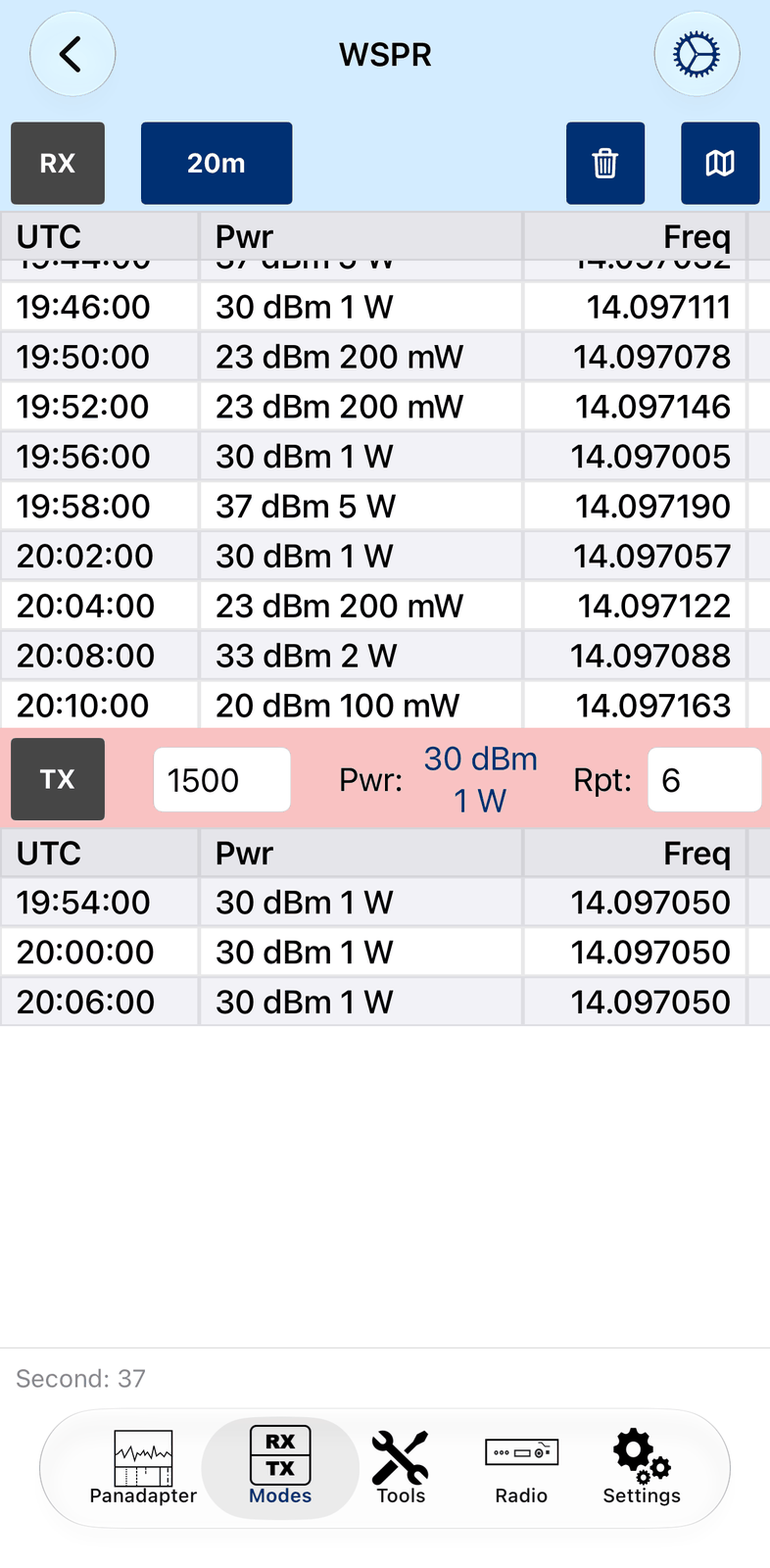
The iPhone shows the same controls with shorter names:
The band button shows only the band, for example 20m.
The audio frequency field has no TX: in front of it.
Pwr: is the power, Rpt: the time between your beacons.
The map and the settings fill the screen. Tap Done to close the settings.
11. APRS
This tool allows you to receive and send APRS packets.
11.1. What is APRS?
APRS stands for Automatic Packet Reporting System. It is a digital communication protocol used by amateur radio operators to exchange real-time information such as:
Position reports (GPS locations)
Short messages
Status updates
Weather data
Telemetry
Object information (such as repeaters, events, or hazards)
Unlike traditional voice QSOs, APRS packets are sent automatically and can be received by any station listening on the APRS frequency. Many APRS stations are connected to the APRS-IS (Internet System), allowing global exchange of messages and positions through gateways (iGates).
Tip
APRS is not just about position tracking. It is a versatile system that supports tactical communication, situational awareness, and even integration with email or SMS services in certain regions.
Before using the APRS tool, check your APRS Call in the settings of this tool (⚙︎). It starts as your call
with -9. See APRS Settings further below for details.
To use this APRS tool:
Tune your radio to the correct APRS frequency for your region.
Set the mode according to the regional standard (usually FM).
Select a wide filter so the full APRS signal can be decoded.
Common APRS frequencies by region:
North America: 144.390 MHz (FM)
Europe: 144.800 MHz (FM)
Oceania (Australia, New Zealand): 145.175 MHz (FM)
Japan: 144.660 MHz (FM)
South America: 145.570 MHz (FM)
Note
APRS operates on narrowband FM, but always use a wide enough filter so the full packet (1200 baud AFSK) can be received.
Once you tap RX in the top left corner, the tool starts receiving APRS packets and shows them in a list, with the newest packet at the top. While the app sends, the button turns red and reads TX.
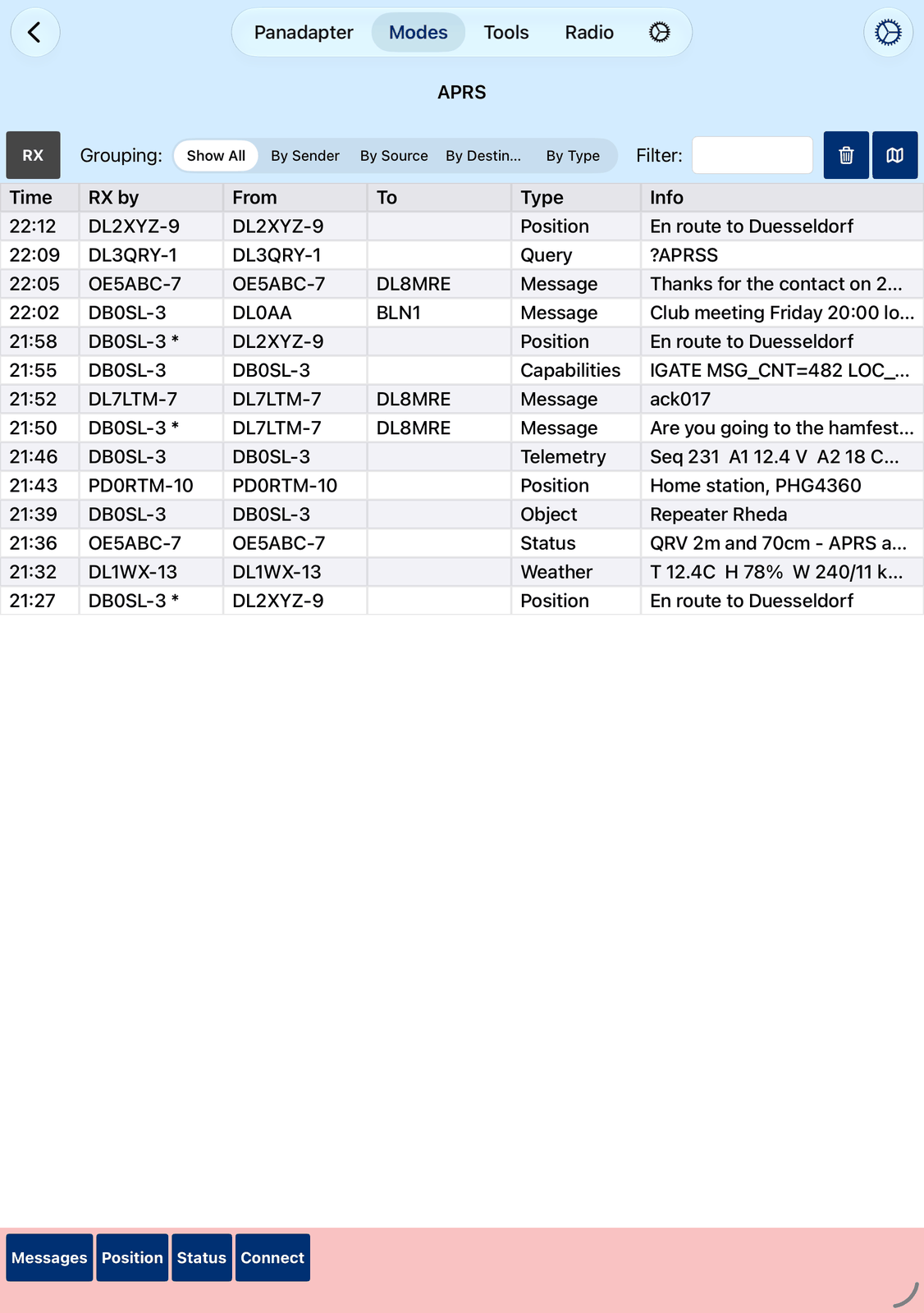
11.2. The RX Packet List
The RX Packet List shows all received APRS packets in a table.
Time – When the packet was received.
RX by – The call sign of the station that relayed or transmitted the packet to you. A
*after it means a digipeater repeated the packet.From – The originating call sign of the packet.
To – The destination call sign. Only filled for certain packet types (e.g., messages).
Type – The type of APRS packet: Position, Message, Status, Weather, Object, Item, Query, Capabilities, Telemetry, User Defined or Unknown.
Info – A brief summary of the packet contents.
Tap any entry to view more detailed information about that packet. If the packet has a position, Show Map shows it on a map. Close closes the details.
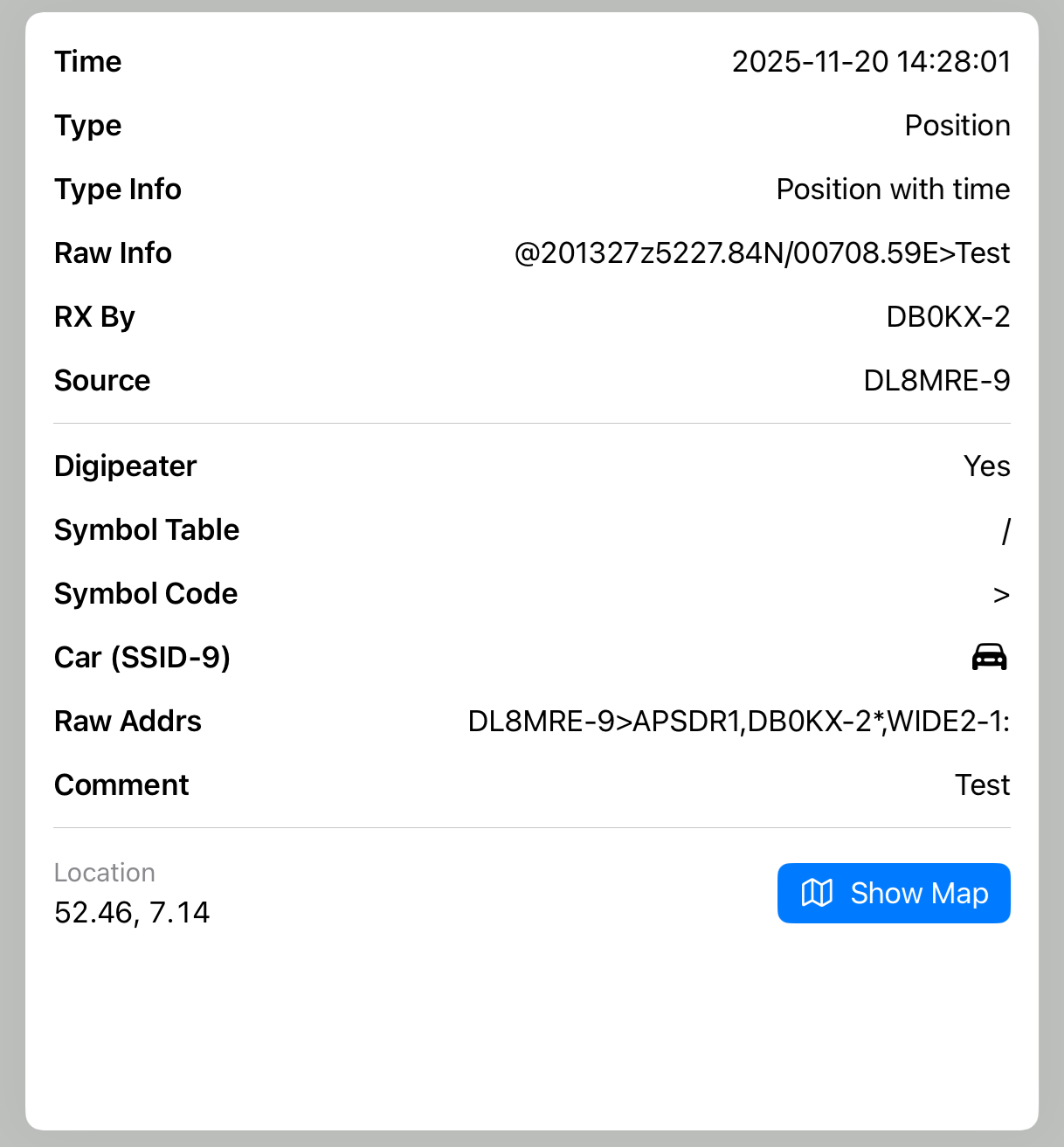
11.2.1. Filtering and Grouping
As the list grows large, you can:
Group the list with Grouping: Show All, By Sender, By Source, By Destination or By Type. Each group starts with its name and the number of packets.
Filter packets by entering search terms in Filter. The filter searches the calls, the packet type and the packet text.
Examples:
Entering
DL8MRE-7,DL8MRE-8shows all packets containing either call sign.Entering
-Statusshows all packets except Status messages.Using
*matches everything.
Hint
You can combine filters with commas and use - to exclude. For example: DL,-Telemetry shows
the packets with DL in them, except telemetry.
Tapping the trash can clears the list. Additionally, packets are removed automatically after a time you choose (see APRS Settings).
11.2.2. Mapping
Tapping the map button displays all packets containing positions on a map. This can show fixed locations or moving stations/routes. The target button shows all stations, Close closes the map.
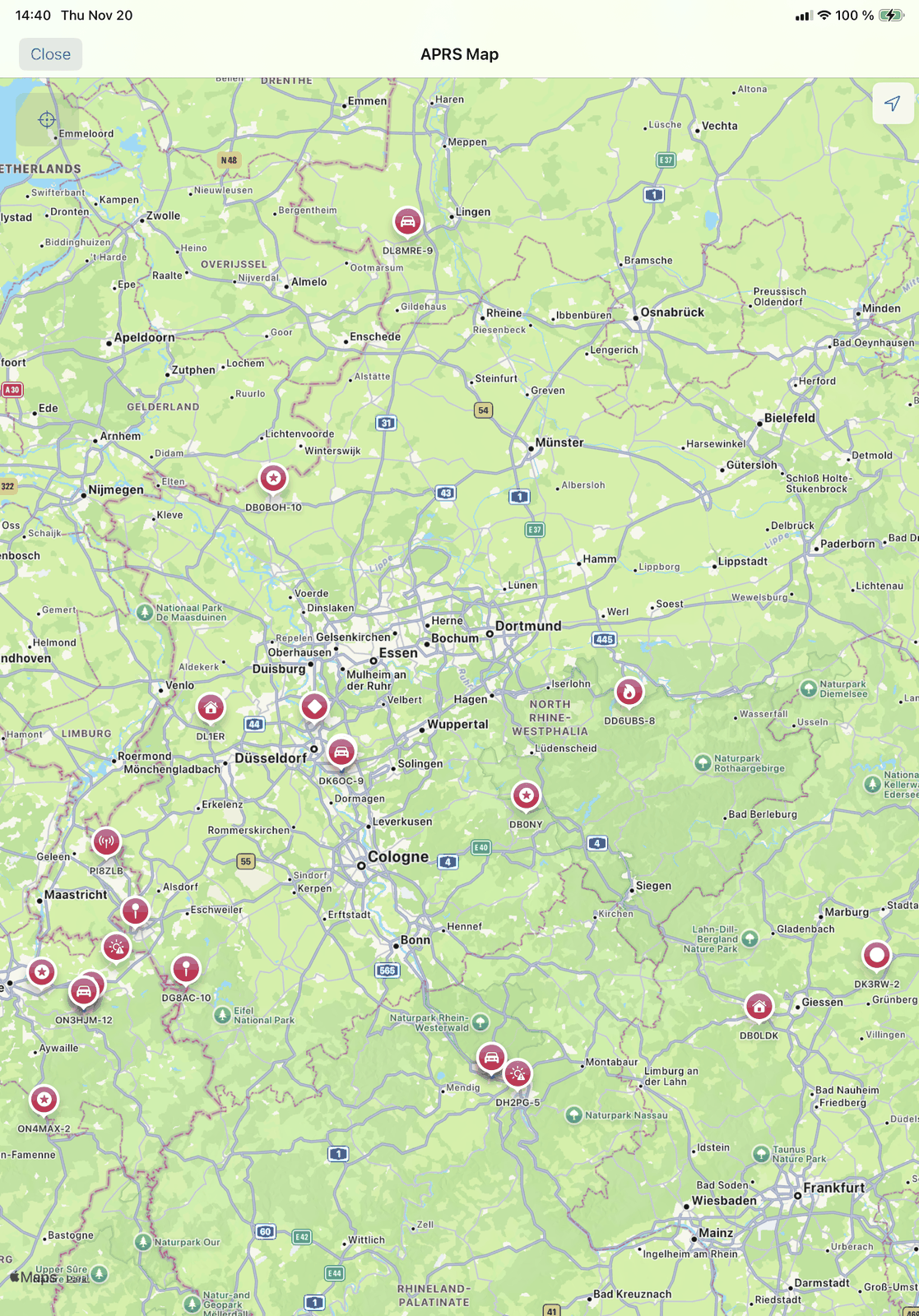
11.3. Transmitting APRS Packets
This tool allows you to transmit APRS Messages, Positions, and Status reports.
Important
Set your radio squelch correctly before transmitting. - Squelch should remain closed when no signal is present. - It should open immediately when a signal is received. APRS waits with sending while another packet is on the channel, preventing collisions.
11.3.1. Messages
Tapping Messages opens the APRS Messages view.
Use Messages or Bulletins at the top to switch between messages and bulletins.
Use Received or Sent to switch between inbox and outbox.
Clear deletes all messages of the list you see, after you confirm it.
Close closes the view.
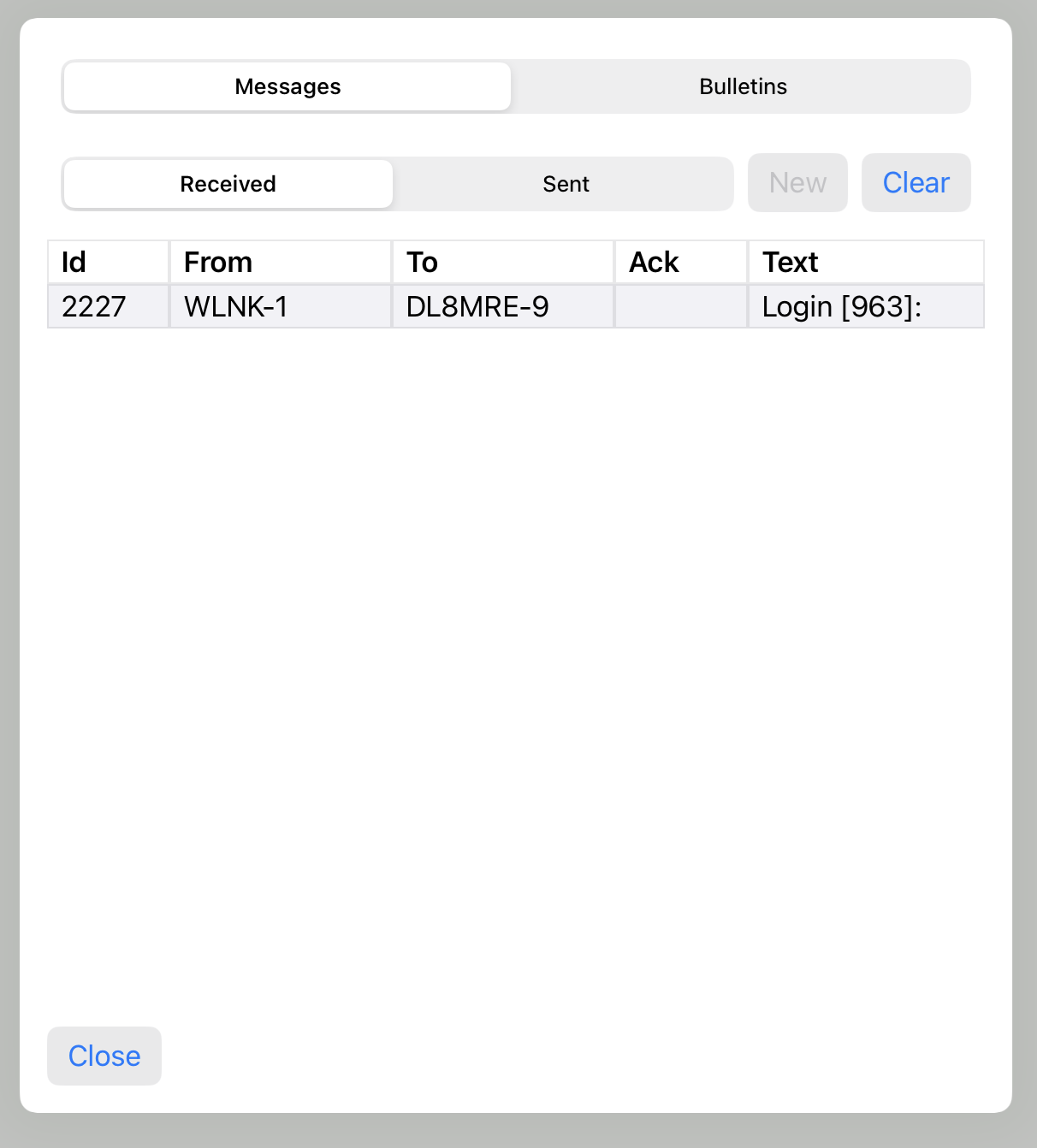
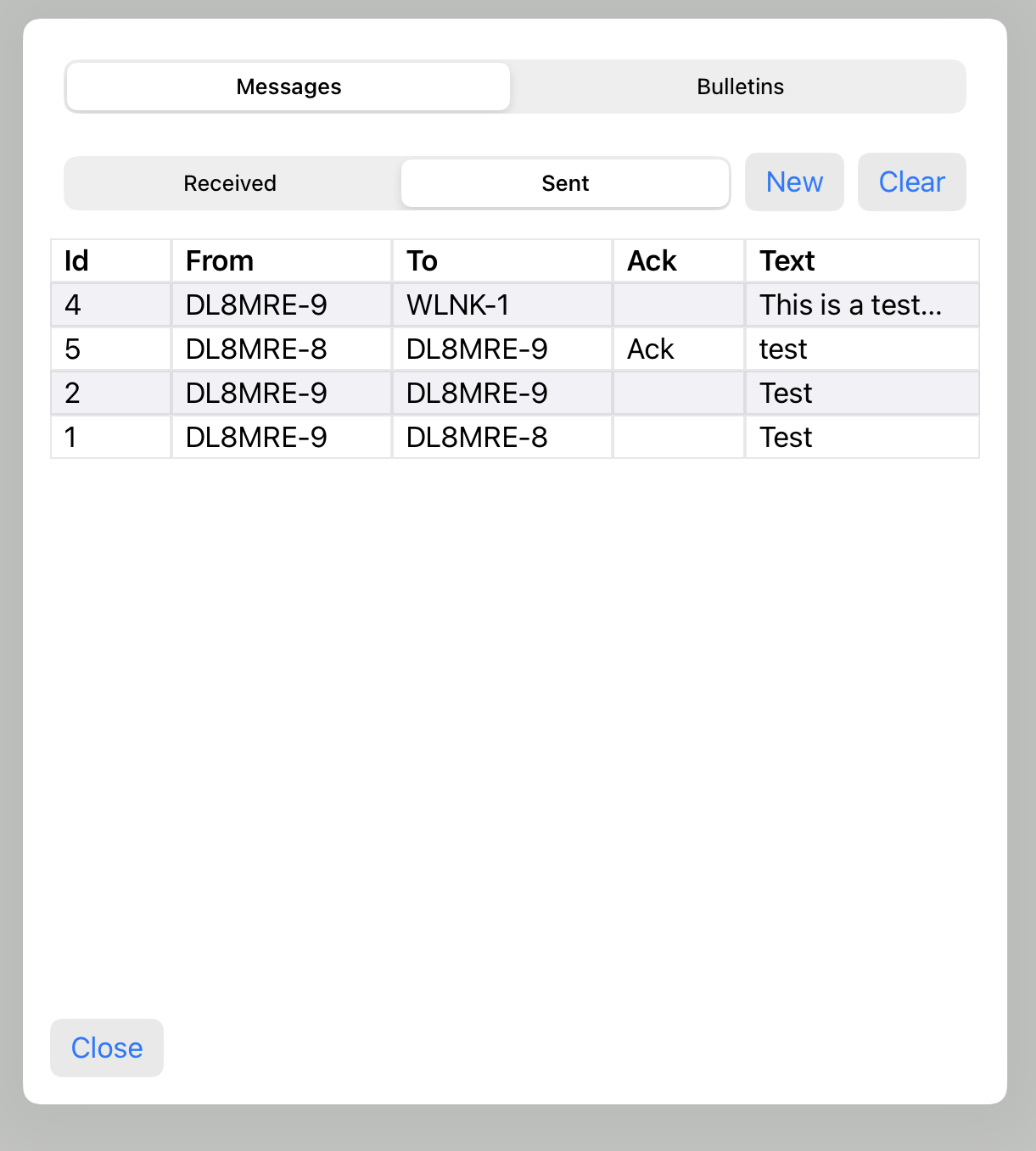
To compose a new message, go to Sent and tap New. Tap a message in a list to open it.
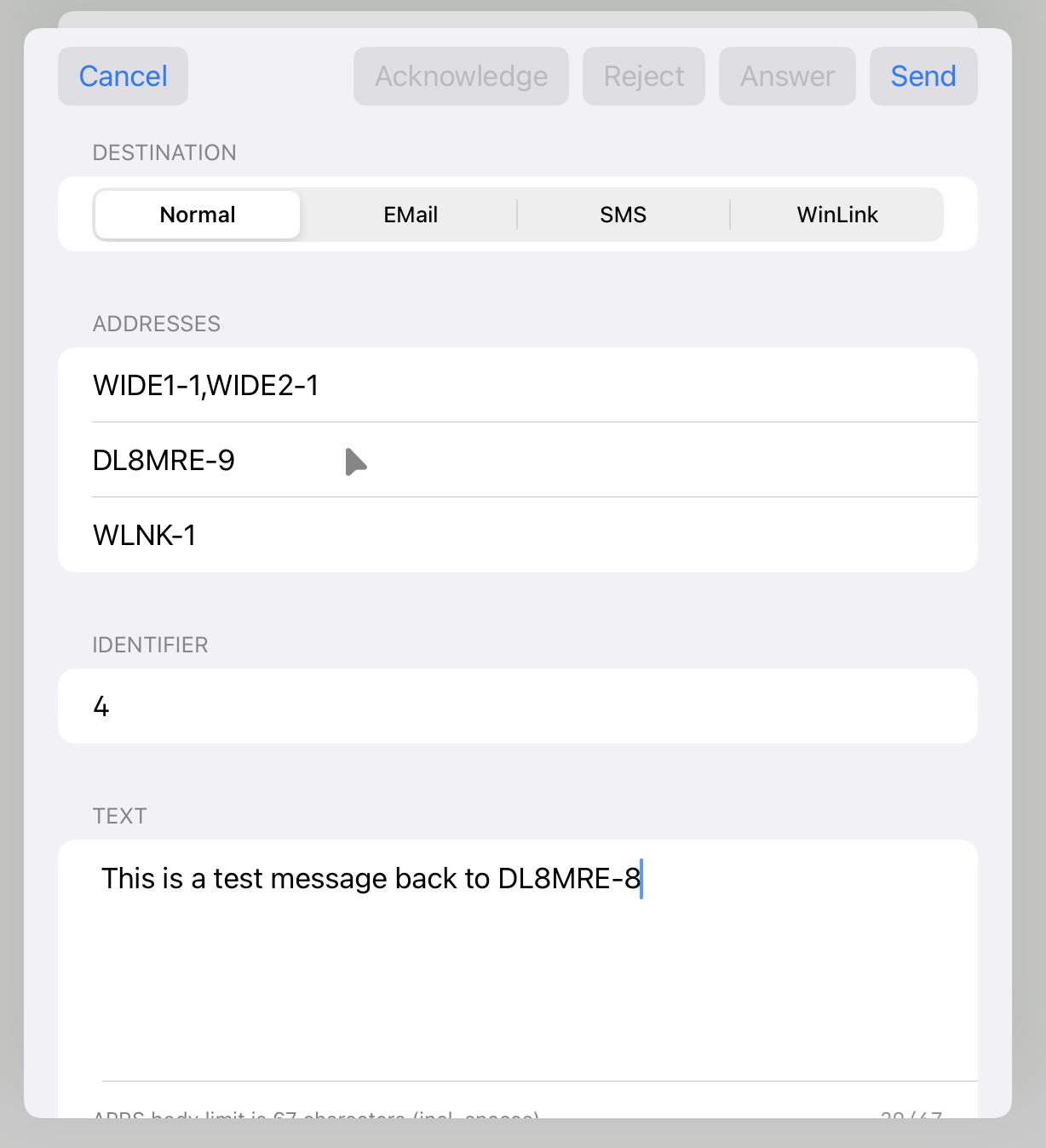
Choose the type of message at the top:
Normal – Standard text message to another station.
EMail – Send an email (if supported in your region).
SMS – Send a text message to a mobile phone (if supported).
WinLink – Send a message via the WinLink system.
Important
APRS messages are sent in plain text, unencrypted. Anyone monitoring APRS can read them. If you include email addresses or phone numbers, they will be public.
Note
Not all regions support EMail, SMS, or WinLink services. Check local availability.
The buttons at the top:
Send – Sends the message.
Acknowledge / Reject – Confirms or rejects a received message.
Answer – Starts a reply to a received message.
Delete – Deletes the message from the list.
Cancel – Closes the message without sending.
Message limitations:
Maximum length: 67 characters.
Each message has an auto-incrementing identifier number.
Acknowledgments (ACKs) may or may not be sent by the receiving station.
Tip
If your message is not acknowledged, open the message in Sent and tap Send again to retransmit.
Example: A received message displayed on a Kenwood TH-D74:
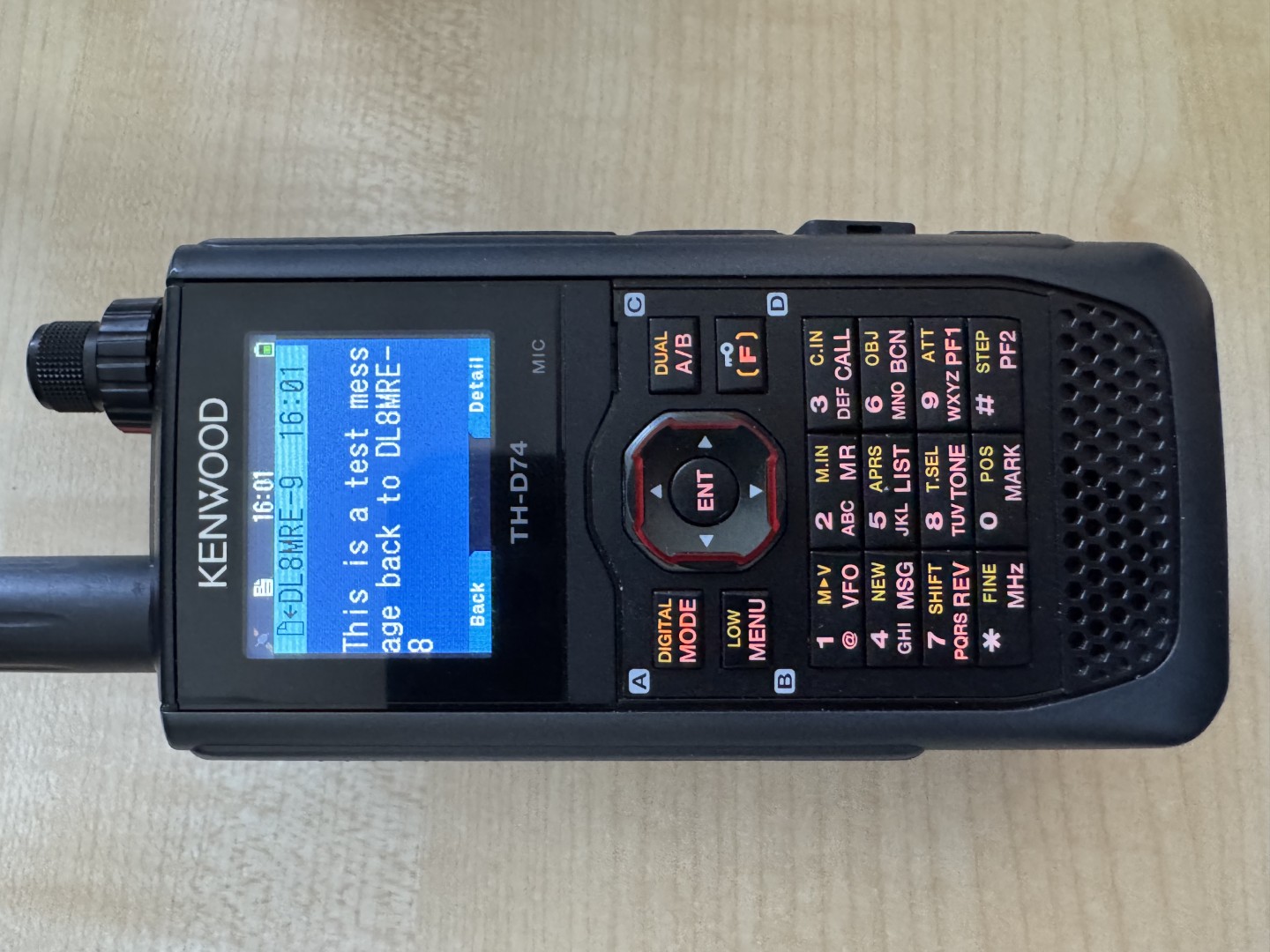
11.3.2. WinLink Messages
In addition to Normal, Email, and SMS, you can send and receive WinLink messages.
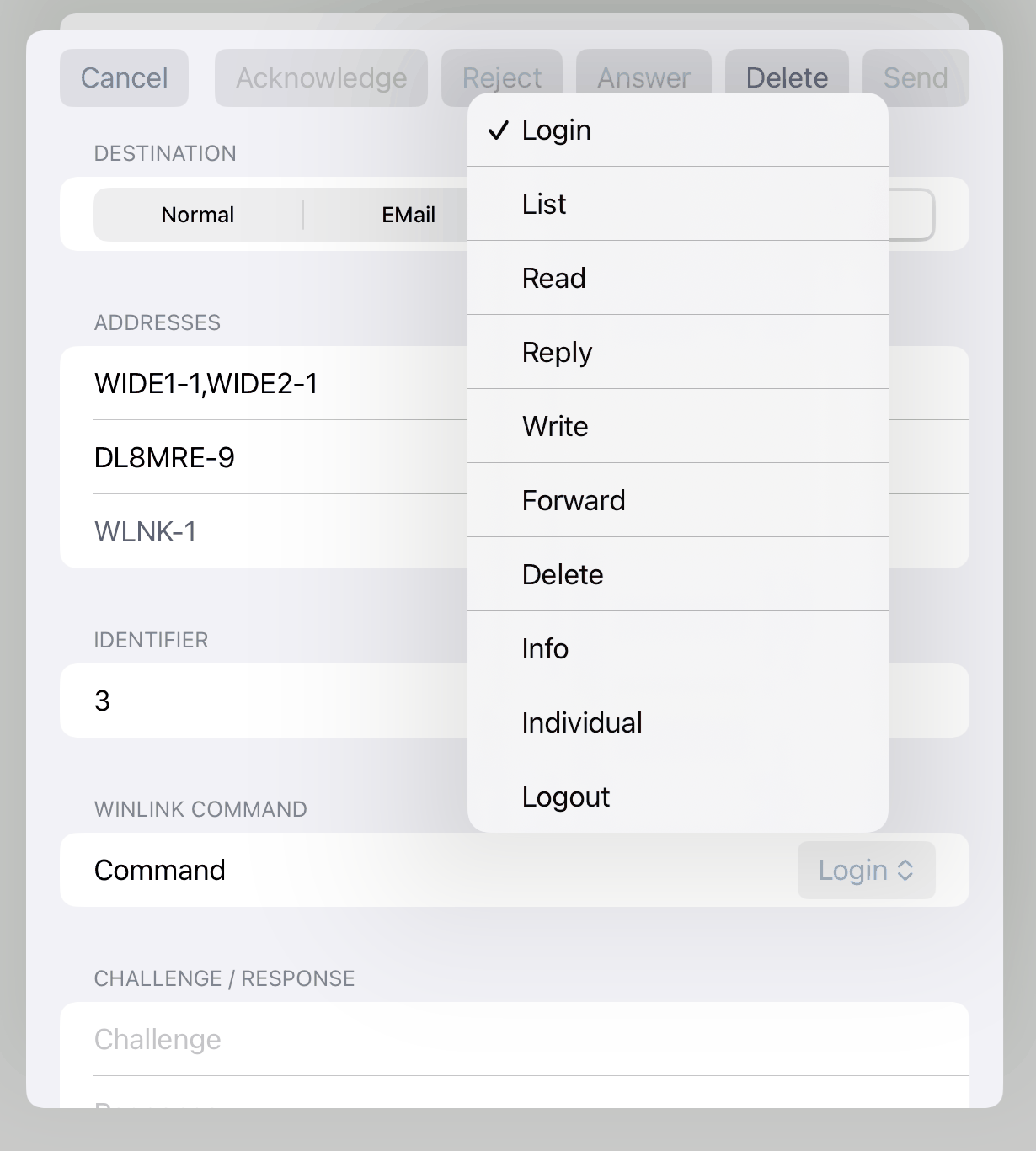
Choose WinLink as the type, then the command in Command: Login, List, Read, Reply, Write, Forward, Delete, Info, Individual, Logout.
11.3.2.1. WinLink Login Procedure
Before sending WinLink messages, you must log in:
Send any WinLink command (e.g., List).
WinLink will respond with a login challenge such as: Login [593]: Here 593 refers to the 5th, 9th, and 3rd characters of your WinLink password.
You must respond with those three password characters, plus three random characters, in random order. Example: Password = secretpassword, challenge [593] → response contains e, s, c plus three random characters.
Important
Never send your full password. Only the challenge/response mechanism is used.
This tool can handle the login challenge automatically if you enter your WinLink password in the APRS Settings.
After successful login, you will receive a Welcome message and can proceed with other commands.
Note
Responses from WinLink may take time. Be patient, and retransmit messages manually if needed.
11.3.3. Sending Positions
Tap Position to transmit your location. The button works while RX is on.
Coordinates – Your latitude and longitude. Use Current Location fills them in from your device.
Symbol – The symbol others see for your station: type Table and Symbol, or choose one in Select.
Path – The digipeater path. Blank: the APRS Path of the settings is used.
Message – A short comment that goes with your position.
Send transmits the position, Close closes the view.
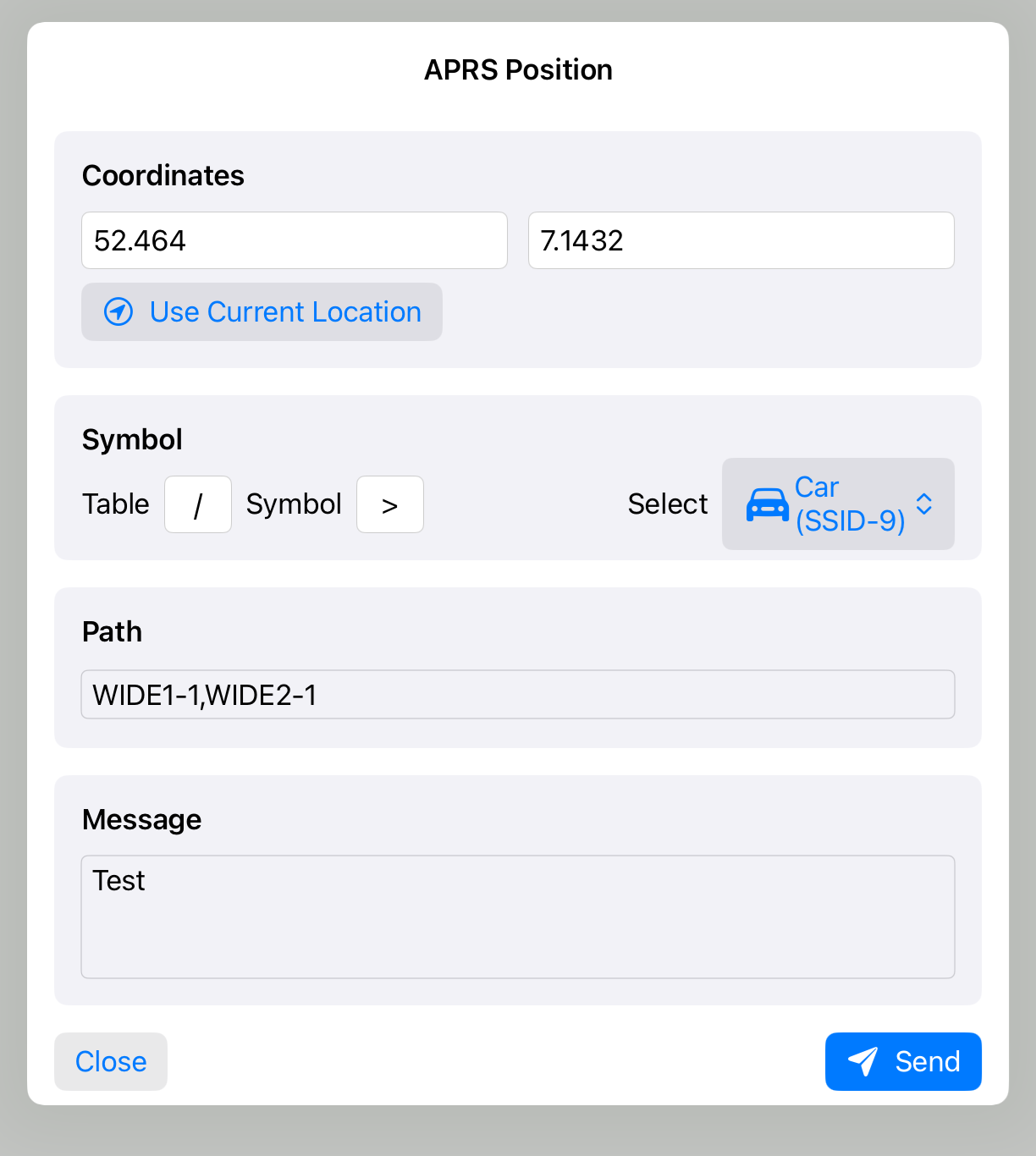
Example of a received position report:
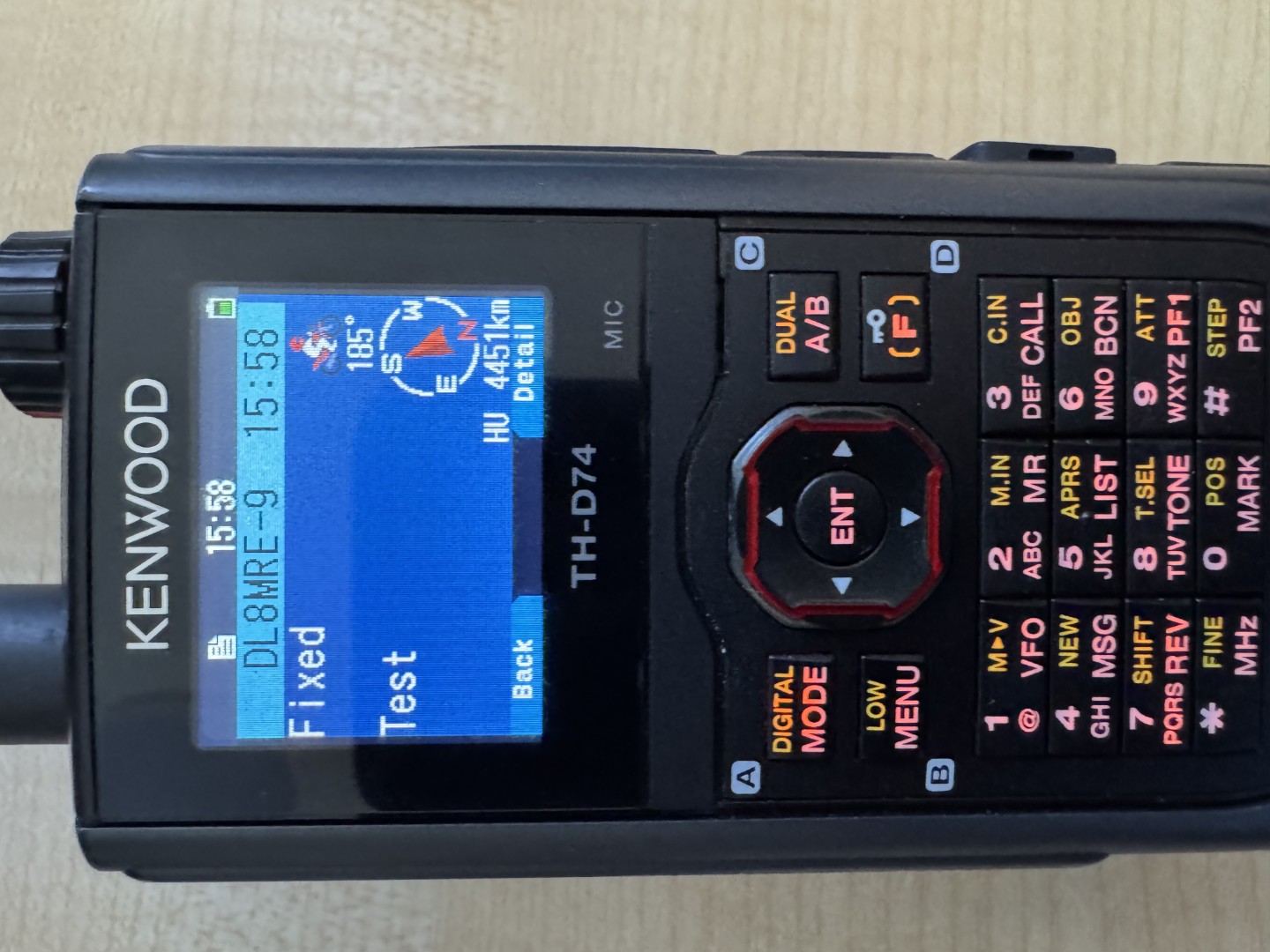
11.3.4. Sending a Status Report
Tap Status to send a short status message: type it in Message and tap Send. The button works while RX is on.
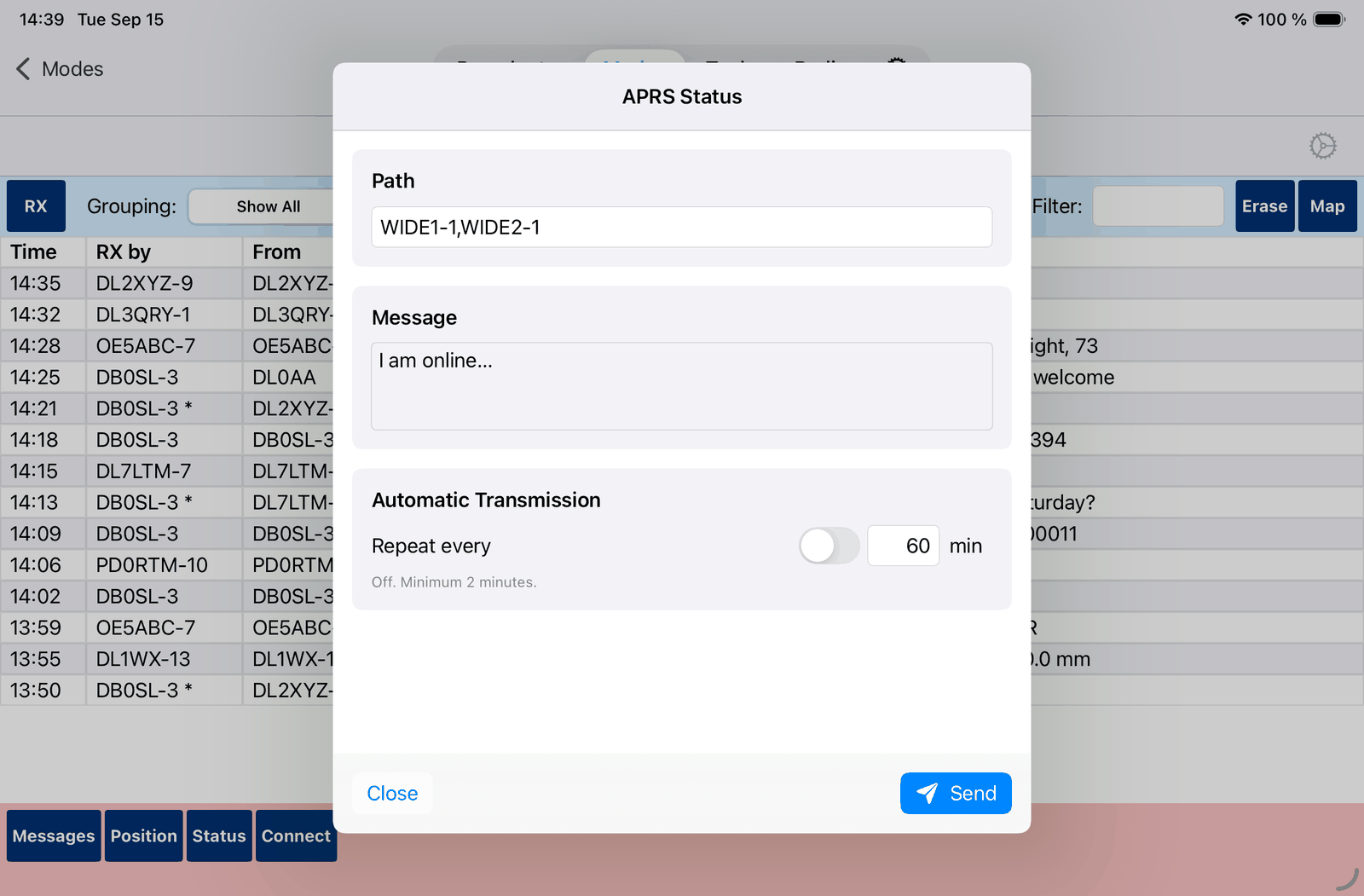
Example of a received status message:
11.3.5. Automatic Transmission
Both the Position and the Status views can repeat what you have composed there, so your station keeps showing up on the network without you sending it again by hand. Each has an Automatic Transmission box with a Repeat every … min switch.
The switch stays disabled until there is something to send: a status needs its text, a position needs a valid latitude and longitude.
The position beacon and the status beacon are separate. Either, both or neither can run.
What goes out is rebuilt from the window each time, so it is always the current text and the current time, not a copy of the first transmission.
Important
The minimum interval is 2 minutes. A shorter figure is raised to it. Anything faster is antisocial on a shared channel — choose an interval that suits how fast your station actually moves.
Beacons also go out while you are on another screen or tab, as long as RX is on. They are skipped while a connected session is open, so they cannot steal airtime from a link. The interval is varied by about a tenth so that two stations which started together do not stay in lockstep for ever.
Tip
Closing the Position or Status view does not switch the repeat off. Turn the switch off when you no longer want to be beaconing.
11.4. Connected Mode
Besides APRS packets, which are broadcast to everyone and not acknowledged, this tool can open a connected AX.25 session: a real point-to-point link to a BBS, a node, or a WinLink RMS. Everything you type is delivered in order, and every frame is repeated until the other station acknowledges it.
Use the Connect button to open the APRS Connection view. The button is available once RX is on.
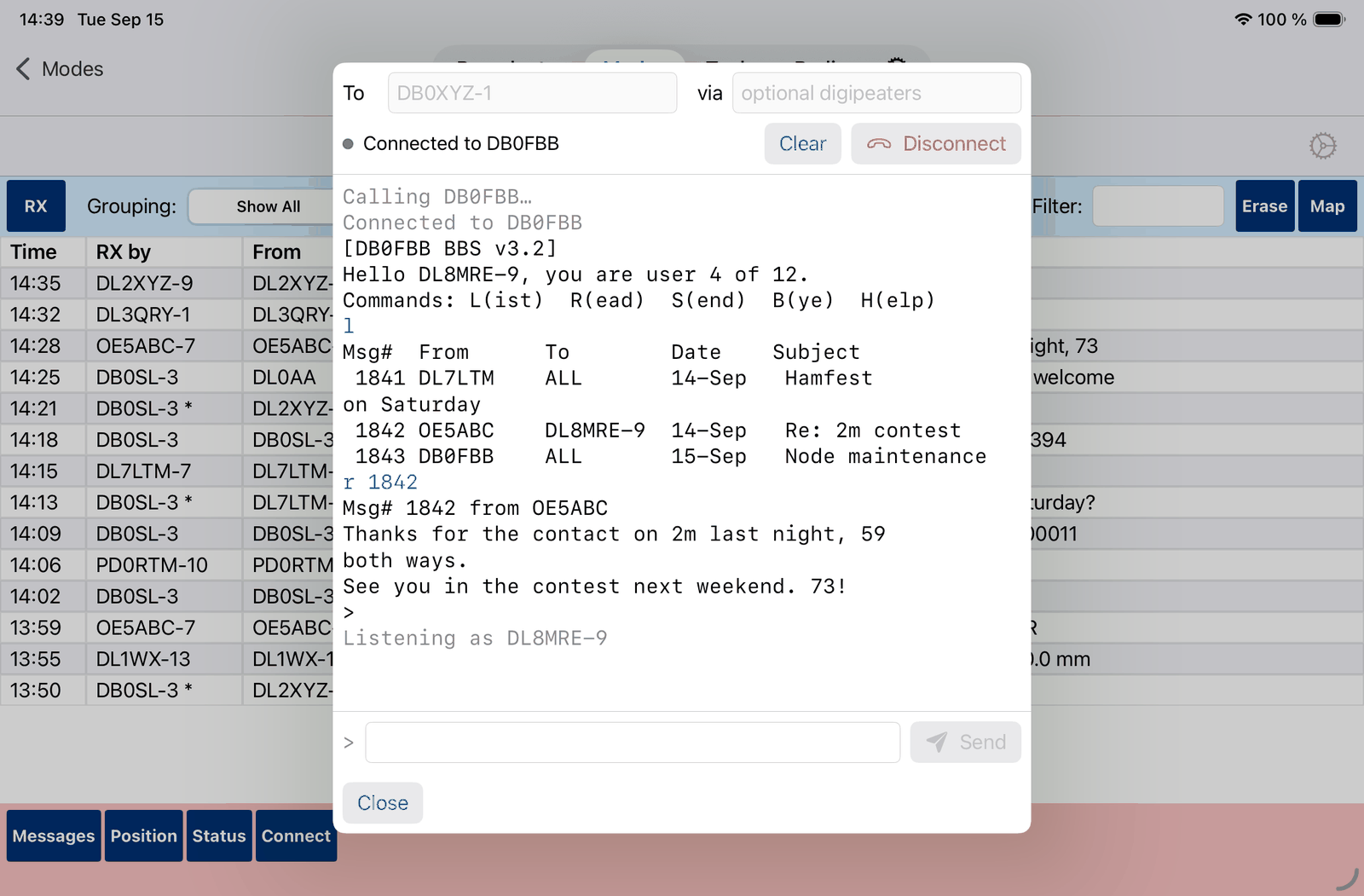
Important
Opening it is what makes you reachable. Your call sign is registered with the link layer for as long as the view is open, so other stations can also connect to you. Closing it ends that.
Two fields at the top set up the call:
To – The call sign of the station to connect to, including its SSID (e.g., DB0XYZ-1).
via – Optional digipeaters, first hop first, separated by commas.
Important
Connected mode needs real digipeater call signs in via. The WIDE1-1, WIDE2-1 aliases used in APRS Path are APRS flooding aliases; a connected session will never come up through them.
Both fields are remembered for the next session.
The status line below them shows where the session stands:
Listening as <call> (blue) – Ready, and reachable for incoming connections.
Calling <peer>… (orange) – The connection request has gone out and is repeated until it is answered or the retries run out.
Connected to <peer> (green) – The link is up. (incoming) means the other station called you.
Disconnecting (orange) – The link is being taken down.
N unacked appears beside it while frames are still waiting to be acknowledged, and a red TX marker shows whenever the session is transmitting.
The button on the right changes with the state: Connect to call the station, Cancel while the call is going out, and Disconnect to end a session. Clear empties the scrollback.
Type into the line at the bottom and press Return or Send. The input line is only active while the link is up. Sent lines, received text and status messages are shown in different colours, and any of it can be selected and copied.
Note
Beacons — automatic position and status transmissions — are suspended while a connection is open.
Tip
If a session stalls on a weak or digipeated path, lower Packet Length and Window in the APRS Settings. Both take effect on the next connection, not on one that is already open.
Close at the bottom closes the view. While a link is open, it asks first whether to Disconnect. Once the link is down, the app stops listening, so other stations can’t connect to you any more.
11.5. APRS Settings
Tap ⚙︎ at the top to open the APRS settings.
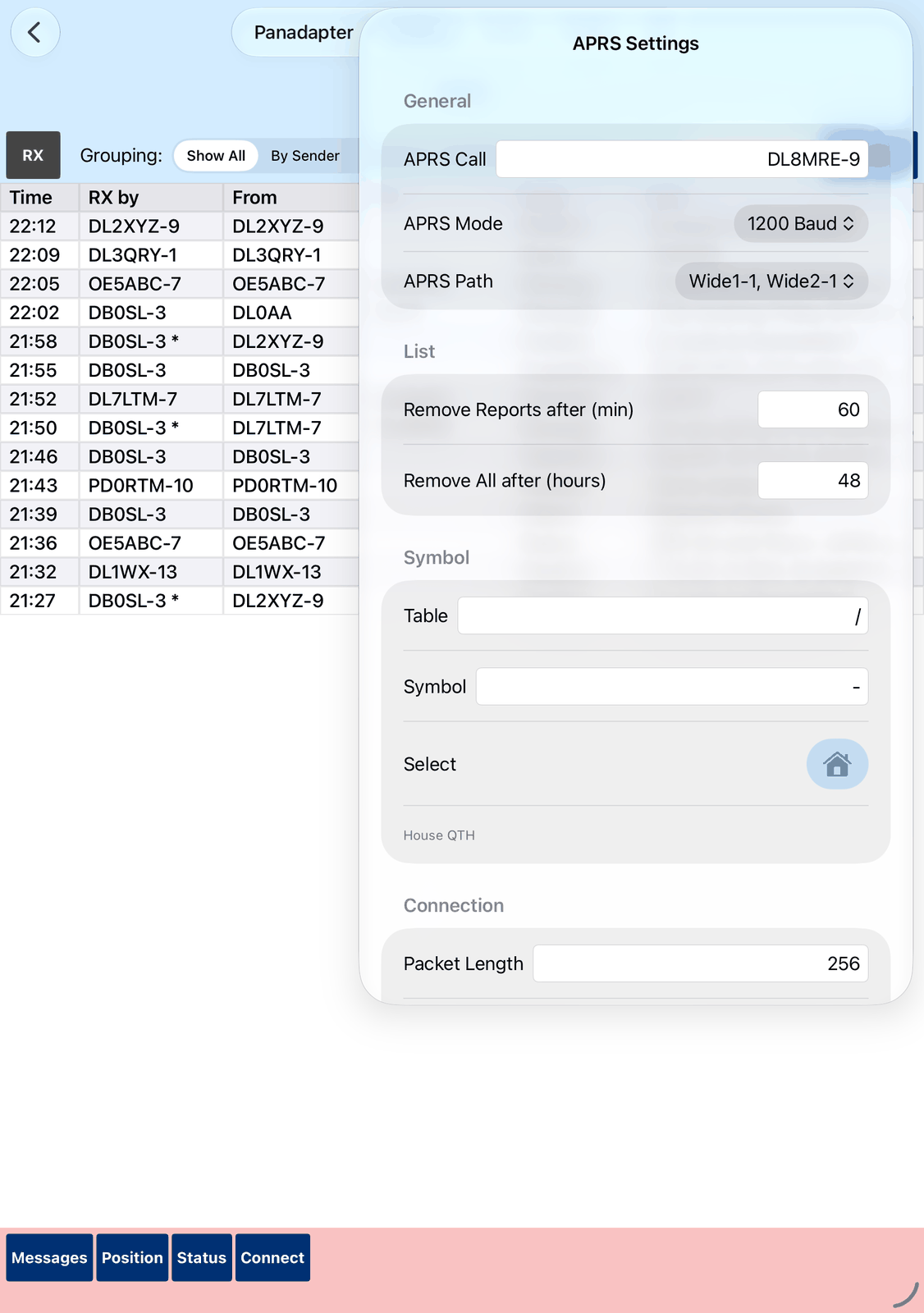
11.5.1. General
APRS Call – Your call sign with SSID (e.g.,
DL8MRE-7). It starts as your call with-9.APRS Mode – 1200 Baud (e.g. for VHF/UHF) or 300 Baud (for HF). It can only be changed while RX is off.
TX only on squelch closed – Waits with sending while the radio’s squelch is open, so the app doesn’t send into another station’s signal. Set the squelch as described in Transmitting APRS Packets.
APRS Path – The digipeater path for your packets: Direct, Wide1-1, Wide1-1, Wide2-1, Wide1-1, Wide2-2 or TCPIP. Common default: Wide1-1, Wide2-1.
11.5.2. List
Remove Reports after (min) – How long positions, status reports and all other packets stay in the list, in minutes.
Remove All after (hours) – How long messages and queries stay in the list, in hours.
0 keeps the packets until you clear the list.
11.5.3. Symbol
Table and Symbol – The symbol for your position reports, as APRS codes.
Select – Choose the symbol from a list. Its name is shown below.
Note
Select only offers the standard / symbol table. For other tables, type the codes in
Table and Symbol.
11.5.4. Connection
Packet Length – Largest number of bytes sent in one frame of a connected session (1 to 2048, default 256).
Retries – How often an unacknowledged frame is repeated before the link is given up (1 to 15, default 10).
Ack Timeout (s) – How long to wait for an acknowledgment before repeating a frame (1 to 15 seconds, default 5).
Window – How many frames may be outstanding at once (1 to 7, default 4).
Note
These four settings apply to the next connection, not to one that is already open.
11.5.5. WinLink
Password – Your WinLink password, for the automatic challenge/response login.
11.5.6. Messages
Auto Acknowledgment – If enabled, incoming APRS messages are acknowledged automatically.
Tip
Using Auto Acknowledgment ensures better reliability, but you can also acknowledge a message yourself: open it in Received and tap Acknowledge.
11.6. On the iPhone
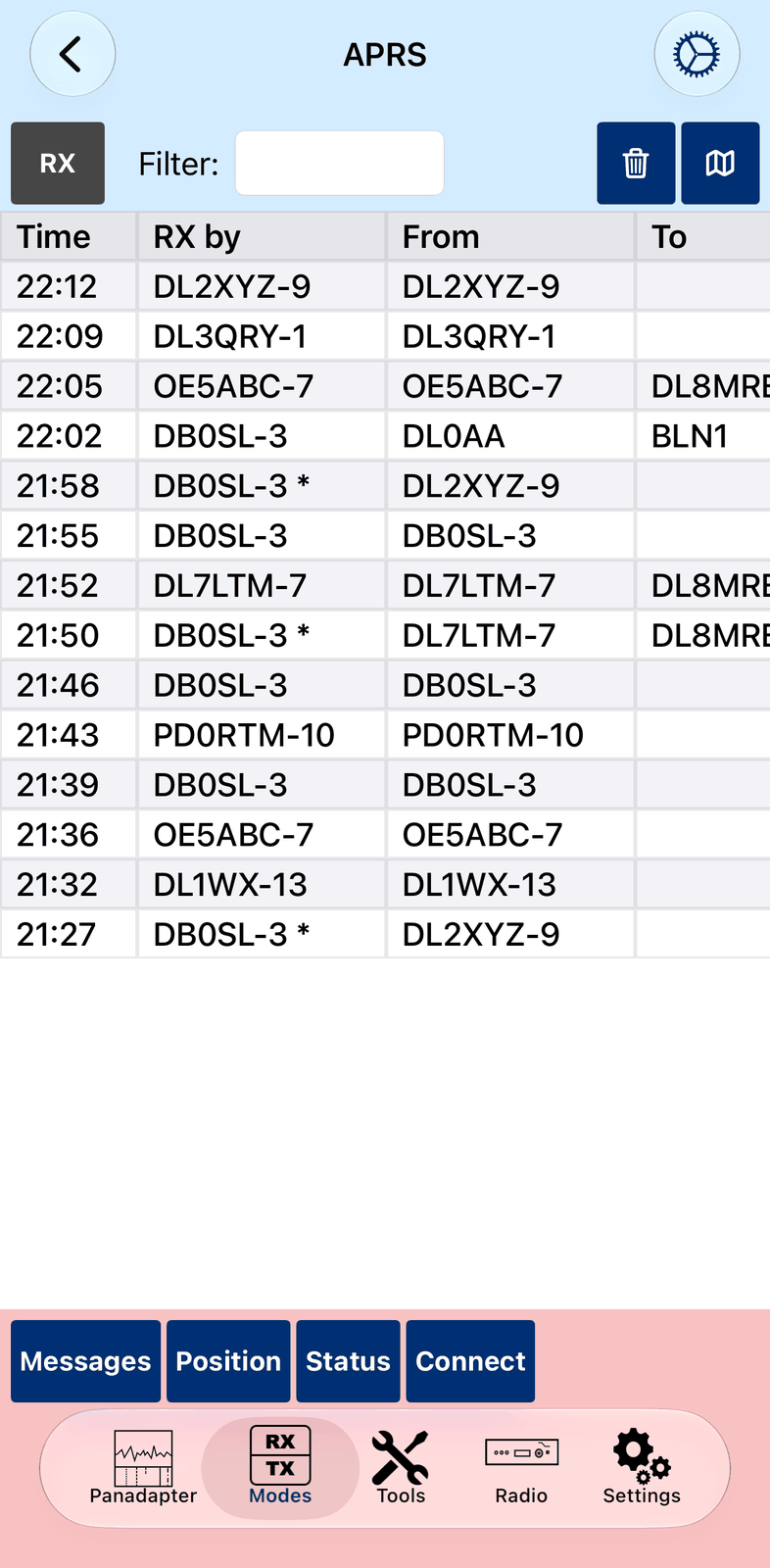
The iPhone has less room:
There is no Grouping: the list always shows all packets.
The settings and the views for messages, position, status and connection fill the screen. Tap Done to close the settings.
1. Setting up an IC-705
The IC-705 connects over Wi-Fi in one of two ways:
Station mode: the IC-705 joins your Wi-Fi network at home. Use this at home, and for remote access over the internet.
Access Point mode: the IC-705 makes its own Wi-Fi network, and your device connects to it. Use this in the field, where there is no other network. Only the app can then connect to the radio.
1.1. Station mode (at home)
On the radio, open Menu > Set > WLAN Set.
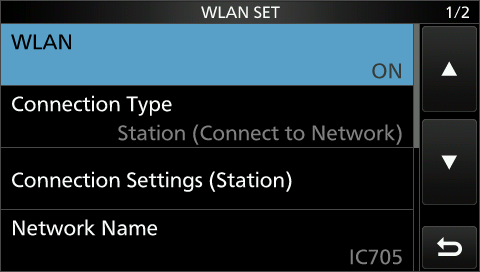
Make sure WLAN is ON and Connection Type is Station.
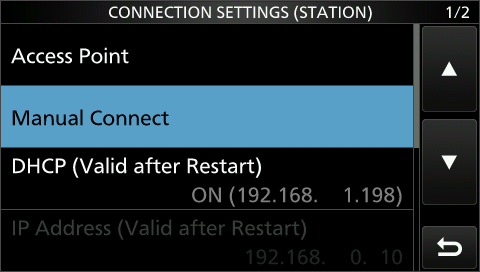
Tap Access Point, choose your Wi-Fi network and enter its password.
Make sure DHCP is ON. If you changed something, restart the radio and open this menu again.
Once the radio is connected, its IP address is shown under DHCP. Note it down: the app needs it.
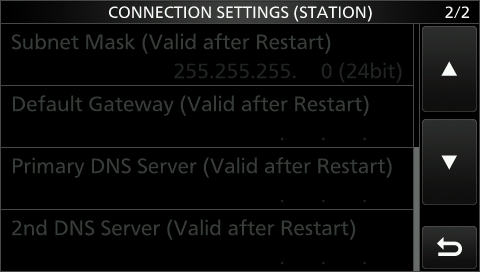
The settings below DHCP are grey.
Go back to WLAN Set with Back and open Remote Settings.
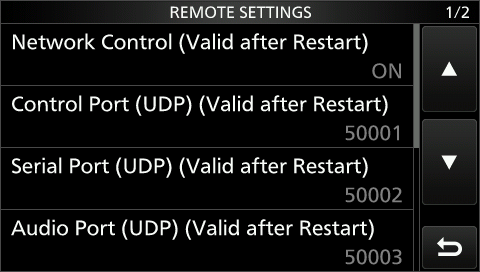
Make sure Network Control is ON and the Control Port is
50001.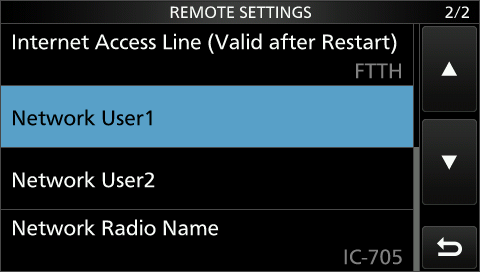
Make sure Internet Access Line is FTTH.
Tap Network User1 and enter a Username and a Password of your choice.
The radio is ready. Now add it to the app with its IP address, username and password: see Adding the radio to the app.
Note
Settings marked (Valid after Restart) work only after you restart the radio.
1.2. Access Point mode (in the field)
On the radio, open Menu > Set > WLAN Set.
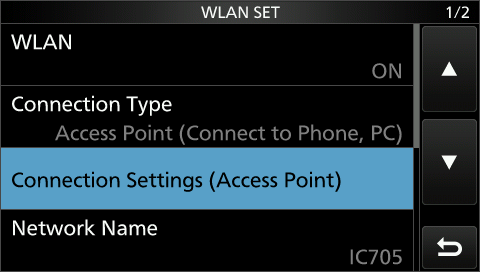
Set Connection Type to Access Point and tap Connection Settings.
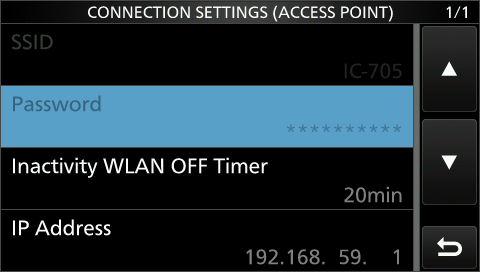
Enter an SSID (the name of the new Wi-Fi network) and a password for it.
Note
This is a new Wi-Fi network made by the radio. Don’t enter the name and password of your Wi-Fi at home.
If you changed something, restart the radio and open this menu again.
Note down the radio’s IP address: the app needs it.
Open Remote Settings. Make sure Network Control is ON and the Control Port is
50001.
Make sure Internet Access Line is FTTH.
Tap Network User1 and enter a Username and a Password of your choice.
Now connect your iPad or iPhone to the radio’s new Wi-Fi network (in the iOS Settings app, under Wi-Fi). Then add the radio to the app with its IP address, username and password: see Adding the radio to the app.
Warning
Don’t change the radio’s CI-V address. The app can’t connect to a radio with another CI-V address.
2. Setting up an IC-9700
On the radio, open Menu > Set > Network.
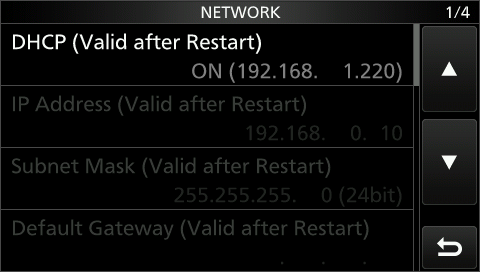
Make sure DHCP is ON. Note down the IP address shown: the app needs it. The settings below DHCP are grey.
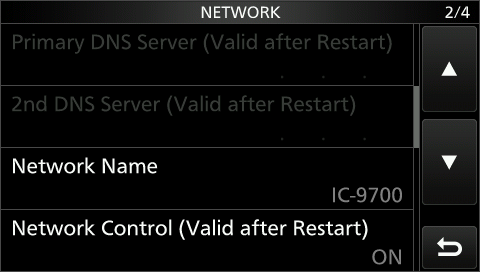
Make sure Network Control is ON.
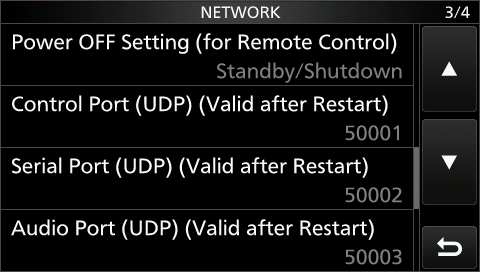
Make sure the Control Port is
50001.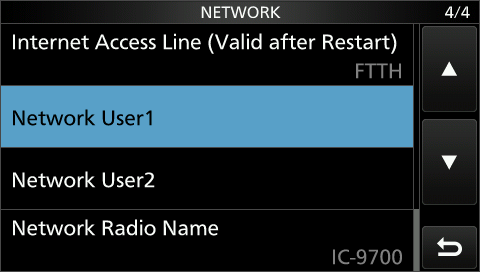
Make sure Internet Access Line is FTTH.
Tap Network User1 and enter a Username and a Password of your choice.
The radio is ready. Now add it to the app with its IP address, username and password: see Adding the radio to the app.
Note
Settings marked (Valid after Restart) work only after you restart the radio.
Warning
Don’t change the radio’s CI-V address. The app can’t connect to a radio with another CI-V address.
3. Setting up an IC-7610
On the radio, open Menu > Set > Network.
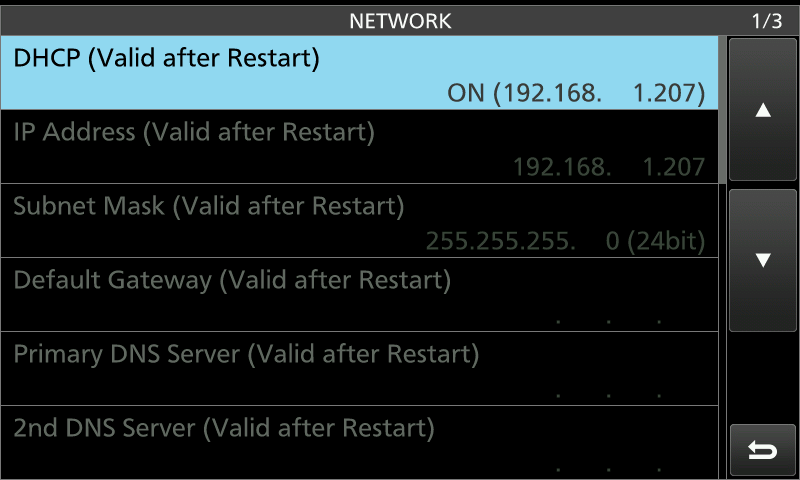
Make sure DHCP is ON. Note down the IP address shown: the app needs it. The settings below DHCP are grey.
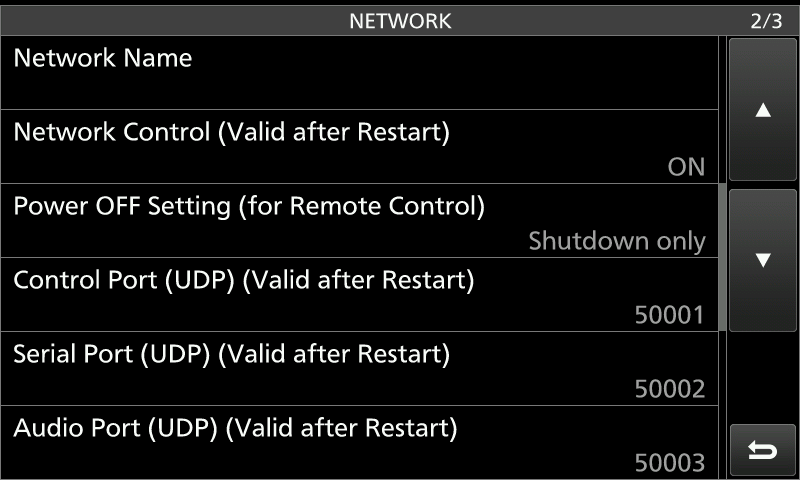
Make sure Network Control is ON and the Control Port is
50001.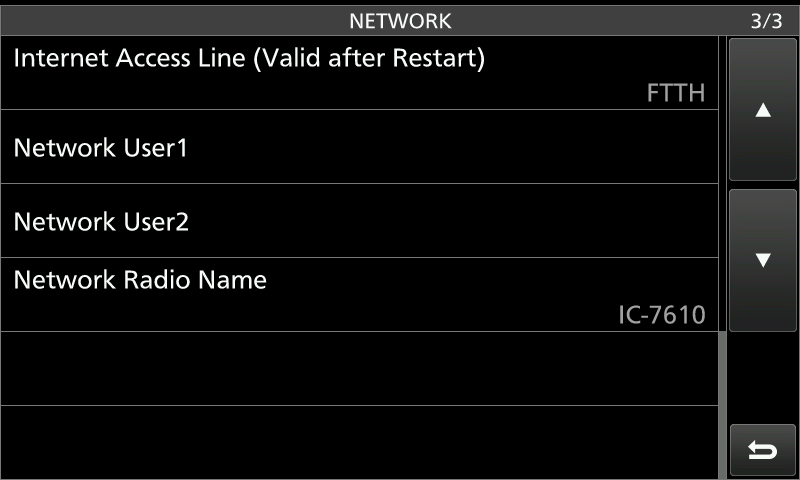
Make sure Internet Access Line is FTTH.
Tap Network User1 and enter a Username and a Password of your choice.
The radio is ready. Now add it to the app with its IP address, username and password: see Adding the radio to the app.
Note
Settings marked (Valid after Restart) work only after you restart the radio.
Warning
Don’t change the radio’s CI-V address. The app can’t connect to a radio with another CI-V address.
4. Setting up an IC-7760
This assumes that the IC-7760’s front panel (the controller) and its RF deck already work together.
On the radio, open Menu > Set > Network > Remote Settings.
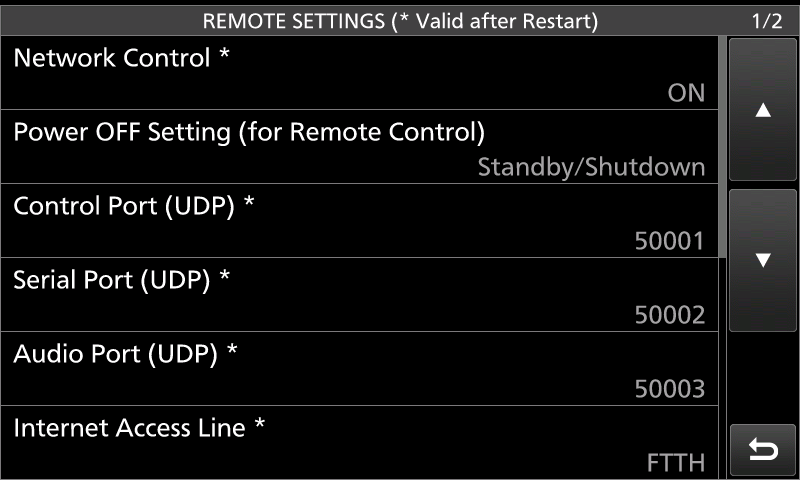
On page 1/2: make sure Network Control is ON and the Control Port is
50001.Scroll down to page 2/2.
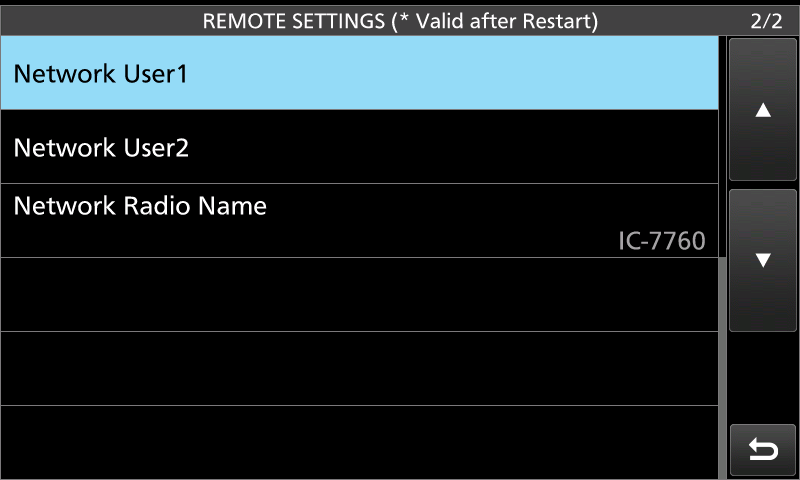
Tap Network User1 and enter a Username and a Password of your choice.
4.1. Finding the IP address
The IC-7760 has three IP addresses: one for the RF deck, one for the controller, and one Icom calls LAN. The app needs the LAN address.
The easiest way to find it is your router, which lists the devices in your network. To find the right one, you need the radio’s MAC address for LAN: Menu > Set > Others > Information.
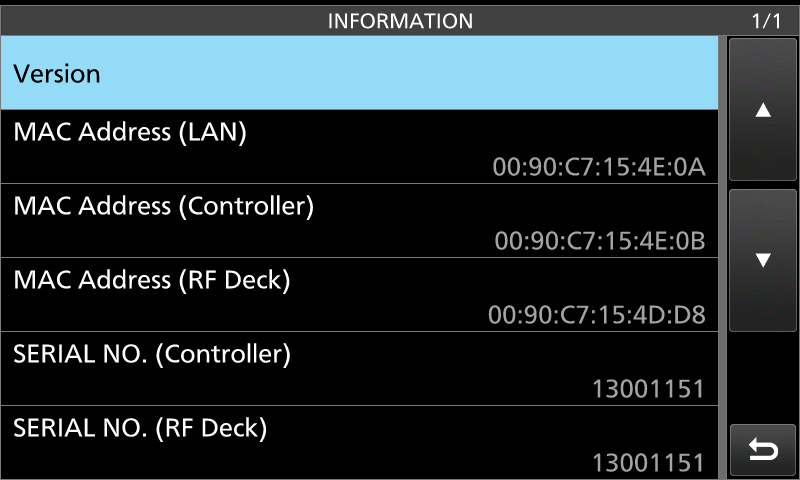
In this example the MAC address for LAN is 00:90:c7:15:4E:0A. Look up this MAC address on your router’s
web page to find its IP address.
The radio is ready. Now add it to the app with its IP address, username and password: see Adding the radio to the app.
Note
Settings marked (Valid after Restart) work only after you restart the radio.
Warning
Don’t change the radio’s CI-V address. The app can’t connect to a radio with another CI-V address.
5. Setting up an IC-7300MK2
On the radio, open Menu > Set > Network.
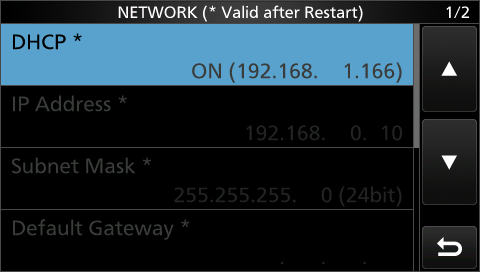
Make sure DHCP is ON. Note down the IP address shown: the app needs it. The settings below DHCP are grey.
Scroll down and tap Remote Settings.
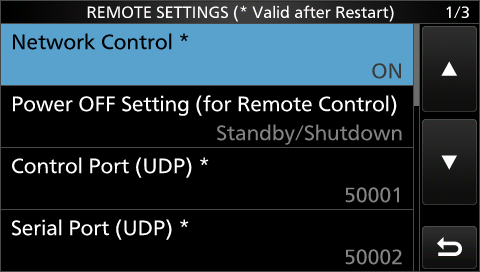
Make sure Network Control is ON and the Control Port is
50001.Scroll down.
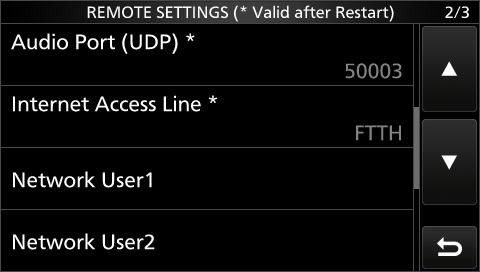
Make sure Internet Access Line is FTTH.
Tap Network User1 and enter a Username and a Password of your choice.
The radio is ready. Now add it to the app with its IP address, username and password: see Adding the radio to the app.
Note
Settings marked (Valid after Restart) work only after you restart the radio.
Warning
Don’t change the radio’s CI-V address. The app can’t connect to a radio with another CI-V address.
6. Setting up an IC-R8600
On the radio, open Menu > Set > Network.
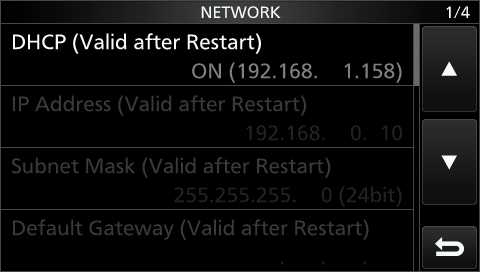
Make sure DHCP is ON. Note down the IP address shown: the app needs it. The settings below DHCP are grey.
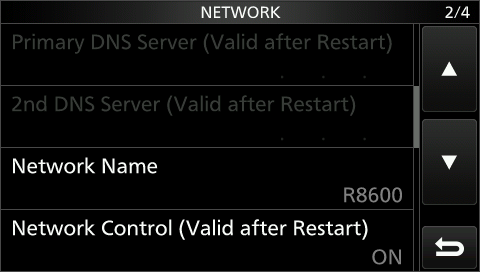
Make sure Network Control is ON.
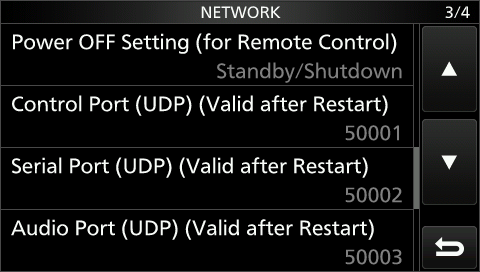
Make sure the Control Port is
50001.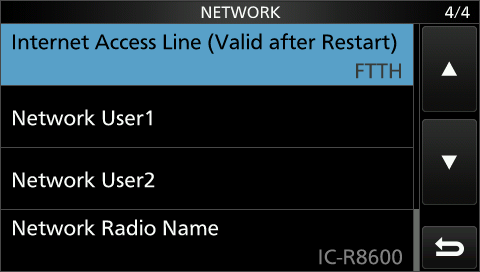
Make sure Internet Access Line is FTTH.
Tap Network User1 and enter a Username and a Password of your choice.
The radio is ready. Now add it to the app with its IP address, username and password: see Adding the radio to the app.
The IC-R8600 is a receiver: the radio screen has no transmit column for it.
Note
Settings marked (Valid after Restart) work only after you restart the radio.
Warning
Don’t change the radio’s CI-V address. The app can’t connect to a radio with another CI-V address.
7. Your Network
The app finds the radio by its IP address, so the radio’s address should not change. With the radio’s default setting (DHCP), the router hands out the addresses, and it may give the radio a new one some day. Then the app can’t reach the radio until you change the address in the list of radios.
7.1. Keeping the IP address
Keep DHCP on in the radio, and tell your router to always give the radio the same address. Routers call this differently, for example “static lease”, “fixed IP address” or “always assign the same address”. Your router’s manual tells you where to find it.
You could also switch off DHCP in the radio and type a fixed address there. This is not recommended: an address that another device uses too causes trouble that is hard to find.
7.2. A good network
All data between the app and the radio, the sound too, goes over the network, so the network must work well:
A network cable for the radio is better than Wi-Fi (the IC-705 only has Wi-Fi).
Keep the device and the IC-705 close to the Wi-Fi access point.
Check the connection with the Network Stats tool. Lost packets should stay below 0.03 %.
When there are problems, see Common Issues.
7.3. A safe password
Use a good password for Network User1 in the radio, all the more if you open the radio to the internet (see Remote Access).
8. Remote Access
The app can connect to your radio from anywhere: from a friend’s Wi-Fi, a hotel or the mobile network. No server and no extra hardware or software is needed. There are two ways:
Port forwarding: your router lets the radio’s three network ports through from the internet.
VPN: your device joins your home network over the internet, and the app works as at home.
Important
First make the connection at home work well, and check it with Network Stats. Only then set up remote access.
8.1. Port forwarding
The radio uses three network ports. You find them in the radio’s network settings:
Control Port (UDP), usually
50001Serial Port (UDP), usually
50002Audio Port (UDP), usually
50003
Open your router’s web page and look for port forwarding (also called “port sharing” or “virtual server”). Every router does it a little differently, so here only the general steps:
Forward the three ports (
50001,50002,50003) to the radio’s IP address.Use the UDP protocol. TCP is not needed.
If the router asks for an inside and an outside port, use the same numbers for both. Some routers take a range,
50001-50003; others need each port on its own.
8.1.1. Your address on the internet
From outside, the app reaches the radio at your home’s public IP address. Your router shows it, and so do “what is my IP” websites.
This address usually changes from time to time. A dynamic DNS service gives your home a name that always leads
to the current address, for example myshack.dyndns.org. Many routers have such a service built in.
Use this name in the app instead of the IP address.
8.1.2. Adding the remote radio
Add your radio a second time to the list of radios (see Adding the radio to the app), with a name like IC-705 remote:
Address — your public IP address or your dynamic DNS name.
Port, Username and Password — the same as for the radio at home.
8.1.3. Testing
At home, still in your Wi-Fi, connect to the new entry (
IC-705 remote). This checks the port forwarding and the address from outside.Then try another network: switch off Wi-Fi to use the mobile network, or use another Wi-Fi.
Important
When you use an iPhone as a personal hotspot, switch off Low Data Mode, Private Wi-Fi Address and Limit IP Address Tracking in the Wi-Fi settings of the device that connects. Otherwise it doesn’t work.
When the mobile network doesn’t work but other networks do, see “Connecting over the mobile network” in Common Issues.
8.2. VPN
A VPN (virtual private network) makes your home network reachable from your device, wherever you are. It needs more setting up than port forwarding, but no ports are open to the internet. WireGuard is a good choice: it is easy to set up and runs on many routers and devices.
Once the VPN is connected, the app works as at home: use the entry with the radio’s home address. Nothing else needs to change in the app.
A VPN adds some data to every packet. If the packets get too large for the way through the internet (the MTU),
they are split or lost. Check the connection with Network Stats: lost packets should stay below 0.03 %.
If there are more, lower the MTU in your VPN settings, for example to 1400, connect again and check again.
Change it in small steps.
9. Mapping Editor
A mapping says what each control of a controller does: which knob changes the frequency, which button switches to transmit or sends a macro, and which LED shows that you transmit. The mapping editor is where you see and change it.
All controllers use the same editor:
MIDI Controller, CTR2 Controller and CTR2 Dial Controller: tap Edit Mapping in the tool.
Flic: tap a button in the list. A Flic has a row per click instead of codes.
Pryme Buttons: tap Map. It shows only the screen of one mapping (see Changing a mapping).
Each controller tool’s chapter shows what is special for it. This chapter explains the editor itself.
9.1. Quick start
Connect the controller and switch it on in its tool. Tap Edit Mapping.
Press a button on the controller. Its row is highlighted. A button that has no row yet gets a new row Not assigned.
Tap the row, tap Radio Action and choose what the button does, for example
PTT Push. Tap Save.
9.2. The screen
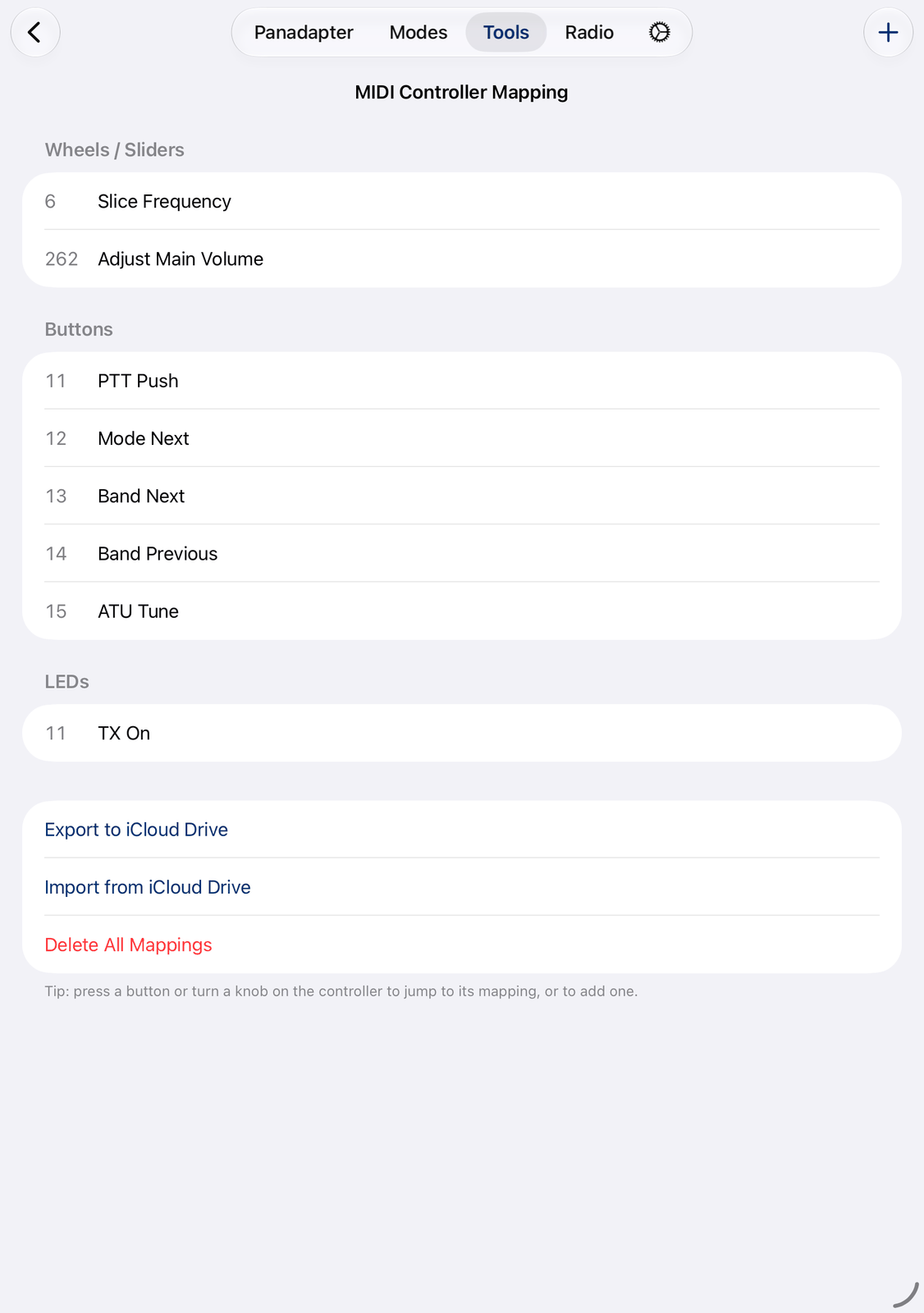
The list has three parts: Wheels / Sliders, Buttons and LEDs. Each row shows the code of a control on the left and its radio action on the right. None means the part is empty.
Press a button or turn a knob on the controller: its row is highlighted, or a new row is added. While the editor is open, the controller doesn’t change anything on the radio.
Tap a row to change it. See Changing a mapping.
Swipe a row to the left for Delete and Edit. Delete asks first.
Touch and hold a row for the same two actions.
+ in the navigation bar adds a row by hand: Add Wheel / Slider, Add Button or Add LED.
At the end of the list:
Export to iCloud Drive saves the mapping as a file. See Mapping files.
Import from iCloud Drive loads a mapping file and replaces the whole mapping.
Delete All Mappings empties the list, after you confirm it. Use it to start from scratch.
Every change is saved at once. There is nothing to save when you leave.
9.3. Changing a mapping
Code — the number the controller sends for this control. You rarely need to type it: press the control instead, and the editor finds its row.
Radio Action — what the control does. The list only shows the actions that fit: a wheel can change the frequency or the volume, a button can switch something on and off or send a macro. Type in the search field to find an action quickly. Not assigned removes the action.
Tap Save, or Cancel to leave the row as it was. A row saved without a radio action is removed.
All radio actions of the app are listed in Radio actions for controllers. Useful ones:
Macro 1, Macro 2, … send your macros, as the Macro Bar does. See Macros.
Command 1 to Command 10 run the buttons of the Command Bar.
9.4. Where a mapping comes from
A controller starts with an empty mapping: you decide what each control does. Mappings you made with an older version of the app are kept.
Settings For… in the MIDI Controller tool sets the wheel, channel and LED options for a known controller. It doesn’t change the mapping.
Every MIDI controller has its own mapping. Every Flic button has its own mapping too.
A ready mapping, for example from a friend, comes in as a mapping file.
9.5. Mapping files
A mapping file (.map) lets you keep a backup before you try something new, use a mapping on another device,
or share it with a friend.
The files are in the app’s folder on iCloud Drive. iCloud and iCloud Drive must be on, in the iOS Settings and in the settings of the app.
Export to iCloud Drive asks for a file name.
.mapis added for you.Import from iCloud Drive lists the
.mapfiles there. Tap one to load it.
9.6. Good to know
Don’t know a control’s code? Press it while the editor is open: its row shows the code.
A mapping is kept when you update the app, and stays on this device. Export it to have a copy.
9.7. On the iPhone
The iPhone shows the same list and the same screens.
10. Radio actions for controllers
A controller (MIDI controller, CTR2, Flic and others) does what its mapping says: each knob, button or light gets a Radio Action. This chapter lists all radio actions of the app. How to assign them is described in the chapter of each controller.
The mapping editor itself is described in the chapter Mapping Editor.
Wheels / Sliders are knobs and faders. A knob that sends clicks (an encoder) changes a value step by step; a knob or fader that sends its position sets the value.
Buttons do something when pressed, or switch something on and off.
LEDs are lights on the controller that show a state of the radio.
Some actions only work when the radio has that function, for example SAT mode, DualWatch or the 23 cm band.
10.1. Wheels and sliders
Radio Action |
What it does |
|---|---|
Frequency, Frequency Reverse |
Tunes the VFO, one tune step per click (the other way round with Reverse). |
2nd VFO Frequency, 2nd VFO Frequency Reverse |
Tunes the other VFO. |
Zoom |
The span of the scope. |
Bandwidth |
The width of the filter. |
SAT RX Offset, SAT TX Offset |
The receive and transmit offset of the S.A.T. controller. |
RIT Frequency |
The RIT offset, 10 Hz per click. A knob that sends its position also works in steps from where the offset is, so after a reset to 0 it starts from 0. |
Adjust Main Volume |
The app’s volume. |
RF Gain |
The radio’s RF gain. |
Attenuator |
The radio’s attenuator. |
REF Level |
The reference level of the scope. |
NB-Level, NR-Level |
The level of the noise blanker and the noise reduction. |
RF Power |
The transmit power. |
Mic gain |
The microphone level. |
CW speed, CW pitch |
The keyer speed and the CW pitch (about 10 Hz per click). |
10.3. LEDs
Radio Action |
Lights up while … |
|---|---|
TX On |
the radio transmits. |
11. Macros
Macros are texts or recordings you send often, ready to go with a single tap. The app has three kinds:
Macros |
What they are |
Where you send them |
|---|---|---|
CW Macros |
texts, sent in CW |
the CW mode, the Macro Bar in CW |
Voice Macros |
recordings of your own voice |
the Voice Macros tool, the Macro Bar in SSB, AM and FM |
Speech Macros |
texts, spoken by a computer voice |
the Speech mode, the Macro Bar while Speech transmits |
You set them up in the Tools tab under Macros. Each kind has its own chapter in this manual.
11.1. The Macro Bar
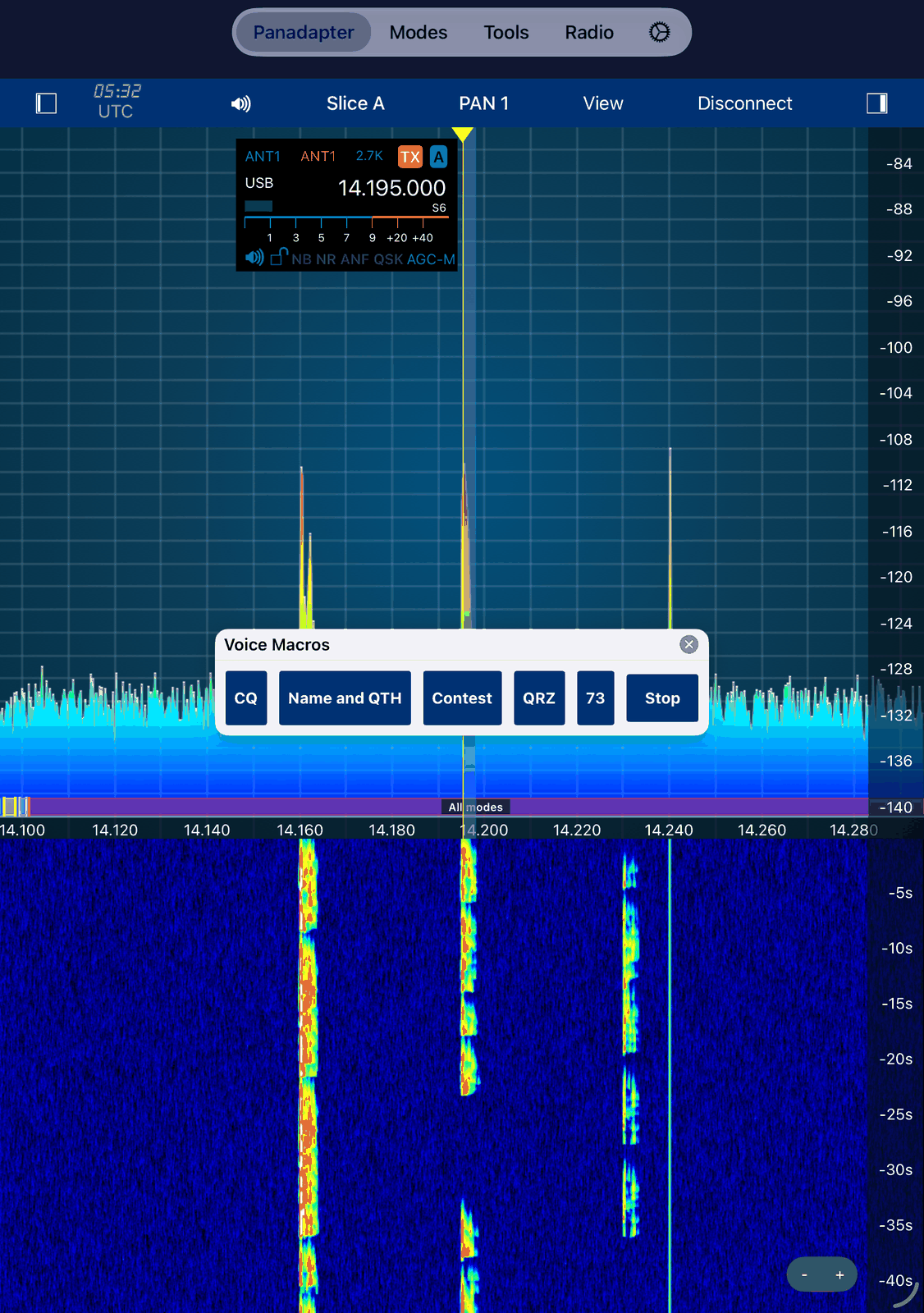
The Macro Bar floats over the radio screen and has a button for every macro with a name. When not all buttons fit, swipe the bar sideways.
Tap View on the radio screen, then Macro Bar, to show or hide it.
The bar follows the radio’s mode: in CW it shows your CW macros, in SSB, AM and FM your voice macros. Its title says which ones, for example CW Macros.
While TX is on in the Speech mode, the bar shows your Speech macros.
Tap a button to send its macro.
Stop stops the macro that is being sent.
Drag the title bar to move the bar. The x in the title bar closes it.
11.2. Keyboard and controllers
Keyboard (iPad with a keyboard): Option-1 to Option-9 send the macros 1 to 9 of the bar, Option-X stops.
Controllers: a button of a MIDI controller, a CTR2 or a Flic button can send a macro. Give it the radio action Macro 1, Macro 2, and so on.
Like the bar, the keyboard and the controllers send the macro that fits the radio’s mode: Macro 1 is the first CW macro in CW and the first voice macro in SSB.
11.3. Placeholders
Placeholders in the text of a CW or Speech macro are replaced when the macro is sent. Most values come from the
log entry: the log window of the QSO you are making (in the CW mode, {CALL} is the call in DX).
The others come from the app’s settings. Upper or lower case doesn’t matter.
Placeholder |
Replaced by |
|---|---|
|
your own call, from the app’s settings |
|
your own call, spelled with the phonetic alphabet (for Speech macros) |
|
your locator, from the app’s settings |
|
the call of the station you work, from the log entry |
|
the same call, spelled with the phonetic alphabet (for Speech macros) |
|
the report you give (RST sent), from the log entry |
|
the report you got (RST received), from the log entry |
|
your contest number: with Generate RST on in the Logbook settings the next serial number,
or the fixed text with Use fixed RST Text. Otherwise the report you give, as |
|
the comment of the log entry |
|
the receive frequency of the log entry |
|
the transmit frequency of the log entry |
|
the band of the receive or the transmit frequency |
|
the date of the log entry |
|
the time of the log entry |
|
the time now in UTC, for example |
|
the time now in UTC without the colon, for example |
|
the name and the version of the app |
|
nothing: it logs the QSO at the moment the macro is sent |
|
a new line |
Example: with OH2XYZ in the log entry, {CALL} DE {MYCALL} K is sent as OH2XYZ DE DL8MRE K.
Common Issues
Start here when something doesn’t work. Find your problem below and go through the causes in the order shown: the first ones are the most common.
First checks
These solve many problems:
Update the app. Many problems are already fixed in the newest version: ⚙︎ (the Settings tab) → Check for App Update.
Update the radio’s firmware. The app is tested with Icom’s latest firmware.
Check the network with the Network Stats tool (in the Tools tab). Lost packets should stay below 0.03 %. Many problems with sound, the waterfall or the connection are network problems.
Try the demo radio. If Demo Radio (IC-705) works but your radio doesn’t, the cause is the radio, its settings or the network, not the app. See The Demo Radio.
Connect again. Disconnect, wait a few seconds and connect again. If that doesn’t help, also restart the radio.
No connection to the radio
What the message says
Invalid Username / PasswordorAuthentication failed— the username or the password in the app is not the one of Network User1 in the radio. Upper and lower case count.Cannot connect to Radio,Your Radio is not respondingorNo response from Radio— the app doesn’t reach the radio. See the causes below.This Radio with CiV Address … is not supported— the radio’s CI-V address was changed. See below.Low Data Mode is enabled— iOS limits the data of this network. Switch off Low Data Mode (see Connecting over the mobile network), or tap Connect Anyway.
Causes, the most common first
A typo in the radio’s entry. Check the address, the port (usually
50001), the username and the password: in the list of radios, select the radio and tap Edit. A space at the end of a name also counts.The radio has a new IP address. Routers sometimes give a device a new address. Look up the radio’s address in its network menu and correct it in the app. To keep it from changing, see Your Network.
The app may not use the local network. If you tapped Don’t Allow when iOS asked, the app can’t find the radio. In the iOS Settings app, go to Privacy & Security → Local Network and switch the app on.
The device and the radio are in different networks. Both must be in the same network, for example not the device in a guest Wi-Fi and the radio in the main network. Network Stats shows it under Radio in This Subnet. As a rule, the first three numbers of both IP addresses are the same:
192.168.1.4and192.168.1.201fit,192.168.1.4and192.168.0.10don’t.A setting in the radio is missing. Network Control must be on, and Network User1 must have a username and a password. Settings marked (Valid after Restart) need a restart of the radio. See the setup chapter of your radio in the attachment.
The radio’s CI-V address was changed. The app works only with the radio’s default CI-V address. On the radio, set it back: Menu → Set → Connectors → CI-V → CI-V Address, touch and hold the address and choose the default.
IC-705: the wrong Wi-Fi. At home, the IC-705 (Station mode) and your device both join your Wi-Fi. Only in Access Point mode does your device connect to the IC-705’s own Wi-Fi. See Setting up an IC-705.
The radio still holds the old connection. After the app was closed suddenly, the radio may need some time to notice. Wait a minute and try again. If it still fails, switch the radio off and on.
Mesh networks and DHCP. Some mesh Wi-Fi systems hand out addresses badly, or there are two devices handing out addresses in one network. Then the radio or the device ends up in the wrong network.
The radio itself. If nothing else helps, a partial reset of the radio may help: it keeps your settings (see Icom’s manual).
Connected, but something is missing
If the app connected too early after the radio was switched on or after a lost connection, some values may be missing, for example the frequency. Disconnect and connect again.
The connection drops, the sound stutters, the app reacts slowly
Everything between the app and the radio goes over the network, the sound too. So this is almost always the network. Open Network Stats and watch the lost packets.
Wi-Fi distance. Move the device, and the IC-705, closer to the Wi-Fi access point.
Errors only while you transmit: RF from your antenna disturbs the network (RFI). Test with very low power, for example 1 %. If the errors go away, use ferrite chokes on the cables or move the network devices.
Wi-Fi channel. Some routers change their channel by themselves while you operate. Set a free channel by hand, and check it again now and then.
Several access points, mesh networks. The device may stay with an access point far away (roaming). Try with only one access point, or with only 2.4 GHz or only 5 GHz. Neither is better in general.
Bluetooth on the device can disturb its Wi-Fi. Switch Bluetooth off for a test.
Short dropouts in the sound: choose a larger Buffer Size in the audio settings (⚙︎ on the radio screen).
The sound and the connection go on when you switch to another app or the screen locks. If you want to watch the screen while you operate, Prevent device sleep in the app’s settings keeps it on.
No sound
Muted? The speaker at the top of the radio screen mutes the sound. Tap it.
Speaker in the audio settings (⚙︎ on the radio screen) must be on to hear the radio on your device.
Volume: Main Volume in the audio settings, and the device’s own volume.
Where does the sound go? Audio Device in the audio settings shows it: the device’s speaker, a headset or AirPlay. A Bluetooth headset that is still connected takes the sound.
The radio’s squelch is closed: tap SQL to open it.
To hear the radio’s own speaker instead, switch on Radio Output in the audio settings.
The waterfall stays empty
The waterfall is switched off. Tap the waterfall button on the radio screen to switch it on.
The waterfall also depends on the network: with many lost packets it stays empty or jumps. See above.
Transmit doesn’t work, or nobody hears you
To talk through your device (SSB, AM, FM), check these in order:
The microphone source. Touch and hold Mic on the radio screen and choose your device (iPad or iPhone). Choose another source only for a microphone that is connected to the radio.
The microphone is on. Tap Mic: it is blue when on. The first time you transmit with the microphone off, the app shows a hint.
The level. Mic. level must not be at 0. Speak and watch the Level meter.
Mic Threshold in the audio settings: start at the far left. Set too high, it lets nothing through.
Microphone permission. If you tapped Don’t Allow when iOS asked, switch the app on in the iOS Settings app → Privacy & Security → Microphone.
Data mode is off. For voice, the mode must not end in
-D(for example USB-D). Tap the mode button and tap DATA to switch it off.TX Inhibit in the radio’s settings must be off.
Note
PTT does nothing? While the padlock on the radio screen is closed, PTT is locked too, unless Don’t lock PTT when UI is locked is on in the app’s settings.
To see your own signal, switch on Show TX in the scope settings (Center mode). Then set Mic Threshold so that the noise in your room doesn’t key the transmitter: raise it slowly while you are quiet.
For VOX, tap VOX to switch it on, and touch and hold it for the level and the delay.
Static noise at the start of transmitting
The device’s microphone picks up the radio’s sound for a moment when you start to transmit. Switch on Microphone Delay in the audio settings. With a headset you don’t need it.
The ALC is too high or too low (FT8 and other digital modes)
Set the LAN Input Gain in the radio’s settings (the tab with your radio’s model), while you transmit FT8 and watch the ALC meter. Icom calls it the LAN modulation level. The steps are in the Settings chapter.
The radio’s own microphone doesn’t work after using the app
The app switched the radio’s microphone input to the network. Switch it back with Mic in the app before you disconnect, or let the app do it: in the radio’s settings, under Settings after disconnect, set Microphone (DATA OFF) to Mic.
A mode doesn’t decode
RX must be on in the mode.
The right frequency and mode. FT8, JS8 and WSPR need USB with data mode (USB-D) on the mode’s frequency. The modes’ band buttons tune there.
The clock. FT8, FT4, JS8 and WSPR need the device’s time to be exact: in the iOS Settings app, General → Date & Time → Set Automatically must be on. The DT column should be close to 0.
The network. Lost packets mean lost sound, and lost sound can’t be decoded.
The tile is missing: FT8-Improved, JS8, Speech and WSPR need iOS 26 or later.
The demo radio has no signals for the decoders: while it is connected, the modes show demo traffic instead.
Controllers and Bluetooth
The controller is switched on in its tool. Open the controller’s tool in the Tools tab (Controllers) and switch it on. A green dot on the tile shows that it runs.
Bluetooth permission. In the iOS Settings app → Privacy & Security → Bluetooth, the app must be on.
CTR2 and CTR2 Dial: tap Find Bluetooth LE Controller, connect the controller in the window that opens, then choose it under Device.
Each controller has its own chapter in the Tools part, with its own tips.
Connecting from outside your home
First check that the connection at home works. Then follow Remote Access step by step, and test from your own Wi-Fi first.
Connecting over the mobile network
Low Data Mode must be off: iOS Settings → Mobile Data (or Cellular) → Mobile Data Options.
Mobile data for the app must be on: iOS Settings → Mobile Data, the app in the list.
Some mobile providers block this kind of connection (IPv4 and UDP). Often another APN in the mobile data settings helps. Users reported
advancedinternetfor KPN (Netherlands) andinternet.telekomfor Telekom (Germany). For other providers, ask the provider.To find out whether it is the provider: try another Wi-Fi somewhere else. If that works and the mobile network doesn’t, it is the provider.
Personal hotspot: switch off Low Data Mode, Private Wi-Fi Address and Limit IP Address Tracking in the Wi-Fi settings of the device that connects to the hotspot.
Over a VPN
Many lost packets over a VPN often mean the packets are too large. Lower the MTU in the VPN settings, for example
to 1400. See Remote Access.
The app crashes or freezes
Update the app (⚙︎ → Check for App Update).
Close the app completely (swipe it up in the app switcher) and start it again.
Restart the radio, and the device.
If it happens again, write to the support (see below): what you did just before, and whether it always happens.
How to contact support
If this chapter doesn’t help, tap ⚙︎ (the Settings tab) → Get Help! → Contact support. An email opens with your app version, your device and your radio already filled in. Please add:
your radio model and its firmware version,
what you did, what you expected, and what happened instead,
a screenshot or a short screen recording, if you can.
Contact support needs an email account in Apple’s Mail app (or another mail app set as default). Without one, nothing opens.